hAP ax3 wireless problem

Posted here about some concerns related to the hAP ax3 and poor signal coverage / power output (ultimately, leading to poor performance).
http://forum.mikrotik.com/t/hap-ax3-preventing-buyers-remorse/166233/1

As I mentioned in that thread, a hAP ax3 replaced an AirCube and signal strength to the clients was horrendous, with most not even able to connect after installing the hAP ax3.
I also mentioned that I would be swapping a hAP ax3 for a hAP ax2 today, and here are the results:

hAP ax3:

hAP ax2:

Both devices were configured using the exact same set of initialization scripts (basically, it was a default config from a hAP ax2 with a few global variables added to ease configuration). No magic.

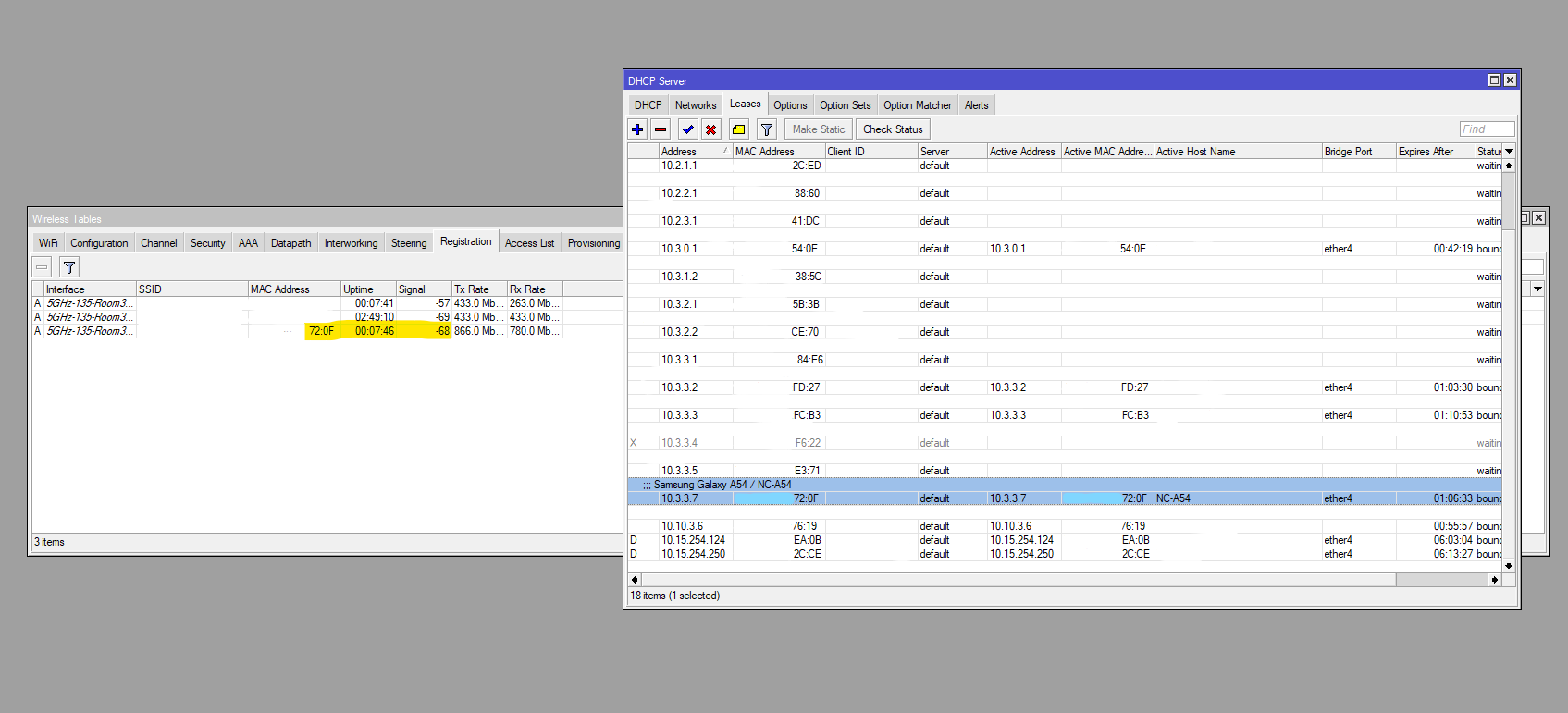
Maybe an entirely different problem (for another day), but I’ve noticed that ALL of my hAP ax2 devices have ZERO clients connected via 5GHz…which, I dont know… again, exact same config script was used on both. I literally copied my config script from the Files of one over to the other today.

I’m totally convinced the hAP ax3 wifi is seriously broken or flawed somehow. Annoyingly, I have been using the hAP ax3 in situations where I know I need BETTER wifi coverage, not even realizing that I’m probably shooting myself in the foot.

MikroTik… HELP!
Is there a config option which needs to be set for the hAP ax3 that differs from the hAP ax2??? TX Power and Antenna gain are not set in the config (at least as far as winbox is showing), but I have tried playing with these/setting them correctly with no difference.

I do not understand…can you even read???

Check device with MAC 6A:53 in the end…AX3 signal = -63, AX2 signal = -61. Those volumes are almost the same…do not trust those numbers too much it is changing all the time…

But it was already mentioned that integral anntenas cuold be better in some cases than external…it is like it is…you can buy AX2 or AX3 or even CAP AX.

Can you please share your config?

/export file=anynameyoulike

Remove serial and any other private information, and post between code tags by using the </> button.

Where is the router located, do you have line of sight?

No line of sight, this is a residence.

This is in a rural area; Property is about 5 acres / 2 hectares. Noise is low.
I FULLY admit, the router is not in an ideal location (and I’m not debating that).
I’m arguing the point that the hAP ax3 is worse than the hAP ax2 (which, shouldn’t be).
The fact that there are many posts related to this, leads me to believe that there is something wrong with the hAP ax3 (likely, something simple and overlooked).
I dont think it would have anything to do with the config (especially, since the same config works way better on a hAP ax2).
7.11.3, 7.12.1, 7.13 all were identical.

Again, the hAP ax3 replaced an AirCube and most devices did not even have adequate signal to even connect (and those that did were pretty bad)
Then the hAP ax3 was replaced with a hAP ax2 and signals improved dramatically, all devices connected, etc.

Tried skipping DFS channels. Tried setting antenna gain. Tried setting power levels. Tried setting chains. Nothing made a difference.

Both devices are configured with a simple hacked together script we use (Global variables just allow us to not have to type things multiple times), built off of a default config from an ax2 so there shouldn’t be anything very “special” in here.

/interface bridge
add admin-mac=XX:XX:XX:XX:XX:XX auto-mac=no comment=defconf name=\
    "201 - BRIDGE - PrivateLAN"
add admin-mac=XX:XX:XX:XX:XX:XZ auto-mac=no comment=defconf name=\
    "299 - BRIDGE - GuestLAN"
/interface list
add comment="contains all WAN interfaces" name=WAN
add comment="contains private subscriber interfaces" name=PRIVATE
add comment="contains subscriber guest interfaces" name=GUEST
add comment="contains all internal interfaces; private and guest" exclude=WAN \
    name=INTERNAL
/interface wifi channel
add band=5ghz-ax disabled=no name=wifi1 skip-dfs-channels=10min-cac width=\
    20mhz
add band=2ghz-ax disabled=no name=wifi2 skip-dfs-channels=10min-cac width=\
    20/40mhz
/interface wifi security
add authentication-types=wpa2-psk,wpa3-psk disabled=no name=Primary-SSID \
    passphrase=privatepassword
add authentication-types=wpa2-psk,wpa3-psk disabled=no name=Guest-SSID \
    passphrase=guestpassword
/interface wifi configuration
add country="United States" disabled=no mode=ap name=Primary-SSID security=\
    Primary-SSID security.authentication-types="" ssid=\
    COMPANY-SUBSCRIBER
add country="United States" disabled=no mode=ap name=Guest-SSID security=\
    Guest-SSID security.authentication-types="" ssid=SUBSCRIBER-Guest
/interface wifi
set [ find default-name=wifi1 ] channel=wifi1 channel.skip-dfs-channels=\
    10min-cac configuration=Primary-SSID configuration.mode=ap disabled=no \
    security=Primary-SSID security.authentication-types=wpa2-psk,wpa3-psk
add configuration=Guest-SSID configuration.mode=ap disabled=no mac-address=\
    4A:A9:8A:43:96:92 master-interface=wifi1 name=wifi1-Guest security=\
    Guest-SSID
set [ find default-name=wifi2 ] channel=wifi2 configuration=Primary-SSID \
    configuration.mode=ap disabled=no security=Primary-SSID \
    security.authentication-types=wpa2-psk,wpa3-psk
add configuration=Guest-SSID configuration.mode=ap disabled=no mac-address=\
    4A:A9:8A:43:96:92 master-interface=wifi2 name=wifi2-Guest security=\
    Guest-SSID
/ip pool
add name=dhcp-Pool-Private ranges=192.168.88.101-192.168.88.200
add name=dhcp-Pool-Guest ranges=192.168.89.101-192.168.89.200
/ip dhcp-server
add address-pool=dhcp-Pool-Private bootp-lease-time=lease-time bootp-support=\
    dynamic interface="201 - BRIDGE - PrivateLAN" lease-time=10m name=Private
add address-pool=dhcp-Pool-Guest bootp-lease-time=lease-time bootp-support=\
    dynamic interface="299 - BRIDGE - GuestLAN" lease-time=10m name=Guest
/interface bridge port
add bridge="201 - BRIDGE - PrivateLAN" comment=defconf interface=ether2
add bridge="201 - BRIDGE - PrivateLAN" comment=defconf interface=ether3
add bridge="201 - BRIDGE - PrivateLAN" comment=defconf interface=ether4
add bridge="201 - BRIDGE - PrivateLAN" comment=defconf interface=ether5
add bridge="201 - BRIDGE - PrivateLAN" comment=defconf interface=wifi1
add bridge="201 - BRIDGE - PrivateLAN" comment=defconf interface=wifi2
add bridge="299 - BRIDGE - GuestLAN" interface=wifi1-Guest
add bridge="299 - BRIDGE - GuestLAN" interface=wifi2-Guest
/ip neighbor discovery-settings
set discover-interface-list=PRIVATE
/interface list member
add comment=defconf interface="201 - BRIDGE - PrivateLAN" list=PRIVATE
add comment=defconf interface=ether1 list=WAN
add interface="299 - BRIDGE - GuestLAN" list=GUEST
add interface="299 - BRIDGE - GuestLAN" list=INTERNAL
add interface="201 - BRIDGE - PrivateLAN" list=INTERNAL
/ip address
add address=192.168.88.1/24 comment=defconf interface=\
    "201 - BRIDGE - PrivateLAN" network=192.168.88.0
add address=192.168.89.1/24 comment=defconf interface=\
    "299 - BRIDGE - GuestLAN" network=192.168.89.0
/ip dhcp-client
add comment=defconf interface=ether1
/ip dhcp-server network
add address=192.168.88.0/24 comment=defconf dns-server=192.168.88.1 domain=\
    private.subscriber.company gateway=192.168.88.1
add address=192.168.89.0/24 comment=defconf dns-server=192.168.88.1 domain=\
    guest.subscriber.company gateway=192.168.89.1
/ip dns
set allow-remote-requests=yes
/ip dns static
add address=192.168.88.1 comment=defconf name=router.lan
/ip firewall filter
add action=accept chain=input comment=\
    "defconf: accept established,related,untracked" connection-state=\
    established,related,untracked
add action=drop chain=input comment="defconf: drop invalid" connection-state=\
    invalid
add action=accept chain=input comment="defconf: accept ICMP" protocol=icmp
add action=accept chain=input comment=\
    "defconf: accept to local loopback (for CAPsMAN)" dst-address=127.0.0.1
add action=drop chain=input comment="defconf: drop all not coming from LAN" \
    in-interface-list=!INTERNAL
add action=accept chain=forward comment="defconf: accept in ipsec policy" \
    ipsec-policy=in,ipsec
add action=accept chain=forward comment="defconf: accept out ipsec policy" \
    ipsec-policy=out,ipsec
add action=fasttrack-connection chain=forward comment="defconf: fasttrack" \
    connection-state=established,related hw-offload=yes
add action=accept chain=forward comment=\
    "defconf: accept established,related, untracked" connection-state=\
    established,related,untracked
add action=drop chain=forward comment="defconf: drop invalid" \
    connection-state=invalid
add action=drop chain=forward comment=\
    "defconf: drop all from WAN not DSTNATed" connection-nat-state=!dstnat \
    connection-state=new in-interface-list=WAN
/ip firewall nat
add action=masquerade chain=srcnat comment="defconf: masquerade" \
    ipsec-policy=out,none out-interface-list=WAN
/ip firewall service-port
set rtsp disabled=no
/ipv6 firewall address-list
add address=::/128 comment="defconf: unspecified address" list=bad_ipv6
add address=::1/128 comment="defconf: lo" list=bad_ipv6
add address=fec0::/10 comment="defconf: site-local" list=bad_ipv6
add address=::ffff:0.0.0.0/96 comment="defconf: ipv4-mapped" list=bad_ipv6
add address=::/96 comment="defconf: ipv4 compat" list=bad_ipv6
add address=100::/64 comment="defconf: discard only " list=bad_ipv6
add address=2001:db8::/32 comment="defconf: documentation" list=bad_ipv6
add address=2001:10::/28 comment="defconf: ORCHID" list=bad_ipv6
add address=3ffe::/16 comment="defconf: 6bone" list=bad_ipv6
/ipv6 firewall filter
add action=accept chain=input comment=\
    "defconf: accept established,related,untracked" connection-state=\
    established,related,untracked
add action=drop chain=input comment="defconf: drop invalid" connection-state=\
    invalid
add action=accept chain=input comment="defconf: accept ICMPv6" protocol=\
    icmpv6
add action=accept chain=input comment="defconf: accept UDP traceroute" port=\
    33434-33534 protocol=udp
add action=accept chain=input comment=\
    "defconf: accept DHCPv6-Client prefix delegation." dst-port=546 protocol=\
    udp src-address=fe80::/10
add action=accept chain=input comment="defconf: accept IKE" dst-port=500,4500 \
    protocol=udp
add action=accept chain=input comment="defconf: accept ipsec AH" protocol=\
    ipsec-ah
add action=accept chain=input comment="defconf: accept ipsec ESP" protocol=\
    ipsec-esp
add action=accept chain=input comment=\
    "defconf: accept all that matches ipsec policy" ipsec-policy=in,ipsec
add action=drop chain=input comment=\
    "defconf: drop everything else not coming from LAN" in-interface-list=\
    !PRIVATE
add action=accept chain=forward comment=\
    "defconf: accept established,related,untracked" connection-state=\
    established,related,untracked
add action=drop chain=forward comment="defconf: drop invalid" \
    connection-state=invalid
add action=drop chain=forward comment=\
    "defconf: drop packets with bad src ipv6" src-address-list=bad_ipv6
add action=drop chain=forward comment=\
    "defconf: drop packets with bad dst ipv6" dst-address-list=bad_ipv6
add action=drop chain=forward comment="defconf: rfc4890 drop hop-limit=1" \
    hop-limit=equal:1 protocol=icmpv6
add action=accept chain=forward comment="defconf: accept ICMPv6" protocol=\
    icmpv6
add action=accept chain=forward comment="defconf: accept HIP" protocol=139
add action=accept chain=forward comment="defconf: accept IKE" dst-port=\
    500,4500 protocol=udp
add action=accept chain=forward comment="defconf: accept ipsec AH" protocol=\
    ipsec-ah
add action=accept chain=forward comment="defconf: accept ipsec ESP" protocol=\
    ipsec-esp
add action=accept chain=forward comment=\
    "defconf: accept all that matches ipsec policy" ipsec-policy=in,ipsec
add action=drop chain=forward comment=\
    "defconf: drop everything else not coming from LAN" in-interface-list=\
    !PRIVATE
/system clock
set time-zone-name=America/CITY
/system identity
set name=DeviceName
/system note
set show-at-login=no
/tool mac-server
set allowed-interface-list=PRIVATE
/tool mac-server mac-winbox
set allowed-interface-list=PRIVATE

Based on your config:
Set the 2.4GHz radio bandwidth to 20MHz (and the 5GHz radio to 40MHz).
Not related to the problem: you might want to increase your DHCP lease time, 10 min. is very low.

Were the external antennas of the hAP ax3 attached before taking it into use? Think the radio could get defected when powering it without the antennas installed. Based on information from the forum (I only know the hAP ax2 first hand) there is absolutely no discussion on which device should give you better Wifi performance.

In addition, you might want to consider start working with VLAN’s, instead of having 2 bridges. The latter does work, but you loose some hardware offloading. If you want to know more, read this topic:
http://forum.mikrotik.com/t/using-routeros-to-vlan-your-network/126489/1

We have found some devices which do not / will not connect to 20MHz 2.4GHz networks, so we set 20/40 as the default.
For 5GHz, we choose 20MHz wide channels to keep the possibility of self interference with our radios on the roof low, and provide more efficient use of spectrum. Our speed plans fit within the 20MHz channel, so I’m ok with this for now also.

But again, this is a range problem not a performance one.

We always connect external antennas before powering on the device. I can guarantee this, as I’m the one that did this one :slight_smile:.
In fact, we dont even remove the yellow sticker from the device. We remove it and replace it on the far right side, above the pull out information tab.

Given that the ax2 has a 4dBi for 2GHz and 4.5dBi for 5GHz, vs the ax3’s 3.3 & 5.5… unless my RF theory is wrong or outdated, range and power levels would be better with the ax3 vs the ax2. Hence my problem.

As I posted on the other thread, as crazy as it sounds… my gut feeling is that the hAP ax3 isn’t even using the external antennas, and the WiFi/RF signals that people are able to pick up is just being radiated from the device itself.

If the technical specs of the ax3 are correct, (with all other things being equal) the range should be slightly better vs the ax2.

Since I have 2 (possibly 3) instances of this now (this one was the first one that jumped out as blaringly obvious, because I was replacing one of our own/older routers that I knew the range of), I feel like there is an inherent problem.

Having said that, Maybe I just shut up and deploy all ax2’s since they’re significantly cheaper and save us a ton of money in the long run hahaha.

And I just re-read my post, and then reread it again, and then had to go search the specs (again, because I couldn’t believe my own eyes)…

…and yes, if the ax2 has 4dBi and the ax3 (with external antennas) is 3.3 on 2.4GHz the range for 2.4GHz would be worse. And this may be the inherent problem (which i didnt catch before).

So, wow. The cheaper device with no external antennas, is probably the better device to use anyhow.
Although, now I have a slew of replacement antennas in my cart, to try different variations. Ultimately, the ax3 gives you the option of using external antennas for the flexibility of adding your own, however, I think there still lies some fault with MikroTik for including antennas with worse performance in 2.4GHz than the ax2, as almost no one would ever assume a more expensive device with external antennas would provide worse range than a smaller device with internal antennas. So, I think a LOT of people are making this mistake, and then complaining about the bad “performance” (range) of the hAP ax3.

Also, I take slight offense to the moderators adjustment of my original title (something along the lines of..I can’t remember what it was now): “100% proof of range issues with hAP ax3” as being “click bait” to “hAP ax3 wireless problem” because
a) this creates a very generic title and problem description which people won’t be able to find.
b) I provided sufficient and actual proof that the hAP ax3 in a real environment, worked worse than a hAP ax2 (and an AirCube).
c) I have more or less solved my own problem, and/or provided the answer/solution, that the hAP ax3’s 2.4GHz range WILL be worse than the hAP ax2’s due to the included antennas, and that to meet or exceed the range of a hAP ax2 someone will need to purchase third party external antennas, as the ones included are insufficient.

So… I’m having trouble understanding what the problem even is. I get that it’s hAP ax^3’s wireless performance. But you’re jumping between one statement and another with no connection between them, making some random adjustments, and then jumping straight to conclusions with no thought process other than “everything was alright, and now something’s wrong, and since the only thing that changed is that now there’s hAP ax^3, the hAP ax^3 is to blame”, it drives me insane trying to understand all that.

One particular thing that bothers me is that you seem to misunderstand numbers quite a bit. The difference between a 4dBi antenna and a 3.3dBi antenna is a rounding error in terms of transmit power. RouterOS doesn’t even allow you to set antenna-gain values to 3.3 in software. It’s stored as an integer value, so it’s either 3 or 4, depending on your preference. Moreover, pretty much any board is capable of outputting 20-23dBm worth of power into the antenna, and does something like that by default. I say ‘something like that’, because the power at which you actually transmit is the sum of power going into the antenna and antenna gain. So 20dBm+4dBi is actually 24dBm of effective transmit power. But you are pretty much never allowed to transmit at power levels greater than 20-23dBm for indoor applications by law. So MikroTik boards will use antenna-gain value to limit the power going into the antenna to 16-19dBm, thus capping the effective transmit power at the required 20-23dBm. AirCube’s maximum transmit power is listed as 22dBm, and God only knows whether it is the effective power or the power actually going into the antenna. In any case, it will be capped at 23dBm if Ubiquiti knows what’s good for them. But none of that even matters, because your battery-powered client devices will only be able to produce 13-15 dBm to actually answer the AP. So having your power levels be greater than those 13-15 dBm doesn’t even make much sense, unless you’re connecting APs to each other, like in a mesh setup. In multi-AP installations this can (and will) actually degrade the performance of a WiFi network as a whole. The thing responsible for choosing which AP to connect to is always the client device. APs can kick the client or suggest another APs with 802.11k/v/r, but the decision to roam is ultimately made by the client. If the client sees an AP that is screaming at it with its 23 dBms of power from behind five concrete walls, it will try to connect to it instead of an access point that’s closer and will provide a more stable connection. So I hope I conveyed the point that antenna gain or maximum transmit power are specs that are pretty much irrelevant in the modern day. All wifi-enabled routers that are on the market, are able to output maximum power allowed by law (which is actually 0.1-0.2 watts, which is why even the TP-links can do that, it’s not a lot).

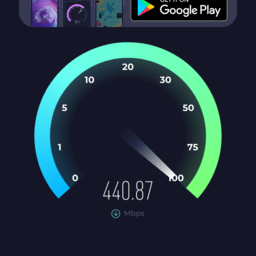
As for your signal strength numbers, I would like you to see this. These are two screenshots that I’ve taken at the same time, give or take one second. I’ve edited them for privacy’s sake, so you can only see the numbers that are relevant. One of them is from my phone, connected to WiFi managed with RouterOS 7.13, and the other is from winbox, showing the signal strength displayed for said phone.
router.png
phone.png
I hope this clears up any confusion as to whether or not the signal strength numbers from winbox are of any relevance at all. Client devices will try to use as little power as possible while maintaining the connection. Their perceived signal strength from AP’s point of view will reflect that.

Now, what is of relevance, is your particular hAP ax^3. What I suggest you do, is you save your current configuration with the export command, making sure to use ‘show-sensetive’ option to include your passwords and everything, and store it in a safe place. Then reset the hAP ax^3 and configure it with the most default configuration. No password, no encryption, no anything, default SSID (not your default SSID you usually use, routers default SSID, i.e. Mikrotik-BLABLA). Set it to, say, 5GHz-AC band, use ‘5180’ as frequency, set channel width to ‘20/40/80MHz’, set TX power to 17, and place the hAP ax^3 in the location where it usually lies. Then try to walk around the house with speedtest running. Try to run the test next to the AP. If the speed is abysmal next to the AP, or if it quickly becomes abysmal compared to hAP ax^2 configured in the same exact way and placed in the same exact location, then you’ve got yourself a borked hAP ax^3 that you can now take back to the store and say that it’s borked. If not, now you know that your configuration is borked. And if you need help with that, well, we, the MikroTik Forum crowd, are happy to help you.

I also have weird problems with AX3 on 7.13 WiFi speed. My test is copying big file from NAS that is directly attached to the router’s ethernet. With AC2 at the same place, speeds were nicely 50-55MB/sec.

1: Windows 11 connects over 5GHz AC: link speed shown in computer: 780/780, real speed during copying of file: 1-2.2MB/s
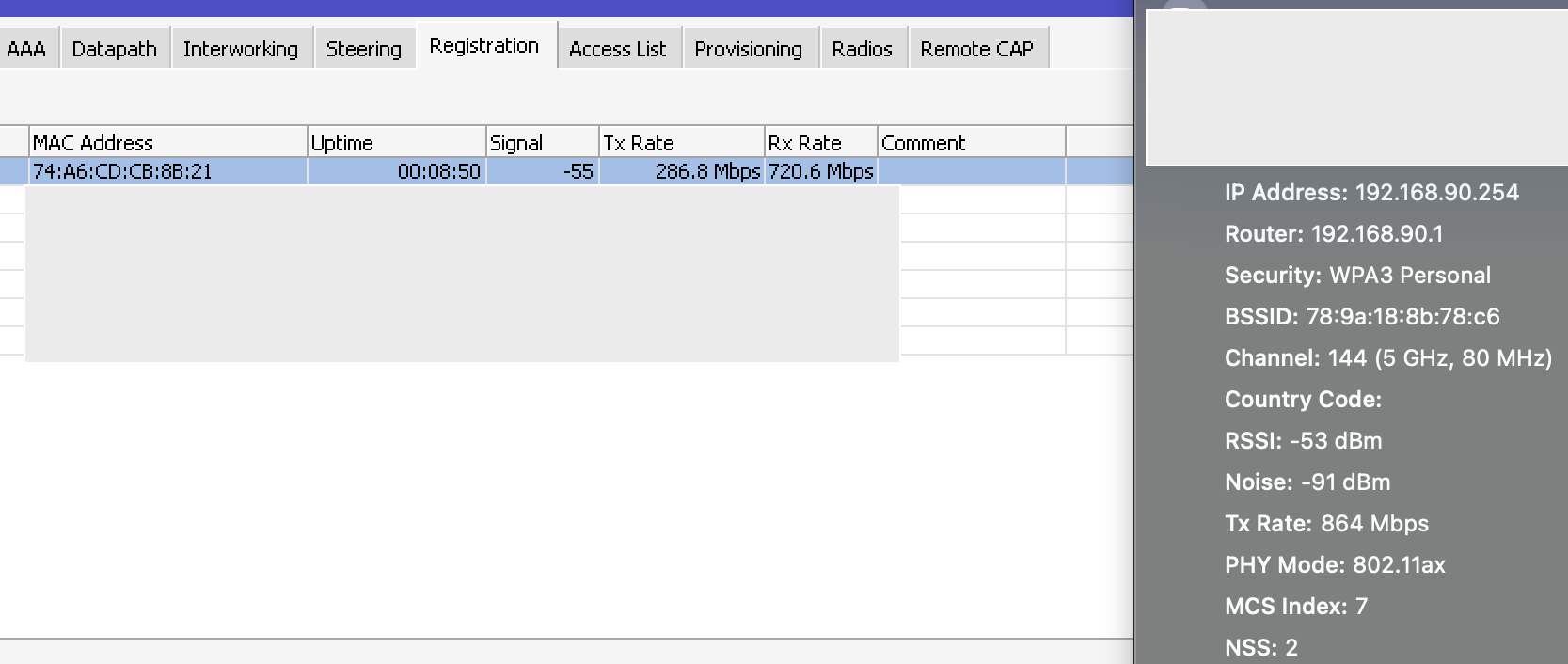
2: Macbook Air 15" M2 connects over 5GHz AX, link speed shown in client 864, in winbox 286, real speed 10-11MB/s. Really weird is that Tx Rate is shown differently in client and router and never goes over 286Mbps for this client.
ax3-wifi-problem.png
My WiFi configuration:

/interface wifi channel add band=2ghz-n disabled=no frequency=2442,2472 name=2ghz-channels width=20mhz
/interface wifi security add authentication-types=wpa2-psk,wpa3-psk disable-pmkid=yes disabled=no name=myhome-security wps=disable
/interface wifi configuration
add channel=2ghz-channels channel.band=2ghz-ax country=Estonia disabled=no name=config-24ghz security=myhome-security security.ft=yes .ft-over-ds=yes ssid=mywifinetwork
add channel.band=5ghz-ax .skip-dfs-channels=10min-cac country=Estonia disabled=no name=config-5ghz security=myhome-security security.ft=yes .ft-over-ds=yes ssid=mywifinetwork
/interface wifi
set [ find default-name=wifi1 ] configuration=config-5ghz configuration.mode=ap disabled=no security.authentication-types=wpa2-psk,wpa3-psk
set [ find default-name=wifi2 ] configuration=config-24ghz configuration.mode=ap disabled=no security.authentication-types=wpa2-psk,wpa3-psk

Tx is relative to device do Tx as seen by station is Rx as seen by AP. And it actually changes a lot, either due to changes in channel conditions (changes in path loss, changes in interference level) or due to changes in throughput demand (lower rates require less Tx power due to more robust coding and modulation, some devices revert and some might not). And some devices may keep showing maximum observed rate for longer periods of time than others.

Tx in different directions can be radically different due to various reasons (some are already mentioned in previous paragraph) … and your iOS device doesn’t show Rx rate (which would correspond to AP’s Tx rate). And those 10MB/s translate into 80Mbps, which (as realistic figure) is not that far off the 286Mbps of air interface rate.

The question remains what is the reason for low payload rate. Using SMB (windows file transfer) is not a very good tool to do benchmarking as it comes with its own bottlenecks and twists. iperf3 is much better tool to determine characteristics of transport path between client and server. Yes, it may still point at hAP ax2 but it may show that raw wireless connection is fine but that the low throughput you see is due to interaction between different twists … one, which kicks in many tines, is TCP with its congestion avoidance algorithms, some algorithms serm to be sensitive to delay jitter (which there is plenty on wireless legs due to varying rates and collisions).

I’ve a weird request. Can you please do a

/interface wifi configuration set [ find name=config-5ghz ] channel.band=5ghz-ac

on ax^3 and see what results you get with the tests this way?

And just to make sure, was the version oh ac^2 the same? Was the config identical? Were the frequencies used the same, was the activity of the connected devices the same? Was the interference likely to be the same?

What I really want is just for somebody (if you have time and energy for experimenting, it’d be cool if you did that) to please just put an ax^3 against ax^2/ac^2 with the same exact configuration and in the same exact (or as similar as you can provide) conditions, and make a little semi-scientific report on it. The easiest way is to use default config, default SSID, set band, channel witdth, frequency and TX power and only one device. Better use an open network or WPA2 PSK, it’s more stable. Just roleplay a nuclear physicist: if you’re wrong about something, it goes kaboom, so better check.

All of this will instantly either prove or disprove that there’s something wrong with the hAP ax^3 on a fundamental level. It’s called a sanity check.

If this test shows that performances are similar between ax^3 and ax^2/ac^2, you can then start adding config options or devices to the network to try and figure out when exactly the network starts breaking.

If this test shows that performances are radically different between ax^3 and ax^2/ac^2, with ax^3 being considerably worse, then you can open a ticket with MikroTik, provide them with solid scientific evidence that there’s something wrong with the hAP ax^3 and wait for their reply.

You must also take into account the position of the antennas in the case of the ax3 and the position of the ax2 with respect to the device with which it is going to be tested, the antennas do not emit the same radiation at 360 degrees.

Can you try to post the channel you use and the Status of the interface from Winbox?

It’s interesting to understand what the situation for this issue.

Thanks!

This was basically what I did. The ax3 range was terrible (barely covering a single room). I drove out with a new in the box ax2, copied and pasted the config, and the ax2 range (and thereby with increased signal levels, performance) increased dramatically and the customer was happy again. Seems most of the forum thinks I’m dumb or it’s a config issue, so I’ve moved on, I have my beliefs, and I will use my evidence and knowledge to just work on the problem and situation in my own ways (higher dB external antennas are en-route for further testing, and/or I will just use ax2 and not ax3)

Hmmm… I have a similar situation here…

I recently got the ax3 to replace a hap ac. With a probably generations newer device and especially external antennas I expected it to provide much faster speeds (because of better coverage) in some “remoter” room of my house. Turns out where the hap ac had at least a “low signal”, the ax3 had basically “no signal”. I tested various frequencies, but still no luck so far / hard to even get a signal.

I could see a difference when some channel had a dramatically lower tx power (country restricted / I tested with fixed channels), but strangely no difference when playing with antenna gain. Unfortunately I could not see any “effective” value for antenna gain (as in the status for “tx power”), but I would expect at least some effect in the signal strength when switching antenna gain from 0 to 5 or even 6, no?

Sorry might also just be too much of a wifi noob, but I fear you are NOT hallucinating.

My config is pretty much default, except that I obviously tried to boost the coverage - tx power will be restricted to 17 or 24 depending on the channel because of country regulations…

/interface bridge
add admin-mac=<snip> auto-mac=no comment=defconf name=bridge
/interface wifi
set [ find default-name=wifi1 ] channel.band=5ghz-ax .skip-dfs-channels=10min-cac .width=20/40/80mhz configuration.antenna-gain=5 .country=Switzerland .mode=ap .ssid=<snip> .tx-power=28 disabled=no name=eg-wifi1-5g security.authentication-types=wpa2-psk,wpa3-psk .connect-priority=0 .ft=yes .ft-over-ds=yes
set [ find default-name=wifi2 ] channel.band=2ghz-ax .skip-dfs-channels=10min-cac .width=20/40mhz configuration.antenna-gain=5 .country=Switzerland .mode=ap .ssid=<snip> .tx-power=28 disabled=no name=eg-wifi2-2.4g security.authentication-types=wpa2-psk,wpa3-psk .connect-priority=0 .ft=yes .ft-over-ds=yes
/interface list
add comment=defconf name=WAN
add comment=defconf name=LAN
/interface bridge port
add bridge=bridge comment=defconf interface=all
/ip neighbor discovery-settings
set discover-interface-list=LAN
/interface list member
add comment=defconf interface=bridge list=LAN
add comment=defconf interface=ether1 list=WAN
...

Huh. The replies in this thread are indeed very interesting. I apologize for being perhaps a bit rude in my previous comments. I was too much annoyed about what in my eyes was a lack of proper testing. It is no more.

For anyone who got an ax3, an ax2 and an Android device, I propose a different, more direct testing strategy. It still involves pretty much default configs, all that good stuff that I’ve previously written out. Fixed channels, fixed everything, and an SSID different from anything else you’ve used, just to be extra-sure.

Step 1. Google, download and install F-Droid, if you haven’t already. This is technically unnecessary, but if you don’t know what F-Droid is, you can thank me for introducing you to it later.

Step 2. Using F-Droid, download an app called ‘WiFi Analyzer’ and install it.

Step 3. Now, depending on the version of Android your device is running, WiFi scans made by WiFi Analyzer may be throttled by the system. If you’re using Android 9 specifically, you’re somewhat out of luck and will need to live with throttling (wait a minute or three instead of ten seconds for WiFi Analyzer to be able to update itself). If you’re using something older or newer, refer to this guide to disable throttling. You may re-enable it after the tests are done, if you wish.

If you’ve followed the instructions this far, you should now be able to use WiFi Analyzer to measure the WiFi signal strength of all networks in range in dBms as perceived by your phone, in various positions relative to your access points.

Step 4. Take measurements of perceived signal strength with two indetical configurations. Use TX power = 20 dBm. Make sure to hold your Android device in a stationary position while measuring. I.e. put it down and let it rest.

At this point, only your imagination limits what you can do with this setup. If I had an ax3 and an ax2, I’d probably measure in at least eight points in each or the three standard planes (front, side, top) to produce a diagram of both signal strength and directionality. But you’re probably busy with things other than being a giant nerd, so it’s probably best to measure four points: in the front, in the back, and to the two sides of the device. This will allow you to simply take the maximum value out of these four and forget about antenna directionality. Just make sure to wait about 10-30 seconds after laying the phone down to let WiFi Analyzer update the data. Also pay attention to the fluctuations of the signal. This will allow you to estimate the random error of measurements.

Please report the maximum signal values for ax2 and ax3 and the random error estimation.

Step 5. This is, I think, the most interesting step. Log into the ax3, and change the TX power value to 3 dBm. Measure signal strength in four points, take the maximum value, and report on it as well.


Note that it is vital for the distance between the phone and the AP to remain exactly the same (to the best of your ability) in all of the measurements, and for each four points each time as well. It is best to use a distance of about 1 to 2 meters to minimize the error of determining the locations of actual transmitters and receivers inside the devices used. Also, just in case it isn’t clear, there should be nothing but air between the AP and the device while measuring.

This testing procedure is quite a bit finicky and lengthy. But it, provided you follow it with enough care, will allow you to determine, with absolute scientific certainty, that there is something catastrophically wrong with ax3. You know, if there is. Which it seems like there is.

Moreover, the test performed in step 5 will enable you to determine whether the signal amplifier of the ax3 is borked. If the difference in perceived signal strength between two tests with ax3 (provided the first one was made with TX power set to 20 dBm and the second one with 3 dBm) isn’t about 17 dBm (give or take 3-5 dBm), but rather closer to zero (give or take 3-5 dBm), it is most definitely dead and gone.

Just for kicks and giggles, here are my numbers for Audience (RBD25G-5HPacQD2HPnD), channel 149 Ceee, obtained using a Samsung Galaxy A54 5G, running OneUI 6.0 (Android 14).

Audience would be placed on wooden floor, then my phone with WiFi Analyzer open would be placed directed towards it but with the back touching the floor, so that the distance between the center of the base of the Audience and the center of the screen of the phone would be 1 meter. I used a metallic tape measure to eyeball the phone position. I would hold its 100cm position down on top of Audience with my right hand so that the rest of the tape measure would stay in the air, and would place the phone under the 0cm position on the tape measure with my left hand, observing and aligning it from the top. After positioning, metallic tape measure would be removed from the scene not to interfere with the WiFi signal. Sometimes I would make tiny adjustments to the rotation of the phone, to make sure that the phone is pointing towards the Audience. I would then wait 30 seconds for WiFi Analyzer to stabilize and update itself and then observe it for 1-3 more minutes to get the maximum and minimum observed values of signal strength.

Here’s the table with raw data that I gathered, plus the calculated average ((Max+Min)/2) and the rough estimation of random error (Max-Avg).

TX Power (dBm)		Side		Max (dBm)	Min (dBm)	Avg (dBm)	ErrAvg (dBm)
3			Front		-63		-64		-63.5		0.5
3			Rear		-62		-64		-63		1
3			Left		-57		-62		-59.5		2.5
3			Right		-60		-62		-61		1
13			Front		-55		-59		-57		2
13			Rear		-52		-55		-53.5		1.5
13			Left		-54		-56		-55		1
13			Right		-55		-56		-55.5		0.5
20			Front		-44		-48		-46		2
20			Rear		-46		-50		-48		2
20			Left		-46		-50		-48		2
20			Right		-42		-44		-43		1

I disqualified the value for 3dBm, left side, because of the relatively high error, and because the value didn’t make much sense compared to other values. With that accounted for, the final table for maximum observed signal strength values, along with their respective errors:

TX Power (dBm)		Max (dBm)	ErrMax (dBm)
3			-61		1
13			-53.5		1.5
20			-43		1

Now, negative numbers aren’t exactly famous for being straightforward, so here’s a table with adjusted values, where AdjMax=Max+64dBm, to align the minimum perceived signal strength in the previous table with minimum used TX power. Since we are comparing everything to the base value of 3, we will treat it as fixed (measured perfectly) and move its error onto the other values to account for it.

TX Power (dBm)		AdjMax (dBm)	ErrAdjMax (dBm)
3			3		0
13			10.5		2.5
20			21		2

What we did here was basically measure the real observed amplification with an assumption that we somehow measured the perceived signal strength for TX Power set to 3dBm perfectly, which was necessary because in reality we have no baseline. If we measured the error for 3dBm correctly and if the device is outputting on 3dBm correctly (which would be more or less true even if the amplifier was dead, 0 dBm ≈ 3 dBm with the random error values observed), this assumption will not affect our results for other values, because we moved the error from 3dBm to other values.

You can thus see that observed amplification for TX Power set to 13 dBm is “very likely to be from 8 to 13 dBm”, “extremely likely to be from 5.5 to 15.5 dBm”, and the observed amplification for TX Power set to 20 dBm is “very likely to be from 19 to 23 dBm”, “extremely likely to be from 17 to 25 dBm”.

That’s just how random errors work, but the point is, 13 dBm is 13 dBm within margin of error and 20 dBm is 20 dBm within margin of error. This allows us to conclude, with absolute scientific certainty, that the signal amplifier in my Audience is indeed working.

As an aside, this also proves that 0.7 dBi indeed pretty much amounts to nothing. I wouldn’t even be able to measure the difference of 0.7 dBi with my phone (as it is very close to minimum observed random error), let alone feel a difference when using a wifi network.

In-deed I did similar test (measured actually even before posting here). No Android here, so I tested with my iPhone reading out signal strength values from “Registration” tab on the Mikrotiks (not sure how much sense those make, but it was the most consistent values I could get).

In that particular room I got… (just 2 of the more distinct examples)

on the hap ac

2412/20-Ce/gn(27dBm) -> -67 to -70
5660/20-Ceee/ac/DP(25dBm) -> -84 to -88

on the hap ax3

2412/ax/Ce tx=27 gain=6 -> -75 to -85
5660/ax/Ceee tx=24 gain=6 -> -90 to no signal at all

…that’s not “totally broken” (given that room was already kind of a challenge for the hap ac) but with that newer device and external antennas I’d expected it to be the other way round.

Particularly worried I’m more about the antenna gain. As said I tested values from 0 to 6 with basically NO effect on signal strength. Is that normal?

Now, it is important to understand, what the values from the “Registration” tab represent. If the values from WiFi Analyzer represent the signal strength of the AP, as perceived by your phone, the values from the “Registration” tab (as I believe I have already stated in this topic before) represent the signal strength of your phone, as perceived by the AP. That has always been the case. Here’s the old wiki for the wireless package, see property “signal-strength”, and here’s the new wiki for the wifi-qcom[-ac] packages, see property “signal”.

A quick test I did shows that, with my Audience, which we confirmed was working perfectly fine just a few hours ago, the value of the “signal” property from the “Registration” tab stays at around -44 dBm with TX Power set to 3, 13 or 20 dBm, with my phone being about 30cm away from the Audience, and at around -49 dBm with my phone being about a meter away from the Audience. I didn’t want to perform complex experiments just to prove the wiki right, so “phone being about 30cm away from the Audience” is just the phone placed upon a wooden table next to the Audience and me eyeballing it “eh, around 30cm, give or take 5cm”, and “phone being about a meter away from the Audience” is just the phone held up in the air by me roughly in the same orientation, roughly at what I perceive to be a meter. But still, I think it proves my point. (The random error is about 1-2 dBm, if you’re interested)

So yeah, any change in the value of “signal” property you’ve measured is completely normal, as it is pretty much entirely dependent your particular client device. Not the AP. (Although different APs probably will pick up the signal with different strengths, and if ax3 is borked, it is possible it will pick up the signal at a weaker strength)