IPSEC/IKE2 (with certificates) VPN server guide for remote access

Because I’ve spent hours trying to understand all the details I need to get this working perfectly, I’ve decided to share the information so you don’t have to waste your time.

Most common use I can think of: access your home network using the most secure (sort of), fastest and well supported method - IPSEC/IKE2 with certificates (AKA digital signature) VPN server.

This guide based on RouterOS 6.48.3.

VPN Server setup


# Create CA certificate and sign it
/certificate add name="Home CA" common-name="Home CA" key-size=4096 days-valid=7300 key-usage=key-cert-sign,crl-sign
/certificate sign "Home CA"

# Create server certificate and sign it (Replace "XXXXXXXXXXX.sn.mynetname.net" with your DNS from "/ip cloud" otherwise some IKE2 clients would fail to connect)
/certificate add name="Home server" common-name="Home server" subject-alt-name="DNS:XXXXXXXXXXX.sn.mynetname.net" key-size=4096 days-valid=3650 key-usage=tls-server
/certificate sign "Home server" ca="Home CA"

# Create client certificate, sign it and export it as PKCS12 keystore (contains client certificate, client private key and CA)
/certificate add name="Home client1" common-name="Home client1" key-size=4096 days-valid=3650 key-usage=tls-client
/certificate sign "Home client1" ca="Home CA"
/certificate export-certificate "Home client1" file-name="Home client1" type=pkcs12 export-passphrase=1234567890

# Create IP pool for VPN users
/ip pool add name=vpn ranges=10.22.22.10-10.22.22.20

# Add firewall rules for IKE2 VPN
#
# Add this rule before action=drop rule in INPUT chain
/ip firewall filter add action=accept chain=input comment="Allow IPSEC/IKE2 connections" dst-port=500,4500 protocol=udp
#
# Add these 2 rules before "fasttrack" rule in FORWARD chain
/ip firewall filter add action=accept chain=forward comment="Accept in ipsec policy" ipsec-policy=in,ipsec
/ip firewall filter add action=accept chain=forward comment="Accept out ipsec policy" ipsec-policy=out,ipsec
#
# OPTIONAL - allow access to router from "10.22.22.10-10.22.22.20" IPs and masquerade traffic coming from VPN clients, so devices on your LAN sees that traffic is coming from the router IP rather than VPN IP
/ip firewall address-list add address=10.22.22.10-10.22.22.20 comment=VPN list=allowed_to_router
/ip firewall nat add action=masquerade chain=srcnat comment="Masquerade VPN traffic so devices see connections made from router IP" src-address=10.22.22.10-10.22.22.20

# Configure IPSEC settings (below used profile/proposal are compatible with Windows 10 IKE2 ciphers)
/ip ipsec mode-config add address-pool=vpn name=vpn
/ip ipsec policy group add name=vpn
/ip ipsec profile add dh-group=modp1024 enc-algorithm=aes-256 hash-algorithm=sha256 name=vpn
/ip ipsec peer add exchange-mode=ike2 name=vpn passive=yes profile=vpn
/ip ipsec proposal add enc-algorithms=aes-256-cbc name=vpn pfs-group=none
/ip ipsec identity add auth-method=digital-signature certificate="Home server" comment="Home client1" generate-policy=port-strict match-by=certificate mode-config=vpn peer=vpn policy-template-group=vpn remote-certificate="Home client1"
/ip ipsec policy add dst-address=0.0.0.0/0 group=vpn proposal=vpn src-address=0.0.0.0/0 template=yes

Additional VPN Client

In case you ever need it…


# Create client certificate, sign it and export it as PKCS12 keystore (contains client certificate, client private key and CA)
/certificate add name="Home client2" common-name="Home client2" key-size=4096 days-valid=3650 key-usage=tls-client
/certificate sign "Home client2" ca="Home CA"
/certificate export-certificate "Home client2" file-name="Home client2" type=pkcs12 export-passphrase=1234567890

# Create IPSEC identity
/ip ipsec identity add auth-method=digital-signature certificate="Home server" comment="Home client2" generate-policy=port-strict match-by=certificate mode-config=vpn peer=vpn policy-template-group=vpn remote-certificate="Home client2"

VPN Client setup

Windows 10/11 (Native)

  1. Download .p12 certificate to your Windows PC
  2. Double click, pop up opens
  3. Select “Local Machine” and click “Next”.
  4. Nothing to change, click “Next”.
  5. Enter .p12 password (in above steps I used “1234567890”) and (important) check “Mark this key as exportable”, then click “Next”.
  6. Select “Place all certificates in the following store”, browse and select “Personal”. Then click “Next”.
  7. Finally click “Finish” and pop up will close.
  8. In Windows search, find “Manage computer certificates” program and open it.
  9. Move your “CA” certificate from “Personal/Certificates” folder to “Trusted Root Certification Authorities/Certificates” folder by simply drag & drop.
  10. Right-click on your “CA” certificate (which you just moved), then “All Tasks”, then “Export”. Pop up will appear.
  11. Click “Next”.
  12. First option “DER” will be selected. so just click “Next”.
  13. Enter location where to save this “CA” certificate. Suggestion would be “c:\vpn\home_ca.cer”.
  14. Click “Finish” and pop up will close.
  15. Open powershell and create VPN profile using below command:
Add-VpnConnection `
	-Name Home `
	-ServerAddress XXXXXXXXXXX.sn.mynetname.net `
	-TunnelType IKEv2 `
	-AuthenticationMethod MachineCertificate `
	-EncryptionLevel maximum `
	-MachineCertificateIssuerFilter 'C:\vpn\home_ca.cer'

Linux (Strongswan plugin for NetworkManager)
Most of Linux desktop distros uses Network manager by default and Strongswan (for IKE2 functionality) plugin for Network Manager is readily available in official repositories:

Below guide is based on Fedora 34, Gnome DE using integrated IKE2 (Strongswan) support in Gnome:

  1. Prepare certificates (Gnome/NetworkManager accepts only PEM certificates and not PKCS12)
# Become root
sudo su

# Create directory "/opt/vpn/home"
mkdir -p /opt/vpn/home

# Upload .p12 file to "/opt/vpn/home" directory...

# Change cwd to "/opt/vpn/home"
cd /opt/vpn/home/

# Extract PEM certificates (private key, certificate and CA)
openssl pkcs12 -in "Home client1.p12" -nocerts -nodes | sed -ne '/-BEGIN PRIVATE KEY-/,/-END PRIVATE KEY-/p' > "Home client1 key.pem"
openssl pkcs12 -in "Home client1.p12" -clcerts -nokeys | sed -ne '/-BEGIN CERTIFICATE-/,/-END CERTIFICATE-/p' > "Home client1 cert.pem"
openssl pkcs12 -in "Home client1.p12" -cacerts -nokeys -chain | sed -ne '/-BEGIN CERTIFICATE-/,/-END CERTIFICATE-/p' > "Home client1 CA.pem"

# Enforce permissions (to make sure strongswan/networkmanager can read these files)
chmod -R 755 /opt/vpn
chown -R root:root /opt/vpn
  1. Go to Gnome settings → Network → VPN → “+” button → “IPsec/IKEv2 (strongswan)” choice.
  2. Enter/Select the following details:
  • Server->Name: Home
  • Server->Address: XXXXXXXXXXX.sn.mynetname.net
  • Server->Certificate: Select “Home client1 CA.pem” file
  • Server->Identity: Empty
  • Client->Port: Empty
  • Client->Authentication: Certificate
  • Client->Certificate: Certificate/private key
  • Client->Certificate file: Select “Home client1 cert.pem” file
  • Client->Private key: Select “Home client1 key.pem” file
  • Client->Identity: Empty
  • Options->Request an inner IP address: Checked
  • Options->Enforce UDP encapsulation: Unchecked
  • Options->Use IP compression: Unchecked
  • Cipher proposals->Enable custom proposals: Checked
  • Cipher proposals->IKE: aes256-sha256-prfsha256-modp1024
  • Cipher proposals->ESP: aes256-sha1
  1. Click Save.


    Android (Strongswan)
    Below steps were tested on Android 11, OnePlus 8 Pro device.

  2. Download .p12 file to your smartphone.

  3. Go to Android settings → “Security & Lock screen” → “Encryption & credentials” → “Install a certificate” → “VPN & app user certificate”

  4. Select your downloaded .p12 certificate, Android will guide you through installation steps (all I had to do is to enter password and click “ok”/“next”).

  5. Download “Strongswan” from Google play. Included native IKE2 VPN likely not going to work due to unknown reasons…

  6. Open “Strongswan” application.

  7. Select “ADD VPN PROFILE”

  8. Enter the following details (what is missing should be left as it is):

  • Server: XXXXXXXXXXX.sn.mynetname.net
  • VPN Type: IKEv2 Certificate
  • User certificate: Select your recently imported VPN certificate (it will appear in the shown list)
  • Profile name: Home
  • Advanced settings: Checked
  • IKEv2 Algorithms: aes256-sha256-prfsha256-modp1024
  • IPsec/ESP Algorithms: aes256-sha1
  1. Click “SAVE”.

Apple devices
I do not have any Apple device, so I can’t provide any instructions. Feel free to provide someone in the comments, so I can update.


Fix for websites that are randomly not loading

If some of the websites (most notably https://speedtest.net/), then you are facing MSS/MTU issues. As per strongswan (IPSEC/IKE2 server for Linux) documentation, you should add these rules to your Mikrotik router:

/ip firewall mangle add action=change-mss chain=forward comment="Fix MSS for VPN server" new-mss=1360 passthrough=yes protocol=tcp src-address=10.22.22.10-10.22.22.20 tcp-flags=syn tcp-mss=!0-1360
/ip firewall mangle add action=change-mss chain=forward comment="Fix MSS for VPN server" dst-address=10.22.22.10-10.22.22.20 new-mss=1360 passthrough=yes protocol=tcp tcp-flags=syn tcp-mss=!0-1360

I followed windows 10 setup via powershell method & via GUI.

GUI method gave me this error

Can connect to XXXXXXX IKE Authontication credidentials are unacceptable

PowerShell method gave me

Can’t connect to XXXXXXX IIKE failed to find valid machine certificate. Contact your Network Security Administrator about installing a valid certificate in the appropriate Certificate Store

I followed word for word. can anyone tell me what I am doing wrong or is there any other way to set up IKEV2.

Also, I CAN connect via my android mobile with Strongswan app with the same credidentials.

I need setup for windows 10. i am using Windows 10 Pro -19043-1055

@shahjaufar Windows are unable to find the certificate that could be used to connect to your VPN. You either did not import P12 (cert+CA) to Windows certificate store, or imported to a wrong directory? Also, did you generate & export client certificate from Mikrotik router as per my instructions? :slight_smile:

Also, you should only use powershell method as this is the only reliable way. It automatically picks to use machineCertificates auth method (requires going to “adapter settings” otherwise to do it) and tells Windows which CA should be used (relevant if you have more than 1 VPN profile, otherwise Windows is stupid enough not to understand which certificate to which VPN profile to use).

When importing the cert. into the android device, it’s asking for a password? Step 3.

What password is it that I need to enter?

Also tried on Windows 10 machine,

Error “This file is invalid for use as the following: Personal Information Exchange”

Tried installing as “Local machine” failed at password entry, as with Android.


/certificate export-certificate "Home client2" file-name="Home client2" type=pkcs12 export-passphrase=1234567890

Note "export-passphrase=1234567890" part.


Same as with Android.

Ah yes,

I changed this to a more secure passphrase when entering the command in the terminal for Home client 1.

Is it necessary to be secure? Or can I just use what you have used as a passphrase?

EDIT: Doesn’t matter, it excepted the cert. Turns out android or windows doesn’t like complex passwords containing special ascii characters. I re-created the cert’ with a simple passcode.

It’s failing to connect now. Looking at the firewall rules.

EDIT EDIT: All sorted. My DDNS wasn’t updated and the VPN was trying to connect to an old WAN IP. Update DDNS, all working!

Thanks for the tutorial!

You can avoid having password at all, but I’ve heard rumors that it’s impossible to import pkcs12 keystore into iOS that is not password-protected. I don’t know, maybe I am wrong, therefore I am putting a simple 1234567890 password instead.

Password is just for encryption of keystore (certs), nothing else. You can avoid having it, or you can set a custom one - it does not matter that much.

Thanks for the good step-by-step guide! Has anybody a usefull guide for ios and macos client-devices?

(for example, when I double-click on the p12 certifiacte, macos gives an error, and can not import the certificate)

Mikrotik has an help page on this: https://help.mikrotik.com/docs/display/ROS/IPsec#IPsec-macOSclientconfiguration

and

https://help.mikrotik.com/docs/display/ROS/IPsec#IPsec-RoadWarriorsetupusingIKEv2withRSAauthentication

hi,

i go step by step and finish with this log from mobile:

Sep  4 01:47:20 00[DMN] +-+-+-+-+-+-+-+-+-+-+-+-+-+-+-+-+-+-+-+-+-+-+-+-+-+-+-+-+-+-+
Sep  4 01:47:20 00[DMN] Starting IKE service (strongSwan 5.9.3rc1, Android 10 - ELE-L29 10.1.0.150(C431E22R2P5)/2020-08-01, ELE-L29 - HUAWEI/ELE-L29EEA/HUAWEI, Linux 4.14.116, aarch64)
Sep  4 01:47:20 00[LIB] loaded plugins: androidbridge charon android-log openssl fips-prf random nonce pubkey chapoly curve25519 pkcs1 pkcs8 pem xcbc hmac socket-default revocation eap-identity eap-mschapv2 eap-md5 eap-gtc eap-tls x509
Sep  4 01:47:20 00[JOB] spawning 16 worker threads
Sep  4 01:47:20 07[CFG] loaded user certificate 'CN=cl-001-michal-mobil' and private key
Sep  4 01:47:20 07[CFG] loaded CA certificate 'CN=Home CA'
Sep  4 01:47:20 07[IKE] initiating IKE_SA android[16] to 62.xxx.xxx.122
Sep  4 01:47:20 07[ENC] generating IKE_SA_INIT request 0 [ SA KE No N(NATD_S_IP) N(NATD_D_IP) N(FRAG_SUP) N(HASH_ALG) N(REDIR_SUP) ]
Sep  4 01:47:20 07[NET] sending packet: from 10.223.25.137[36425] to 62.xxx.xxx.122[500] (336 bytes)
Sep  4 01:47:22 13[IKE] retransmit 1 of request with message ID 0
Sep  4 01:47:22 13[NET] sending packet: from 10.223.25.137[36425] to 62.xxx.xxx.122[500] (336 bytes)
Sep  4 01:47:25 09[IKE] retransmit 2 of request with message ID 0
Sep  4 01:47:25 09[NET] sending packet: from 10.223.25.137[36425] to 62.xxx.xxx.122[500] (336 bytes)
Sep  4 01:47:30 12[IKE] retransmit 3 of request with message ID 0
Sep  4 01:47:30 12[NET] sending packet: from 10.223.25.137[36425] to 62.xxx.xxx.122[500] (336 bytes)
Sep  4 01:47:35 11[IKE] giving up after 3 retransmits
Sep  4 01:47:35 11[IKE] establishing IKE_SA failed, peer not responding
Sep  4 01:47:35 14[IKE] unable to terminate IKE_SA: ID 16 not found
Sep  4 01:47:45 00[DMN] +-+-+-+-+-+-+-+-+-+-+-+-+-+-+-+-+-+-+-+-+-+-+-+-+-+-+-+-+-+-+

pleases help me what is wrong :frowning:

edit:
when i connect from mobile to local wlan then connect to vpn is connected
problem is if i connect from wan internet router not accept connetion
any problem is with this settings:

Add this rule before action=drop rule in INPUT chain

/ip firewall filter add action=accept chain=input comment="Allow IPSEC/IKE2 connections" dst-port=500,4500 protocol=udp

Add these 2 rules before "fasttrack" rule in FORWARD chain

/ip firewall filter add action=accept chain=forward comment="Accept in ipsec policy" ipsec-policy=in,ipsec
/ip firewall filter add action=accept chain=forward comment="Accept out ipsec policy" ipsec-policy=out,ipsec

this settings not allowed connect from internet - any idea for solution this problem?


Sep  4 02:04:34 01[IKE] sending cert request for "CN=Home CA"
Sep  4 02:04:34 01[IKE] authentication of 'CN=cl-001-michal-mobil' (myself) with RSA signature successful
Sep  4 02:04:34 01[IKE] sending end entity cert "CN=cl-001-michal-mobil"
Sep  4 02:04:34 01[IKE] establishing CHILD_SA android{2}
Sep  4 02:04:34 01[ENC] generating IKE_AUTH request 1 [ IDi CERT N(INIT_CONTACT) CERTREQ AUTH CPRQ(ADDR ADDR6 DNS DNS6) N(ESP_TFC_PAD_N) SA TSi TSr N(MOBIKE_SUP) N(NO_ADD_ADDR) N(EAP_ONLY) N(MSG_ID_SYN_SUP) ]
Sep  4 02:04:34 01[ENC] splitting IKE message (4976 bytes) into 4 fragments
Sep  4 02:04:34 01[ENC] generating IKE_AUTH request 1 [ EF(1/4) ]
Sep  4 02:04:34 01[ENC] generating IKE_AUTH request 1 [ EF(2/4) ]
Sep  4 02:04:34 01[ENC] generating IKE_AUTH request 1 [ EF(3/4) ]
Sep  4 02:04:34 01[ENC] generating IKE_AUTH request 1 [ EF(4/4) ]
Sep  4 02:04:34 01[NET] sending packet: from 192.168.1.116[39160] to 62.xxx.xxx.122[4500] (1364 bytes)
Sep  4 02:04:34 01[NET] sending packet: from 192.168.1.116[39160] to  62.xxx.xxx.122[4500] (1364 bytes)
Sep  4 02:04:34 01[NET] sending packet: from 192.168.1.116[39160] to  62.xxx.xxx.122[4500] (1092 bytes)
Sep  4 02:04:34 11[NET] received packet: from  62.xxx.xxx.122[4500] to 192.168.1.116[39160] (1204 bytes)
Sep  4 02:04:34 11[ENC] parsed IKE_AUTH response 1 [ EF(1/3) ]
Sep  4 02:04:34 11[ENC] received fragment #1 of 3, waiting for complete IKE message
Sep  4 02:04:34 10[NET] received packet: from  62.xxx.xxx.1224500] to 192.168.1.116[39160] (1124 bytes)
Sep  4 02:04:34 10[ENC] parsed IKE_AUTH response 1 [ EF(2/3) ]
Sep  4 02:04:34 10[ENC] received fragment #2 of 3, waiting for complete IKE message
Sep  4 02:04:34 13[NET] received packet: from  62.xxx.xxx.122[4500] to 192.168.1.116[39160] (180 bytes)
Sep  4 02:04:34 13[ENC] parsed IKE_AUTH response 1 [ EF(3/3) ]
Sep  4 02:04:34 13[ENC] received fragment #3 of 3, reassembled fragmented IKE message (2144 bytes)
Sep  4 02:04:34 13[ENC] parsed IKE_AUTH response 1 [ CERT IDr AUTH N(INIT_CONTACT) CPRP(ADDR MASK DNS DNS) TSi TSr SA ]
Sep  4 02:04:34 13[IKE] received end entity cert "CN=Home server"
Sep  4 02:04:34 13[CFG]   using certificate "CN=Home server"
Sep  4 02:04:34 13[CFG]   using trusted ca certificate "CN=Home CA"
Sep  4 02:04:34 13[CFG] checking certificate status of "CN=Home server"
Sep  4 02:04:34 13[CFG] certificate status is not available
Sep  4 02:04:34 13[CFG]   reached self-signed root ca with a path length of 0
Sep  4 02:04:34 13[IKE] authentication of 'd4440c709b4d.sn.mynetname.net' with RSA signature successful
Sep  4 02:04:34 13[IKE] IKE_SA android[24] established between 192.168.1.116[CN=cl-001-michal-mobil]... 62.xxx.xxx.122[xxxxxxxxxx.sn.mynetname.net]
Sep  4 02:04:34 13[IKE] scheduling rekeying in 35830s
Sep  4 02:04:34 13[IKE] maximum IKE_SA lifetime 37630s
Sep  4 02:04:34 13[CFG] handling INTERNAL_IP4_NETMASK attribute failed
Sep  4 02:04:34 13[IKE] installing DNS server 217.75.71.141
Sep  4 02:04:34 13[IKE] installing DNS server 217.75.71.142
Sep  4 02:04:34 13[IKE] installing new virtual IP 192.168.100.200
Sep  4 02:04:34 13[CFG] selected proposal: ESP:AES_CBC_256/HMAC_SHA1_96/NO_EXT_SEQ
Sep  4 02:04:34 13[IKE] CHILD_SA android{2} established with SPIs 0724c417_i 0f2eca6f_o and TS 192.168.100.200/32 === 0.0.0.0/0
Sep  4 02:04:34 13[DMN] setting up TUN device for CHILD_SA android{2}
Sep  4 02:04:34 13[DMN] successfully created TUN device
Sep  4 02:05:03 01[IKE] checking if current path still works using DPD
Sep  4 02:05:03 01[ENC] generating INFORMATIONAL request 2 [ ]
Sep  4 02:05:03 01[NET] sending packet: from 192.168.1.116[39160] to  62.xxx.xxx.122[4500] (80 bytes)
Sep  4 02:05:03 03[NET] received packet: from  62.xxx.xxx.122[4500] to 192.168.1.116[39160] (160 bytes)
Sep  4 02:05:03 03[ENC] parsed INFORMATIONAL response 2 [ ]

edit2:

the connection was successfully established - the error was with me, I didn't read the instructions properly - I didn't know that the order of the rules in the firewall was important

I have another problem:
the connection is established but I stop using mobile internet - for example whatsap, chrome
also I can't just get to the addresses in my local network - vpn range I chose 192.168.100.100-192.168.100.200
my local network is: 192.168.1.1-192.168.1.255

I tried IP 1.1 where the router should be, I can't get to it
next IP 1.10 where is the synology - but if I enter 1.10: 5000 then I will see the login, but after entering the data again will show that the page is unavailable
do I need to set something up?

@erkexzcx

Thank you for this post, I just found this post. I want to check something with you if that’s okay with you?


Did you try any Linux client using StrongSwan for a VPN connection?
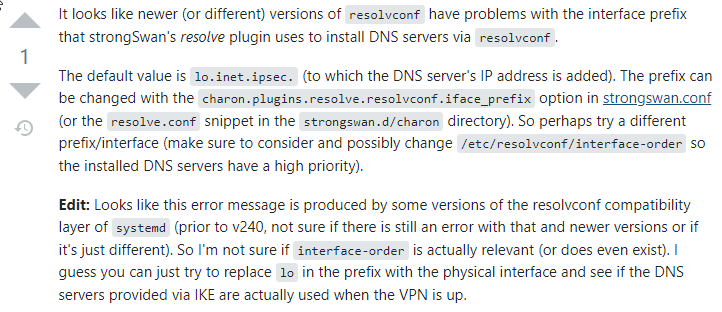
I checked most of the popular Linux distributors Ubuntu, Centos, Mint, Fedora. I got the same error as below. The connection is established, Obtained a local IP, Received a pushed DNS from the SA. Can not set the DNS as a loopback interface.

installing DNS server IP via resolvconf

resolvconf: Interface can’t be the loopback interface (lo). Sorry.
removing DNS server IP via resolvconf

I did some research about this and its looks like some change in the Linux DNS system. Its looks like there is a miss config. With the original StrongSwan server you can fix this with the corrected way to push the config. But there is no charon-nm in Mikrotik.
Do you have any idea how can fix this issue?

  • 1

https://fedoraproject.org/wiki/Changes/systemd-resolved

  • 2

2021-12-26_16-02-18.png

Hi,
I think I know what your problem is, but just to be sure could you please send the IPSec settings?

This only need slight modification to work with Native Android 12 VPN Client : use dh-group=modp2048 instead of modp1024 ( since Android asks for 2048).

I changed following things during my setup, but I think that only one above was important for Android to work:

  • I used names and common-names without spaces, eg name=“VpnCA”
  • I skipped key-size=4096 argument, so Mikrotik used default size of 2048
  • I skipped key-usage for both server certificates (CA and vpnServer), so it uses defaults which has key-cert-sign,crl-sign + lots more : dig.sign,key enciph,tls.client,data ench,tls server
  • I used shorter validity time , days-valid=3650
  • I used my DynDNS name as common-name for “vpnServer1” ( which is renamed “Home server” ), so:
    /certificate add name=“vpnServer1” common-name=“my.dns.name” subject-alt-name=“DNS:my.dns.name” days-valid=3650
  • I skipped dh-group=modp1024 for ipsec profile, since default is 1024+2048, and 2048 is required by Android

Additionally, due to my specific situation where I need to connect to Mikrotik VPN server via two separate ISPs, I added :
/certificate add name=“vpnServer2” common-name=“my.Other.dns.name” subject-alt-name=“DNS:my.Other.dns.name” days-valid=3650
/certificate sign “vpnServer2” ca=“VpnCA”
/ip ipsec identity add auth-method=digital-signature certificate=“vpnServer2” remote-certificate=“vpnClient1” … rest is same as for “vpnServer1”

On Android 12 ( specifically Samsung S22, but I believe its same ):

  1. copy/install client certificate on Android in same was as described
  2. create new native VPN ( name eg “my VPN1”)
  • Type : IKEv2/IPSec RSA
  • server address: my.dns.name
  • ipsec identifier: not used
  • user cert= * select copied cert file *
  • CA cert= * select copied cert file *
  • server cert= received from server
  1. create another new native VPN ( name eg “my VPN2”)
  • server address: my.Other.dns.name
  • everything else same as for VPN1

Also, setting up Windows 10 VPN Client can be greatly simplified.

I do not know if that has something to do with different parameters in my Mikrotik setup (as described in previous post), but I was able to setup Windows VPN in more/less usual way, without re-exporting it or using PowerShell commands to add it:

  1. copy *.p12 file to Windows and double click to start install. Select “Local Machine”, enter password and keep everything else at default (including auto-store)
  2. create new VPN in any way ( eg ‘new’ Add VPN connection, or ‘old’ Set up a new connection ), set server name and ‘ike2’ type
  3. open “Control Panel\Network and Internet\Change adapter settings” , right click to get properties of your new VPN from step #2 and on security tab select “use machine certificate”, check if type is “IKEv2”, and on network tab remove IPv6

Windows 10/11 does not know which CA certificate to use for certain VPN profile. This is the reason why there are so many steps - to let Windows know which CA to use.

Obviously if you are going to have just 1 VPN profile - it is going to work fine without majority of steps, but those steps are foolproof. Tried many times - worked every time.

Native Android client could work :slight_smile:

Just turn on ipsec logging (/system logging topics=ipsec prefix=“” action=memory) and try to connect to VPN server from Android device. Than take a look into log and there You can see reason, which is in my case the absence of dh: modp1536 or modp2048. Modify your ipsec profile config to fit Your Android device. Tested on Samsung S10e and S22.

It looks every manufacture support different auth/encryptions algorithms in Android integration.

19:12:06 ipsec IKE Protocol: IKE #client-side algorithms support
19:12:06 ipsec proposal #1
19:12:06 ipsec enc: aes256-cbc
19:12:06 ipsec enc: aes128-cbc
19:12:06 ipsec prf: hmac-sha512
19:12:06 ipsec prf: hmac-sha384
19:12:06 ipsec prf: hmac-sha256
19:12:06 ipsec prf: hmac-sha1
19:12:06 ipsec auth: sha512
19:12:06 ipsec auth: sha384
19:12:06 ipsec auth: sha256
19:12:06 ipsec auth: sha1
19:12:06 ipsec dh: unknown
19:12:06 ipsec dh: ecp384
19:12:06 ipsec dh: ecp256
19:12:06 ipsec dh: modp2048
19:12:06 ipsec dh: modp1536
19:12:06 ipsec proposal #2
19:12:06 ipsec enc: aes256-gcm
19:12:06 ipsec enc: aes128-gcm
19:12:06 ipsec prf: hmac-sha512
19:12:06 ipsec prf: hmac-sha384
19:12:06 ipsec prf: hmac-sha256
19:12:06 ipsec prf: hmac-sha1
19:12:06 ipsec dh: unknown
19:12:06 ipsec dh: ecp384
19:12:06 ipsec dh: ecp256
19:12:06 ipsec dh: modp2048
19:12:06 ipsec dh: modp1536
19:12:06 ipsec can’t agree on IKE proposal, my config: #server-side algorithms support
19:12:06 ipsec enc: aes256-cbc
19:12:06 ipsec auth: sha256
19:12:06 ipsec dh: modp1024
19:12:06 ipsec prf: hmac-sha256
19:12:06 ipsec adding notify: NO_PROPOSAL_CHOSEN

@powershell approach (run powershell as admin)

IKEV2
Win10/11

A. import CErt

Import-PfxCertificate -FilePath .\xyz.pfx -Password (ConvertTo-SecureString -String '12345' -AsPlainText -Force) -CertStoreLocation Cert:\LocalMachine\Root

B. export CA cert to cer format

$cert=Get-ChildItem  Cert:\LocalMachine\Root\ | where{$_.Subject -like '*ca-vpn*'}
Export-Certificate  -Cert $cert  -FilePath C:\Users\<user>\Desktop\vpnCA.cer

C. Add VPN connection

Add-VpnConnection `
	-Name <vpn_name> `
	-ServerAddress <remoteaddr> `
	-TunnelType IKEv2 `
	-AuthenticationMethod MachineCertificate `
	-EncryptionLevel Required `
	-MachineCertificateIssuerFilter 'C:\Users\<user>\Desktop\vpnCA.cer'

Set-VpnConnectionIPsecConfiguration `
	-AuthenticationTransformConstants SHA256128 `
	-CipherTransformConstants AES256 `
	-ConnectionName <vpn_name> `
	-DHGroup Group2 `
	-EncryptionMethod AES256 `
	-IntegrityCheckMethod SHA256 `
	-PfsGroup ECP256 -Force

Took me a few attempts to make this this work on my android.

I have noticed that the CA certificate cannot be too long.

I was getting unable to get local issuer certificate(20) at depth:0 cert:rw-client1 and can’t verify peer’s certificate from store

Thank you so much for this guide. I got a problem with sites like YouTube I can’t watch the videos, they just don’t load. I have other VPN protocols on the server that work without problem but with IKEv2 I have this problem I hope you can help me with this.
thank you

This might be an MTU issue.