So you have the admin password of the MT router. You needed it for the upgrade!
That’s not what the ROKU needs (just learning what a “ROKU box” is, I’m not 77 yet, still plenty to learn)
The ROKU wants internet access via wifi, so needs SSID and password
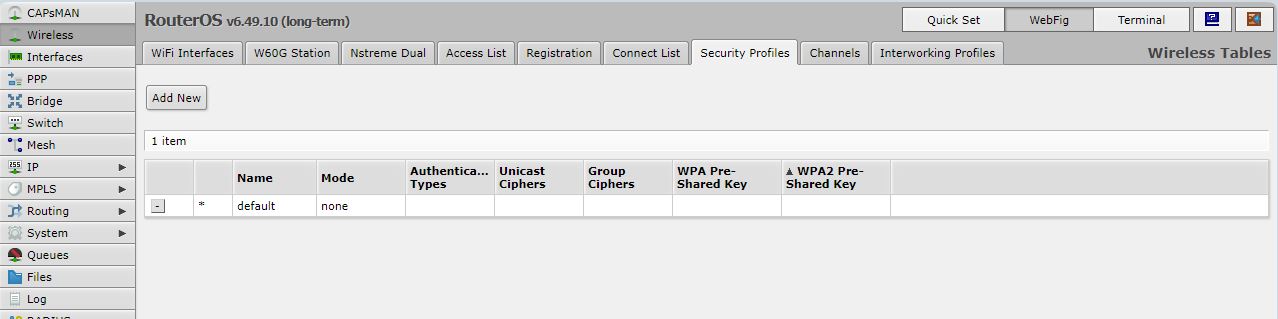
That password is visible under wireless - security profile.
The wireless SSID is under Wireless - Wireless interfaces - WLAN1 interface - Wireless - SSID field (the used security profile is mentioned there as well, a bit lower)
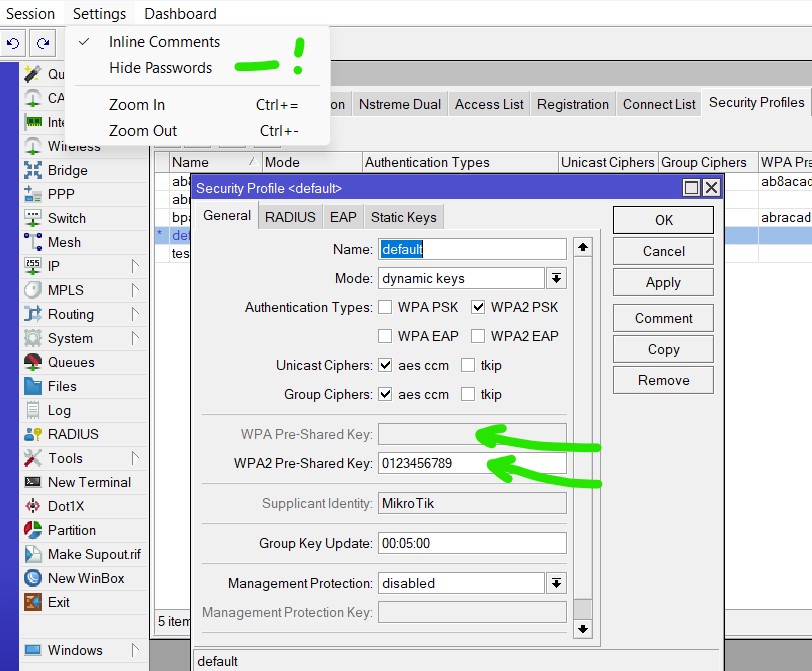
Open that default security profile.
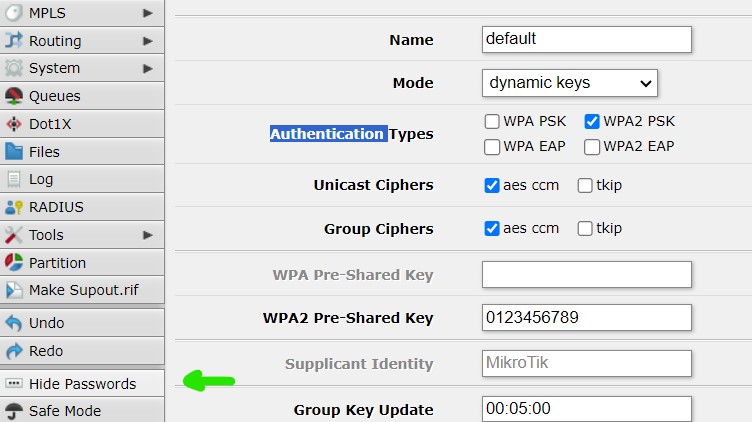
Don’t hide the passwords. (In Webfig the “Hide password” button is in the left column)
You will see the Preshared keys. (wifi password)
Here only WPA2 is enabled in my case.
Your case, no password is set yet (mode=none) this is open wifi, no password required for your ROKU box.
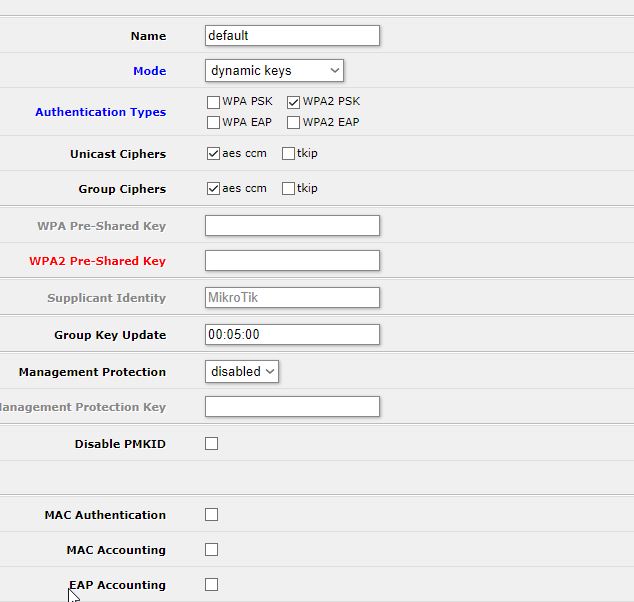
If ROKU box persist in requiring a password, you can set one as me, or something different.
No password, or blanc/empty password. Leave it blanc in ROKU box as well.
Only if ROKU box does not accept this , set a password in the router (WPA2 Preshared key field) with dynamic keys mode.
Mode=none has no password or just an empty password. Should have worked with the ROKU box and empty password, but your wifi is open and insecure that way.
To 6.49.10, or after also completing the SSID password as shown by bpwl?
…I do not get any connection between the router and Roku at all
Have you entered a password in the Mikrotik configuration, hit Apply and OK, as suggested?
Do you see the SSID “default” (which appears to be your name for it on the screen shots) when scanning in the “Choose your Network” screen on the Roku? You can “Scan again to see all networks” to have another look.
If you found the SSID, have you entered the password you entered in Mikrotik?
I am asking step by step questions to try to avoid ambiguities. We need problem definition, the exact state and sequence.
…which I had before the update!
You said your problem was that you did not, and that is why you were asking for “the password” without stating which one.
Do you see the SSID “default” (which appears to be your name for it
Default is the name of the security profile, not the network name to look for. The network name is the SSID.
SSID at this location, as told already:
The wireless SSID is under Wireless - Wireless interfaces - WLAN1 interface - Wireless - SSID field (the used security profile is mentioned there as well, a bit lower)
One or other step (or reset action of the router) probably has returned the router to its “Default configuration”. So everything set specifically is gone.
The SSID already set in the ROKU device, for the network to connect to, will probably not be available.
Maybe there is a backup configuration file under “Files” , called ‘xxxxxxx.backup’, that can be restored in the Files menu. ‘xxxxxx’ can be anything as used when making the backup.
Or just enter the SSID (network name) you want to use.
I hate ‘Quick Set’ , unless it is used as initial setup, what is the case here. The best Quick Set here probably is “Home AP”. Enter the wanted “network name”, “country name” and “Wifi password” …
For reasons unknown to me I have lost access to the router completely. Right now I’m connected to the internet via Ethernet cable, bypassing the Mikrotik.
Getting ready to buy another one.
Just rebooted the router per the MikroTik instructions and I have internet on one of 2 PCs. However, entering 192.168.88.1 does not work. Should I buy a new router, e.g. RB951Ui-2nD?
Do NOT use ethernet port 1 for your PC, with the default config in the router. This is the default WAN port, and blocks everything incoming.
On the other ethernet ports and wifi you should get the proper IP address, and the default gateway should be set (check your PC network interface characteristics)
(Info Difficult to find in newer Windows One way is to enter “control” for the run command, or in the search field near start. Or give “ipconfig” when in CMD window)
If you have WinBox, you can enter via MAC address in the ethernet port. Search via “neighbors” in Winbox, to click on the MAC address
The PC having internet is not plugged into ether1, the other might be.
(It’s small print: ether1 is not at the edge of the device, but somewhat in the middle)
My box has the ports neatly in this order: 1, 2, 3, 4 with 1 the internet input.
My internet access is OK, when I plug my cable into my wife’s PC, no internet because of a non-valid IP configuration.
192.168.88.1 still no access.
Reset config by button press till LED starts flashing only, do not go to CAPS mode, do not start Netinstall mode
Resetting the RouterOS configuration
Hold this button until LED light starts flashing, release the button to reset RouterOS configuration to default. Enabling CAPs mode
To connect this device to a wireless network managed by CAPsMAN, keep holding the button for 5 more seconds, LED turns solid, release now to turn on CAPs mode. Starting the RouterBOARD in Netinstall mode
Or keep holding the button for 5 more seconds until LED turns off, then release it to make the RouterBOARD look for Netinstall servers.[/code]
and with the rest of the story … I seems like something went wrong with the upgrade of that device.
Only option I see is doing a Netinstall then, as you do not get in that device at all (anymore)