I also agree that there should be 3 different sets for all OSes. As a Windows user, I got used to standard shortcuts from Windows, someone else was always using Linux and got used to standard shortcuts from Linux...
Mixing things from different platforms never leads to good result (it's not only about shortcuts)
Exactly! It's not a webpage that doesn't know about the OS under the browser. It's a native, compiled program, that have access to the OS's APIs and libraries.
Yes Ctrl + Ins and Shift + Ins work for copy & paste since even the TUI (not GUI) from the 1980's (my first encounter with them are with the Borland programs), and Shift + Del for cut. Even before Ctrl + C/V/X were made "standard". Those three shortcuts still work on this day on Windows 11 in every standard control text boxes (in all programs that use those controls), and WinBox 4 also already supports them for the normal input fields. It logical to use those three shortcuts in the Terminal window too.
A side note: F4 which WinBox 3 supports, is not a standard shortcut for closing sub-window in Windows. The standard shortcut for that is Ctrl + F4 (which WinBox 3 also responds to). F4 in the Terminal is the shortcut for safe mode. WinBox 4 should allow Ctrl + F4 (and ESC and Ctrl + W) for closing sub-window, but not the single F4 key to avoid confusion with the safe mode toggle in Terminal.
Dialog box keyboard shortcuts (all should be implementedl)
Desktop and other general Windows keyboard shortcuts (Ctrl + F4, F5, F6, F10, ESC are documented here)
Text editing keyboard shortcuts (excluding formatting actions)
I would also add Shift + F11 to toggle the maximization of the active dialog inside WinBox (the function of the Expand / Restore button on the title bar of each dialog).
I don’t know that potential conflicts with the terminal should be the reason to avoid it, but I think that perhaps destructive actions such as delete (Delete) and disable (Ctrl-D) should not have shortcuts, at all, indeed. At least, not by default. Especially since there’s no confirmation dialog.
On a related note, then, I recently discovered the difficult way that in WinBox 3, num pad minus and plus are also shortcuts for disable and enable, respectively. This is entirely unnecessary and unintuitive. This does not appear to have been brought over to WinBox 4, so please keep it that way.
I also agree with the current Ctrl-C behaviour. At least in Windows, this is what I expect. This is the default behaviour in Windows Terminal.
I disagree. All functionalities must be accessible with keyboard only, even if it requires long navigation sequences with repeated TAB key presses.
A confirmation dialog can be added for destructive actions when invoked by shortcuts, but the action should be reachable without mouse or touch. There are many people with reduced motion capability who are unable to operate a mouse!
Currently, it's not possible to move/resize the sub-windows using only keyboard, and that's a very big accessibility deficiency. There should be a window menu accessible by shortcut, that presents the option for Move/Resize.
Under Windows, the operating system itself allows applications windows to be moved/resized purely by using keyboard (by presing ALT+SPACE to invoke the application system menu). This also works for the main WinBox 4 window. But we need similar menu for the individual sub-windows.
Can you make a test in WinBox 4 right now and using only the keyboard, navigate to IP -> Firewall -> Address Lists, add two entries for TEMP value 1.2.3.4 and TEMP2 value 3.4.5.6. Then select both entries and disable or remove them? Without touching the mouse at all?
If you can't then WinBox 4 fails miserably on the accessibility front.
I even allow you to cheat and use the mouse to open the IP -> Firewall dialog. If you are on the "Filter Rules" tab, can you reach the "Address Lists" tab with only keyboard?
Now you are allowed to cheat to open the "Address Lists" tab with the mouse. Can you add the entries with only keyboard? Yes, if you press Tab long enough to highlight the "New" button. Now select the two items with keyboard (easy enough with arrow keys and SHIFT). But try to delete them now?
The excuse that destructive actions should not have shortcut is bogus. You can delete files with the DEL key in Windows Explorer, even without confirmation. You have the Recycle Bin to undo, but Undo exists in WinBox too. And "Delete permanently without Recycle Bin" also has a shortcut available in Windows Explorer SHIFT+DELETE, of course it will present you with a confirmation dialog first.
The disable and delete actions should have shortcut key, and can display a confirmation dialog (navigable with keyboard only, of course).
I don’t think you can instantly “brick” your PC by pressing a single key anywhere in Windows, where the same is clearly not true in WinBox. Undo does not help me when I’ve deleted the default route. Other than that it seems like we agree.
I don’t know why you’re talking about keyboard navigation. I never mentioned anything about that.
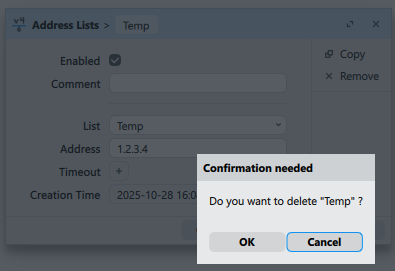
Have you missed how often I wrote about the confirmation dialog on destructive actions above? Even WinBox 4 already displays such confirmation requests if you invoke the actions from the property dialog:
The is no downside to bind the DEL and Alt+D (if Ctrl+D can cause confusion with the Terminal) with the delete/disable selected items function with confirmation dialog.
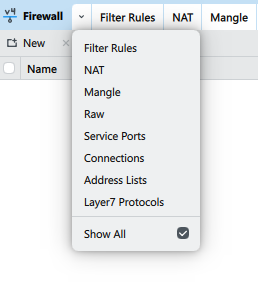
In fact, if UI guidelines are correctly followed, these items
Will have letters N , E, D, R underlined when the user holds the Alt key, and pressing those letters while holding Alt will perform the action (with confirmation for destructive actions). So Alt+D can work well as the shortcut key for "Disable".
And here would be Alt+F and Alt+T, with those letters underlined while holding Alt:
In fact, the auto Alt shortcut is of course also supported by Qt (that WinBox 4 uses). And exactly same as with the Windows API since decades, the & can be used to automatically produce the Alt shortcut with underlined character. Extract from the documentation:
In widget applications, certain widgets can use '&' in front of a character. This will automatically create a mnemonic (a shortcut) for that character, e.g. "E&xit" will create the shortcut Alt+X (use '&&' to display an actual ampersand). The widget might consume and perform an action on a given shortcut. On X11 the ampersand will not be shown and the character will be underlined. On Windows, shortcuts are normally not displayed until the user presses the Alt key, but this is a setting the user can change. On Mac, shortcuts are disabled by default. Call qt_set_sequence_auto_mnemonic() to enable them. However, because mnemonic shortcuts do not fit in with Aqua's guidelines, Qt will not show the shortcut character underlined.
Did the WinBox 4 programmers ever tried to use &New, &Enable. &Disable and &Remove as text label for those toolbar button at all?
Please note those decade-old UI guidelines (under Windows at least, and apparently under X11 too) also dictate that such shortcut should be used in the property dialog too. Does MikroTik still have people that use Windows and are old enough to know about this?
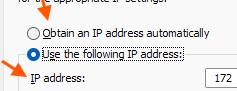
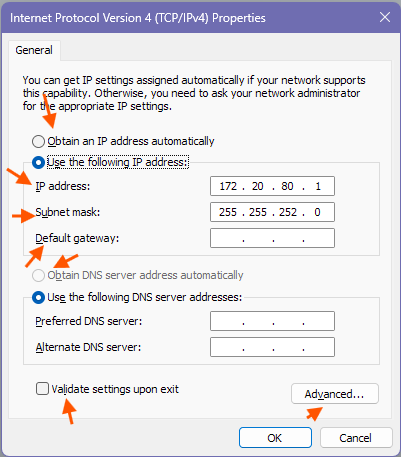
If not, then let me explain that screenshot from standard Windows dialog: If you press Alt and those underlined characters, the items is automatically focused/selected, instead of having to press TAB a dozen of times.
Ah, it must be because of this:
However, because mnemonic shortcuts do not fit in with Aqua's guidelines,
For what is worth, I agree with EVERYTHING, and I mean EVERYTHING CGGXANNX posted in this thread .
The whole point in a "keyboard shortcut system" (please note the emphasis on keyboard) is that it should be able to allow the user to do everything without using the mouse, as a matter of fact you should be able to use the program on a device that has ONLY a keyboard and no pointing device of any kind (no mouse, touchpad, touchscreen, nothing).
On one side it saddens me that we need to be here telling these things (that should be basic knowledge and standard good practice for designers and programmers), on the other I am happy to know that I am not the only one that still uses (when convenient) the keyboard (as opposed to mouse/keyboard/mouse/keyboard/mouse/keyboard/mouse/keyboard/mouse/keyboard/mouse/keyboard/mouse/keyboard/ to do things).
A common movement or arrow-key layout on the left side of the keyboard is usually WASD.
ALT+A is correct because A represents the left arrow.
But S stands for the down arrow.
If you follow the WASD scheme, the correct key would be ALT+D.”
But ALT+W is taken.
Ctrl + F4 or Alt/OPT + W Close window.
But enough nitpicking — why not just do it like this?
Yes, that's why MikroTik should not try at all cost to keep the exact same keyboard shortcuts on all platforms. But should instead use the shortcuts that follow the convention of the current OS platform. As @Amm0 already posted above, one prominent example is Visual Studio Code.
Old school programs (like Notepad++) underscore shortcuts letters after pressing Alt
The more old fashioned ones show these undersored letter all the time.



 .