A very simple redirect (to an http page) after join WiFi

Since I was curious on Option 114 and hadn’t tried NodeRED in years (nor in a Mikrotik container, which was surprising easy FWIW). This test I used a “Option 114 Only” approach, with NodeRED responding the RFC-8908 “Captive Portal API” request upon Wi-Fi connection (based on a NodeRED https url being provided in the DHCP).

My test here was using NodeRED container and using Option 114 to redirect to that container WITHOUT hotspot or /ip/proxy. And, on MacBook and iPhone at least, the Apple’s captive portal dialog appears. It is quite simple actually…


I had NodeRED just display some plain test in response to a /status “http in” flow…so this comes from NodeRED (e.g. could be some existing NodeRED status page).


And the above showed same on iPhone. Some notes on what I did:


NodeRED

  • You need a working NodeRED. For my test, I installed it in a container with NodeRED to test – using “nodered/node-red” docker image, adding mount for /data, and bridging its VETH to main lan.

  • In NodeRED, HTTPS needs to be enabled in it’s “settings.json” for NodeRED and point to the full path to the cert and key files for SSL. Creating certs is PITA, but totally needed here. NodeRED documents this here: https://nodered.org/docs/user-guide/runtime/securing-node-redSelf-signed certs might work IF the client devices connecting to Wi-Fi need to already trust a self-signed root (otherwise the captive portal will fail since certs if invalid/untrusted. Unlike a regular browser, the captive portal window does NOT let you just hit the it’s dangerous but “Continue Anyway” button).

  • I created a LE cert using certbot on a Mac with DNS validation, and copied them to the NodeRED directory (/data in my container case). In my case, I use Gandi plugin for DNS validation to a custom domain, but there are plug-in for most DNS providers (using nodered.example.link but replace the -d with a valid domain):

certbot certonly --authenticator dns-gandi --dns-gandi-credentials ./gandi.ini -d nodered.example.link --work-dir . --logs-dir . --config-dir .
  • From NodeRED’s shell edit settings.json. I uncommented the “option 1” for HTTPS, and used the full path the files generated key/certs copied to from Mac to the NodeRED instance.
 https: {
      key: require("fs").readFileSync('/data/privkey.pem'),
      cert: require("fs").readFileSync('/data/cert.pem')
    },
  • From NodeRED’s flow editor at :1880. Added an “http in” GET request for “/api”:

  • In same flow, added a “template” and linked to the “http in” above, that contained the “status” to display from another NodeRED flow. I create another “http in” flow to test, but you should already have your status page… https:// part will come automatically from enable NodeRED for HTTPS as shown above
{
    "captive": true,
    "user-portal-url": "https://nodered.example.link:1880/status"
}


\

  • Lastly, in the NodeRED flow editor, create an “http response”, make sure to “Content-Type” as “application/captive+json” as a header with 200 as return code & link that to the template above.


\

  • Then “Deploy” the flow using the button in top right of NodeRED flow editor. As this point NodeRED will respond to a device’s RFC-8909 request… but the Mikrotik will need to use DHCP to send a device’s request for captive portal the above NodeRED flow.


    RouterOS configuration

Assuming using VLAN-enable bridge and a new VLAN that does the “NodeRED status page captive portal redirect”, the following worked in my case (excluding unrelated configuration). In particular the Option 114 stuff is critical to link the above NodeRED:

# add DHCP Option 114 stuff...
/ip dhcp-server option add code=114 name=nodered value="'https://nodered.example.link:1880/api'"
/ip dhcp-server option sets add name=NODERED options=nodered

# using Virtual AP for testing...
/interface wifiwave2 add configuration.mode=ap .ssid=NodeRED disabled=nomaster-interface=wifi1 name=wifi3

# create new VLAN for the "NodeRED" SSID above...
/interface bridge [find] vlan-filtering=yes
/interface vlan add interface=bridge name=vlan114 vlan-id=114
/interface bridge port add bridge=bridge interface=wifi3 pvid=114
/interface bridge vlan add bridge=bridge tagged=bridge vlan-ids=114
/interface list member add interface=vlan114 list=LAN
/ip address add address=10.1.14.1/24 interface=vlan114 network=10.1.14.0

# now add a new DHCP server that uses the Option 114 that points to NodeRED
/ip pool add name=dhcp_pool2 ranges=10.1.14.2-10.1.14.254
/ip dhcp-server add address-pool=dhcp_pool2 dhcp-option-set=NODERED interface=vlan114 name=dhcp2
/ip dhcp-server network add address=10.1.14.1/24 dns-server=10.1.14.1 gateway=10.1.14.1

# Add static DNS to point to the NodeRED's IP address, that matches the DNS name used the HTTPS certificate
# Mikrotik DNS must used resolve the HTTPS name to the private NodeRED IP address, in my case that's 192.168.100.207 
/ip dns set allow-remote-requests=yes
/ip dns static add address=192.168.100.207 name=nodered.example.link"

It took way longer to write this down than actually setting this up – but totally works at least on Apple devices when I connect to the “NodeRED” Wi-Fi SSID. Which uses JUST the Option 114, NO hotspot, NO proxy. Just HTTPS enabled in NodeRED using LE – with the above additional “NodeRED ‘flow’” that responds the /api HTTPS request to tell a Wi-Fi client to display the another “/status” page provided by same nodered instance.

I have no idea if works on Android, but both Mac and iPhone seem to work using roughly the above.

Amazing, beautiful! :smiley: thanks!
Alone I could never imagine it )) so I’ll try to test it as soon I can.
About certificate, I suppose I need an active internet connection to let devices verify it, without internet I suppose the captive portal fails. Also internet will important to avoid device disconnects from wifi, to assure its services (especially messengers) to keep receiving messages, this may be a future interesting topic to dicuss about, keep a device connected, eventually.
So I’ll give a try

Since NodeRED seem to work in a Mikrotik container in 5 minutes, you got lucky :wink:. And, I was curious how well the Option 114 + “Captive Portal API” got triggered. It work surprising well actually, at least on Apple devices – this isn’t surprising given the RFC authors.
Someone could actually use this approach this to wireup a “real” captive portal using NodeRED (via various messages, flows, node, plugins, etc) to edit RouterOS config to allow/deny users. Mikrotik hotspot be more direct route, but NodeRED be curious/interesting approach.


Re certs… Figuring out certbot help with them… but you need some real domain (or DDNS service) someplace. In theory, you can use /certificate/enable-ssl-certificate on RouterOS to create one using the the /ip/cloud DNS name, and then exporting out the certificate/key as PEM too.

You need to be online to create certs. But once you have a valid cert… you do not have to be online. If same DHCP that’s sending the option 114 also set DNS to the Mikrotik, and, the Mikrotik has a /ip/dns/static that match the DNS name in the certificate that should be all that’s needed. The name on the certificate and DNS name in the option 114 and captive+json API response is all it take for the certs to “work” (in general). The LE certs do expire, so long term some scheme to refresh is also needed.

Re exported flow… I don’t know much about NodeRED but you’d likely be better create the “http in”, “template”, and “http response” Nodes as show above. But here is the export of my NodeRED flow:

[
    {
        "id": "f6f2187d.f17ca8",
        "type": "tab",
        "label": "Flow 1",
        "disabled": false,
        "info": ""
    },
    {
        "id": "cf244d496181038a",
        "type": "http in",
        "z": "f6f2187d.f17ca8",
        "name": "",
        "url": "/api",
        "method": "get",
        "upload": false,
        "swaggerDoc": "",
        "x": 200,
        "y": 280,
        "wires": [
            [
                "0edc40497877b6fd"
            ]
        ]
    },
    {
        "id": "0edc40497877b6fd",
        "type": "template",
        "z": "f6f2187d.f17ca8",
        "name": "",
        "field": "payload",
        "fieldType": "msg",
        "format": "json",
        "syntax": "mustache",
        "template": "{\n    \"captive\": true,\n    \"user-portal-url\": \"https://nodered.example.link:1880/status\"\n}",
        "output": "json",
        "x": 380,
        "y": 280,
        "wires": [
            [
                "6cb6b712c5345efa"
            ]
        ]
    },
    {
        "id": "6cb6b712c5345efa",
        "type": "http response",
        "z": "f6f2187d.f17ca8",
        "name": "",
        "statusCode": "200",
        "headers": {
            "Content-Type": "application/captive+json"
        },
        "x": 540,
        "y": 280,
        "wires": []
    },
    {
        "id": "82ba69dd6920e380",
        "type": "http in",
        "z": "f6f2187d.f17ca8",
        "name": "",
        "url": "/status",
        "method": "get",
        "upload": false,
        "swaggerDoc": "",
        "x": 210,
        "y": 360,
        "wires": [
            [
                "9f4b4dd840aa7990"
            ]
        ]
    },
    {
        "id": "9f4b4dd840aa7990",
        "type": "template",
        "z": "f6f2187d.f17ca8",
        "name": "",
        "field": "payload",
        "fieldType": "msg",
        "format": "handlebars",
        "syntax": "mustache",
        "template": "This is the payload: {{payload}} !",
        "output": "str",
        "x": 380,
        "y": 360,
        "wires": [
            [
                "9b0222694b427556"
            ]
        ]
    },
    {
        "id": "9b0222694b427556",
        "type": "http response",
        "z": "f6f2187d.f17ca8",
        "name": "",
        "statusCode": "200",
        "headers": {
            "content-type": "text/plain"
        },
        "x": 540,
        "y": 360,
        "wires": []
    }
]

This would be nice as an ISP to be able to push this DHCP option to managed routers, having them redirect to a server on the network that reminds them they are overdue on payment, or to advise them of an outage, etc. Good find on NodeRED.

And boo to all the container nay-sayers. :smiley:

Yeah there are few cases for a “splash screen” on wi-fi. This approach seem to be pretty easy, compared with using /ip/hotspot for simple needs.

FWIW, I think on Android it will show a notification based on the “venue-info-url” in the JSON, which is even more potentially handy, but I didn’t test that. iOS ignores the venue-info-url AFAIK.

Have been struggling with this for quite sometime

i have created the option and added to an option set

My config below
/ip dhcp-server print detail
Flags: D - dynamic; X - disabled, I - invalid
0 name=“Guest-vlan1” interface=Guest-Bridge lease-time=1h
address-pool=GuestIP authoritative=after-2sec-delay
always-broadcast=yes use-radius=no lease-script=“” dhcp-option-set=set1
/ip dhcp-server network print detail
Flags: D - dynamic
0 ;;; Guest network vlan 1
address=192.168.50.0/24 gateway=192.168.50.1 dns-server=41.76.225.197
wins-server=“” ntp-server=“” caps-manager=“” dhcp-option=CAPPo
/ip dhcp-server option print detail
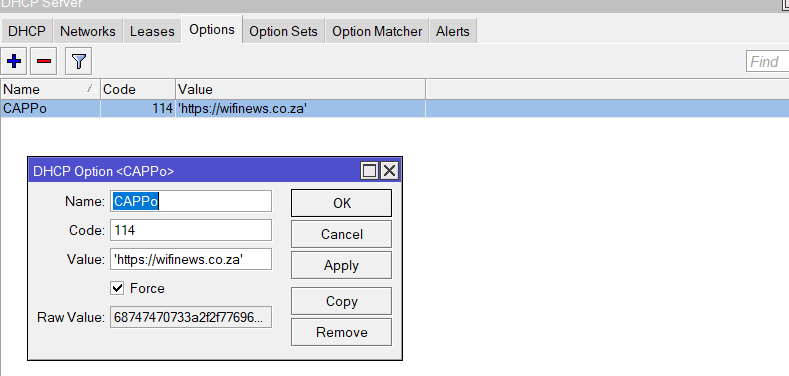
0 name=“CAPPo” code=114 value=“‘https://wifinews.co.za’” force=yes
raw-value=“68747470733a2f2f776966696e6577732e636f2e7a61”
+
I have a hotspot configured as well on the Guest bridge

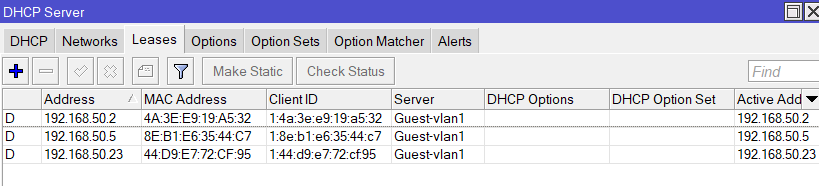
Why would the DHCP option or set not be assigned to the leases.
Lease screenshot.PNG
Option Screenshot.PNG

Set directly the option, not the set.

No. The “DHCP Option” and “DHCP Option Set” columns in the Leases tab are ONLY for static leases that have their own explicit Options configured.
When the Option or Option Set is configured for the server, they are not replicated here for dynamic clients.

I understood that the server doesn’t set the option parameters in the options set,
not that visually it didn’t appear written in the lease line…

Thanks for the revert

How do i verify if the option has been assigned to the device/lease?

Regards

Enable logging for topic dhcp and see what it does on the network (lists of requested and sent options are shown)

Just did exactly that, tested and deployed the entire solution in 1 day and released live to update the config on every customer CPE over the weekend. No containers involved though the config shown above was helpful nonetheless. We have our own custom backend API system that is already integrated into billing and account management so it was just a matter of testing the option 114 config and integrating it into our config scripts.

forgot to add, it only seems to work on newer mobile devices, windows computers don’t appear to support option 114 at this time from what I can tell.

Yeah the Option 114 without a “real” captive portal seem like a good trick to have the bag.

It actually the reverse one… tell the mobile device to NOT check for a captive portal (e.g. testing captive.apple.com etc.) that I added to my defconf from this thread…

/ip dhcp-server option add code=114 name=no-captive-portal value="'urn:ietf:params:capport:unrestricted'"

Kind like a TCP ECN… don’t know if it going to help, but seems like good idea to send.

Windows might look for the older RFC-7710 style in Option 160, but don’t know. That one redirects to another URL directly. But that one does not work on iOS AFAIK.

Is it possible to redirect a new device connecting to DHCP server without external apps or container? (Edited example from @Ammo’s post)

# add DHCP Option 114 stuff...
/ip dhcp-server option add code=114 name=Redirect value="'https://forum.mikrotik.com'"
/ip dhcp-server option sets add name=Redirect options=Redirect 

# now add the Option 114
/ip dhcp-server set [find] dhcp-option-set=Redirect

Looking at DHCP log, Option 114 is transmitted correctly to device but nothing is happening on mobile.

So apparently it does not work on your mobile. Ask the manufacturer support of your mobile.

That won’t work. See post #12 above (http://forum.mikrotik.com/t/a-very-simple-redirect-to-an-http-page-after-join-wifi/165960/1).

DHCP Option 114 is critically different from Option 160. Option 160 does allow a URL to redirect, but I’m not actually sure what/if anything support it. Apple does not look for Option 160, only Option 114 (with HTTPS+JSON returned).

Reason is the DHCP Option 114 spec (RFC-7710) requires it returns JSON, with the URL to visit on the device embedded in the JSON returned. The JSON with URL could be a static file on a web server, anyplace – but it has to be from a HTTPS site with valid certificate. Mikrotik doesn’t easily let you just server web pages (WITHOUT using /ip/hotspot) — so need a web server, someplace, is needed to use Option 114. And needs web server MUST have a valid SSL cert for a device to use the URL (e.g. andriod and apple will only show the captive portal if web uses https:// NOT http://).

So for an ISP, they likely have a billing system, which likely has a secure web server to use to serve the JSON needed to “warn” as user – assuming preexisting config that use Option 114 in CPEs to check a URL in a billing system’s web server. While not 100%, likely be useful to direct a customer who hasn’t paid what to do…

For a home user, curious admin, or small office…Option 114 is trickier since you need a web server. Since OP seem to be using NodeRED (see my example above) – that has a web server and runs in a Mikrotik container, but you need something like that use Option 114… But any web server, like ngnix or apache, can work too.

And /ip/hotspot will also work with Option 114. Here the Mikrotik would need to have a valid certificate in the /ip/hotspot setting. The Mikrotik docs talk about Option 114 here… See: https://help.mikrotik.com/docs/pages/viewpage.action?pageId=56459266#HotSpot(Captiveportal)-UsingDHCPoptiontoadvertiseHotSpotURL

pretty much what we just implemented, CPE already has an account check-in script that runs on a regular schedule, we just modified it to verify the option 114 value, then added the JSON generation to our backend system along with a landing page it directs the users to when their accounts are suspended. Slick and easy.


The challenge for the webserver isn’t the hosting or generation of the JSON data, it’s the fact that it also has to be served up to the client with the “application/captive+json” content type. Therefore at it’s most basic simply uploading a txt file with the JSON content in it to a webserver (which could be done via branding maker), would not result in a successful activation of the client redirection, you need the webserver too send the appropriate content type string as well.

Yeah I’d never thought about using the Option 114 independently of a “captive portal” until this question came along.


That’s a good point, I mention it – but Option 114 won’t work on iPhone without the right MIME type (and I think Android is equally picky on MIME type being application/captive+json ).

But didn’t mean to imply you can use the Mikrotik web server without /ip/hotspot to serve the needed JSON for Option 114. You need a real web server that allows setting the MIME content-type for a static/dynamic JSON for the Option 114 “splash screen” to work end-to-end.