Access WiFi devices from another router LAN - same LAN with other connected ETH and WiFi routers

Home network, two router devices, one ethernet-only router (RB3011UiAS), second one WiFi + ethernet router (hAP ac lite). Fairly common and basic setup - all LANs connected.

Important connections

  • Gigabit Optical Internet ↔ u Main Router #1[/u]
  • u Main Router #1[/u] ↔ u WiFi Router #2[/u]
  • u Main Router #1[/u] ↔ u PC #4[/u]
  • u WiFi Router #2[/u] ↔ u Printer #5[/u]

Made a drawing, to be more clear:

  • Red circles - static addresses
  • Green bg circles - DHCP assigned addresses
  • Interfaces are written for associated router
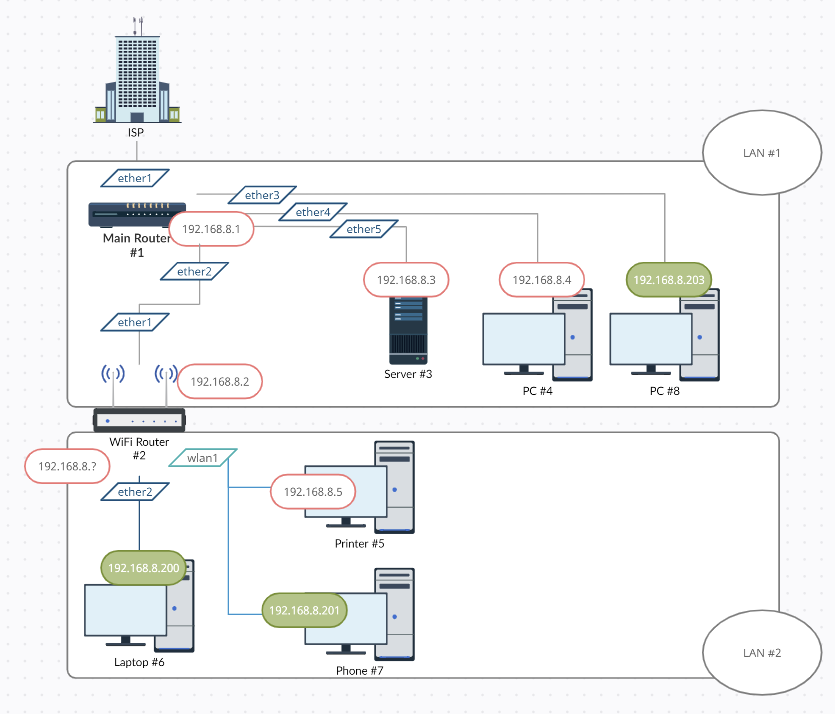
explorer_504rBMf1ak.png
How to configure so that when I attach my computer to u Main Router #1[/u] I could access printer connected to u WiFi Router #2[/u] with address, provided by DHCP server configured in router #1?

WiFi router configuration is currently intalled with built-in “Home AP Dual” mode and works well but only for internet access. For sake of simplicity, let’s imagine this is brand new setup with no previous configuration.

Currently, WiFi router is configured in “Home AP Dual” mode with its own DHCP server in different IP range than main router LAN, but still, I can’t access devices. Please help.

I found http://forum.mikrotik.com/t/bridge-and-dhcp/155226/1 answer, but I did not understood what is meant by “DHCP server should be on the bridge”. Where should be a bridge, in LAN router or WiFi router?

I also found http://forum.mikrotik.com/t/mikrotik-network-not-accessible-from-another-network/162218/1 and it seems to have similar solution. So, does that mean inside WiFi router I have to move ether1 from WAN list to LAN list and it will solve problem? I trust both LANs, of course.

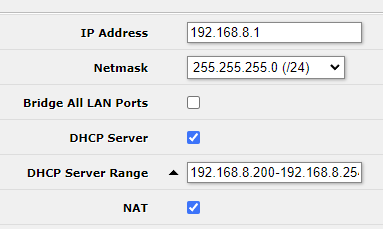
Main router #1 configuration
chrome_JSkAo1YxC1.png
Local Network

  • IP Address: 192.168.8.1
  • Netmask: 255.255.255.0 (/24)
  • DHCP server range: 102.168.8.200 - 192.168.8.255

WiFi Router #2 configuration

Internet

  • IP Address: 192.168.8.2
  • Netmask: 255.255.255.0 (/24)
  • Disabled Firewall Router (?)

Local Network

  • IP Address: 192.168.88.1
  • Netmask: 255.255.255.0 (/24)
  • Disabled DHCP server (?)
  • What else ???

PS: I use WebFig/WinBox, if it is simpler for you to explain with CLI commands, please, go ahead.

Questions:

  1. How to enable connections from LAN #1 to LAN #2 devices and other way around?
  2. How to use same IP range for both LAN #1 and LAN #2 devices using DHCP? Is it wise decision to use same IP range for small office environment? I chose single range, just because there are less than 255 devices in this office.
  3. When VPN inside Main Router #1 is created, and I connect to this LAN #1 network from remote computer, will answer to question 1. enable access to LAN #2 devices from remote computer connected via VPN?

Do you want the same subnet throughout the network, or do you want
a. trusted subnet
b. guest subnet (ususally wifi only)
c. IOT devices
d. media devices
etcc…

Same subnet is fine, it was planned to contain iot and media devices too, one network to rule them all. As I am controlling IOT devices via phone on the same wifi as devices.

If you want one common subnet for everything, then you don’t want hAP as router, only as transparent bridge. It seems that you’re using Quick Set, which probably has some bridge mode too, or you could simply add all interfaces as bridge ports.

Okay, fair point. I saw similar suggestions in other posts.

And yes, it is made with “Quick set”.

Went to “Bridge \ Ports” section and found that “ether2”, “ether3”, “ether4”, “ether5”, “wlan1” and “wlan2” are there with “bridge” option selected as “bridge”. Does that mean that they are all able to reach each other?

Clicked “Add new” and there are ton of options to select from, I changed “Multicast Router” to “Temporary Query”, just like it was in “ether2”.

Is that’s all what’s necessary?

Ping from LAN #1 PC to printer in the LAN #2 WiFi still does not respond. But I was able to reach Router #2 via WinBox and MAC address as soon as I added that port to the bridge.

PS: Now in “Quick set” it is telling me that I have selected “WISP AP” instead of “Home AP Dual” - how does it determine what current “preset” is running? It would be nice if it would tell “Custom”, as soon as I have changed something outside of the “Quick set”, otherwise it’s confusing.

Let me restate previously said in different way.
I have a LAN-only router.
When connecting wi-fi routers to LAN ports, I would like to be able to reach devices connected to router LAN ports.
For example, NAS is sitting next to the main router, wi-fi router is sitting next to the main router. Printer and TV is connected to the wi-fi.
With my PC connected via eth, and laptop connected via wi-fi, I would like to be able to connect from PC to NAS, Printer and Laptop, from TV I would like to be able to access NAS and so on.
What is necessary, to achieve this?
From what I have found, this is called “bridge”. And it needs to be set up inside wi-fi router somehow.
Questions:

  1. Does both of those routers need to have same IP range, for this to work?
  2. When device connects via wi-fi, is it possible to manage it’s bandwidth limits from the core router? I would like to set up parent control, but don’t want to redo all the settings inside both routers, so no matter how person is connected, it would be still under parent control.
  3. What needs to be done inside wi-fi router, to make this work?
  4. When connected via wi-fi, how to achieve “seamless” connection, when walking around the territory, going out of one wi-fi router range and into another router range, that are in the same network? I assume, this would require IP to remain the same, that is why I assume this needs wi-fi to be on the same DHCP server (inside core router).