. . . on page 9 says that the S301 button Loads the backup boot loader.
I thought that I read somewhere that it was v3.x
Is there any way to confirm what VERSION it is that gets loaded?
Is this the button on the side beside the serial port (see page 3) that it is referring to because the diagram shows it as BIOS Reset and I was wondering if it is one in the same?
. . . as well on page 9 it talks about “Software Reset jumper hole. Resets RouterOS settings.”
3) Is that the “ROS Reset” we see on page 3 of that manual - the one we have to jumper with a screw driver (or like metallic device)?
4) If it resets everything to the “Defaults” how do I get back in via winbox if I don’t know what the IP’s are set to in order to re-upload my backup configuration? Do I use this procedure here: http://wiki.mikrotik.com/wiki/Initial_MAC_Winbox_Connection
I am not really fond of that as I seem to be having issues right now getting in that way (ref this tread: http://forum.mikrotik.com/t/winbox-ellipsis-connects-to-field-mac-table-empty/63487/1 )
I don’t have a serial connector at the moment so really I’d like to be able to do this via an Ethernet cable if at all possible.
I am trying to learn to use the RouterOS but If I lock myself out because I did something dumb (very likely ) I want to make sure I can get back in to fix it.
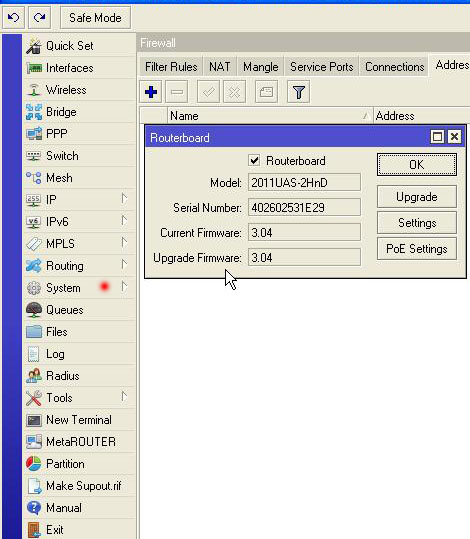
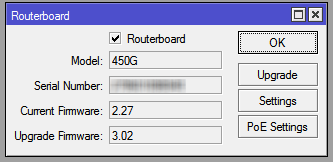
You can look to “system” then “routerboard” to see what firmware is active (see picture)
Try this hold up to date
Don’t be affraid that the routerboard not is accesible, if you reset the routerboard with the reset button or with the iron screwdriver reset the routerboard to default settings.
if you not set a ip-adress click to winbox on the three dots button and the mac-adress shows up.
if you click on mac-adress can you also connect to the routerboard.
Thanks so much for the help plisken.
It seems very hard to get help on this forum (much of the time) if you are new to RouterOS and MikroTik.
I am reading online manuals, but they are NOT that helpful much of the time.
(folks, I am not trying to post the same question in multiple places) ===> but to save plisken from having to go all over the place, I am reposting the the answer to the Firmware question:
My Questions:
How did the router “GET” the Firmware to be upgraded?
Did the Router go out to the internet on it’s own to get it, or did it come with the latest version of the OS that I installed (v5.23) ?
Does upgrading to the latest “BIOS” version do anything else for me, other than fixing ‘bugs’, that I should know about?
Are there possible conflicts, or upgrades that could go bad, that could happen as a result of doing the upgrade?
plisken, you mentioned this:
if you not set a ip-adress click to winbox on the three dots button and the mac-adress shows up.
if you click on mac-adress can you also connect to the routerboard.
I don’t want to ‘Brick’ my router and not ever be able to get back into it to fix it.
I have another tread where I am trying to get help with THIS exact issue here:
I don’t know why it is so inconsistent (the MAC showing up when I click on the ‘…’) but when it does, it does NOT let me in.
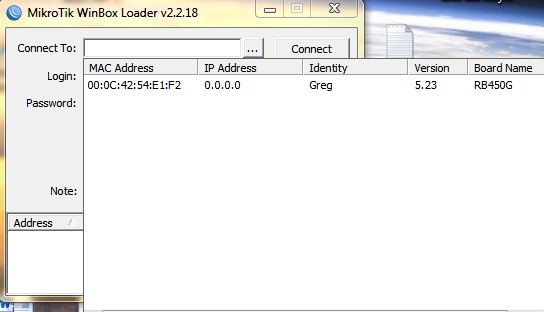
SEE the image in that post - the IP that comes up is 0.0.0.0 and clicking on the MAC just says that there is a timeout and won’t let me connect.
Does using the 2 different reset buttons do exactly the same thing?
My understanding, from what I have read, is that they do different things.
My understanding was that one of them would “Re-load” a version of “RouterOS” (which version I have no idea) in case something went very very wrong.
Is that right?
Thanks again to anyone who can help clear this up for me.
… I have even set the IP address in the computer and turned off/disabled every other network interface I have.
The ability for it to SEE the MAC is very very inconsistent. I do wait a good 45-60 seconds for it to discover the router as I have noted that when it DOES find it, it can take almost that long for it to discover it.
When it DOES discover it, the IP that it finds along with the MAC is 0.0.0.0 – which is odd to me, but shouldn’t matter as I am trying to connect via the MAC.
When I select the MAC and try to connect is when I get the Time Out! error message that I am trying to solve in this post here: http://forum.mikrotik.com/t/winbox-ellipsis-connects-to-field-mac-table-empty/63487/1
Will using either the ROS Reset, or the BOIS Reset button produce the same results and give these settings?
Is it possible to comment on the other questions that I had in the previous post?
How did the router “GET” the Firmware to be upgraded?
Did the Router go out to the internet on it’s own to get it, or did it come with the latest version of the OS that I installed (v5.23) ?
Does upgrading to the latest “BIOS” version do anything else for me, other than fixing ‘bugs’, that I should know about?
Are there possible conflicts, or upgrades that could go bad, that could happen as a result of doing the upgrade?
Does using the 2 different reset buttons (ROS Reset & BIOS Reset) do exactly the same thing? (I wouldn’t think so but the manual is pretty weak on that)
My understanding, from what I have read, is that they do different things.
My understanding was that one of them would “Re-load” a version of “RouterOS” (which version I have no idea) in case something went very very wrong.
Is that right?
Yes, when I connect to etherport 1, and WHEN the MAC shows up (00:0C:42:54:E1:F2), the IP that is associated with it is 0.0.0.0
When I connect to any other port - for example port 2 - The mack that shows up is (00:0C:42:54:E1:F3), and the IP that appears is 192.168.1.1
If I Click on any of the MAC’s I am not able to login.
It is normal, Winbox shows IP address assigned to specific Ethernet port. If address is not assigned Winbox shows ‘0.0.0.0’.
MAC connection works over UDP, check your firewall settings.
Also upgrade Win7 NIC drivers, from my experience, outdated drivers are usually main reason of problem.
I have check that I have the latest Jmicron Drivers for the NIC.
I downloaded them here: ftp://driver.jmicron.com.tw/Ethernet/Windows/
and they were current. I am usually very good at keeping them up to date.
I don’t think it is the firewall as I have turned it off completely when trying to do this.
I multi boot my machine and I have a perfectly clean installation of Win7 Pro on one of the partitions.
When I thought that there was a possible conflict, I booted into THAT machine and tried to connect and had the same issues.
It was suggested that I try a different computer . . . THAT works perfectly, everytime, absolutely no issues.
It was a Realtek NIC.
So I thought that maybe there is a conflict between the JMicron NIC that I have, Winbox, and the RB450G
I have 3 of these machines (NP-8150 computers) so I tired it on another machine - same OS, Same configuration (firewall anti virus etc) and it connected perfectly every single time! Exactly as I’d expect it to. Winbox found the MAC immediately, I clicked on it and instantly I was in.
So it is not a JMicron NIC problem.
What setting on THIS NP-8150 machine could possibly causing the time outs - especially if I have the Firewall turned right OFF and the Antivirus turned right off as well (by the way the other machines are running the same AV and Firewall)?
I have no idee, i have this with my netbook, and i see the mac adres but have a time out
i can not login.
With my pc with windows 7 pro no problem, another pc with windows 8 no problem.
I think the drivers from network card is not support,
If someone else another idee, we will hear it
I don’t think it is a driver issue as I have 3 “Sager NP-8150” computers with identical configurations (Win7, Firewall, and AV). The other 2 connect perfectly and have the exact same drivers as this machine (also an NP-8150) and I am NOT able to connect with it.
I did re-install the driver for it, but it still doesn’t work.
The error message says that the connection timed out on port 20561 (I am not sure why it timed out on that port) but went to the firewall anyway and allowed the connection through that port.
Turning the firewall off completely should have had the same effect, but it simply does NOT want to connect and “Times Out”.
By the way, the “Time Out” happens immediately.
The other thing I have noticed is that on the other machines, it finds the MAC within a few seconds. On this one that I cannot connect with it will take 45-60 seconds to see it. I am not sure why.
No sorry, no luck. The exact same thing happens.
The only thing that I have different on THIS machine that I am having trouble connecting with is that there is a VPN installed.
I don’t see why THAT would make a difference as it is NOT active and I have also disabled it as an adapter.
Sorry, I am not sure what you mean by host file. What should I be looking for?
Is it possible that The NIC on THIS computer is faulty? Has anyone ever heard of that?
I have never had any other problems with this machine.
Being that I have a ‘Clean’ Win7 pro OS on another partition that ALSO doesn’t work on this machine, I would think eliminates a ‘Software Conflict’
2 other NP-8150’s that are configured EXACTLY the same way that DO work . . . the only thing that I can think of is that there is something wrong with THIS nic on this computer . . . but it works with everything else.
 ) I want to make sure I can get back in to fix it.