I am currently troubleshooting a WiFi network based on MikroTik WiFi AX APs managed by a MikroTik controller.
The network is working and clients can connect normally, but I am experiencing relatively high and sometimes unstable latency over WiFi. Users also occasionally feel that the WiFi connection is slow, even when there does not appear to be heavy network traffic.
Approximately 100+ associated clients during working hours
APs are installed in several office/production areas
The controller itself does not appear overloaded (CPU and memory usage are low).
Looking at the WiFi registration table, many clients have good signal levels around -40 to -60 dBm and reasonable PHY rates. However, there are also some clients around -70 to -80 dBm, and occasionally some clients show very low TX/RX rates such as 6 Mbps.
I would like to understand whether the issue could be related to airtime utilization, retransmissions/retries, low-rate clients, interference, channel utilization, or the current AP/channel design.
With the new wifi-qcom driver, what is the recommended way to troubleshoot this?
In particular:
How can I check airtime/channel utilization per AP?
Is there a way to check TX/RX retries or retransmission rates?
How can I identify clients consuming excessive airtime?
Can a few clients with poor signal or low PHY rates significantly increase latency for other clients on the same radio?
Which statistics should I collect to determine whether the bottleneck is RF/airtime rather than Ethernet/network traffic?
Are there any recommended settings for improving latency in a relatively dense WiFi AX deployment?
I can provide the WiFi configuration, registration table, channel layout and additional statistics if required.
If you spend anytime on this forum you will find I am very critical of Mikrotik wifi. I have had to put my Mikrotik APs back in the boxes several times over new routerOS versions.
However, right now, I am running 7.24 on my RB5009 and 2 wAP AX. FT isn't working. But everything in my network is actually connecting for the first time (With Tik Radios). Plus video feeds are not stuttering. Which has been a problem since 2018.
I am running the latest caps-man and have multi-psk working on one SSID. The other is having no problems with WPA3.
A few devices that wouldn't actually pass traffic in 7.23 started working right after I updated.
What do you get if you run a speed test, from both WiFi and wired? I jumped on the MikroTik WiFi "bandwagon" around 7.21 or 7.22 with 3 CAP AX, and haP AX2, and an RB5009 u der capsman, and routingly see speeds up to 800mbit . . . (Now on 7.23.3 . . . 7.24 just isn't "baked" enough to load yet for me). Clients are a little bit of everything but Apple. (I don't run 20MHz channels on 5G though . . . )
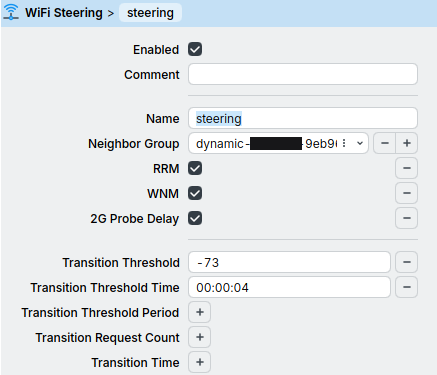
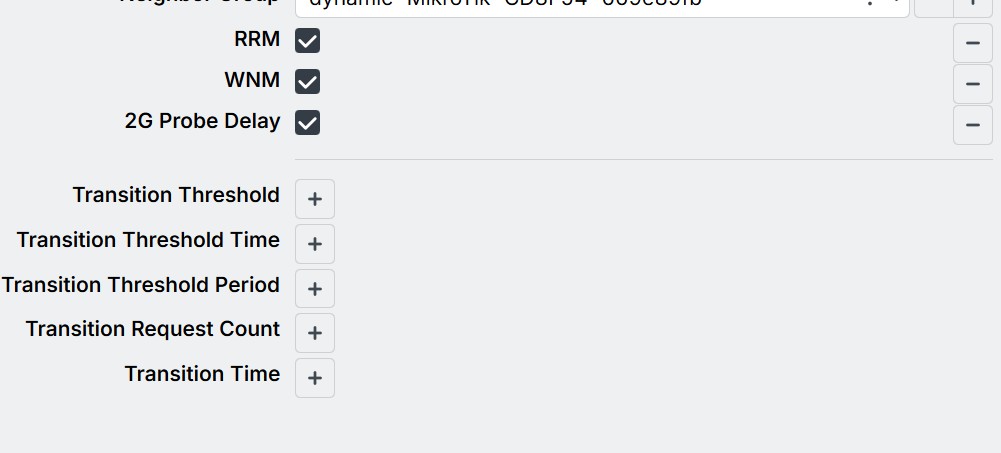
I have never had any issues with my wireless connections or FT when using cAP ax's, i have 3 and they all work coherently through capsman with on-ap processing, for FT i have FT enabled and FToverDS also enabled, for 5ghz radios, i use WPA2 PSK (a lot of reasons why over WPA3 to explain in this post), 20/40/80 mhz bands with 5180, 5260, 5500 for requencies. However i find that steering makes a lot of difference for me, i changed it from not defined to RRM WNM and 2G probe delay (because the same ap's are broadcasting 2.4Ghz as well) to be checked on and transition threshold to be -73.
It's a known bug that there's a bug with apple iphones and apple roaming, so generally unchecking FToverDS (NOT FT itself) fixes roaming for apple devices.
I am currently running RouterOS 7.23.x with wifi-qcom. My clients can associate and pass traffic normally, but the main issue is higher/unstable latency and occasionally slow WiFi performance.
When you upgraded from 7.23 to 7.24, did you notice any improvement specifically in:
WiFi latency/ping stability?
packet loss or retransmissions?
performance when many clients are associated?
Also, did you change any WiFi configuration after upgrading to 7.24, or was the improvement seen with essentially the same configuration?
Since this is a production environment, I would prefer to understand whether 7.24 specifically improved latency before testing the upgrade.
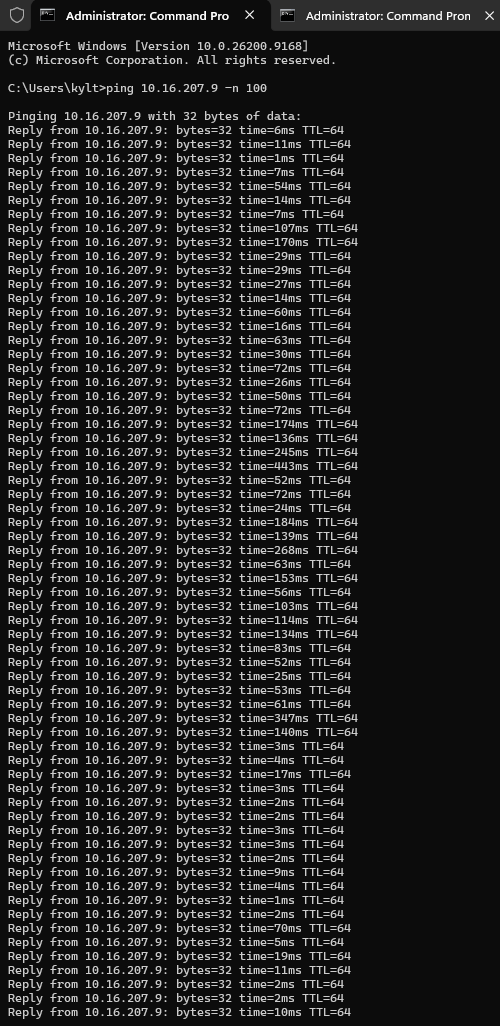
Thanks. I did a quick comparison using the same laptop and the same destination (10.16.207.9).
Over WiFi (FOV_LanOfficeAX), latency is very unstable. It frequently jumps from a few milliseconds to 50–170 ms, with some spikes above 200 ms and even around 400 ms.
Using the same laptop over wired Ethernet, ping to the same destination stays almost constantly below 1 ms, occasionally 1–2 ms.
So it looks like the high latency is already occurring on the wireless path, even before considering Internet performance.
I have attached screenshots of both tests (WiFi and wired).
I can also provide the WiFi registration details (signal, PHY TX/RX rates, AP/channel) for this client if that would help narrow down whether this is airtime, interference, retries, or configuration related.
I currently have FT and FT-over-DS enabled, but I haven't really optimized client steering yet.
Looking at my registration table, most clients are around -40 to -60 dBm, but I occasionally see clients remaining associated at -70 to -80 dBm, sometimes even around -85 dBm. Some of these clients also fall to very low PHY rates.
This makes me suspect that sticky clients may be contributing to airtime usage and latency.
You mentioned that enabling RRM/WNM and setting the transition threshold to -73 made a significant difference.
Could you please share your /interface wifi steering configuration, or the relevant CAPsMAN settings?
Also:
What beharvior did you see before enabling steering?
Did it specifically improve latency, or mainly roaming?
How did you decide on the -73 dBm threshold?
Do clients below -73 get disconnected, or are they only encouraged to roam?
Have you seen any compatibility problems with older Wifi clients after enabling RRM/WNM?
I would like to test this carefully bafore applying it to the production network.
So in my honest opinion, if you look at the -40 to -60dBm is a really good/good signal, i wouldn't worry about that, it really does fallback to how densely you have setup your access points.
The threshold of -73 and why, well generally since i have only 3 access points in my house, i want to switch off of one access point to another as soon as my signal drops off even a little bit, 60 dBm is good signal, 40 is very good/close to the AP and in my cases i get around 20-25dBm when i have my phone ontop or very close to the AP. So by having good signal strength you usually have good speed and latency, latency can vary of course (due to the number of walls, thickness of walls, how far the AP's are, what bands you use, density of the deployment etc etc...)
In my case by setting the threshold itself it helped my roaming to be more consistant and i have more consistantly-good experience using my wifi. Does it improve latency? Well, i wouldn't say it improves latency exactly as in lower the number, but i would say it makes it more usable and predictable and more consistant at working how you want it, I also recommend lowering the number if you have a higher density of APs or upping it if its a lower density, i personally recommend the range from -70dBm and -75dBm. So i chose the middle ground for it which was -73dBm.
WNM is a 802.11v standard which improves the handoff process from one to another AP, basically makes your roaming better and smoother, smoothing off the "downtime" between transfers and it eliminated sticky clients for me, basically it works in a way where the current AP that you're connected to suggests to your devices that are connected to it "hey you're getting away from me and the signal is weak, i have this neighbor, connect to him he has better signal integrity and strength to you, bye." (To be more professional it also cuts down the handoff time between access points to ridiculously low times, we are talking double digit mili-seconds)
RRM if i understood it correctly, its the protocol that actually allows the AP itself to store a list of neighbor AP's and their bssid's and suggest them to devices it basically works hand in hand with WNM.
So for compatibility, i personally never had any issues, theres like 5 laptops (3 out of 5 have intel wireless adapters, ranging from ax210 to ax211 and a be200), an older TV and a whole lot of phones, some samsung A14s, some A16s and an s21. I in particular never had any issues with compatibilty, everything just worked for me ever since i enabled it, phones roam without any issues and my signal almost never drops past 2 bars for a brief second. A quick google told me that any phones/pagers (hospital pagers) that are older than 2016-17 shouldn't have any issues with the wifi.
If this is a very serious corporate deployment where you have a lot of devices that absolutely must have a connection and must work seemlesly and don't have much downtime to work with, I cant guarantee, but i think enabling these options you SHOULDN'T have any issues if your devices that are connecting to the wifi are relatively new-ish (as i said past 2016-17.).
I have done my due diligence and checked out what i have setup as my wifi settings, so i screenshotted you my configs and my ping (AP to other device on the network, network path [laptop on wifi -> cAP ax -> rb5009Upr -> PC])
drotz@drotz-HP-ProBook-650-G4:~$ ping 192.168.88.254 -c 100
PING 192.168.88.254 (192.168.88.254) 56(84) bytes of data.
64 bytes from 192.168.88.254: icmp_seq=1 ttl=64 time=2.24 ms
64 bytes from 192.168.88.254: icmp_seq=2 ttl=64 time=4.93 ms
64 bytes from 192.168.88.254: icmp_seq=3 ttl=64 time=5.00 ms
64 bytes from 192.168.88.254: icmp_seq=4 ttl=64 time=4.81 ms
64 bytes from 192.168.88.254: icmp_seq=5 ttl=64 time=4.95 ms
64 bytes from 192.168.88.254: icmp_seq=6 ttl=64 time=6.51 ms
64 bytes from 192.168.88.254: icmp_seq=7 ttl=64 time=4.48 ms
64 bytes from 192.168.88.254: icmp_seq=8 ttl=64 time=4.54 ms
64 bytes from 192.168.88.254: icmp_seq=9 ttl=64 time=5.03 ms
64 bytes from 192.168.88.254: icmp_seq=10 ttl=64 time=4.59 ms
64 bytes from 192.168.88.254: icmp_seq=11 ttl=64 time=4.75 ms
64 bytes from 192.168.88.254: icmp_seq=12 ttl=64 time=4.61 ms
64 bytes from 192.168.88.254: icmp_seq=13 ttl=64 time=4.59 ms
64 bytes from 192.168.88.254: icmp_seq=14 ttl=64 time=4.73 ms
64 bytes from 192.168.88.254: icmp_seq=15 ttl=64 time=4.63 ms
64 bytes from 192.168.88.254: icmp_seq=16 ttl=64 time=4.77 ms
64 bytes from 192.168.88.254: icmp_seq=17 ttl=64 time=4.73 ms
64 bytes from 192.168.88.254: icmp_seq=18 ttl=64 time=4.73 ms
64 bytes from 192.168.88.254: icmp_seq=19 ttl=64 time=4.92 ms
64 bytes from 192.168.88.254: icmp_seq=20 ttl=64 time=6.96 ms
64 bytes from 192.168.88.254: icmp_seq=21 ttl=64 time=4.72 ms
64 bytes from 192.168.88.254: icmp_seq=22 ttl=64 time=6.41 ms
64 bytes from 192.168.88.254: icmp_seq=23 ttl=64 time=4.89 ms
64 bytes from 192.168.88.254: icmp_seq=24 ttl=64 time=4.84 ms
64 bytes from 192.168.88.254: icmp_seq=25 ttl=64 time=4.95 ms
64 bytes from 192.168.88.254: icmp_seq=26 ttl=64 time=4.96 ms
64 bytes from 192.168.88.254: icmp_seq=27 ttl=64 time=4.94 ms
64 bytes from 192.168.88.254: icmp_seq=28 ttl=64 time=6.71 ms
64 bytes from 192.168.88.254: icmp_seq=29 ttl=64 time=4.78 ms
64 bytes from 192.168.88.254: icmp_seq=30 ttl=64 time=2.66 ms
64 bytes from 192.168.88.254: icmp_seq=31 ttl=64 time=4.58 ms
64 bytes from 192.168.88.254: icmp_seq=32 ttl=64 time=2.45 ms
64 bytes from 192.168.88.254: icmp_seq=33 ttl=64 time=4.45 ms
64 bytes from 192.168.88.254: icmp_seq=34 ttl=64 time=8.44 ms
64 bytes from 192.168.88.254: icmp_seq=35 ttl=64 time=4.87 ms
64 bytes from 192.168.88.254: icmp_seq=36 ttl=64 time=8.02 ms
64 bytes from 192.168.88.254: icmp_seq=37 ttl=64 time=4.93 ms
64 bytes from 192.168.88.254: icmp_seq=38 ttl=64 time=5.66 ms
64 bytes from 192.168.88.254: icmp_seq=39 ttl=64 time=4.86 ms
64 bytes from 192.168.88.254: icmp_seq=40 ttl=64 time=4.52 ms
64 bytes from 192.168.88.254: icmp_seq=41 ttl=64 time=5.55 ms
64 bytes from 192.168.88.254: icmp_seq=42 ttl=64 time=6.03 ms
64 bytes from 192.168.88.254: icmp_seq=43 ttl=64 time=7.57 ms
64 bytes from 192.168.88.254: icmp_seq=44 ttl=64 time=3.31 ms
64 bytes from 192.168.88.254: icmp_seq=45 ttl=64 time=4.90 ms
64 bytes from 192.168.88.254: icmp_seq=46 ttl=64 time=2.64 ms
64 bytes from 192.168.88.254: icmp_seq=47 ttl=64 time=4.41 ms
64 bytes from 192.168.88.254: icmp_seq=48 ttl=64 time=2.50 ms
64 bytes from 192.168.88.254: icmp_seq=49 ttl=64 time=4.86 ms
64 bytes from 192.168.88.254: icmp_seq=50 ttl=64 time=2.20 ms
64 bytes from 192.168.88.254: icmp_seq=51 ttl=64 time=4.85 ms
64 bytes from 192.168.88.254: icmp_seq=52 ttl=64 time=2.09 ms
64 bytes from 192.168.88.254: icmp_seq=53 ttl=64 time=4.83 ms
64 bytes from 192.168.88.254: icmp_seq=54 ttl=64 time=2.12 ms
64 bytes from 192.168.88.254: icmp_seq=55 ttl=64 time=2.46 ms
64 bytes from 192.168.88.254: icmp_seq=56 ttl=64 time=2.19 ms
64 bytes from 192.168.88.254: icmp_seq=57 ttl=64 time=5.12 ms
64 bytes from 192.168.88.254: icmp_seq=58 ttl=64 time=2.53 ms
64 bytes from 192.168.88.254: icmp_seq=59 ttl=64 time=4.51 ms
64 bytes from 192.168.88.254: icmp_seq=60 ttl=64 time=2.48 ms
64 bytes from 192.168.88.254: icmp_seq=61 ttl=64 time=6.44 ms
64 bytes from 192.168.88.254: icmp_seq=62 ttl=64 time=2.19 ms
64 bytes from 192.168.88.254: icmp_seq=63 ttl=64 time=6.33 ms
64 bytes from 192.168.88.254: icmp_seq=64 ttl=64 time=2.44 ms
64 bytes from 192.168.88.254: icmp_seq=65 ttl=64 time=5.53 ms
64 bytes from 192.168.88.254: icmp_seq=66 ttl=64 time=2.38 ms
64 bytes from 192.168.88.254: icmp_seq=67 ttl=64 time=2.38 ms
64 bytes from 192.168.88.254: icmp_seq=68 ttl=64 time=2.67 ms
64 bytes from 192.168.88.254: icmp_seq=69 ttl=64 time=4.88 ms
64 bytes from 192.168.88.254: icmp_seq=70 ttl=64 time=2.39 ms
64 bytes from 192.168.88.254: icmp_seq=71 ttl=64 time=6.03 ms
64 bytes from 192.168.88.254: icmp_seq=72 ttl=64 time=2.67 ms
64 bytes from 192.168.88.254: icmp_seq=73 ttl=64 time=4.91 ms
64 bytes from 192.168.88.254: icmp_seq=74 ttl=64 time=2.59 ms
64 bytes from 192.168.88.254: icmp_seq=75 ttl=64 time=5.23 ms
64 bytes from 192.168.88.254: icmp_seq=76 ttl=64 time=2.63 ms
64 bytes from 192.168.88.254: icmp_seq=77 ttl=64 time=8.14 ms
64 bytes from 192.168.88.254: icmp_seq=78 ttl=64 time=2.43 ms
64 bytes from 192.168.88.254: icmp_seq=79 ttl=64 time=4.76 ms
64 bytes from 192.168.88.254: icmp_seq=80 ttl=64 time=2.21 ms
64 bytes from 192.168.88.254: icmp_seq=81 ttl=64 time=4.91 ms
64 bytes from 192.168.88.254: icmp_seq=82 ttl=64 time=2.31 ms
64 bytes from 192.168.88.254: icmp_seq=83 ttl=64 time=4.87 ms
64 bytes from 192.168.88.254: icmp_seq=84 ttl=64 time=5.94 ms
64 bytes from 192.168.88.254: icmp_seq=85 ttl=64 time=4.84 ms
64 bytes from 192.168.88.254: icmp_seq=86 ttl=64 time=5.46 ms
64 bytes from 192.168.88.254: icmp_seq=87 ttl=64 time=4.89 ms
64 bytes from 192.168.88.254: icmp_seq=88 ttl=64 time=2.85 ms
64 bytes from 192.168.88.254: icmp_seq=89 ttl=64 time=4.55 ms
64 bytes from 192.168.88.254: icmp_seq=90 ttl=64 time=2.71 ms
64 bytes from 192.168.88.254: icmp_seq=91 ttl=64 time=4.59 ms
64 bytes from 192.168.88.254: icmp_seq=92 ttl=64 time=2.31 ms
64 bytes from 192.168.88.254: icmp_seq=93 ttl=64 time=2.73 ms
64 bytes from 192.168.88.254: icmp_seq=94 ttl=64 time=2.37 ms
64 bytes from 192.168.88.254: icmp_seq=95 ttl=64 time=5.21 ms
64 bytes from 192.168.88.254: icmp_seq=96 ttl=64 time=2.90 ms
64 bytes from 192.168.88.254: icmp_seq=97 ttl=64 time=5.10 ms
64 bytes from 192.168.88.254: icmp_seq=98 ttl=64 time=2.48 ms
64 bytes from 192.168.88.254: icmp_seq=99 ttl=64 time=4.55 ms
64 bytes from 192.168.88.254: icmp_seq=100 ttl=64 time=2.88 ms

--- 192.168.88.254 ping statistics ---
100 packets transmitted, 100 received, 0% packet loss, time 99165ms
rtt min/avg/max/mdev = 2.093/4.339/8.438/1.502 ms
I just today updated my whole setup to 7.24.1, again, i have not had any issues, haven't had to reconfigured the routers/wifi/interfaces, nothing, i don't understand how people have these issues in the first place.
I have friends who use and abuse a rb5009upr, doing routing for a soho environment and the uptime on that thing is 700+ days, he hasn't been updating it or anything and it just works, not to mention hes using 6 cap ac's and also, as i said, using abusing and not updating and its just working, its ticking away without tinkering with it.
I don't really get what people do to have these sorts of issues at the end of the day with such (in my experience and observation) very stable and solid made equipment, as i started to read some of the forum posts, i end up chucking it up to user config issues and i tend to be right 70% of the time
I will test disabling FT over DS while keeping FT enabled on one AP first.
Regarding the Connect Priority setting (0 / 1) in your screenshot, could you please explain a little more about how you are using it?
Did you configure 0 / 1 on all APs with the same SSID, and did this specifically help with sticky clients remaining connected at around -75 to -85 dBm?
I'm trying to understand the difference between using Connect Priority this way and using the new RRM/WNM transition threshold for steering.
Thanks a lot for the detailed explanation and screenshots. They helped me understand your setup much better.
I'm going to test your steering settings on one AP first, especially RRM/WNM with the -73 dBm / 4s transition threshold, before applying anything more widely.
I also noticed that your 5 GHz configuration uses 20/40/80 MHz with multiple frequencies (5180, 5260, 5500). I have a few questions about this part:
Do you let RouterOS automatically select between these frequencies for each AP, or do you assign frequencies to individual APs through provisioning?
Have you noticed any stability or interference difference between 20/40 MHz and 20/40/80 MHz in your environment?
Since 5260 and 5500 are DFS channels, have you experienced radar detection/channel changes? If radar is detected, does your AP reliably move to another frequency from the configured list without causing noticeable disruption?
My environment is a corporate deployment with multiple MikroTik AX APs, so I'm trying to prioritize stability and roaming consistency rather than maximum throughput.
Connect Priority 0 / 1 is configured in CAPsMAN and is used by all cAPs (4).
If I disable it, devices using WPA3 have trouble roaming and stay connected to one cAP even when the signal is weak.
As for Steering, I enabled RRM, WNM, and 2G probe delay while keeping all other settings at default.
I don't assign frequencies manually to each AP, even tho you should, this way you have control and you don't let anything get decided by RouterOS.
My environment is relatively small 3 AP's so they don't have interference in these ranges, as you said you want to have stability over throughput/speed, i would recommend turning skip all dfs channels then on because in my area i don't experience any issues with radars or channel changes, that doesn't mean u might not experience, for what i know if the AP detects a radar on the same frequency it instantly leaves the frequency or rather initiates a CSA (channel switch announcement). I would use only 20/40 gigahertz in a corporate environment for the same reasons you said, but since this is a house i'm using 80 for the bandwith even if it has a chance to kick me off if a radar uses one of the frequencies.
For the AP moving, i tend to experiment a lot in my home with wifi and i provision through capsman a lot, since they get a list of frequencies to choose from when provisioning especially for 5ghz since its doing its DFS check and people who live with me don't really notice the disconnect or the downtime, they automatically get connected to 2.4ghz since its up instantly after provisioning, once 5ghz is ready and dfs scan is done they usually get connected to 5ghz soon enough. I don't think you'd have the same behavior because if you skip the 80mhz channels (might be wrong but all but 1 frequency are dfs channels anyway and we are skipping them because we want to set "skip dfs" to "all" in the configuration), 5ghz should be also availible instantly after provisioning for you.