I have been using an RB951G-2HnD for 3 years now without any issues. However, since last weekend the internet has become slow all of a sudden so I started investigating.
If I bypass the router and the broadband cable directly into my my notebook, then the speed is a 100% fine so it has something to do with the router or the traffic going through it..
In Winbox I saw that the CPU’s load is constantly high, jumping between 80-98% - I don’t remember it being so high.
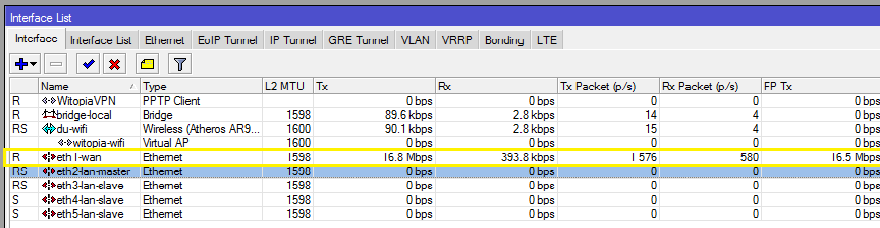
I checked the Interface list in WinBox and saw something strange:
eth1-wan (the port I connect the broadband cable into) has constantly high Tx (10-17 Mbps)
I checked if any neighbors could be using the wifi but no, the only devices connected to the wifi are mine. I have a Synology NAS which was not reporting any traffic higher than the usual few kbytes per second. I unplugged it’s LAN cable from the router the high Tx still remains.
If you look at the attached screenshot you will see that there is no Wifi traffic, there is no LAN traffic on Eth 2 to 5, then how can there be so much constant traffic on Eth1-wan? I am not an expert but am I wrong that Tx traffic on the Eth1-wan port should come from either one of the 4 LAN ports (Eth 2 to 5) or from wifi? But as you can see it does not come from LAN or wifi, then what on earth is this?
How could I find out what is generating all this Tx traffic? Again, this only started about a week ago.
As this is starting to worry me, any help would be greatly appreciated!
Like always here. Dns amplification attack. Why you can’t read all other threads with the same symptoms and implement firewall rules that block incoming connections to port 53? Your firewall is unsecure if you need this.
Thank you very much for your reply. Now that you pointed me in the right direction I was able to look up the other threads on the same topic.
I am not an IT expert, a friend of mine set up the router for me once and only explained the very basic details. Since then I’ve been trying to learn stuff on the forums.
What I find strange is that I have another one of the exact same router model and I reset its config (with no defaults), exported the settings from the first router (which was being attacked as you say) and imported the same settings into the second/new router. Now I am using the new router with absolutely identical firewall settings as the first one but the unknown Tx traffic is gone. Does this make sense? I am just trying to understand how this works.
Also, since I am no expert, could I please ask you to share the line with me that that I can use in the terminal to set up the right firewall rule to block that port?
Well, a DNS amplification attack is when someone uses your machine to flood someone’s else with DNS responses. First they (the miscreants) must find your machine, and verify that it is open to this attack. This is made by bots, crawling the entire web space. So, it is a chance game: your machine can be “found” in 5 minutes online - or can go on, unnoticed, for quite some time.
What rule you should use depends how You set up your firewall. The easier, more secure, way is to use a last input rule (they are processed in order) that denies everything from the web:
/ip firewall add action=drop chain=input comment=“drop all from WAN” in-interface=ether1 log-prefix=“”
Before this rule you should allow the services that you want working from the web. The default configuration for you router should be like this.
The other way is to block what You don’t want served to the web and allow the rest by default. I don’t recommend this: too many rules, too much to go wrong.
DNS uses port 53, UDP and TCP. You need to block access to this ports from WAN.
These two rules do this:
/ip firewall filter add action=drop chain=input comment=“drop DNS UDP from WAN” connection-state=new dst-port=53 in-interface=ether1 protocol=udp
/ip firewall filter add action=drop chain=input comment=“drop DNS TCP from WAN” connection-state=new dst-port=53 in-interface=ether1 protocol=tcp
I know I’m asking a very newbie question but does this mean they got inside my router and used that to send out DNS responses?
Also, is there a way to set up the router in a way that it alerts me somehow if such attacks happen?
This option sounds fine. I tried copy pasting it into the terminal via Winbox but I got a “syntax error (line 1 column 24)” error message. I also tried manually entering, navigating to ip / firewall and then start with add action but as soon as I start typing “add”, after the letter “a” “address-list” comes up as a suggested command.
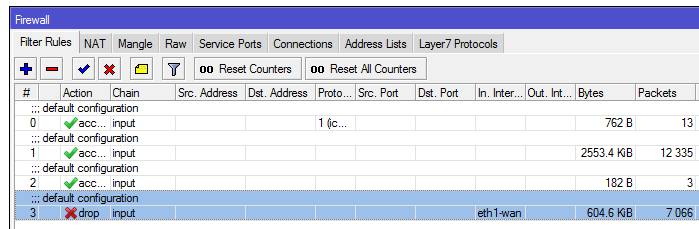
Edit: I just now realized that I have a a Filter rule that might be the same as what I was trying to add? Please see the attached screenshot, is rule # 3 the same and is that why I cannot add it as it already exists?
You can right click the interface and choose Torch to see the traffic in real time and identify what it is (make sure to enable port and protocol numbers).
Not quite. But they are using the DNS server of Your router as a part of an attack on someone else. The way to stop this is rejecting DNS queries from the WAN interface. Hence the drop rule.
Yes, that’s the one. But if you already have it… must be something else. It is enabled, right? If it is enabled, do like R1CH said: run a torch on the interface (don’t forget to enable protocols and port numbers), and find out what it is.
I had this rule there from before, my IT friend who had originally set up these routers for me put that rule in there but it was disabled until recently.
So what happened was (as a mentioned in one of my prev. posts) I was having the issues because of possible attacks on the other router (let’s call it first router) but as they are the exact same model I just exported all the settings into this second router (which was not in use anyways). I reset its settings with no defaults, then imported all settings (incl. firewall ones) from the first router. And then the unknown Tx traffic was gone but the drop rule was still disabled at the time. Which I didn’t understand as it had the exact same firewall rules as the first one. That is why I was asking who it is possible that you have two routers which are virtually the exact same routers with identical settings and one generates the unknown Tx traffic, while the other does not..
Touch wood, the attacks have been gone ever since I moved over to the secondary router.
If this issue comes back, I will use the Torch function but I hope I won’t have to.
By the way, is there a way to set up the router to alarm me if there are such attacks happening or if there are many unsuccessful login attempts into the router?
Well, You see. The problem about DNS amplifications is that they are more a misuse of services than an invasion. It is like an open email relay: your server is not exactly being attacked - it is being misused. You left a service open to the internet, and someone decided to (mis)use it. Doesn’t make much sense to get an email when someone uses the service: it would be a never ending stream of messages.
I see what you mean. What I was thinking is if I could set an alert for the router’s average CPU load in a minute going above 30%. Normally its load is around 3-4% so it reaching 30% would definitely be a sign of something unusual happening which I could then investigate. When the attacks were happening it was in the 70-99% threshold. Is that possible to do? The drop rule would still remain active of course.
It may be overkill, but you can use a monitoring tool, like PRTG to check the status of your Router. PRTG has some nice SNMP settings which can check CPU etc, it can also check bandwidth on a graph so you can look at it later. I setup mine a few months ago and google showed a lot of pre made nibs that I could import directly into PRTG.
The free version allows you to have 100 sensors, which is probably enough for a SOHO setup.