How to set up 2 routers and 1 modem

I have been dealing with this problem for many months now… I have a DSL modem with WIFI, a MikroTik RB2011Ui router, and a Zyxel router. First I will tell you what I want then explain my problems. I have a computer room in the house where I design things and a computer out in my woodshop where I run a CNC machine. I want to be able to share files between those two computers. Easy enough but I also want wireless in both locations.

For the last year I was attempting to do all of this wireless but my woodshop is metal and the signal was not strong enough to transfer files. I then put a repeater in, but that too was not what I hopped for. Finally I ran a cable through the wall into the atic and out the garage into the shop. I then ran it through the Zyxel router to allow wifi in the shop as well as a direct connect to the computer. This worked but I still was not able to see the other computers on the network. I had to use a third party software to transfer the files.

So yesterday I had some free time on my hands and brought the Zyxel router into the computer room to completely redo the network. I knew I had to allow one device to be the DHCP server and figured I would let the modem do that. I connected the RB2011Ui to the computer and then the modem, turned off the DHCP on it, and set it up for WIFI. (This might be where I went wrong). I disconnected it and connected the Zyxel and turned DHCP off. Then connected the Zyxel through the MikroTik to the modem and it worked great. I can see all devices and able to share folders etc. I made all the computers static with the gateway and the DNS at the modem. The MikroTik still has the 88.1 but has been assigned an IP 192.168.0.13 from the router. Not sure if I needed to change the default IP in the MikroTik or not. Then last night my daughter gets home and tells me the wifi is not working. I can connect to both the MikroTik and the Modem WIFI, it allows me to authenticate on both but when I try to go out to the internet, it does nothing.

I have been doing IT for the past 8 years, but really never messed around with routers. I purchased the MikroTik because I wanted a strong WIFI signal (Even put a better antenna on it). However when I went to do the configuration this thing is way out of my league. I have no idea what to set.

I know most of you are shaking your head right now and thinking… what an IDIOT… and right now I am feeling that way. Any help would be greatly appreciated.
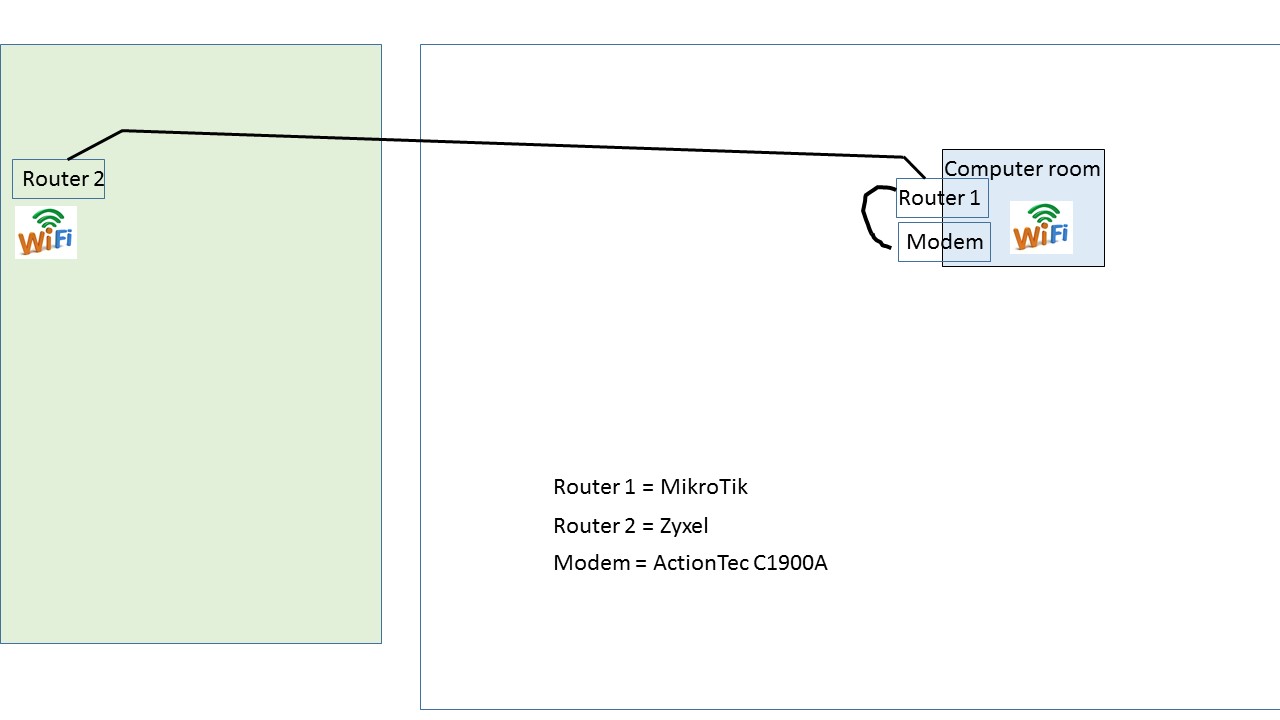
In order to advise you with the best possible (and simpler) solution for your scenario, I suggest drawing out a diagram, then attaching it to the post, including the rooms, where wireless is needed, and where’s the Internet line.

Nothing fancy needed, a hand drawn one will be more than enough: include your rooms and your needs.

This is what the layout looks like
modem.jpg

Whats the Zyxel model?

The best and simpler solution for your scenario would be setting the Mikrotik as the router, then use the Zyxel as a simple AP/switch, that is, a layer2 wired/wireless extension.

I’d reset the mikrotik router, and use QuickSet to set it as a HomeAP.

Next step is setting the zyxel, but for that I need more details; your goal is setting it up with no firewall or routing at all, it should get its IP (for your management) from the 2011.

On the Zyxel you would only manually set the same SSID its security, no need to set DHCP, routing or anything; anything connected to the Zyxel will get its IP, gateway, and DNS from the 2011.

Thats kind of what I had it doing before I reset everything. (I think) the Zytel is a cheap VFG6005N router. You are correct, no firewall. Just need wifi and direct connect in both locations.

Then you can try:

1.- Configure the Zyxel wireless part, same SSID and security as the 2011. Use a different channel on it; e.g. you can set channel 1 on the 2011 and 6 or 11 on the zyxel.

2.- Plug the cable on any of the 2011 LAN ports (should be any from ether2-10) to the zyxel on any of its LAN (yellow) ports.

At this point, you should see any wireless device connecting to the zyxel appearing on the 2011 DHCP Leases tab.

3.- Set (if possible) the zyxel LAN part to use DHCP. This way the zyxel itself will get the IP from the 2011; you can see which one in Winbox: IP > DHCP Server Leases tab so that you can go to that IP to manage the zyxel.

4.- Disable firewall, WAN, and all possible on the Zyxel so that its CPU is freed.

thank you so much for the help… unfortunately i had to step away from it as today is my wife’s birthday and we have lots of stuff planned. i will pick it back up tomorrow following your instructions.

no problem!

So got home for a few hours and thought I had the computer room working but then nothing. Am I supposed to turn off DHCP on the modem and turn it on on the 2011? When I do that, the 2011 assigns the IP to everything but nothing gets access out to the internet.

The modem should hand off a IP by DHCP to the 2011 ether1 or wan interface. The 2011 will then hand off DHCP IPs on all the rest of interfaces, either LAN or WLAN, including the zyxel connected devices.

To double check your config, you may post a config export here, to do so, connect to the 2011 by using Winbox, open a New Terminal and issue:

/export file=Config

You can download this file (Config.rsc) by goinf to Winbox Files button, then either drag and drop to your desktop, or right click and download it.

It’s a text file, so you may open it with any text editor to copy and paste it here.

Do you know if your provider allows your modem to be put in “bridge mode”?

This is the most optimal setup: it will hand off the Internet public IP address directly to the 2011 which will have it on its WAN interface, and leave the modem as just a bridge to your provider.

How to achieve this depends on your internet provider; it’s usually a setting inside the modem.

This way everything is simplified, and you’ll control everything from the 2011.

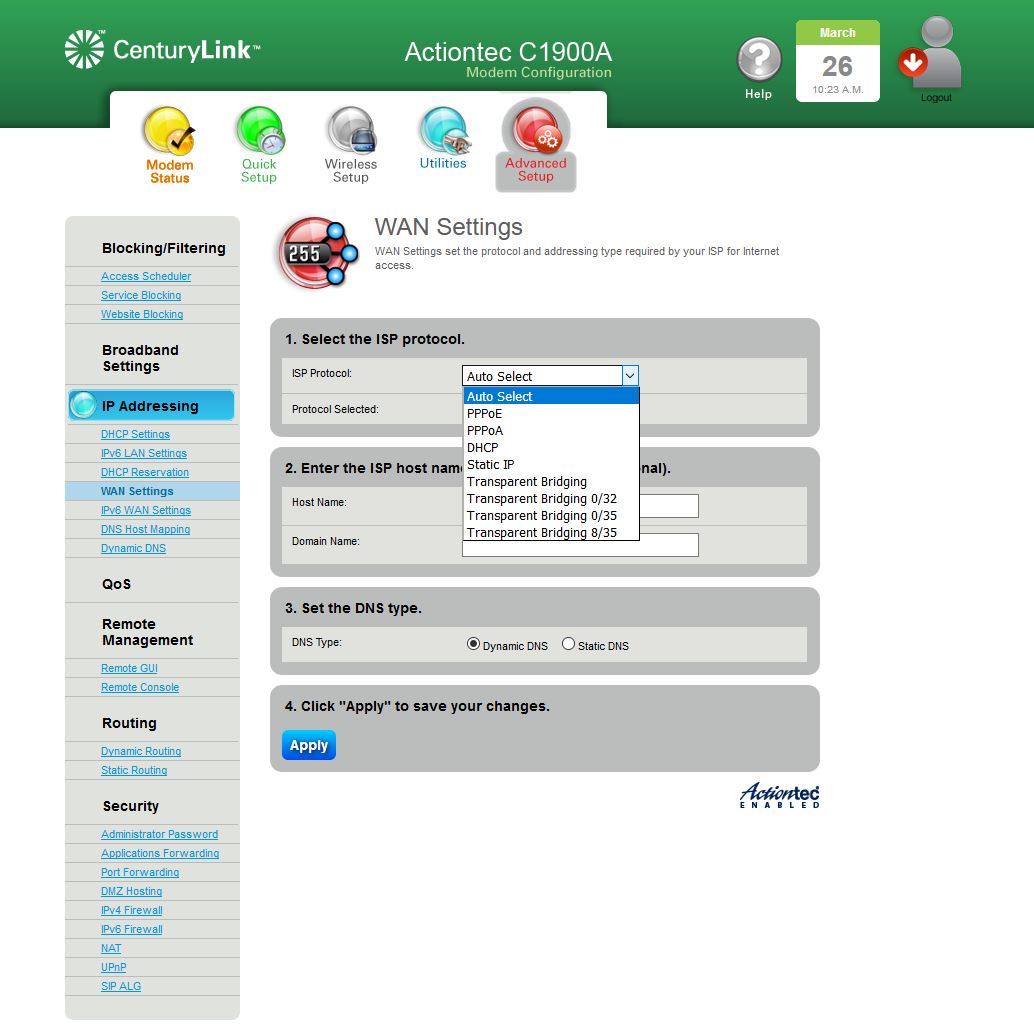
I feel like I am getting no where with this. I know it is something that I am doing wrong. Just can’t figure it out. So the IP of the modem is 192.168.0.1 and the IP of the router is 192.168.88.1. Should I be setting the router with something different? Here is my CFG file, I hope you can see something there. Also, I should be able to do the bridge to my modem, just need some guidance on that too. I have attached a JPG of the settings.
config.rsc (3.07 KB)
modem 2.JPG
Modem 1JPG.JPG

Sorry here is the TXT of the CFG file

jan/02/1970 20:18:07 by RouterOS 6.38.5

software id = I1UN-Q7KF

/interface bridge
add admin-mac=E4:8D:8C:30:40:F2 auto-mac=no comment=defconf name=bridge
/interface ethernet
set [ find default-name=ether2 ] name=ether2-master
set [ find default-name=ether3 ] master-port=ether2-master
set [ find default-name=ether4 ] master-port=ether2-master
set [ find default-name=ether5 ] master-port=ether2-master
set [ find default-name=ether6 ] name=ether6-master
set [ find default-name=ether7 ] master-port=ether6-master
set [ find default-name=ether8 ] master-port=ether6-master
set [ find default-name=ether9 ] master-port=ether6-master
set [ find default-name=ether10 ] master-port=ether6-master
/interface wireless
set [ find default-name=wlan1 ] band=2ghz-b/g/n channel-width=20/40mhz-Ce
disabled=no distance=indoors frequency=auto mode=ap-bridge ssid=
Three_Of_A_Kind wireless-protocol=802.11
/ip neighbor discovery
set ether1 discover=no
/interface wireless security-profiles
set [ find default=yes ] wpa-pre-shared-key=******
wpa2-pre-shared-key=******
/ip pool
add name=dhcp ranges=192.168.88.10-192.168.88.254
/ip dhcp-server
add address-pool=dhcp disabled=no interface=bridge name=defconf
/interface bridge port
add bridge=bridge comment=defconf interface=ether2-master
add bridge=bridge comment=defconf interface=ether6-master
add bridge=bridge comment=defconf interface=sfp1
add bridge=bridge comment=defconf interface=wlan1
/ip address
add address=192.168.88.1/24 comment=defconf interface=ether2-master network=
192.168.88.0
/ip dhcp-client
add comment=defconf dhcp-options=hostname,clientid disabled=no interface=
ether1
/ip dhcp-server network
add address=192.168.88.0/24 comment=defconf gateway=192.168.88.1 netmask=24
/ip dns
set allow-remote-requests=yes
/ip dns static
add address=192.168.88.1 name=router
/ip firewall filter
add action=accept chain=input comment="defconf: accept ICMP" protocol=icmp
add action=accept chain=input comment="defconf: accept established,related"
connection-state=established,related
add action=drop chain=input comment="defconf: drop all from WAN"
in-interface=ether1
add action=fasttrack-connection chain=forward comment="defconf: fasttrack"
connection-state=established,related
add action=accept chain=forward comment="defconf: accept established,related"
connection-state=established,related
add action=drop chain=forward comment="defconf: drop invalid"
connection-state=invalid
add action=drop chain=forward comment=
"defconf: drop all from WAN not DSTNATed" connection-nat-state=!dstnat
connection-state=new in-interface=ether1
/ip firewall nat
add action=masquerade chain=srcnat comment="defconf: masquerade"
out-interface=ether1
/lcd interface pages
set 0 interfaces="sfp1,ether1,ether2-master,ether3,ether4,ether5,ether6-master
,ether7,ether8,ether9,ether10"
/tool mac-server
set [ find default=yes ] disabled=yes
add interface=bridge
/tool mac-server mac-winbox
set [ find default=yes ] disabled=yes
add interface=bridge

So here is an update… I went ahead and changed the 2011 router’s IP address to read 192.168.0.2 and turned the C1900 modem to transparent Bridging. When I rebooted the modem, the internet light flashed red and then green, meaning I was not getting to the internet. So I changed the ISP Protocol back to Auto (Which is giving me IPoE). With the DHCP settings on the modem disabled and it turned on the 2011, the 2011 is setting the IP’s but nothing is getting out still. If I change the adapter on the computer and make it static back to 0.1 (the modem), I can get back out to the internet.

I worked on this all day and again got nowhere. This whole time I have been trying to get the router to run my DHCP and it worked assigning everything an IP, but nothing could get out to the internet. So I decided to have my modem run the DHCP. I also connected the router to my modem using the WAN white plug on the router and now I can see all the folders from all computers including the woodshop computer that is going off the Zyxel router. All WIFI work in both areas and everything can get out to the internet. So it works how I want it to work, but didn’t get it to work with the router running everything. Not a big deal as the most important thing was to get it to all work.

Pukkita, again thank you for taking the time to help me out. Hard to believe you were the only person to chime in with all these people on the forum.

So here is an update… I went ahead and changed the 2011 router’s IP address to read 192.168.0.2 and turned the C1900 modem to transparent Bridging. When I rebooted the modem, the internet light flashed red and then green, meaning I was not getting to the internet. So I changed the ISP Protocol back to Auto (Which is giving me IPoE). With the DHCP settings on the modem disabled and it turned on the 2011, the 2011 is setting the IP’s but nothing is getting out still. If I change the adapter on the computer and make it static back to 0.1 (the modem), I can get back out to the internet.

After setting the modem to bridge mode, you need to set up a pppoe client on 2011 ether1 interface so that it authenticates with CenturyLink and gets the public IP from the modem; once the modem is setup in transparent bridge, you can think about it as a mere switch, where your 2011 is connected to your ISP.

You may leave 192.168.0.2 set on ether1 interface, but that will be a “management IP”, so that you can access the Centurylink for management purposes.

As you didn’t set up a pppoe-client to authenticate with CenturyLink, the 2011 couldn’t get the public Internet address, and thus… no Internet access.

You should first note the pppoe user and password already set in the modem, so that you can later enter the credentials on the mikrotik on the pppoe-client.

To add the pppoe client, once the modem is set in transparent-bridge mode, go to Interfaces > click on the plus symbol, add Pppoe Client; set interface to ether1, then go to Dial Out tab to fill in your user and password. Make sure Use Peer DNS and Set Default Route are set. Nothing else required.

If pppoe auth succeeds, you should see a R (running) in front of the interface; going to IP > Addresses should display the public IP assigned to pppoe-out1.

Important: as your wan interface is no longer ether1, but pppoe-out1, you need to change all references on IP > Firewall filter, and NAT masquerade rule from ether1 to pppoe-out1 (assuming that being the name of your pppoe-client interface)

There was a mistake that can produce unexpected behaviour on your setup: you should assign the IP to the bridge interface, (not ether2-master, which is inside the bridge) i.e.

/ip address
add address=192.168.88.1/24 comment=defconf interface=bridge network=192.168.88.0

Let me know if you feel adventurous to set the modem as bridge using the 2011 as main router, you were almost there.

The 2011 will perform far better than any ISP provided modem, and you’ll have all the WinBox power to manage/monitor your network.