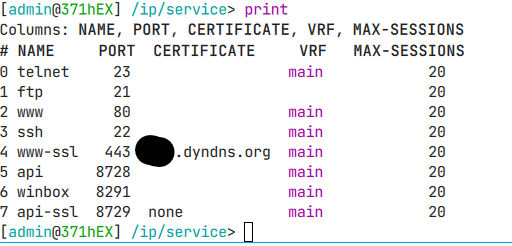
The MT devices to be opened on port 80 (to the Internet).
It seems this applies to renewals also.
Obviously, we don’t want to leave 80 open all the time.
What is the recommended solution?
Schedule a script that opens 80, runs the certificate renewal command, and then closes 80?
While not perfect, this might work if the MT device were connected to the Internet. But, when behind another router (UDM in my case), this it too difficult.
There is a setup that “will work until it stops”, which is based on the fact that the certificate renewal requests are currently sent to acme-v02.api.letsencrypt.org; as RouterOS sends them automatically, I use this method instead of scheduling
What is difficult about forwarding TCP port 80 from the public address of the UDM to the WAN IP of the Tik equipped with the above setup? The “drop the rest” rule prevents the HTTP server from responding incoming requests outside the renewal window just like when the public IP is directly on the Tik itself.
The mangle rule in the code above adds the WAN address of the MT for a minute to an address list named acme-client whenever said MT router sends a packet to an IP address to which acme-v02.api.letsencrypt.org resolves. This happens when said router asks Let’s Encrypt for a renewed certificate. During that minute, the filter rule matches and thus the incoming requests to TCP port 80 are allowed to reach the HTTP server. Outside that minute, the packets to TCP port 80 on MT’s WAN address skip this rule; some action=drop rule following this one in filter chain input must make sure they are dropped. In the firewall rules from the default configuration, such a rule exists.
There is no need to use a scheduler. Once you use the /certificate enable-ssl-certificate dns-name=XXXXXXXXX.dyndns.org command, RouterOS takes care about the renewal in 60 days or so on its own, no need to poke it to do so. I hazily remember it was not that easy when the enable-ssl-certificate feature was new, but it may have been my mistake. In 7.14 and above, the renewal is definitely automatic.
So as a whole, the code above is an implementation of your idea with the scheduled script, except that it does not need any scheduled script.
Don’t forget you have to install Let’s Encrypt’s R10 and R11 intermediate CA certificates so that the HTTPS server could send the relevant one of them to the clients along with its own certificate. The issuing intermediate CA is chosen randomly for each renewal.
I began implemening your solution and then realized that if I forward all port 80 traffic arriving to the UDM, then I won’t have http access to the UDM for management of it.
I did it anyway, and the hEX had a massive stream of incoming connection attempts to port 80 from all over the world.
Indeed this command only applies for and installs the own certificate. The intermediate CA certifiates have to be downloaded from _https://letsencrypt.org/certificates_ and installed manually - scroll down to the Let’s Encrypt R10 section and on its last row, Certificate details (signed by ISRG Root X1): der, pem, txt, download the pem representation, upload it to the Mikrotik and import it there. The import will ask you for a passphrase but since you don’t import the private key for the certificate, it can be empty. Then repeat the same for R11.
I don’t know much about UDM to put it softly, but I doubt you want to expose its own HTTP management interface to the internet, so it should be enough that you forward TCP port 80 to the Mikrotik only if the request comes from the internet, allowing requests from the LAN side to reach the UDM’s own web server. Is it not possible on the UDM to take the in-interface into account for a port forwarding rule?
Looks fine to me. I have never tried to request two certificates for the same machine, what does /ip/service/print detail where name=www-ssl show?
It depends on a lot of factors. The background is that the “recipient” of the certificate needs to be able to walk through the complete chain of trust starting from the own certificate of the “sender” through all the eventual intermediate CA certificates up to the root CA certificate. The whole idea of the chain of trust is based on having the root CA certificate pre-installed in the certificate store of the recipient; the intermediate certificates may be pre-installed there as well or the sender of the certificate may send them together with its own certificate. ISRG started using R10 and R11 to sign certificates issued since June or July this year, so it is possible that the previously used intermediate CA certificates were pre-distributed as part of operating system updates so the author of the video you refer to did not have to make them available to the certificate sender for addition to the initial TLS exchange.
]
It depends on a lot of factors. The background is that the “recipient” of the certificate needs to be able to walk through the complete chain of trust starting from the own certificate of the “sender” through all the eventual intermediate CA certificates up to the root CA certificate. The whole idea of the chain of trust is based on having the root CA certificate pre-installed in the certificate store of the recipient; the intermediate certificates may be pre-installed there as well or the sender of the certificate may send them together with its own certificate. ISRG started using R10 and R11 to sign certificates issued since June or July this year, so it is possible that the previously used intermediate CA certificates were pre-distributed as part of operating system updates so the author of the video you refer to did not have to make them available to the certificate sender for addition to the initial TLS exchange.
That’s what I have suspected, which means that only the certificate requested using the last /certificate enable-ssl-certificate command will be updated automatically, and that the web server will present only that certificate (and its corresponding chain of trust) to the clients. So you have to decide which one to use nd stick with it.
Look at the [u]/![/u] point at 9:28 - it informs that R3 (the intermediate certificate ISRG was using at that time) was not presented during the TLS negotiation and that you should consider installing it to the server, but the author of the video casually ignored it.
No, currently only port 80 is used to renew the certificate.
Other than that - not just on Mikrotik, the very same code processes the contents of the HTTP requests that come to port 80 and of those that come to port 443. The security of HTTPS connection consists in the ability of the client to verify that it is indeed connecting directly to the intended destination so that it would not leak the credentials to a “man in the middle”, and in encryption of the connection preventing a “man at the side” from reading the contents. But an attacker would not care about verifying the server certificate, and Mikrotik does not use client certificates to authenticate clients (not many servers do). So from the point of view reducing the attack surface for exploiting vulnerabilities of the HTTP server, there isn’t much point in keeping port 80 closed if port 443 is open to the world, except preventing oneself from accidentally entering valid credentials while using a plaintext connection (the password encryption used by plaintext HTTP cannot be considered strong any more). Restricting the access only to trusted networks improves the security much more than just disabling access to port 80 and keeping 443 open to the world.
I understand that port 80 is used for renewals, and your firewall entries solve that problem.
I was asking about the need to keep TCP 443 open all the time to allow the certificate to work, but I have a vague understanding that my question is gibbrish.
This endeavor started because I couldn’t access my UDM without SSL certificate errors. I am starting to understand now that installed certificates are used to authenticate incoming traffic to a secure web server. If that is (close to) correct, that I don’t think I need any certificates (or the opening of 443 (or 80)) on any MT devices because I’m not running an http server on (or behind) any of these devices.
The whole business of dealing LE renewals should have long been solved, without scripting porting 80… Anyway…
What you do mean by “access my UDM”? If you’re using /tool/fetch… then Let’s Encrypt has nothing to do with that.
If you mean UDM is the one getting “certificate errors”, then what ever web server UDM is using needs a TLS server certificate. AND, importantly, the “signer” of the certificate needs to be known to UDM to be a valid “trusted certificate authority”. On RouterOS, there are no trusted authorities by default. I don’t know about UDM… but what ever “signed” your HTTPS server’s certificate, need have the public “root certificate authority” (and perhaps a 2nd public certificate for any “intermediate authority” too - just make it even more complex to explain). i.e. Let’s Encrypt certificates may not be trusted by UDM by default, but IDK…
But from your comments here I’m not sure what HTTPS is going where, and the cert stuff is radically different depending on whose the server and whose the client in these HTTPS things…
Ubiquitiy UDM Pro is their router/controller (really nice management interface, very powerful, but no where near as open/flexible/configurable as ROS).
One accesses it via http/https, and there is a known problem with it very much disliking insecure connections (give cert error and warning often). This is the subject of many threads on Ubiquity’s support forums.
So my investigation into certificates started with the goal of solving this annoyance. And, because I (for some unknown reason) have more of an interest in learning ROS, and I have a hEX sitting behind the UDM, I thought maybe I could solve the problem via ROS.
I wasn’t able to (which you all could have probably told me if I had asked clearly and nicely enough). But, I did solve it by SSHing into the UDM and running [Ubiquity forum user] GlenR’s script, found here:
So now (I think) the UDM has a cert. I’m not 100% sure the problem is resolved.
In the course of this exploration, I went down the path of getting certs for the ROS devices I have in various places. Unfortunately, I did not have a problem I wanted to solve, a goal to achieve, or even an understanding of how the certs work or what they could provide.
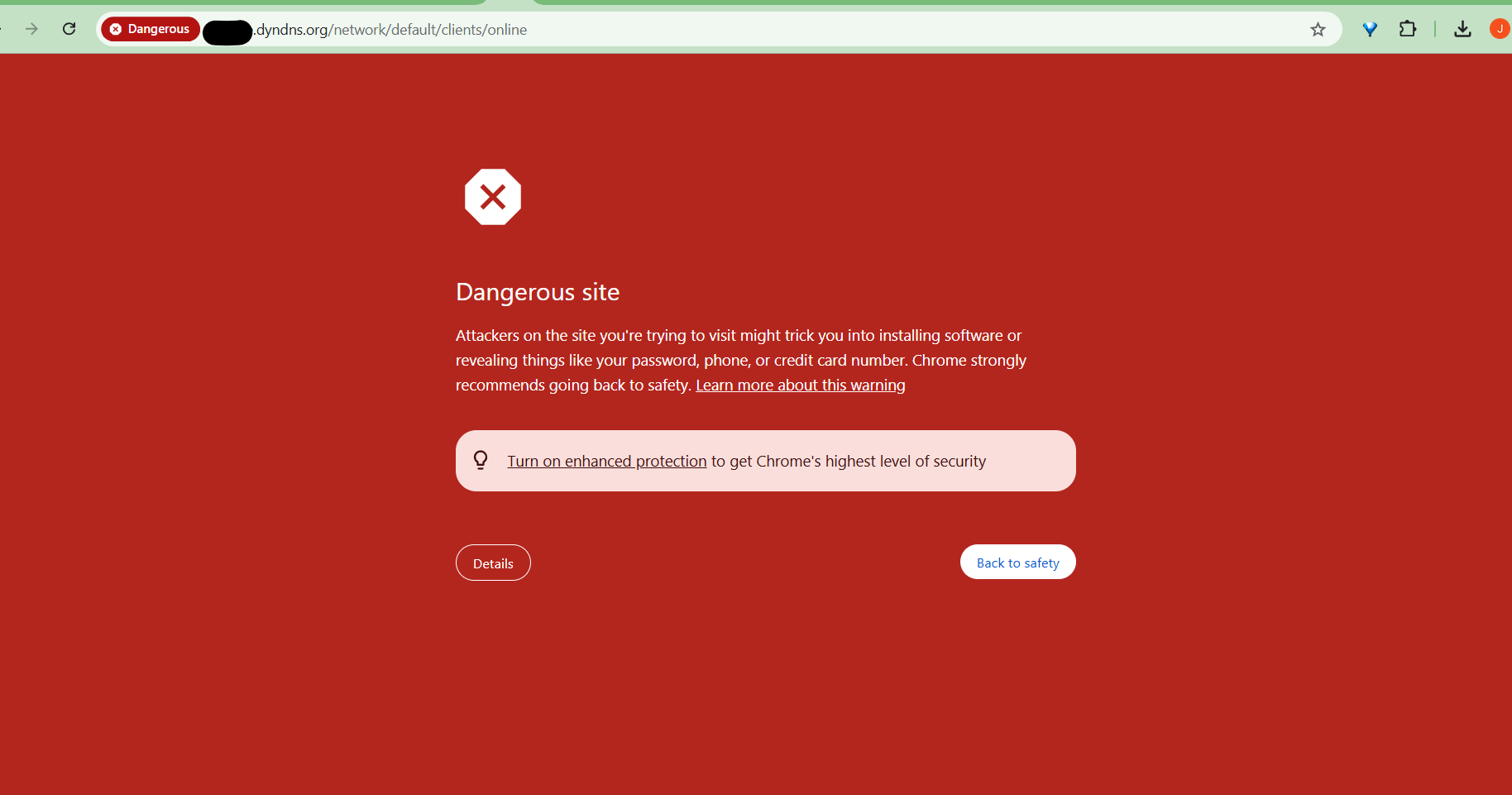
The “Details” will show you the certificate it thinks is unsafe. And the message is due the certificates YOUR computer is lacking the “root” certificate authority for your connection.
Basically you’ll get messages like that unless you’re using certificates signed by a “trusted authority”. As I mention above, what is a “trusted authority” is defined by the HTTP client. In the above, that’s Chrome… and the certificate the server is using is not “signed” by a “root authority” Chrome knows.