Hi, In setting up (& attempting to upgrade the firmware) on an additional WiFi extender on my home network I inadvertantly & accidentally caused to known default MAC Address to change to ff.ff.ff.ff.ff & lost connectivity. Is it possible for a non-Geek novice to restore the default MAC Address (which is printed on the device) externally from my laptop with a relatively simple procedure that I would be capable of? If so, how please?
Probably you can’t change MAC address without first connecting to the unit. Depending on how the unit was set up you might be able to connect to it using different interfaces (e.g. wireless versus ethernet). If the unit was reasonably secured, then probably the only solution is to reset configuration to factory default - so you’ll loose all the customizations you may have done. It is possible to reset config using reset button procedure documented here.
Thanks for your very prompt response, mkx. Although I have an ip address for the device given by using the CMD prompt + ‘apr -a’ as 192.168.1.255 I was unable to to access the device with that URL in my browser & I subsequently attached an ethernet cable to the device to my laptop whilst looking at Device Manager>Network Adaptors but nothing was added as I plugged it in! (There were two green LEDs for power-up but a third one didn’t come on when I connected the ethernet cable to my laptop) I was wondering if I could uninstall the driver & re-install its original one, but haven’t succeeded in locating that. I also did a manual factory reset on the extender (using a thin rod) but it didn’t respond in the usual way with the middle green light extinguishing for a while & then re-appearing. So, that didn’t work! The security was originally set to WPA2-PSK. There is also a LAN port on the extender if that is any use? When I had it connected by ethernet cable to my router, the third green LED lit up on the device but I couldn’t access it. Hope this gives helpful details?
an additional WiFi extender
What is that additional WiFi extender? Is it a known Mikrotik device? Has it a USB port? Then a USB-serial converter or Woobm-USB could be used.
Adding the subnets broadcast address (192.168.1.255) to the ARP table will not help. What you need is fiddling with the ARP table in your laptop.
something like : “arp -s 192.168.1.2 ff-ff-ff-ff-ff-ff”. or whatever the IP address was.
Just something I would try out. You never know.
(Windows ARP /? )
_-s Adds the host and associates the Internet address inet_addr
with the Physical address eth_addr. The Physical address is
given as 6 hexadecimal bytes separated by hyphens. The entry
is permanent.
Example:
arp -s 157.55.85.212 00-aa-00-62-c6-09 … Adds a static entry.
arp -a … Displays the arp table._
Thank you, bpwl, for your reply & suggestions, and firstly here are the details you requested: This is the device: http://www.pix-link.com/page50?product_id=144, which does not include any USB port but does have dual ports: Ethernet & LAN.
As you no doubt appreciate, although I was able to obtain the IP Address & current MAC Address from using CMD arp -a, it was only because I read an article online suggesting doing that, and hence my know-how/expertise nowhere matches yours or experience of doing this! Can I therefore please just clarify with you (before attempting your suggestion to again use the CMD) that your words “..whatever the IP address was.” means the default IP Address I am now wishing to return to (192.168.1.254) or the one it changed to after I had initially succeeded in setting the device up to work on my Humax PVR for our TV?
Thanks for your patience,
Brian
accidentally caused to known default MAC Address to change to ff.ff.ff.ff.ff & lost connectivity
Hi ,
are you sure you actually did modify the MAC address as stated here? In your arp table (arp -a) you will find the broadcast address of your subnet (192.168.1.255) always mapped to the broadcast MAC address ff-ff-ff-ff-ff-ff. Is in your ARP table somewhere the IP address 192.168.1.254, your previous unicast IP address of this PIX-LINK ? Is the printed MAC address of the PIX-LINK somewhere in the ARP table ?
With the Mikrotik you can do some discover tests on this PIX-LINK.
When powered on and connected to the Mikrotik
use;
Tools IP scan (choose MKT interface, range is 192.168.1.0/24)
IP ARP ; check the ARP list
Tools PING (also try ARP ping with printed MAC address)
Tools packet sniffer (might be difficult if you have no sniffer packet like Wireshark)
Tools TORCH (include MAC protocol)
Whole idea is to find out how the PIX-LINK is still communicating.
In the WP09 documents:
… to reset the MiNi Router:
…: With the MiNi Router powered on, use a pin press the Reset Button
for less than 8 seconds , then release the button and wait the MiNi Router to
reboot to its factory default settings.
Those 8 seconds are important ! Long enough but less than 8 seconds.
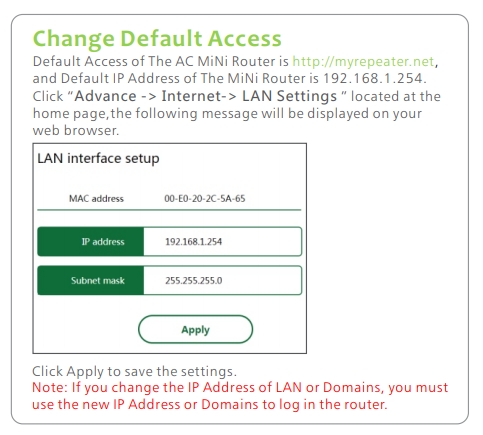
Other path: can you connect to the wireless or when connected to the PIX-LINK ethernet only , surf towards http://myrepeater.net ?
Info from: http://pmod1b8a3.pic8.websiteonline.cn/upload/WR09QuickInstallationGuide.pdf
I would realy be surprised you managed to change the MAC address of that device … you probably just changed the IP address to the subnets broadcast address 192.168.1.255
Don’t know how to bypass this error.
But I would at least try to set my PC as an /22 address e.g. 192.168.1.20/22 or subnet mask 255.255.25**2.**0.
Then for the PC 192.168.1.255 is a normal unicast address.
Hi bpwl, & thanks for your immediate responses, even though they are stretching me beyond my current know-how! Excuse me please raising a few more comments/queries before I carry out your suggestions & enable me to attach two jpgs FYI:
-
No, I don’t know if I actually did modify the MAC address as stated? I merely know that the attached table jpg told me it had changed as shown below in the attached file, but not if I had changed or deleted it! As you can see from the table in the photo, the original factory default IP Address of the PIX-LINK does not appear there, but has changed to 192.168.1.255 as well as the MAC Address?
-
I’m not really familiar with or understanding what you mean by the Mikrotik (program?) that you say I can do some tests with? I assume it is some facility included in this website? Correct? In which case how do I access it to use, please? Nor do I have a sniffer packet like Wireshark on my laptop currently, but my W10 offers it as a download. So, should I do so & use it as well as the rest you are suggesting?
-
I do, of course, have Windows ARP in my W10, but have only used it the once with ‘-a’ to find the IP Addresses attached to my router. I have attached a jpg of my router Attached Devices IP Addresses, which includes my Latitude laptop.
-
As I think you already understand, I am not able to access the PIX-LINK 300M home webpage online to change anything, for it presently neither responds to the IP Address 192.168.1.255, nor http://www.myrepeater.net.
I hope this is helpful in you understanding more of what happened?
Regards & thanks,
Brian
“As you can see from the table in the photo” … no attachments???
“. I’m not really familiar with or understanding what you mean by the Mikrotik (program?)” … these are tools in the Mikrotik. (Winbox or webfig tools menu)
There is somewhere a Mikrotik in this setup I hope.
Please do the hardware reset on the PIX-LINK (7 seconds with a sharp point, you might need to push and hold the pin first and then apply power, its not clear in the manual)
Otherwise, the 192.168.1.255 is only usable to access the PIX-LINK if your PC’s subnet is first changed to 255.255.252.0
With the current setting of 255.255.255.0 subnet mask the ARP entry “192.168.1.255=ff-ff-ff-ff-ff-ff” is NOT coming from the PIX-LINK but is the value set by the PC itself as the standard broadcast address of that subnet.
Thanks again, bpwl, and it appears the 2 file attachments didn’t come through, so I’m resending them below this (& the green circles are ticked that I assume means they leave here attached, & I have check opened the links OK?). Have they now come through this time?
I will again try a mechanical factory reset the way you describe, but I did mention in a previous message that I had done one more than once (as well as unpowering the device after checking there was no response to trying to access from my laptop with the URL 192.168.1.255 — but it made no difference. This is why I assumed I had actually changed or deleted the MAC Address?
Regards,
Brian
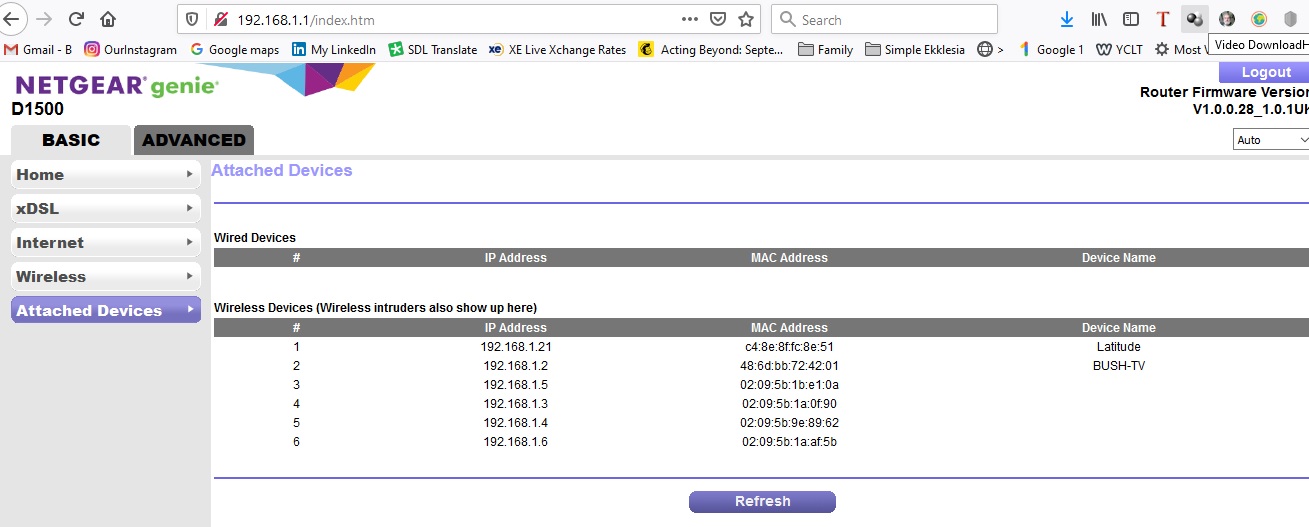
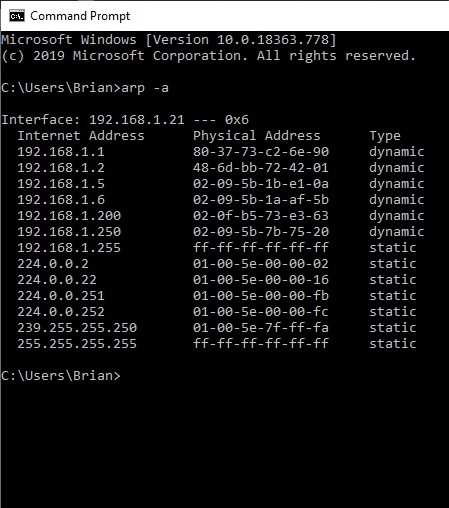
OK attachments OK now.
Not much for me to find the PIX-LINK as I don’t know the MAC address printed on the device. Probably starts with 00-E0-20 if the maunal exemple is accurate.
As you can see 192.168.1.255 is a STATIC entry. It is set by your PC according the IP network rules to be the broadcast address of that subnet. It does not come from any other device.
Your PIX-LINK has NOT been set to MAC address ff-ff-ff-ff-ff-ff and I do not believe at all you had any possibility to change that MAC address anyway.
Question remains where is your PIX-LINK, at what IP address ??? And is the PIX-LINK in a mode where it communicates over the ethernet interface?
Do you see any wifi from the PIX-LINK ???
Did you connect the ethernet from the PC to the ethernet LAN port on the PIX-LINK ???
Hi bpwl, and thanks for your replies yesterday. I’ve just done the following:
- A factory reset on the PIX-LINK extender (MAC No: 00:E0:20:7C:21:85; S/N: 2020418542M; PIN No: 81350452) in the way you requested, and then connected it via the ethernet cable to the LAN port before checking my system tray WiFi, but it listed no Wireless-N signal briadcast at all! I then looked at my Netgear genie page, Attached Devices but it only showed my Dell Latitude connected & no LAN connection.
2, I then managed to find a copy of Winbox on the MikroTik software webpage & tried to save the file to my downloads, having created a new MikroTik folder, but it didn’t appear to let me do so? Instead it opened a webpage online & asked me to ‘connect to’ ---- presumably a URL I have to enter, but I didn’t know which one to try?
- So, I then did an ‘arp -a’ and got the attached jpg below, hoping it might show an IP Address & MAC Address for the LAN connected PIX-LINK but it doesn’t appear to do so?
I obviously have not done the right action, have I? Please suggest the next step? Should I leave the PIX-LINK ethernet cable LAN connected to my laptop or to my router?
Regards,
Brian
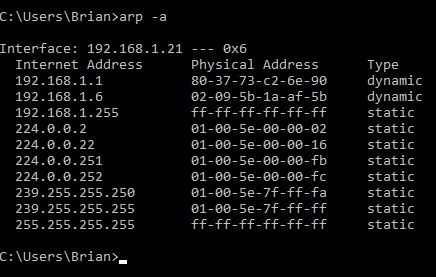
So your PIX-LINK is not sending out a wifi access point signal ? The ethernet cable has to be between your Dell PC and the PIX-LINK. ! Maybe you should check your Dell PC ethernet port, by connecting it to the Netgear LAN port (cable between Netgear and Dell PC, don’t forget to disconnect the wifi). At least that one should connect.
2, I then managed to find a copy of Winbox on the MikroTik software webpage & tried to save the file to my downloads, having created a new MikroTik folder, but it didn’t appear to let me do so? Instead it opened a webpage online & asked me to ‘connect to’ ---- presumably a URL I have to enter, but I didn’t know which one to try?
OK , but nowhere you mention a Mikrotik device. So far I only know about a Netgear, a PIX-LINK and a Dell PC.
- So, I then did an ‘arp -a’ and got the attached jpg below, hoping it might show an IP Address & MAC Address for the LAN connected PIX-LINK but it doesn’t appear to do so?
I obviously have not done the right action, have I? Please suggest the next step? Should I leave the PIX-LINK ethernet cable LAN connected to my laptop or to my router?
Regards,
Brian
I hope the cable is between the PIX-LINK LAN port and the ethernet connector on the Dell Lattitude PC, If it worked for the Netgear connection it should work here as well.
But maybe the PIX-LINK is only in some bridge mode, and not sending out DHCP IP leases (addresses) itself as a DHCP server, and just forwarding the DHCP request to the other router.
Full connection should then be: “Netgear LAN <—> WAN port PIX-LINK LAN port <—> Dell PC”. You might see the PIX-LINK in the Netgear list, but you probably cannot enter into the PIX-LINK from the Netgear or from a PC connected to the Netgear ethernet or wireless. (a WAN port normally is blocking incoming connections for protection)
The best path to manage the PIX-LINK normally is the LAN ethernet port of that device. (The IP addresses must be in the same subnet 192.168.1.0/24, if you don’t get one through DHCP, set it manually. The IP address of the PIX-LINK after the reset is 192.168.1.254)
Connecting both LAN sides from the Netgear and the PIX-LINK does not make sense if both are in AP gateway mode (both are answering DHCP requests as DHCP server, but are not requesting anything as DHCP client). If The PIX-LINK is bridging then this is a possible connection.(depends on the PIX-LINK software).
ARP is not a perfect tool for detecting if a device is in the network. An ARP entry is only there for a while if there has been communication. ARP entries do expire.
In the current list is 192.168.1.1 the Netgear router, and the PC itself (192.168.1.21) , and one device of unknown brand (192.168.1.6) , were you have at least 4 of these.in older lists.
Hi bpwl, & thanks again for replying so soon.
-
I did have the PIX-LINK cabled between its LAN port and my laptop ethernet port. I have recently again had my laptop connected by ethernet cable to one of the two LAN ports on my D1500 Netgear router (which has LAN1 & LAN2/WAN) and it enabled me to re-commssion my two Netgear extenders to an outside building OK, as well as initially setting up the PIX-LINK OK from factory default to work as an AP for our Humax PVR in our lounge (before I later caused this present problem by attempting to upgrade the firmware, obviously to the incorrect file which PIX-LINK displayed on their website when I searched for the update!). So, I know my laptop ethernet port has worked OK in the past recently. When you say not to forget to disconnect the WiFi, do you mean just when making the cable connection or to leave it disconnected whilst I make the inter-connection between my laptop>PIX-LINK>router?
-
The only Winbox facility on the MikroTik webpage I downloaded was software, but I did notice on the home page that it stated H/W & S/W so are you saying I would need to purchase their H/W board as well as using the available S/W download to be able to carry out the test you have suggested?
Sorry to be so dim, but this is very new to me!
Regards,
Brian
What software? WinBox itself? WinBox is just a configuration tool for RouterOS powered devices. You cannot use it for anything else. 
OK , no Mikrotik. How did you come to this forum with questions about other devices? I hope PIX-LINK has its own own forum and support path.
To answer the question on the wifi disabled, it is just to make sure your Dell PC is not using the wifi when it should use the ethernet cable. (Normally one of the Dell settings is to disable wifi automatically if ethernet is attached, but you better be sure.)
As you get no respons from that device, and you mention the “wrong” firmware upgrade, you might have “bricked” your device. Bricked means unresponsive and unusable for electronic functions, only usable as a brick or paperweight.
Normally there is yet another procedure to fully reset and reload the firmware in the device. This is very device specific, and only known to PIX-LINK support. They may have documents on this published.
Their support and forum is the way to look for a solution.
If this doesn’t exist, then any Internet search engine , like Google, is your friend.
“PIX-LINK bricked” gives me : https://tellopilots.com/threads/bricked-pix-link-wifi-repeater.5212/
But all this has nothing to do with this forum, and I have no experience in that equipment.
I don’t know if recommendating the 20$(€) Mikrotik solution would be wise. The “hAP mini” or “hAP Lite” is a solution at a very low cost, but it has the full Mikrotik functionality, and that for you is quite a steep learning curve.
If you are stuck with a Corona lockdown, it’s all you need to stay busy the coming weeks or months.
Good Luck
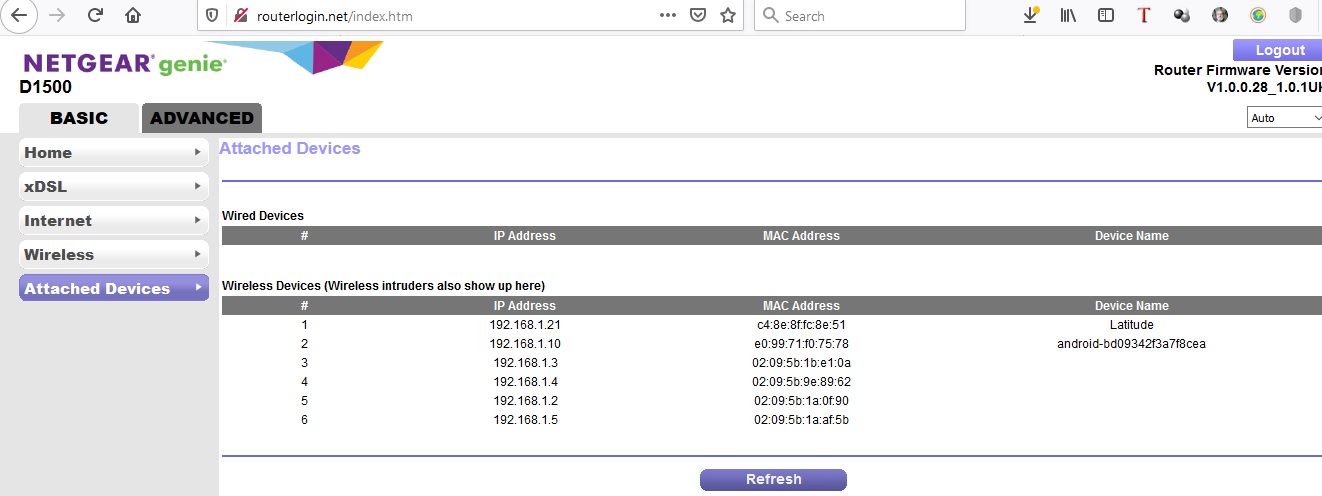
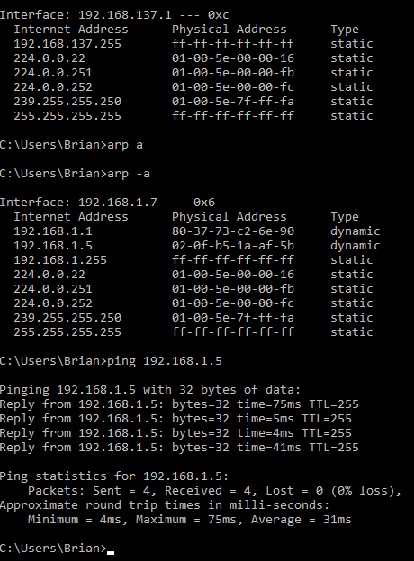
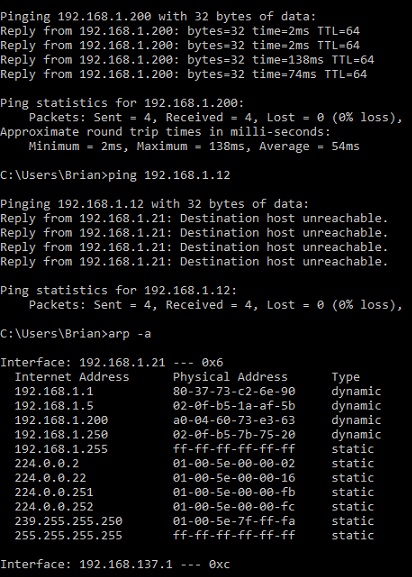
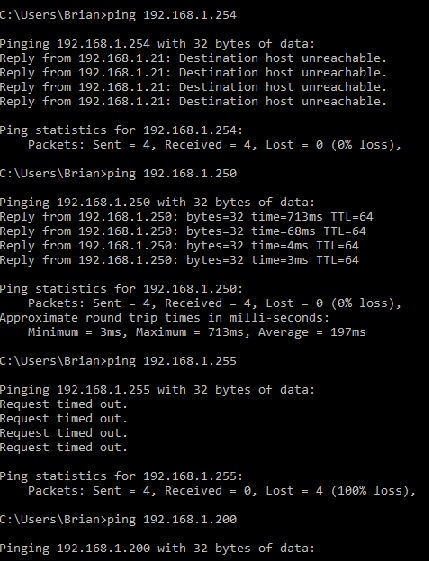
Thanks again, bpwl, for your comments & all your assistance. Unfortunately, as you probably realise, PING-LINK doesn’t appear to yet have a community forum, so it’s a case of trying to connect with them by email (which I have been trying to but no replies to date!) as well as others on the net who have posted some videos or comments, which is why I registered on MikroTik. I did have a quick look at the online link you suggested but it didn’t seem to offer much assistance. I also did a Google search on bricked-up router/extender & found this website: https://wiki.dd-wrt.com/wiki/index.php/Repeater_Bridge & subsequently their: https://forum.dd-wrt.com/phpBB2/viewtopic.php?t=51486 which also suggested a Wireless Bridge test as you had. Although the full test was ‘way over my head!’ I did have a go at their check to see if the device was in fact bricked. So, I followed their steps & having switched off my WiFi, Kaspersky anti-virus protection, and firewall I made a LAN cable connection between the PIX-LINK device & my laptop. Before proceeding with their ping tests I had done a further Netgear genie Attached Devices check to see what devices were connected as well as an ‘arp -a’ check with the device connected to my router. These can be seen below on the attached jpgs in No.1. I know what the following un-named devices are on the Netgear genie page: 192.168.1.3 & 4 are my other two extenders(Netgear EX6120) & (Netgear EX3700), whose IP Addresses are primarily: 192.168.1.200 & 192.168.1.250 respectively, but I don’t know on this jpg if they are 3 or 4? 192.168.1.21 is my Dell laptop, and 192.168.1.2 is my router admin I think, & 192.168.1.10 is my wife’s tablet. This leaves 192.168.1.5 which I am unable to access via that IP Address, so whether that was the PIX-LINK device I wonder, seeing as the downstairs Bush TV wasn’t on? JPGs 2-5 are the ping tests, followed by a final ‘arp -a’ test to see if there were any changes before I restored my laptop protection & wireless. If 192.168.1.5 is the PIX-LINK then according to that Wireless Bridge check it would suggest that the devices firmware is still operating & the MAC Address is assumedly unchanged, despite me being unable to access it?
I have not only emailed PIX-LINK contact person on their website, as well as my UK supplier to request his support to be my advocate with the maker, and I’ve also emailed iTech Cloud in Poland who have provided a website with a useful video for setting up my PIX-LINK device, & I await their response.
Yes, you’re right, our lockdown may mean me having more time to investigate, although we have agitation here to ease the lockdown like other countries, but I am at the ceiling of my know-how & experience and very dependent upon others like you who know far more than I do!! But I am very grateful for your time & assistance even though we still haven’t solved the obstacle yet.
With best regards,
Brian
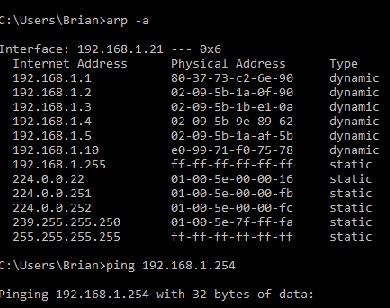
Brian,
ok a few more hints …
Accessing your PIX-LINK via ethernet cable from your PC is when those devices are connected together. On only those. Not via the Netgear. Disconnect the PC wifi from the Netgear or to any of the other repeaters. Just disconnect the active wifi and don’t let it reconnect.. (On a Dell there is even a switch at the side to disable all wireless communication, but disconnect should do.) The PC should get an IP address from the PIX-LINK on the ethernet link.. Then it will also appear in your ARP table (because there was communication)
You can also learn to read MAC addresses. The first 6 characters are normally assigned to one manufacturer. (see https://macvendors.com/ to decode)
The tablet is e0-99-71 , that is a Samsung tablet (Samsung Electronics Co.,Ltd)
Your repeaters (02-09-5b) are not known in the website. But if it starts with 02-09-5b you know what it is.
We are looking for 00:E0:20 , from TECNOMEN OY !?
And can not be, those MAC addresses are locally administered MAC addresses and can be used freely (as long as they are unique within ethernet broadcast domain).