Some time ago I had this (good?) idea after a (common enough) ISP issue cut down internet
Basically the ISP cut the internet connection on both the main and failover link. (now I have automated also a second failover link via FWA/LTE, but this is another story)
Essentially while I was trying to understand what was happening I have been called or physically tracked down in the server room by every single person in the building to tell me "Hey, internet is off!"
Now, when you have something out of order, or under maintenance, let's say a lift, you simply hang one or more "Out of order" or "Under Maintenance" sign(s) and people do not chase you to tell you "Hey, the lift doesn't work".
So, is it possible to make a "virtual" sign to the effect of "There is no internet at this moment. Temporarily get a (disconnected) life and wait patiently until it is back."?
This is the reference thread:
Is there a simple way to hang a virtual "Out of order" sign?
It received an appreciation from the community which I could grade between 0 and -10.
But I am (besides old, grumpy and cheap) also particularly stubborn, and I wasn't convinced at all by the naysayers and by the apparent lack of valid example/references.
It turns out that something similar is possible, not simple (and likely not as universal as it might be), but possible.
The information on the exact mechanisms adopted by (current/recent) various Operating Systems was also particularly vague or however not detailed enough.
Anyway this is how different Operating Systems manage the check for connectivity:
| The Master List of Connectivity URLs | try connection to: | Result |
|---|---|---|
| Platform / Browser | Testing URL | Expected Success Signal |
| Apple (iOS / macOS) | http://captive.apple.com/hotspot-detect.html | HTML containing only the word Success in both the title and body. |
| Google Android (possibly starting from version 8 or 9) | http://connectivitycheck.gstatic.com/generate_204 | An HTTP 204 No Content status code (empty response body). |
| Google Chrome / ChromeOS | http://clients3.google.com/generate_204 | An HTTP 204 No Content status code. |
| Linux (NetworkManager) | http://nmcheck.gnome.org/check_network_status.txt | A plain text file containing NetworkManager is online. |
| Mozilla Firefox | http://detectportal.firefox.com/canonical.html | A specific piece of HTML code containing a meta-refresh tag. |
| Windows (10/11, possibly also 7, surely not XP) | http://www.msftconnecttest.com/connecttest.txt | A plain text file containing exactly Microsoft Connect Test. |
At least for Windows 10/11 the check is done ONLY when the network is "discovered", i.e. "identifying" when a new link is established
Android (version 12) seemingly makes the check as well when the (wifi) connection is established.
Cannot say about the other OS's.
Some time ago (did I say that I am cheap?) I managed to buy on e-bay 4 second hand hap lites for 33 € including shipping (8,25 € each, so little more than what the power adapters would cost), then I used two of them and had the other two sitting around unused.
So I got one of the two and tried setting it up as a LAN "Maintenance sign".
The general idea is that I have an ISP modem/router at address 192.168.1.1 that is set as gateway for the whole network, I can physically disconnect the RJ45 from it and connect it to the hap lite..
This hap lite will never be connected to the internet, so it won't ever have the possibility to check the date/time and whenever powered off it will reboot on 01/01/1970.
This is not good as the device will be at almost all times not powered, it will simply lie - disconnected - near the ISP router or on a shelf waiting to be (hopefully seldom) put into operation..
Though I could actually power up the device, log in, set the date/time, I wanted to have the thingy work by itself so that anyone could use it.
And the actual served page(s) should show:
- the exact date time when the maintenance timeout began
- the exact date time when the last check was performed.
Clearly doing something like that was (and still is) way over my head.
But we now have - quite handy - these I-know-it-all resources, A.I., although I am very skeptical on their use as assistants, I decided to make a try at it.
I chose gemini, for three reasons, first one being that it is free, do you want to know the other 2?
The good guys at google that programmed it clearly are smoking good stuff, the personality of gemini is incredibly good humoured, enthusiastic and collaborative (way too much enthusiastic and collaborative for my personal tastes).
It has been a nightmare to interact with it, it is too d@mn clever for me, it thinks too fast, gets to conclusions (usually wrong) too fast and assumes (wrong) things way too fast spewing (usually completely wrong) advise and code in a honestly unbearably condescending/snooty manner.
But after a few hours of shouting at it, and using all the tricks of the trade (+1) to contain it and have it answer my questions, I started getting some valid results.
The final result is a combination of both (human and machine) intelligences, of the (incredibly vast) machine knowledge and the (enormous amount of) human patience I had to use, together with quite a few bits of "comnon sense" that gemini is seemingly completely deprived of..
Anyway (self imposed) costraints:
- very low cost device (possible use for a hap lite, a map or map lite or even a hap mini)
- Router OS v 6.x (I used for the tests version 6.49.15)
- Be as simple as possible (but not simpler)
- Relatively easy to deploy/replicate/customize
The first issue was decoding the Router OS hotspot help pages, that are largely written in Mikrotikish, they do make sense once you get the hang of it, but it is not easy to understand the way the hotspot works.
Anyway, with some time spent of them I managed to understand the basics and have the login page show up when the device was connected replacing the router.
But I was stuck on 01/01/1970.
After a lot of brainstorming with gemini, we found a (I know that all the real programmers will be shouting at the ingenuity of the approach and will be able to point out how wrong it is, how the problem has already been solved, etc., etc. but I don't care much about it).
A script scheduled at boot time writes the /system identity as "Uninitialized".
On the automatically loaded login page html there are three checks performed on the router system identity.
The first one is whether the current system identity satisfies a regex matching "start-YYYYMMDD-HHMN".
If it does not and system identity is "Uninitialized" it loads a separate page, sync.html that logs in the hotspot as user timesync password timesync and spawns three requests for addresses as follows:
- 172.29.<connected_PC_year - 1970>.<connected_PC_month>
- 172.30.<connected_PC_day>.<connected_PC_hour>
- 172.31.<connected_PC_minutes>.<connected_PC_seconds>
Example for 22/06/2026 19:55:12
- 172.29.56.6
- 172.30.22.19
- 172.31.55.12
In a script attached to the user profile for timesync (timesync_prof) we use the firewall connection table to search for three attempted connections to addresses in the ranges 172.29.u.v., 172.30.w.x, 172.31.y.z and decode them to the actual date and time.
The script then updates /system clock to this decoded value and sets /system identity to "Synced" and logs out user timesync.
Control is back to the login page that does another check and if system identity is "Synced" loads a page resettime.html that logs in as user timereset password timereset.
In a script attached to the user profile for timereset (timereset_prof) we decode the current system date time and write it to /system identity.in the format "start-YYYYMMDD-HHMN".(we don't need the seconds)
Control is back to the login page that this time has the system identity pass the regex match and so it can become "operative".
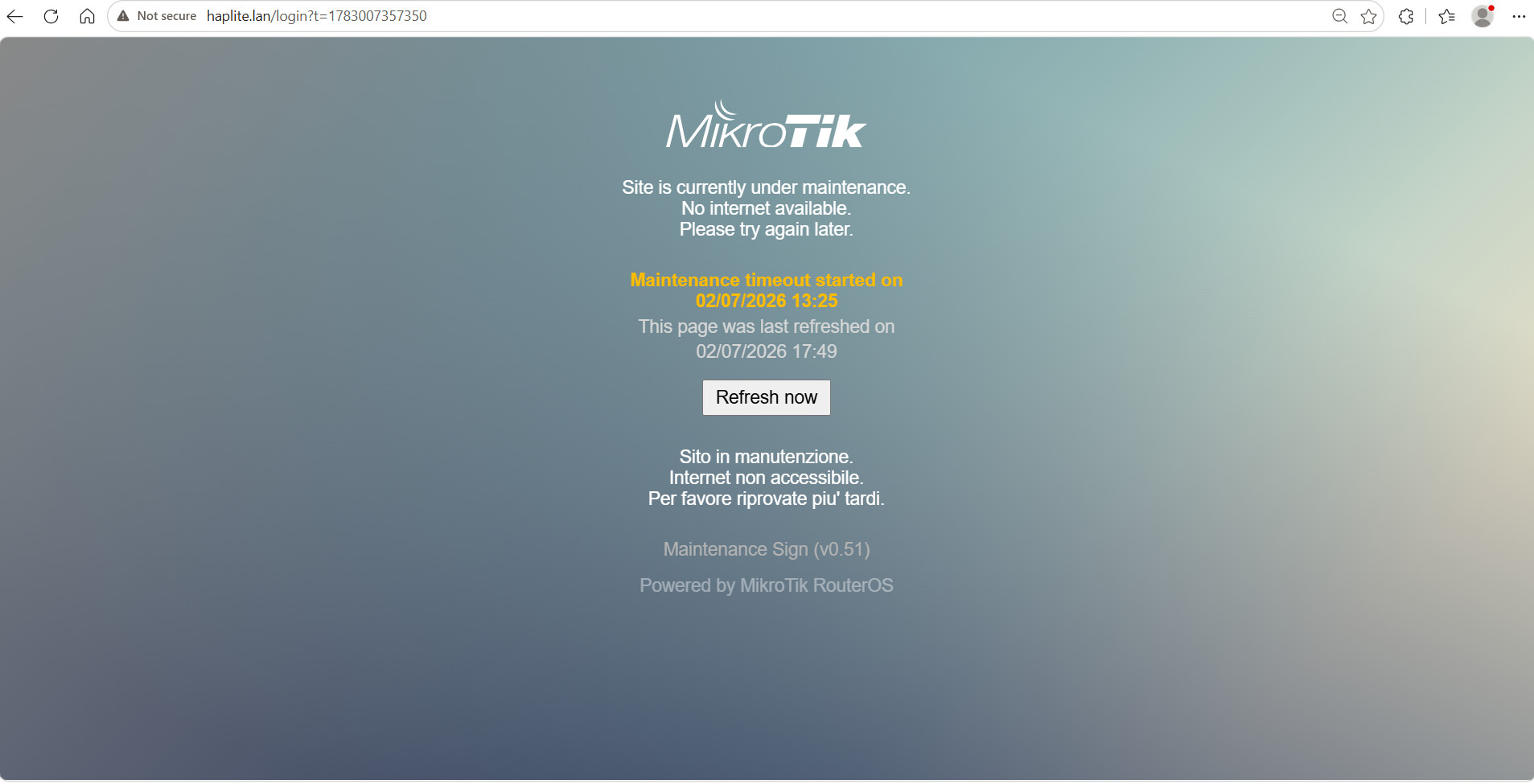
The page will flash for a few seconds during the above procedure, then it will land to the "operative" page.
This page shows the maintenance warning message (which can of course be modified) in the login.html:
- Site is currently under maintenance, No internet available.Please try again later. <- static text can be easily changed in the html
then:
-
Maintenance timeout started on dd/mm/yyyy hh:mn <- this shows the date time the device was connected/booted, so essentially the exact date/time the Maintenance sign was hung.
-
This page was last refreshed on dd/mm/yyyy hh:mn <- this shows that the page is dynamic and continuously checks for the situation.
-
a button "Refresh now" to manually refresh the page for the impatient
and then the maintenance warning message in another language (Italian for me):
- Sito in manutenzione. Internet non accessibile. Per favore riprovate piu' tardi. <- static text can be easily changed in the html
Now another script scheduled to run every 5 minutes simply disables and reenables the interface (bridge with all ports in it) forcing a new network detection by the OS.
The whole stuff amounts to a bunch of files, everything is "self contained" in directory /hotspot/maintsign, so that it doesn't interfere with other hotspot files (the whole autogenerated contents of the /hotspot directory can be deleted).
Files:
- login.html
- redirect.html <- this is the standard redirect.html file from Mikrotik unchanged
- resettime.html
- sync.htm
- status.html <- this is a modified version that directly redirects to login.html
The scripts are of course normally inside the .rsc file, but to make it more readable I stripped the longer scripts from the "posted as code" version:
# jul/02/2026 13:49:07 by RouterOS 6.49.15
# software id = [REDACTED]
#
# model = RouterBOARD 941-2nD
# serial number = [REDACTED]
/interface bridge
add name=bridge
add comment="Fake interface to the internet" name=dummy-wan
/interface wireless
set [ find default-name=wlan1 ] ssid=MikroTik
/interface pwr-line
set [ find default-name=pwr-line1 ] disabled=yes
/interface wireless security-profiles
set [ find default=yes ] supplicant-identity=MikroTik
/ip hotspot profile
add dns-name=haplite.lan hotspot-address=192.168.1.1 html-directory=\
    hotspot/maintsign html-directory-override=hotspot/maintsign login-by=\
    http-pap name=maintenance
/ip hotspot
add addresses-per-mac=unlimited disabled=no idle-timeout=10s interface=bridge \
    name=maint_hotspot profile=maintenance

/ip hotspot user profile
add name=timesync_prof
add name=timereset_prof

/interface bridge port
add bridge=bridge hw=no interface=ether2
add bridge=bridge hw=no interface=ether3
add bridge=bridge hw=no interface=ether4
add bridge=bridge interface=wlan1
/ip address
add address=192.168.1.1/24 interface=bridge network=192.168.1.0
add address=192.168.88.1/24 interface=ether1 network=192.168.88.0
/ip dns
set allow-remote-requests=yes servers=8.8.8.8,8.8.4.4
/ip dns static
add address=192.168.1.1 comment="Following some 6 http known sites" name=\
    neverssl.com ttl=5s
add address=192.168.1.1 name=httpforever.com ttl=5s
add address=192.168.1.1 name=yahoo.com ttl=5s
add address=192.168.1.1 name=example.com ttl=5s
add address=192.168.1.1 name=nossl.sh ttl=5s
add address=192.168.1.1 name=textfiles.com ttl=5s
add address=192.168.1.1 comment="Following some known http probes" disabled=\
    yes name=for.connectivity ttl=5s
add address=192.168.88.1 comment="Apple Portal Probe" name=captive.apple.com \
    ttl=5s
add address=192.168.88.1 comment="Google/Android Probe" name=\
    connectivitycheck.gstatic.com ttl=5s
add address=192.168.88.1 comment="Chrome OS Probe" name=clients3.google.com \
    ttl=5s
add address=192.168.88.1 comment="Windows Probe" name=www.msftconnecttest.com \
    ttl=5s
add address=192.168.88.1 comment="Firefox Probe" name=\
    detectportal.firefox.com ttl=5s
add address=192.168.88.1 comment="Linux NetworkManager Probe" name=\
    nmcheck.gnome.org ttl=5s
/ip firewall filter
add action=reject chain=forward dst-address=!192.168.1.1 reject-with=\
    icmp-protocol-unreachable
add action=passthrough chain=unused-hs-chain comment=\
    "place hotspot rules here" disabled=yes
/ip firewall nat
add action=passthrough chain=unused-hs-chain comment=\
    "place hotspot rules here" disabled=yes
/ip hotspot user
add name=timesync password=timesync profile=timesync_prof server=\
    maint_hotspot
add name=timereset password=timereset profile=timereset_prof server=\
    maint_hotspot
/ip hotspot walled-garden
add comment="place hotspot rules here" disabled=yes
/ip hotspot walled-garden ip
add action=accept comment="Allow direct ping to gateway" disabled=no \
    dst-address=192.168.1.1 !dst-address-list !dst-port !protocol \
    !src-address !src-address-list
/ip route
add comment="dummy route on dummy bridge for icmp reject" distance=1 gateway=\
    dummy-wan
/system clock
set time-zone-name=Europe/Rome
/system identity
set name=start-20260702-1325
/system scheduler
add interval=5m name=schedule_bounce_bridge on-event=bounce_bridge policy=\
    ftp,reboot,read,write,policy,test,password,sniff,sensitive,romon \
    start-date=jun/16/2026 start-time=16:29:03
add name=run_boot_sync on-event=boot_sync policy=\
    ftp,reboot,read,write,policy,test,password,sniff,sensitive,romon \
    start-time=startup
/system script
add dont-require-permissions=no name=bounce_bridge owner=admin policy=\
    ftp,reboot,read,write,policy,test,password,sniff,sensitive,romon source=" \
    \_  /interface disable bridge\r\
    \n    :delay 5s\r\
    \n    /interface enable bridge\r\
    \n"
add dont-require-permissions=no name=boot_sync owner=admin policy=\
    ftp,reboot,read,write,policy,test,password,sniff,sensitive,romon source=\
    "\
    \n    /system identity set name=\"Uninitialized\"\
    \n"
The .rsc version with the scripts embedded is however included in the zip file.
The ether1 port (marked as internet on the hap lite) will be the offbridge access port, while ether2-ether4 will be assembled in a bridge together with wlan1 (that will be however disabled).
In the example configuration it is assumed:
- that the device bridge has address 192.168.1.1/24 (i.e. the same address of the default gateway wthat will be replaced by the maintenance sign device)
- that the ether1 port (management port in case of troubles) has a fixed address of 192.168.88.1/24 (the default Mikrotik one)
- that in walled garden (please read as URLS that will manually trigger the captive portal if needed) a number of suitable http only sites are redirected, to be added to the various users browsers as bookmarks.
I made a quick search/test of the following:
| HTTP URL | Notes |
|---|---|
| http://example.com | NOT really recommended as also https://example.com works |
| http://neverssl.com | NOT really recommended as lately it is less reliable than usual |
| http://httpforever.com | good |
| http://nossl.sh | very good as it also gives your IP |
| http://textfiles.com/ | very good as - since it is a .com can also be typed on the browser address bar without triggering on Chrome and similar a google search |
| http://yahoo.com | easier to remember than most of the above (BUT it may autoresolve to https) |
The whole thing has been developed and tested on 6.49.15 because the idea is to use an old device that you have handy or can procure for a trifling amount of money, porting it to RouterOS 7.x is out of the scope at the moment.
There is (intentionally) no DHCP server configured, everything is static but adding one on the bridge and/or on the management port ether1 is easy.
Only tested with a Windows 10 PC connected to it and - briefly - with an Android 12 connected to the wifi of the same device, has to be seen what happens with different access points.
Will this stuff work with other OS's?
The only way to know is to test it.
Have fun. 
20260702_version_hotspot.zip (18.0 KB)