Pihole and IPv6 - getting it to work

I have a working pihole container that is flawless on IPv4 traffic. I’m trying to set it up to work with IPv6 DNS traffic as well. I have copied the IPv4 rules and settings (VETH, filter, NAT) to the IPv6 equivalents but it doesn’t work. I suspect my newbie understanding of IPv6 is probably to blame - I am unclear how subnets work and whether IP addresses should be static or dynamic, advertised or not (seems to be a different philosophy to IPv4) - so it is quite possibly incorrect IPv6 plumbing that’s in the way.

Config attached. Can anyone help with where I’ve gone wrong?

PS. I set DHCP to advertise the router as the upstream DNS server, then I use a NAT rule to silently redirect the DNS traffic to the pihole proxy. That way I can turn the pihole DNS route on or off by enabling/disabling the NAT rules.
piholeIPv6.rsc (16.3 KB)

Any help for this one?

I think you can do this:

  • Go to https://www.unique-local-ipv6.com/ and get a random ULA prefix.
  • Create an IPv6 pool with that random prefix.
  • Add an IPv6 address entry to the “dockers” bridge interface, using that ULA pool (similar to how you added the address entry to “Local Bridge” using the "IPv6_Pool). This will add the necessary IPv6 routes.
  • The IPv6 address of the router on that “dockers” bridge (with the ULA prefix) is now the gateway that you use on veth1, similar to how 172.16.0.1 (which is the IPv4 address of the router on “dockers”) is used as IPv4 gateway.
  • You assign the IPv6 address to the container (similar to 172.17.0.2) but the address is an ULA address with the first 64bit is the 64bit prefix that you assigned to the “dockers” bridge, the 64bit at the end (the interface ID) you can choose whatever, maybe ::2 to be short, with /64 as prefix length.
  • Add an IPv6 address entry to the “dockers” bridge interface, using that ULA pool (similar to how you added the address entry to “Local Bridge” using the "IPv6_Pool). This will add the necessary IPv6 routes.

I can’t see anywhere I can add an address entry to the dockers bridge interface, either in Bridges or Interfaces. I think I get the rest of it but not that part.

It’s normally done under IPv6 → Addresses. You previously did that already for your “Local Bridge” interface and the pool “IPv6_Pool” from DHCPv6 client. This was the line from your config export above:

/ipv6 address
add from-pool=IPv6_Pool interface="Local Bridge"

Now you must add one entry like that but for the “dockers” interface, which is also a bridge. And the pool is the ULA pool that you’ve manually created. The address you added here is the address of the router on the “dockers” bridge, but normally you only enter the suffix (interface ID) part. If you use the dialog in Winbox, you can enter ::1/64 in the address field of that dialog, for instance. And the IPv6 address of the router “dockers” is fdxx:xxxx:xxxx::1, the prefix is from the pool, and the suffix (the 64bit interface ID) is from the dialog box (::1, which translates to the suffix 0000:0000:0000:0001)

I think I’m getting there. I followed your instructions but I still have no ping returned from my Windows box to the ULA that I set up. I’m sure it’s something simple but I can’t figure it out.

Can you see where I’ve gone wrong?

# 2024-05-09 11:50:37 by RouterOS 7.14.2
# software id = 4SAD-K293
#
# model = RB5009UG+S+
# serial number = HE408Z9RT61
/interface bridge
add name="Local Bridge" port-cost-mode=short
add name=dockers port-cost-mode=short
/interface ethernet
set [ find default-name=ether1 ] name="Port 1 - Study"
set [ find default-name=ether2 ] name="Port 2 - Girl's Room"
set [ find default-name=ether3 ] name="Port 3 - Living Room"
set [ find default-name=ether4 ] name="Port 4 - Snug"
set [ find default-name=ether5 ] name="Port 5 - Bonded"
set [ find default-name=ether6 ] name="Port 6 - Bonded"
set [ find default-name=ether7 ] name="Port 7 - Kitchen"
set [ find default-name=ether8 ] mtu=1508 name="Port 8 - WAN"
set [ find default-name=sfp-sfpplus1 ] name="Port 9 - SFP+"
/interface pppoe-client
add add-default-route=yes disabled=no interface="Port 8 - WAN" max-mru=1500 \
    max-mtu=1500 name=Vodafone service-name="Vodafone PPPOE" use-peer-dns=yes \
    user=dsl002066683@broadband.vodafone.co.uk
/interface veth
add address=172.17.0.2/24,fd6c:b6e2:f488::2/64 gateway=172.17.0.1 gateway6=\
    fd6c:b6e2:f488:: name=veth1
/interface wireguard
add comment=back-to-home-vpn listen-port=12713 mtu=1420 name=back-to-home-vpn
add listen-port=13231 mtu=1420 name=wireguard1
/interface bonding
add mode=802.3ad name="Bonded NAS" slaves="Port 5 - Bonded,Port 6 - Bonded" \
    transmit-hash-policy=layer-3-and-4
/container mounts
add dst=/etc/dnsmasq.d name=dnsmasq_pihole src=\
    /usb1-part1/pihole/etc-dnsmasq.d
add dst=/etc/pihole name=etc_pihole src=/usb1-part1/pihole/etc
add dst=/etc/dnsmasq.d name=dnsmasq_pihole2 src=\
    /usb1-part1/pihole2/etc-dnsmasq.d
add dst=/etc/pihole name=etc_pihole2 src=/usb1-part1/pihole2/etc
/disk
add parent=usb1 partition-number=1 partition-offset=512 partition-size=\
    "128 035 675 648" type=partition
/interface list
add name=listBridge
add name=WAN
add comment=defconf include=listBridge name=LAN
/interface wireless security-profiles
set [ find default=yes ] supplicant-identity=MikroTik
/ip firewall layer7-protocol
add comment="Selects for YouTube traffic" name="YouTube L7" regexp=\
    "^..+\\.(youtube.com|googlevideo.com|akamaihd.net).*\$"
/ip ipsec mode-config
add connection-mark=ipsec name=NordVPN responder=no
/ip ipsec policy group
add name=NordVPN
/ip ipsec profile
add name=NordVPN
/ip ipsec peer
add address=uk2093.nordvpn.com exchange-mode=ike2 name=NordVPN profile=\
    NordVPN
/ip ipsec proposal
add name=NordVPN pfs-group=none
/ip pool
add name=dhcp_pool0 ranges=10.160.100.20-10.160.100.200
/ip dhcp-server
add address-pool=dhcp_pool0 interface="Local Bridge" lease-time=10m name=\
    dhcp1
/ip smb users
set [ find default=yes ] disabled=yes
add name=Darren
/ipv6 pool
add name=IPv6_dockers prefix=fd6c:b6e2:f488::/48 prefix-length=64
/caps-man manager
set enabled=yes
/container
add envlist=pihole_envs interface=veth1 logging=yes mounts=\
    dnsmasq_pihole2,etc_pihole2 root-dir=/usb1-part1/pihole2 start-on-boot=\
    yes
/container config
set registry-url=https://registry-1.docker.io tmpdir="usb1-part1/pull "
/container envs
add key=TZ name=pihole_envs value=Europe/London
add key=WEBPASSWORD name=pihole_envs value=Ham1sh01
add key=DNSMASQ_USER name=pihole_envs value=root
/ip smb
set domain=WORKGROUP enabled=yes interfaces="Local Bridge"
/interface bridge port
add bridge="Local Bridge" interface="Port 2 - Girl's Room" \
    internal-path-cost=10 path-cost=10
add bridge="Local Bridge" interface="Port 1 - Study" internal-path-cost=10 \
    path-cost=10
add bridge="Local Bridge" interface="Port 7 - Kitchen" internal-path-cost=10 \
    path-cost=10
add bridge="Local Bridge" interface="Port 9 - SFP+" internal-path-cost=10 \
    path-cost=10
add bridge="Local Bridge" interface="Bonded NAS" internal-path-cost=10 \
    path-cost=10
add bridge="Local Bridge" interface="Port 3 - Living Room" \
    internal-path-cost=10 path-cost=10
add bridge="Local Bridge" interface="Port 4 - Snug" internal-path-cost=10 \
    path-cost=10
add bridge=dockers interface=veth1 internal-path-cost=10 path-cost=10
/ip firewall connection tracking
set udp-timeout=10s
/ip neighbor discovery-settings
set discover-interface-list=listBridge
/interface detect-internet
set detect-interface-list=WAN
/interface list member
add interface="Local Bridge" list=listBridge
add interface=Vodafone list=WAN
add interface="Port 8 - WAN" list=WAN
/ip address
add address=10.160.100.1/24 interface="Local Bridge" network=10.160.100.0
add address=192.168.10.1/24 comment=WireGuard1 interface=wireguard1 network=\
    192.168.10.0
add address=172.17.0.1/24 comment="Docker container address range" interface=\
    dockers network=172.17.0.0
/ip cloud
set back-to-home-vpn=enabled ddns-enabled=yes ddns-update-interval=10m
/ip dhcp-server lease
add address=10.160.100.30 client-id=1:0:11:32:b7:b2:15 mac-address=\
    00:11:32:B7:B2:15 server=dhcp1
add address=10.160.100.68 client-id=1:ec:71:db:2e:8c:e0 mac-address=\
    EC:71:DB:2E:8C:E0 server=dhcp1
add address=10.160.100.85 client-id=1:6c:3b:6b:7e:ad:ee mac-address=\
    6C:3B:6B:7E:AD:EE server=dhcp1
/ip dhcp-server network
add address=10.160.100.0/24 dns-server=10.160.100.1 gateway=10.160.100.1
/ip dns
set allow-remote-requests=yes cache-size=8192KiB max-concurrent-queries=1000 \
    max-concurrent-tcp-sessions=2000 servers=\
    1.1.1.3,1.0.0.3,2606:4700:4700::1113,2606:4700:4700::1003 use-doh-server=\
    https://family.cloudflare-dns.com/dns-query verify-doh-cert=yes
/ip dns static
add address=104.16.249.249 name=cloudflare-dns.com
add address=104.16.248.249 name=cloudflare-dns.com
/ip firewall address-list
add address=0.0.0.0/8 comment=RFC6890 list=not_in_internet
add address=172.16.0.0/12 comment=RFC6890 list=not_in_internet
add address=192.168.0.0/16 comment=RFC6890 list=not_in_internet
add address=10.0.0.0/8 comment=RFC6890 list=not_in_internet
add address=169.254.0.0/16 comment=RFC6890 list=not_in_internet
add address=127.0.0.0/8 comment=RFC6890 list=not_in_internet
add address=224.0.0.0/4 comment=Multicast list=not_in_internet
add address=198.18.0.0/15 comment=RFC6890 list=not_in_internet
add address=192.0.0.0/24 comment=RFC6890 list=not_in_internet
add address=192.0.2.0/24 comment=RFC6890 list=not_in_internet
add address=198.51.100.0/24 comment=RFC6890 list=not_in_internet
add address=203.0.113.0/24 comment=RFC6890 list=not_in_internet
add address=100.64.0.0/10 comment=RFC6890 list=not_in_internet
add address=240.0.0.0/4 comment=RFC6890 list=not_in_internet
add address=192.88.99.0/24 comment="6to4 relay Anycast [RFC 3068]" list=\
    not_in_internet
add address=10.160.100.30 list=VPN
/ip firewall filter
add action=accept chain=input comment=\
    "accept established, related, untracked" connection-state=\
    established,related,untracked
add action=drop chain=input comment="Drop invalid" connection-state=invalid
add action=accept chain=input comment="accept ICMP" protocol=icmp
add action=accept chain=input comment="Accept LAN traffic" in-interface=\
    "Local Bridge"
add action=accept chain=input comment="Allow Wireguard" dst-port=13231 \
    protocol=udp
add action=accept chain=input comment="Allow Everything in Wireguard" \
    in-interface=wireguard1
add action=accept chain=input comment="Allow DNS request for Container - UDP" \
    dst-port=53 in-interface=dockers protocol=udp
add action=accept chain=input comment="Allow DNS request for Container - TCP" \
    dst-port=53 in-interface=dockers protocol=tcp
add action=drop chain=input comment="block everything else"
add action=fasttrack-connection chain=forward comment=\
    "Fasttrack, but not ipsec" connection-mark=!ipsec connection-state=\
    established,related hw-offload=yes
add action=accept chain=forward comment=\
    "Forward established, related, untracked" connection-state=\
    established,related,untracked
add action=drop chain=forward comment="Drop Invalid" connection-state=invalid \
    log=yes log-prefix=invalid
add action=accept chain=forward comment="Forward all outbound traffic" \
    in-interface="Local Bridge" out-interface=Vodafone packet-mark=""
add action=accept chain=forward comment="Allow Wireguard to Subnets" \
    dst-address=10.160.100.0/24 in-interface=wireguard1
add action=accept chain=forward comment="WG to internet" in-interface=\
    wireguard1 out-interface=Vodafone
add action=accept chain=forward comment="Accept dst-nat" \
    connection-nat-state=dstnat
add action=accept chain=forward comment="Forward Docker Traffic to WAN" \
    in-interface=dockers out-interface-list=WAN
add action=accept chain=forward comment="Docker forward rule" in-interface=\
    "Local Bridge" out-interface=dockers
add action=drop chain=forward comment="Drop all Else"
/ip firewall mangle
add action=passthrough chain=prerouting comment=\
    "special dummy rule to show fasttrack counters" disabled=yes
add action=mark-connection chain=prerouting comment="Newgroup Traffic ipsec" \
    connection-state=new dst-port=563 in-interface="Local Bridge" \
    new-connection-mark=ipsec passthrough=yes protocol=tcp
add action=mark-connection chain=prerouting comment=\
    "BitTorrent Ipsec (doesn't filter p2p traffic)" connection-state=new \
    dst-port=16881 in-interface="Local Bridge" new-connection-mark=ipsec \
    passthrough=yes protocol=tcp
add action=mark-connection chain=prerouting comment=\
    "BitTorrent DHT traffic UDP" connection-state=new dst-port=6881 \
    in-interface="Local Bridge" new-connection-mark=ipsec passthrough=yes \
    protocol=udp
/ip firewall nat
add action=masquerade chain=srcnat ipsec-policy=out,none log=yes log-prefix=\
    masq out-interface-list=WAN
add action=dst-nat chain=dstnat comment="Plex TCP" dst-port=32400 \
    in-interface=Vodafone log=yes log-prefix=PlexNAT protocol=tcp \
    to-addresses=10.160.100.30 to-ports=32400
add action=dst-nat chain=dstnat comment=PiHole dst-address=10.160.100.1 \
    dst-port=888 in-interface="Local Bridge" in-interface-list=all protocol=\
    tcp to-addresses=172.17.0.2 to-ports=80
add action=dst-nat chain=dstnat comment=\
    "Force any UDP DNS queries that aren't to pihole to go to pihole" \
    dst-address=!172.17.0.2 dst-port=53 in-interface="Local Bridge" protocol=\
    udp src-address=!172.17.0.2 to-addresses=172.17.0.2
add action=dst-nat chain=dstnat comment=\
    "Force any TCP DNS queries that aren't to pihole to go to pihole" \
    dst-address=!172.17.0.2 dst-port=53 in-interface="Local Bridge" protocol=\
    tcp src-address=!172.17.0.2 to-addresses=172.17.0.2
/ip ipsec identity
add auth-method=eap certificate="" eap-methods=eap-mschapv2 generate-policy=\
    port-strict mode-config=NordVPN peer=NordVPN policy-template-group=\
    NordVPN username=WNGqUUBXZkfY5c3q3SKMYDrY
/ip ipsec policy
add dst-address=0.0.0.0/0 group=NordVPN proposal=NordVPN src-address=\
    0.0.0.0/0 template=yes
/ip service
set telnet disabled=yes
set ftp disabled=yes
set www disabled=yes
set ssh port=2200
set www-ssl certificate=Webfig disabled=no
set api disabled=yes
set winbox address=10.160.100.0/24
/ip smb shares
set [ find default=yes ] directory=/pub disabled=no
add directory=/usb1-part1 name=Container
/ip ssh
set strong-crypto=yes
/ipv6 address
add from-pool=IPv6_Pool interface="Local Bridge"
add from-pool=IPv6_dockers interface=dockers
/ipv6 dhcp-client
add add-default-route=yes interface=Vodafone pool-name=IPv6_Pool prefix-hint=\
    ::/56 request=prefix
/ipv6 firewall address-list
add address=::/128 comment="defconf: unspecified address" list=bad_ipv6
add address=::1/128 comment="defconf: lo" list=bad_ipv6
add address=fec0::/10 comment="defconf: site-local" list=bad_ipv6
add address=::ffff:0.0.0.0/96 comment="defconf: ipv4-mapped" list=bad_ipv6
add address=::/96 comment="defconf: ipv4 compat" list=bad_ipv6
add address=100::/64 comment="defconf: discard only " list=bad_ipv6
add address=2001:db8::/32 comment="defconf: documentation" list=bad_ipv6
add address=2001:10::/28 comment="defconf: ORCHID" list=bad_ipv6
add address=3ffe::/16 comment="defconf: 6bone" list=bad_ipv6
/ipv6 firewall filter
add action=accept chain=input comment=\
    "defconf: accept established,related,untracked" connection-state=\
    established,related,untracked
add action=drop chain=input comment="defconf: drop invalid" connection-state=\
    invalid
add action=accept chain=input comment="defconf: accept ICMPv6" protocol=\
    icmpv6
add action=accept chain=input comment="Allow DNS request for Container - UDP" \
    dst-port=53 in-interface=dockers protocol=udp
add action=accept chain=input comment="Allow DNS request for Container - TCP" \
    dst-port=53 in-interface=dockers protocol=tcp
add action=accept chain=input comment="defconf: accept UDP traceroute" \
    dst-port=33434-33534 protocol=udp
add action=accept chain=input comment=\
    "defconf: accept DHCPv6-Client prefix delegation." dst-port=546 protocol=\
    udp src-address=fe80::/10
add action=accept chain=input comment="defconf: accept IKE" dst-port=500,4500 \
    protocol=udp
add action=accept chain=input comment="defconf: accept ipsec AH" protocol=\
    ipsec-ah
add action=accept chain=input comment="defconf: accept ipsec ESP" protocol=\
    ipsec-esp
add action=accept chain=input comment=\
    "defconf: accept all that matches ipsec policy" ipsec-policy=in,ipsec
add action=drop chain=input comment=\
    "defconf: drop everything else not coming from LAN" in-interface-list=\
    !listBridge
add action=accept chain=forward comment=\
    "defconf: accept established,related,untracked" connection-state=\
    established,related,untracked
add action=drop chain=forward comment="defconf: drop invalid" \
    connection-state=invalid
add action=drop chain=forward comment=\
    "defconf: drop packets with bad src ipv6" src-address-list=bad_ipv6
add action=drop chain=forward comment=\
    "defconf: drop packets with bad dst ipv6" dst-address-list=bad_ipv6
add action=drop chain=forward comment="defconf: rfc4890 drop hop-limit=1" \
    hop-limit=equal:1 protocol=icmpv6
add action=accept chain=forward comment="defconf: accept ICMPv6" protocol=\
    icmpv6
add action=accept chain=forward comment="defconf: accept HIP" protocol=139
add action=accept chain=forward comment="defconf: accept IKE" dst-port=\
    500,4500 protocol=udp
add action=accept chain=forward comment="defconf: accept ipsec AH" protocol=\
    ipsec-ah
add action=accept chain=forward comment="defconf: accept ipsec ESP" protocol=\
    ipsec-esp
add action=accept chain=forward comment=\
    "defconf: accept all that matches ipsec policy" ipsec-policy=in,ipsec
add action=accept chain=forward comment="Forward Docker Traffic to WAN" \
    in-interface=dockers out-interface-list=WAN
add action=accept chain=forward comment="Docker forward rule" in-interface=\
    "Local Bridge" out-interface=dockers
add action=drop chain=forward comment=\
    "defconf: drop everything else not coming from LAN" in-interface-list=\
    !listBridge
/ipv6 firewall nat
add action=dst-nat chain=dstnat comment=Pihole disabled=yes dst-address=\
    fe80::4aa9:8aff:fe57:4601/128 dst-port=888 in-interface="Local Bridge" \
    in-interface-list=all protocol=tcp to-address=fd6c:b6e2:f488::2/128 \
    to-ports=80
add action=dst-nat chain=dstnat comment="Force all UDP DNS queries to pihole" \
    disabled=yes dst-address=!fd6c:b6e2:f488::2/128 dst-port=53 in-interface=\
    "Local Bridge" log=yes protocol=udp src-address=!fd6c:b6e2:f488::2/128 \
    to-address=fd6c:b6e2:f488::2/128
add action=dst-nat chain=dstnat comment="Force all TCP DNS queries to pihole" \
    disabled=yes dst-address=!fd6c:b6e2:f488::2/128 dst-port=53 in-interface=\
    "Local Bridge" protocol=tcp src-address=!fd6c:b6e2:f488::2/128 \
    to-address=fd6c:b6e2:f488::2/128
/ipv6 nd
add interface="Local Bridge" managed-address-configuration=yes
/system clock
set time-zone-name=Europe/London
/system identity
set name=Gateway
/system note
set show-at-login=no
/system ntp client
set enabled=yes
/system ntp server
set enabled=yes manycast=yes multicast=yes use-local-clock=yes
/system ntp client servers
add address=time.cloudflare.com
/tool bandwidth-server
set enabled=no
/tool graphing interface
add interface=Vodafone
/tool mac-server
set allowed-interface-list=listBridge
/tool mac-server mac-winbox
set allowed-interface-list=listBridge
/tool romon
set enabled=yes
/tool traffic-monitor
add interface="Port 8 - WAN" name=tmon1

First, to be sure that the addresses are configured correctly, can you open a Terminal in WinBox and run


:ping fd6c:b6e2:f488::2 count=4

Does it work? Run this command to see if there is a correct “DAc” route to dst-address fd6c:b6e2:f488::/64 with “dockers” as gateway and distance 0:


/ipv6 route print

Then to make sure that the addresses and gateway are correct inside the docker container, run this in WinBox’s Terminal:


/container print

See what id number does the container, have for instance, if it’s 0, run


/container shell number=0

(replace 0 with the appropriate number). You’ll be inside the linux shell, run the Linux commands


ip addr

Is the fd6c:b6e2:f488::2/64 listed there? Then run, still in the Linux shell:


ip -f inet6 route

Is there a line for the “default” route via fd6c:b6e2:f488::?

If some of those are not OK, try first to stop and restart the container. If all of these work, something in your IPv6 firewall might not allows forwarding traffic to - from that container. Maybe at first you can temporary add the “dockers” interface to the interface list “listBridge”?

Also, please note that with an ULA address the container cannot go directly to the internet (WAN) with IPv6. Like with IPv4 private address range, you’ll need a srcnat masquerade rule (out-interface-list=WAN src-address=fd6c:b6e2:f488::/64) if you want to give the container access to the internet. But this is unrelated to the current ping issue.

Pinging that address doesn’t work in Terminal. However, pinging the address fd6c:b6e2:f488:0:24ba:81ff:fe62:3179, discovered in a later step, works - it seems I can actually ping the container.

DAc route is correctly there

The container has the address is fd6c:b6e2:f488:0:24ba:81ff:fe62:3179 (not the fd6c:b6e2:f488::2 I thought I’d given it) - this pings, as already mentioned

fd6c:b6e2:f488::2/64 is not listed in the shell.

Restarting the container and it now has the address fd6c:b6e2:f488::2, (no longer the …3179 address, although there is now an fe80::24ba:81ff:fe62:3179/64 scope link address also defined. If I try to ping this as per the first line of this reply it again says the destination host is unreachable. Same with fe80::24ba:81ff:fe62:3179

This feels quite odd!

I can :ping fd6c:b6e2:f488::2 from Winbox and that works. :ping fd6c:b6e2:f488::1 fails 3 out of 4 times in a regular cycle as it repeatedly pings it.

Does that help narrow it down?

The addresses with ff:fe in the middle of the interface ID are dynamic addresses the container picked with SLAAC. The bridge “dockers” does router advertisement with the “Advertise” checkbox checked in the address entry that you previously added under IPv6 → Addresses. This is normal. If you look at the output of the “ip addr” command in the Linux shell of the container, you’ll see these addresses listed as “dynamic”. Those SLAAC addresses changes with restarts like you saw.

That’s why we needed to explicitly add the fd6c:b6e2:f488::2 address to veth1, that address is fixed and will be used to access the container. You said that the address is now there after you restart the container. So that is OK. And it looks like you can now ping fd6c:b6e2:f488::2 from WinBox, so that is also good.

Also, all the addresses beginning with fe80 are link-local addresses, they are accessible to the hosts on the same “dockers” bridge only, so you don’t have to worry about them. Only the fd6c:b6e2:f488::2 is important.

And according to your previous export, you have no host configured at fd6c:b6e2:f488::1, so it’s normal that you can’t ping it (the router is at fd6c:b6e2:f488:: and the container is at fd6c:b6e2:f488::2).

Can your PC ping fd6c:b6e2:f488::2 now? If not, we have to look at the IPv6 firewall configuration. Try to add “dockers” to the interface list “listBridge” to see if your PC can ping fd6c:b6e2:f488::2?

Thanks for your answer.

I added dockers to listBridge, but it didn’t alter the behaviour - host still unreachable.

Looking at your IPv6 firewall filter rules, I can’t see anything that would cause that behavior :frowning:. On your PC, can you try to do a trace route (tracert, tracepath, traceroute command, depending on the OS) to fd6c:b6e2:f488::2? Normally, if things work, there should be two hops, the first one is the IPv6 address of the router on “Local Bridge”, and the 2nd hop is fd6c:b6e2:f488::2, the destination.

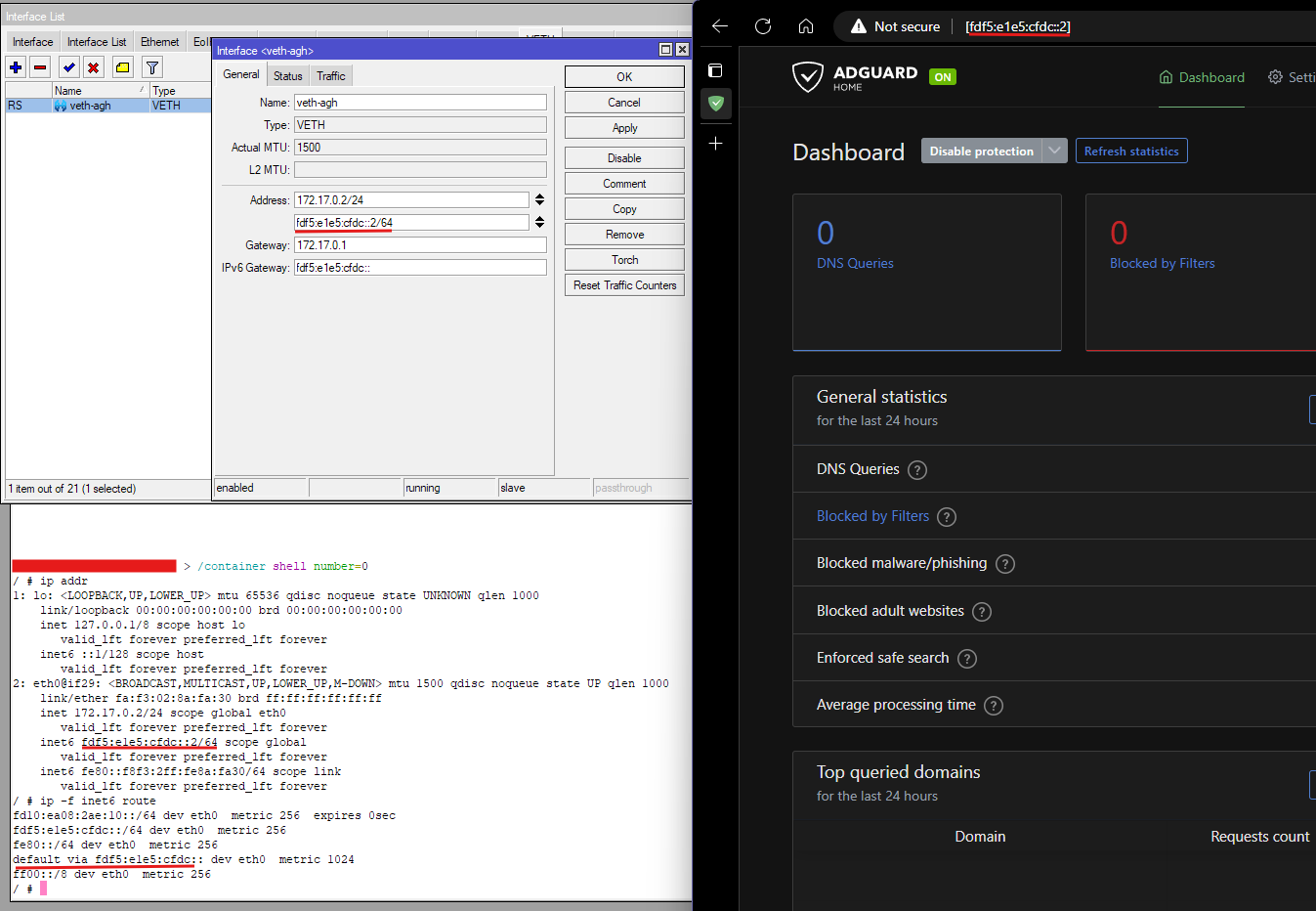
I just set up an AdGuard Home container from scratch, with exactly the same steps as above to confirm and it worked as intended. My IPv6 firewall is mostly the defconf rules like yours.

agh-docker-ipv6.png

Fails immediately. Tried a few other addresses. The last one is weird because the system obviously knows that it is a pi hole container from the IPv6 address but it won’t reach it.

Tracing route to fd6c:b6e2:f488::1 over a maximum of 30 hops

1 Destination host unreachable.

Trace complete.

Couple of other attempts:

Tracing route to 2a0a:ef40:47e:aa00:: over a maximum of 30 hops

1 <1 ms <1 ms <1 ms 2a0a:ef40:47e:aa00::

Trace complete.

Tracing route to fd6c:b6e2:f488:: over a maximum of 30 hops

1 * * * Request timed out.
2 * * * Request timed out.
3 * * * Request timed out.
4 * * * Request timed out.
5 * * * Request timed out.

Tracing route to pi.hole [fd6c:b6e2:f488:0:24ba:81ff:fe62:3179]
over a maximum of 30 hops:

1 Destination host unreachable.

Trace complete.

From your trace routes, it doesn’t appear that your PC has the correct gateway configuration. Can you do a trace route to 2001:4860:4860::8888 (that’s dns.google)? When you do that, is the 1st hop the address of your router on “Local Bridge” (which is 2a0a:ef40:47e:aa00::, I think)?

If you use Windows can you run the command on your computer:


route print -6

And produce the output here? If you use Linux, it’s the previously known command


ip -f inet6 route

A bit weird. Hop 2 timed out after a few seconds, which seems significant. Output below.

tracert 2001:4860:4860::8888

Tracing route to dns.google [2001:4860:4860::8888]
over a maximum of 30 hops:

1 <1 ms <1 ms <1 ms 2a0a:ef40:47e:aa00::
2 * * * Request timed out.
3 9 ms 9 ms 8 ms 2a0a:ef40:ffff:f00::1
4 8 ms 8 ms 9 ms ae15-100-xcr1.slo.cw.net [2001:5000:1300:6::1]
5 11 ms 10 ms 10 ms ae21-xcr1.hex.cw.net [2001:5000:0:b7::1]
6 10 ms 10 ms 10 ms ae9-xcr1.lnt.cw.net [2001:5000:0:242::1]
7 18 ms 30 ms 10 ms 2001:5000:100:9::2
8 11 ms 10 ms 11 ms 2001:4860:0:1::7e39
9 11 ms 11 ms 10 ms 2001:4860:0:1::5379
10 45 ms 48 ms 52 ms dns.google [2001:4860:4860::8888]

route print -6

Interface List
33…00 15 5d 33 70 01 …Hyper-V Virtual Ethernet Adapter
3…d8 5e d3 a6 37 14 …Intel(R) Ethernet Controller (3) I225-V
15…28 d0 ea 3a 0c b9 …Intel(R) Wi-Fi 6 AX201 160MHz
10…28 d0 ea 3a 0c ba …Microsoft Wi-Fi Direct Virtual Adapter
18…2a d0 ea 3a 0c b9 …Microsoft Wi-Fi Direct Virtual Adapter #2
20…28 d0 ea 3a 0c bd …Bluetooth Device (Personal Area Network)
1…Software Loopback Interface 1

IPv6 Route Table

Active Routes:
If Metric Network Destination Gateway
3 276 ::/0 fe80::4aa9:8aff:fe57:4601
1 331 ::1/128 On-link
3 276 2a0a:ef40:453:9c00::/64 On-link
3 276 2a0a:ef40:453:9c00:aa2a:dcc5:f711:599c/128
On-link
3 276 2a0a:ef40:47e:aa00::/64 On-link
3 276 2a0a:ef40:47e:aa00:54a5:4b86:2bcd:d5c4/128
On-link
3 276 2a0a:ef40:47e:aa00:e632:e926:2434:b02f/128
On-link
3 276 fd6c:b6e2:f488::/64 On-link
3 276 fd6c:b6e2:f488:0:6c08:18e:56a7:3cc2/128
On-link
3 276 fd79:c73c:79ad:1::/64 fe80::2e71:ffff:fe58:fda9
3 276 fdfe:1e6:13b5:1::/64 fe80::88f:6995:1d4a:7b2a
3 276 fdfe:1e6:13b5:1::/64 fe80::2a6d:97ff:fe7f:7328
3 276 fe80::/64 On-link
33 271 fe80::/64 On-link
33 271 fe80::46d7:2d99:1a1f:d021/128
On-link
3 276 fe80::7544:f62c:dd02:a8ed/128
On-link
1 331 ff00::/8 On-link
3 276 ff00::/8 On-link
33 271 ff00::/8 On-link

Persistent Routes:
None

Yes, here lies the problem:


3 276 fd6c:b6e2:f488::/64 On-link
3 276 fd6c:b6e2:f488:0:6c08:18e:56a7:3cc2/128 On-link

This route should not be in your PC’s route table at all. Those two lines say that currently, when your PC tries to reach any addresses in the range fd6c:b6e2:f488::/64 (or that particular address fd6c:b6e2:f488:0:6c08:18e:56a7:3cc2, which is also within that range), your PC won’t use any gateway, but will try to connect to them directly on the same ethernet layer instead (On-link). Which means completely bypassing the router.

That route might be there if you accidentally added an address entry from the pool “IPv6_dockers” to the interface “Local Bridge”, which is now no longer the case of your current config.

Try to run these commands on your PC in a command line windows with administrative right (right click on the start button and choose “Terminal (Admin)”) to remove those wrong routes:


route delete fd6c:b6e2:f488::/64
route delete fd6c:b6e2:f488:0:6c08:18e:56a7:3cc2/128

Your PC’s IPv6 table still has too many entries that might be from deprecated assigned addresses. Normally for you wired interface (the Intel(R) Ethernet Controller (3) I225-V interface), which has the number “3” on the “If” column (Interface) in the route table, there should

  • One default route destination ::/0, gateway is the link local address fe80:xxxx of the router on it’s “Local Bridge” interface. This line is there, and is the default route. It tells your PC to use the router’s link local address as gateway for any address ranges not in the route table.

  • One entry for each host on the same ethernet link. In this case they all should have addresses beginning with 2xxx:xxxx, because that’s the subnet configured for “Local Bridge” on the router. with global address (starting with 2). You might see addresses with the current prefix currently assigned on “Local Bridge”, but also OLD addresses and prefixes, those are for addresses still marked as deprecated, previously used on the ethernet link, but now not anymore. You can see those deprecated addresses when running ipconfig /all. In this case it looks like the “2a0a:ef40:453:9c00::/64” prefix is the deprecated one, and “2a0a:ef40:47e:aa00::/64” is the current active valid prefix.

  • fe80:xxx link local route, all On-Link.

Those 2 entries with fdxx: for interface #3 marked as “on-link” should not be there. Unless you also assigned that fdxx prefix to your “Local Bridge”!

The other fdxx: entries for interface #3 but NOT “on-link” might be ok, because they specify an address as gateway, not On-Link.

It might be advisable to reboot both the router and the PC, to clear the deprecated routes, if you previously added from the pool “IPv6_dockers” to the interface “Local Bridge” (which is wrong),

Rebooted PC and router. The address entries you suggested to remove are no longer listed, so I didn’t attempt the forced delete from the table. Still not working though…

tracert 2001:4860:4860::8888

Tracing route to dns.google [2001:4860:4860::8888]
over a maximum of 30 hops:

1 <1 ms <1 ms <1 ms 2a0a:ef40:471:9500::
2 * * * Request timed out.
3 9 ms 9 ms 8 ms 2a0a:ef40:ffff:f00::1
4 8 ms 9 ms 9 ms ae15-100-xcr1.slo.cw.net [2001:5000:1300:6::1]
5 10 ms 10 ms 10 ms ae21-xcr1.hex.cw.net [2001:5000:0:b7::1]
6 10 ms 22 ms 31 ms ae9-xcr1.lnt.cw.net [2001:5000:0:242::1]
7 11 ms 11 ms 10 ms 2001:5000:100:9::2
8 10 ms 9 ms 9 ms 2001:4860:0:1::7e01
9 * * * Request timed out.
10 9 ms 9 ms 9 ms dns.google [2001:4860:4860::8888]

Trace complete.

route print -6
===========================================================================
Interface List
3…d8 5e d3 a6 37 14 …Intel(R) Ethernet Controller (3) I225-V
16…28 d0 ea 3a 0c b9 …Intel(R) Wi-Fi 6 AX201 160MHz
11…28 d0 ea 3a 0c ba …Microsoft Wi-Fi Direct Virtual Adapter
18…2a d0 ea 3a 0c b9 …Microsoft Wi-Fi Direct Virtual Adapter #2
20…28 d0 ea 3a 0c bd …Bluetooth Device (Personal Area Network)
1…Software Loopback Interface 1
33…00 15 5d 33 70 01 …Hyper-V Virtual Ethernet Adapter
===========================================================================

IPv6 Route Table

Active Routes:
If Metric Network Destination Gateway
3 276 ::/0 fe80::4aa9:8aff:fe57:4601
1 331 ::1/128 On-link
3 276 2a0a:ef40:471:9500::/64 On-link
3 276 2a0a:ef40:471:9500:756e:3ab7:7af0:f5f0/128
On-link
3 276 2a0a:ef40:471:9500:c90e:d3b1:b177:a1ab/128
On-link
3 276 fd79:c73c:79ad:1::/64 fe80::2e71:ffff:fe58:fda9
3 276 fdfe:1e6:13b5:1::/64 fe80::88f:6995:1d4a:7b2a
3 276 fdfe:1e6:13b5:1::/64 fe80::2a6d:97ff:fe7f:7328
3 276 fe80::/64 On-link
33 5256 fe80::/64 On-link
3 276 fe80::7544:f62c:dd02:a8ed/128
On-link
33 5256 fe80::ff43:70a9:d4e5:9cb7/128
On-link
1 331 ff00::/8 On-link
3 276 ff00::/8 On-link
33 5256 ff00::/8 On-link

Persistent Routes:
None

Do you mean you can still not ping fd6c:b6e2:f488::2?

Does tracert fd6c:b6e2:f488::2 now show that it try to go to the router 2a0a:ef40:471:9500:: first, instead of “Destination host unreachable” like before?

(Also, make sure that the container is running, in case “Start On Boot” was not checked).

Actually, I didn’t try that, but it works! Both ping and traceroute behave as expected now. Thank you for sorting that out. Is there anything else I could/should check?

Why did I get request timed out as the second hop to the Google DNS server?

I’m now wondering whether the IPv6 DNS traffic really is going through the pi-hole, or even working at all in my network.

The way I do it is I to advertise the router as the DNS server and then use NAT rules on the IPv4 and IPv4 firewalls to send Port 53 traffic to the pihole.

However, there is no IPv6 DNS server info on my Windows box - only the IPv4 address. Is this normal?

Thanks again for fixing my network so far.

That some of the hops on a traceroute to some host on the internet “timed out” is not unusual. Trace route works by sending ping packets to the destination, but first only set the TTL (time to live) field of the packet to 1. At the next hop TTL will be reduced to 0 and normally the router at that hop should send back a Time Exceeded ICMPv6 Message. The trace route tool uses the source of this message as the address of hop 1. Then it increases TTL to 2 and sends the ping packet again, this time the 2nd hop will receive the packet and decrease TTL down to 0, and would send Time Exceeded. This repeats, the trace route tool increases TTL each time and resend the packet, until the destination is reached, or until, for instance, TTL is 30 (maximum 30 hops like the tool wrote).

But not all nodes on the way to the destination react correctly to a TTL dropping to 0, and not all of them send back the Time Exceeded ICMPv6 packet. In those case, nothing is returned, and after the timeout limit has been reached, the trace route tool gives up, increases TTL and tries the next hop.

So, in your case the 2nd hop doesn’t send back Time Exceeded messages. That 2nd hop is actually the other end of the pppoe-out1 connection (PPPoE is point-to-point, one point is your router, the other is the access concentrator of your ISP).

As for telling the devices on the IPv6 network to use you pi hole as DNS server, you can edit the Neighbor Discovery (IPv6 → ND) entry that you created for “Local Bridge”, add fd6c:b6e2:f488::2 to the DNS Servers text box, and turn on the “Advertise DNS” checkbox.

On your pi hole you can, maybe, temporarily “block” www.google.com or some other well-known domain, and see if your devices can still resolve that address.

Another way to test whether pi-hole is reachable by IPv6 on your PC is to run the nslookup command with fd6c:b6e2:f488::2 specified as DNS server, like this:

nslookup example.com fd6c:b6e2:f488::2

OK. Thanks so much for helping me sort this out.

If I do nslookup example.com fd6c:b6e2:f488::2 it returns an IP address, so I guess that proves that the pihole DNS works. However, this doesn’t work if I try any other IPv6 address as the DNS resolver - this is not the behaviour I was expecting given the IPv6 NAT rules I’ve set.

In IPv4, I NAT any lookup to port 53 to redirect to the pihole, so it doesn’t matter which DNS server you try to use it will replace it with the IP address for the pihole; however DHCP advertises the router’s address and Pihole uses the router as its upstream DNS. That way, I can quickly turn on/off the pihole DNS service by disabling the NAT rules for port 53.

If I try to do this with the IPv6 address, using the Local-Bridge IP address as the advertised/NATed DNS service (is this the router’s IP address???) and the upstream DNS server from pihole then nslookup using the Local-bridge IPv6 address (i.e., not pihole address) doesn’t work. This is the last piece of my puzzle - do you know what’s not working? The NAT rules should surely redirect ANY DNS lookup that isn’t directly to the pihole.

In the config I posted the rules may have been disabled but they’re enabled now.

Still struggling a bit to understand IPv6 - not had that light bulb moment yet.