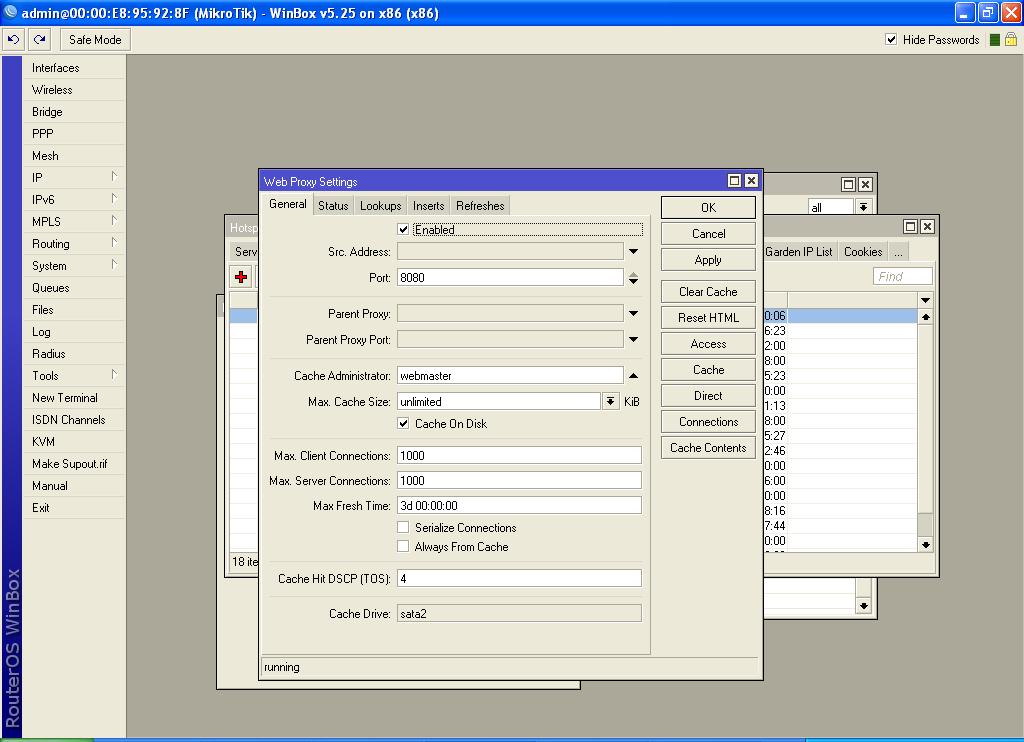
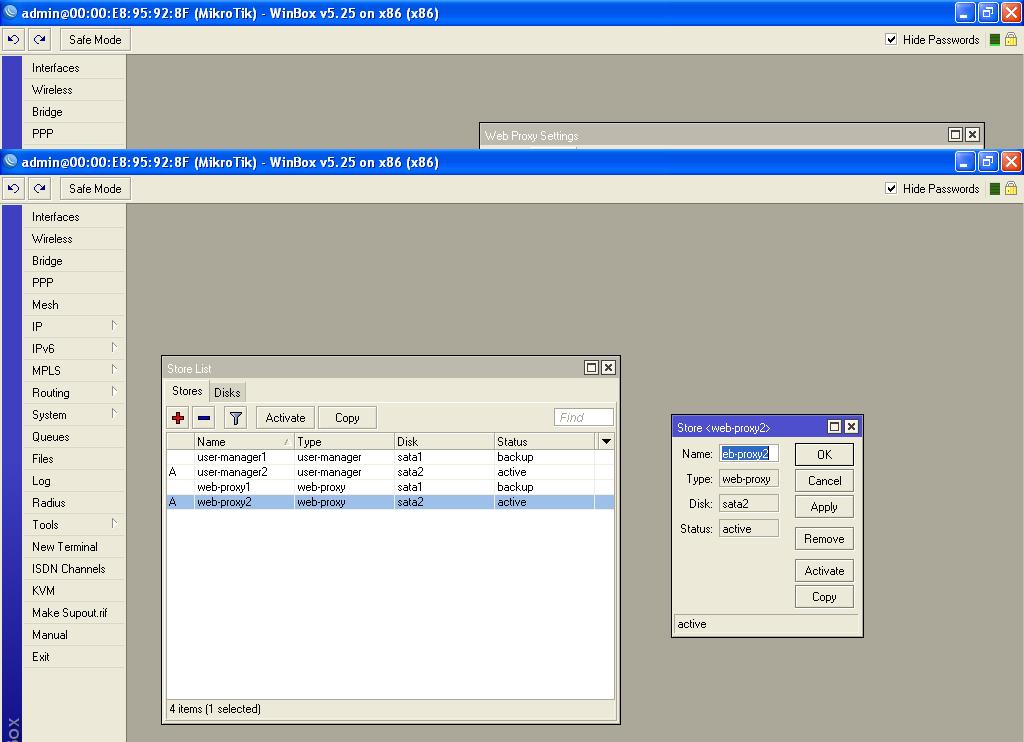
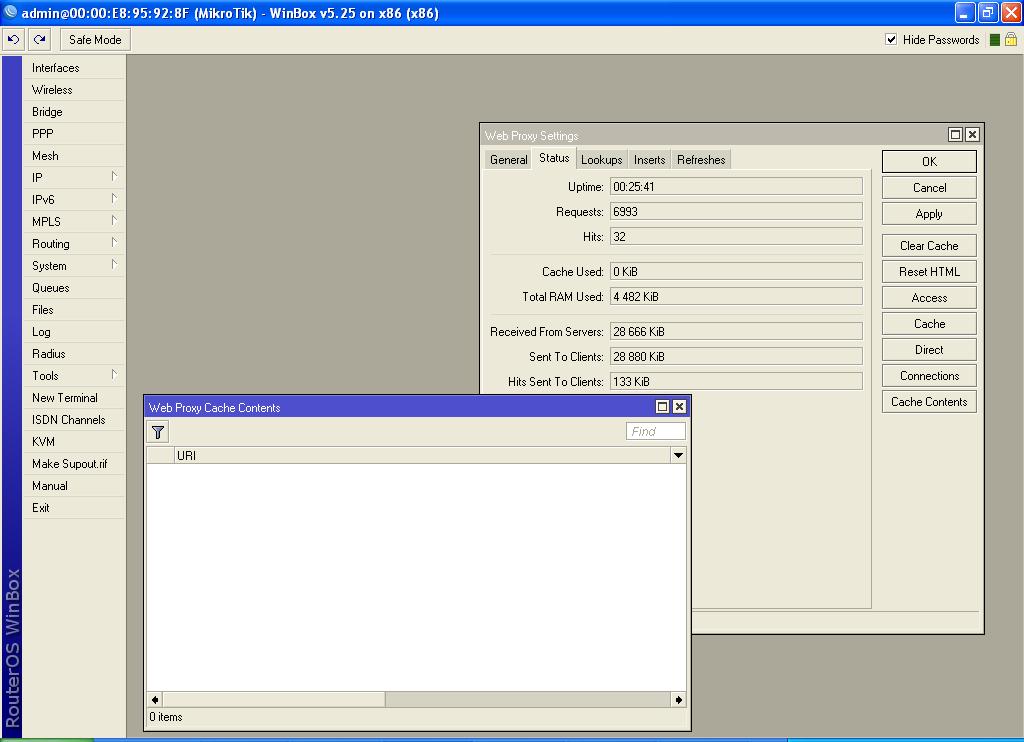
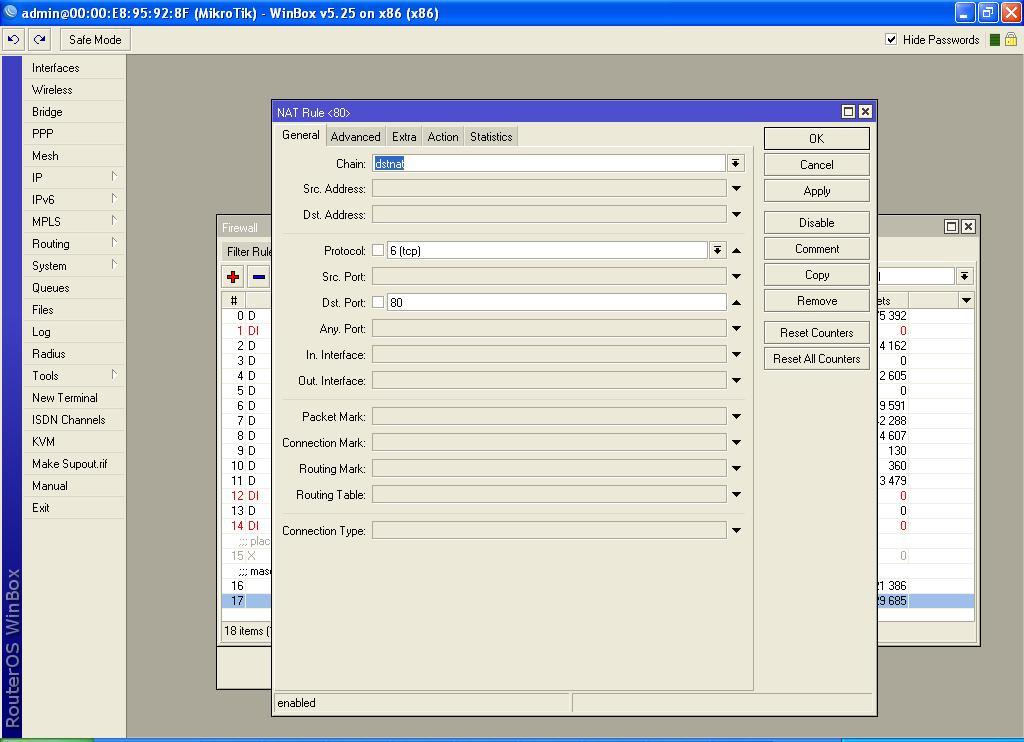
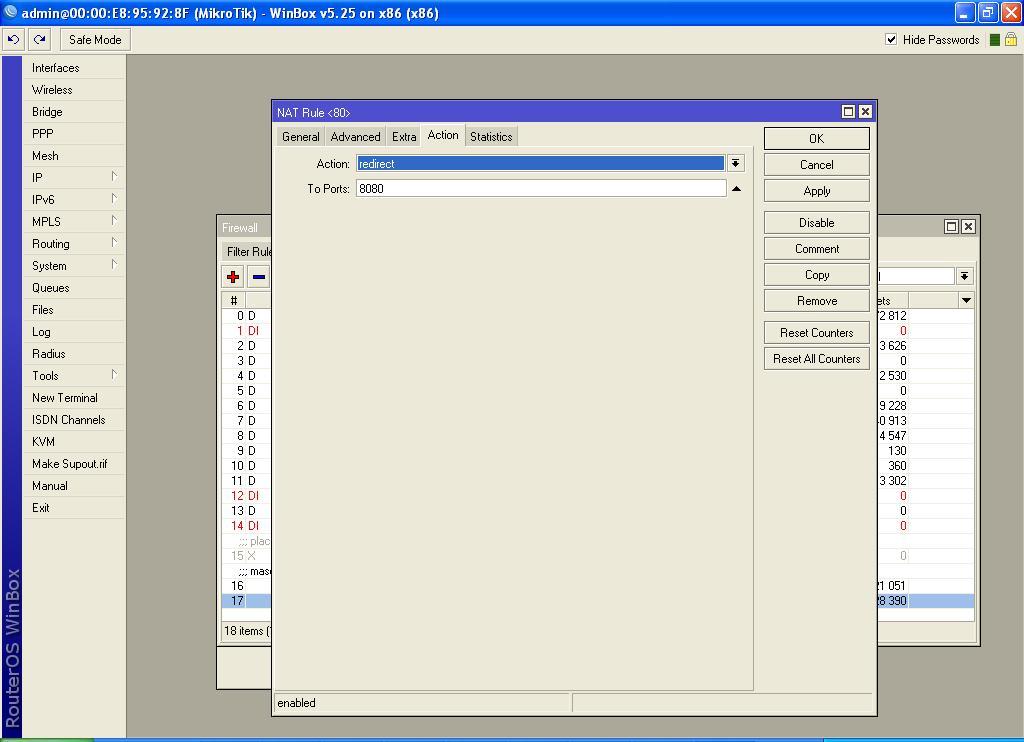
I have installed RouterOs v5.25 and set up web proxy but when I select “Cache on Disk”, it doesn’t work yet when i deselect it, caching begins on the RAM.
My screen shot for configuration/setup and cache results are posted below.
[quote=“nishadul”
please enable “Serialize Connections” and “Always From Cache” from IP/WebProxy Settings/ General Tab, then try.[/quote]
I did but nothing happened. all this while i had sent a message to mikrotik support now they say i should upgrade to V6 but when i go to System → Packages and check for updates it doesn’t update it tells me my system is up to date.
I’ve downloaded the v6 both the update package aldd “All package” can you please tell me how i can update manually via winbox to v6 please? i don’t want to do anything that willl ruin my license
maxcuban you will need to go to mikrotik.com/download and grab the RouterOS v6 package from there for x86. You can choose all packages but I prefer to grab the official upgrade package plus anything additional ie your usermanager package.
When your file has downloaded to your computer, open your router via winbox. Pull up your files list. Drag and drop the RouterOS package from your computer into winbox. When the file has finished uploading reboot your device.
stop web-proxy
1 - The first web-proxy clear cache button and then press the heml-rest
2 - go to the stores remove all web - proxy
3-add a new store With the following specifications:
name=webmaster
type=web-proxy
note=name store must same name cache admnistrator
cache admnistrator=name store
good luck
stop web-proxy
1 - The first web-proxy clear cache button and then press the heml-rest
2 - go to the stores remove all web - proxy
3-add a new store With the following specifications:
name=webmaster
type=web-proxy
note=name store must same name cache admnistrator
cache admnistrator=name store
good luck
stop web-proxy
1 - The first web-proxy clear cache button and then press the heml-rest
2 - go to the stores remove all web - proxy
3-add a new store With the following specifications:
name=webmaster
type=web-proxy
note=name store must same name cache admnistrator
cache admnistrator=name store
No need to format drive or update RouterOS. The key part is, cache administrator’s name must have to be the same as Store name. And a reboot is necessary before re-enabling web-proxy.
Pls. follow these steps:
Disable proxy & clear cache. No need to reset HTML.
Go to: System>>Stores, click “+” sign, Type a new Store name (this must have to be the same as cache administrator’s name). Select type as “web-proxy”, check “Active”. This will make old web-proxy store “backup”. Remove the old one. Click apply and ok.
Here come’s the most important part, that is, reboot your router before re-enabling web proxy.
Go to System>>Stores, here you’ll see the new web-proxy store as “backup”. Make sure there is no other “web-proxy” type store.
Go to IP>>Web Proxy. Type cache administrator’s name, same as store name you have given. Check “cache on disk”, and set Max. cache size as “unlimited”. Now check web-proxy “Enabled”, apply and ok.
Go to System>>Stores, you’ll now see the “web-proxy” drive as “active”.
Visit some web sites, click “cache contents” in web proxy settings to see it’s working or not.