For the last several months, I have been successfully using ProtonVPN Wireguard connections with my router. Unfortunately, I’m not entirely happy with several things at Proton and am looking at using SurfShark as my VPN provider instead.
I have tried to duplicate everything I did with Proton (and @anav and @CGGXANNX you were very helpful with that) for SurfShark but I am having issues.
I connect to the SurfShark endpoint just fine. I can ping IP addresses on the WAN. I can ping domain names. So I am resolving DNS no issues. And I have connectivity. The problem is web browsing. I cannot access most website. The browser just hangs. Yet, if I set up a WireGuard connection to SurfShark on my Mac, it works fine.
I’m really stumped and as SurfShark isn’t supporting MikroTik routers yet, they can’t help me. So I’m coming here.
I am attaching my config file. I have removed some non-relevant parts and please don’t comment on my IP scheme, or my VLAN scheme, etc. Please focus just on the relevant WG VPN settings. Thanks in advance for any help/advice.
Dunno. Seems like a random port that the router picked. I have created two different WireGuard interfaces for SurfShark and one is on port 55739 and the other on port 2793.
What's the purpose of this rule? I don't understand that?
These VLANs are for use with an IP video system that uses jumbo packets. As I requested, please ignore this sort of thing.
Again, this is very specific to my application. The VLAN IP addresses are all fixed with specific devices. This is NOT part of the issue.
Stuff like this is why I don't like coming on this forum and asking for stuff because my config file gets picked apart for things that have nothing to do with the issue.
I've heard this multiple times, but it's never caused one. Again, let's focus on my VPN config..
Not sure what you are talking about.
I think this is a mistake. After looking at this, it should be to port 8. It was set up as an out of band access to the router in case something goes amuck with my main work on it. Not sure why it was added as a bridge address. I think I must have changed that by mistake.
SS_NYC = SurfShark New York. I only get one "internal" IP with SurfShark and was testing things with their New York servers, so I created a second WireGuard interface names SS_NYC.
I have multiple router rules. The Surfshark ones are disabled right now because I can't get it to work.
Now if there is still something I am missing, I am all ears!
No. It's not (and this is not germane to the VPN issue). VLAN5 has a subnet mask of 255.255.254.0. The total address space is 192.168.0.1-192.168.255.254. My DHCP pool is 192.168.0.4-192.168.0.255. That is absolutely a valid address in a 23 bit network.
The gateway is 192.168.1.1. That's were people get confused because 192.168.0.1 is not the gateway. It's a long story. Just accept that I needed to expand my network and with the exception of 3 NAS units operating at 192.168.0.1-192.168.0.3, the rest of the 192.168.0 space is DHCP addresses with things in the 192.168.1 space being fixed IP addresses.
Correct. I agree with you there. Not needed. Thought I had removed it.
Correct because it is not working.
Does it need to be the same? I wouldn't think so. Again, I created the SS_NYC interface while on an online support chat with SurfShark as they are telling me to try a different server connection. So in haste, I just switched the interface on that routing table. I get how it might be confusing, but the name of the table shouldn't really matter.
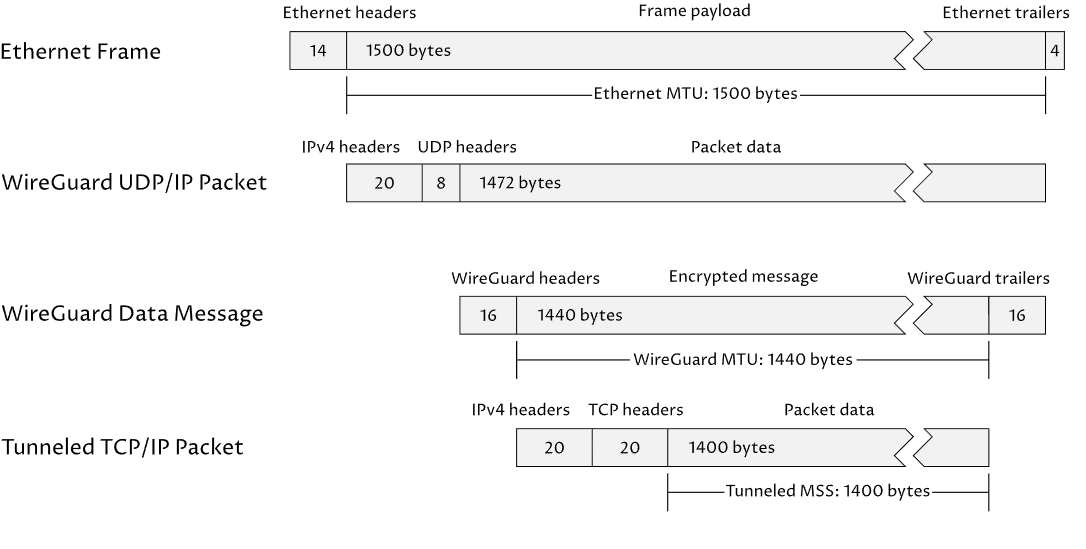
Your symptoms align with PMTUD issues: WireGuard reduces the possible MTU but your client devices are not aware of that and still try to send large packets and tell the remote hosts that they are able to receive large packets. Normally if PMTUD works correctly then that's not a problem (if SurfShark is able to notify the remote hosts that large packets can not go through for example). Or if the transport network can automatically fragment packets, then there is also no connectivity issue (but speed is lower). If both are not possible then you can have the issues that you observed.
One workaround (which only helps TCP connections, not UDP) is to clamp MSS, like @gardlaerk wrote in his first answer:
You put that in your /ip firewall mangle table. The rule manipulates the MSS value in the SYN packets of the TCP connections that your client devices send to the internet that is going out through the SurfShark interface. For IPv4 MSS can be at most MTU - 40. Your WG interface has MTU = 1420, so you'll make sure that all outgoing TCP connections have MSS not exceeding 1380.
With that information, the other side (remote hosts) will limit the size of the TCP packets, because each segment cannot exceed 1380 bytes, the IPv4 packet will not be larger than 1420 bytes.
If you use IPv6 then add a similar rule, but for IPv6, you'll need to subtract 60 bytes from the MTU.
But aren't connections over Wireguard all UDP anyhow? I thought that's what made Wireguard fast?
While I run jumbo packets on my LAN, the WAN interfaces are obviously much smaller in MTU. I've never had this issue with Proton but maybe this is an issue with SurfShark?
UDP is used to transport the outer packets, the ones that contains the encrypted data. Those packets can still be up to 1500 (assuming your ISP support MTU 1500 for your internet connection) byte large and will be transported without problem.
The MTU that you set on the WG interface (1420 in your configuration) is set for the IP (IPv4 and IPv6) packets inside the WG tunnel. Normally, if you want to transport an IP packet of size X inside the WG tunnel, without having to break (fragment) that packet in multiple part, then you have to ensure that that packet does not exceed a certain sizes. What is that size?
If the outer transport uses IPv4, then there will be overhead from IPv4 and UDP and WG, which result in 60 bytes headers and footers. Which means if you don't want fragmentation, the MTU of the packets inside the tunnel (the packets that will be encrypted) cannot be larger than the outer MTU - 60. If your ISP supports MTU 1500, the you should not set MTU of the WG tunnel larger than 1440.
If the outer transport uses IPv6, then there will be overhead from IPv6 and UDP and WG, which result in 80 bytes headers and footers. That's why you see the default MTU of WG interfaces set to 1420, because that's assuming the case of outer MTU 1500 and IPv6 used to transport the outer packets with the encrypted data.
Inside the tunnel, you can transport any IP packets, so IPv4 and IPv6 are supported, and of course TCP, UDP, ICMP, anything supported by IP can be transported. Is just that the MTU has been reduced (due to the overhead of the outer packet).
When your Mac runs the SurfShark client and you use the Web browser to surf websites, the apps and macOS still produce normal IP packets for DNS queries (UDP & TCP) as well as packets for the connections that uses TCP or QUIC (which is UDP). The difference is that those packets are not sent directly to the internet through your ISP, but are first encrypted and encapsulated with special headers and footers (WG header and footer and UDP and IPv4 headers). If the browser tries to make a TCP connection to forum.mikrotik.com then you still have a TCP connection, it's just that the individual packets of that TCP connections are first encrypted and then wrapped in UDP packets.
Most probably because PMTUD is working correctly with Proton. For example, when the remote hosts (such as forum.mikrotik.com) send response packets back to you, and those packets are large (IP packets up to 1500 bytes), the Proton knows to notify forum.mikrotik.com with ICMP packets that fragmentation is needed (IPv4) or packet is to big (IPv6), and forum.mikrotik.com will know to reduce the size, until the packet can be smaller than 1420 bytes.
SurfShark might not be doing that correctly, so forum.mikrotik.com keep sending large packets that SurfShark cannot let through and just drops them without telling forum.mikrotik.com.
OK. Thanks. That rule seems to have helped quite a bit, but now I have one more problem.
I'm trying to do speed tests to see how good the connection is. I get download just fine. But when I try to do the upload portion, it fails. Yet, I'm obviously sending outbound packets if I am able to access web pages, etc...
OK - Weird. If I use the SpeedTest app, the upload fails. If I use the Ookla website, then I get both up and down....
UGH. I don't know what kind of crummy outfit SurfShark is but last night my endpoint address was literally changing every few seconds - bouncing between a US and Canadian IP address. Caused all sorts of issues and their online support staff was pretty worthless. Spent an hour on chat with him telling me to do things like update my DNS servers, try an incognito browser, etc.
I can't recommend a specific provider.
The general process is as follows: you register an account on mikrotik.com to manage the purchased license, then purchase the license.
You choose a VPS provider and purchase a server with a similar traffic plan to your CHR license. Some providers offer servers with RouterOS already installed. If your chosen provider doesn't offer a server with RouterOS, you can purchase a VPS server with, for example, CentOS 7 installed and replace it with RouterOS using these instructions (these may not apply to all servers):
Use these commands in the server console:
Update the package database and install the necessary packages:
yum install wget unzip
Reboot the virtual machine:
echo "b" > /proc/sysrq-trigger
After rebooting, Mikrotik CHR will start, not CentOS deployed to the entire hard drive. Log in to the server (now CHR) via the console and assign an IP address and gateway.
/ip address add interface=ether1 address=99.99.99.239/24 # your address
/ip route add dst-address=0.0.0.0/0 gateway=99.99.99.1 # your gateway
After that, you can log in through WinBox and start configuring it to use as a VPN server.
Next, once you have your own VPS with RouterOS installed, you must assign it the license you purchased from Mikrotik. To do this, go to System/License and enter the username and password for your account (mikrotik.com) and activate your license. You may have to confirm the license installation in your personal account (mikrotik.com), I don’t remember exactly.
Until license activation, your speed will be limited to 1 Mbps. If you decide to change your VPS provider in the future, you can easily transfer your license to another VPS using the same method.
OK. I have RouterOS installed (CHR) and running on a virtual server. Haven't purchased anything yet as I am still trying it all out and working to get things set up.
I'm trying to establish a wireguard connection between my router here at home and the remote one on the VPS. But I can't get the connection established. I see my home side trying to send traffic over the link but I see nothing on the CHR side.
Attached is the config file from the CHR... VPS_Config.rsc (944 Bytes)
Would love any and all help...
I've tried a couple other combinations of things and nothing - the remote side does not see any of my traffic being sent to it.
Oops. Just realized I have no firewall rules set up. Is that why I am not getting anything through?
You must allow the port the CHR server is listening on .
/ip firewall filter
add action=accept chain=input connection-state=new dst-port=13245 in-interface=ether1 protocol=udp
If you plan to use CHR's internet, you need to allow all networks on CHR in the tunnel.
/interface wireguard peers
add allowed-address=::/0,0.0.0.0/0 interface=wg1 name=
peer2 public-key=
"g+/CYMfesfsefsefesfsefesfesfesffesfesfefe="
and configure NAT for you home network or single addresses.
for example
/ip firewall nat
add action=masquerade chain=srcnat out-interface=ether1 src-address=192.168.81.0/24
On your home router, you can tunnel some of your home networks (for example, 192.168.81.0/24)
/routing table
add disabled=no fib name=WG_to_CHR
In my case, I additionally send pings from CHR every couple of minutes to the client's address in the tunnel (yours is 192.168.2.2) and if the tunnel breaks, sometimes I have to change the port on CHR (yours is 13245)
Thank you. However, I am still not getting any traffic flowing into the CHR.
I am definitely sending it but nothing is coming through on the other end...
I think it has to do with my keys. So questions (and I always get this confused when talking WireGuard)...
1.) I generate an interface on the remote side. It has a particular public key.
2.) I generate a peer on the remote size - it has a different public key...
3.) On the home side, I generate an interface and it has a public key
4.) On the home Side in the peer - what public key do I use? Do I use the key of the remote interface or the remote peer?
5.) Same thin on the remote peer - what do I use for the public key.
Well, the public keys are generated from the private keys but what ones do I use where? This is where I get lost.
I AM able to create successful connection using the Wireguard app from my computer. That works. I just get confused over what goes where in MikroTik....
Second, I am stuck. I have my local MikroTik connected to the CHR via Wireguard. But I cannot ping anything on the CHR end or get any internet access through it. I have multiple other tunnels set up right now with my current VPN provider, ProtonVPN, and I have tried to duplicate those settings as much as possible.
For example, from any machine on my LAN, I can ping the Proton DNS servers at the other end even if I am not explicitly sending traffic through the VPN connection via a routing rule. And certainly, I should be able to ping things from the router itself. But I can't. My CHR connection has a client IP of 192.168.2.2 and the CHR has an IP assigned of 192.168.2.1. But from my local MikroTik, I cannot ping 192.168.2.1.
Now, if I create a Wireguard connection from my laptop to the CHR, everything works. I can ping 192.168.2.1 from my laptop and I have internet access through it.
Given this, I am assuming it's a routing issue on my local router but I can't figure it out. Everything is duplicated just like I do for my other WG connections.
Attached are both of my config files. I have edited out some stuff from the main router that is not germane to this. There's a lot in the main file that you may have questions on - I want to only focus on the WG connection and routing issues please.
Really would love any advice anyone may have. I gotta be just missing something small...