for long time i used a smal travel router.
simply plugin connect to the router. choose upstream wifi network. done.
however i want a litle bit more. so i found the MAP2nd and it looks promising.
after a lot of trial and error i got “something” working.
when i boot the device at home. it connect to the wifi and i can connect to its wifi.
however this weekend i was in an hotel and put it to the test.
power up the device… and that is all there was happening.
I think (but was not able to confirm) the the router is waiting for the upstram wifi to choose the right wifi channel before it starts sending it own wifi.
so the question is. do i have the right device (and simply don’t understand how to configure it)
my wishes are…
wan connection to cable or wifi.
lan network (with wifi and cable)
guest network (wifi only)
ipsec tunnel for the lan network to home.
i need to be able to configure the device from my mobile phone.(after the initial setup of course)
so without an upstream wifi network there should still be a lan wifi network availible.
Is there nobody here using this device?
It was a little bit to expensive for a useless device. But i simply won’t belive that a device with such a small formfactor and even Mobile in its name is not made for traveling.
There must be something simple i did wrong. But it is my first Mikrotik device.
Since you want encrypted tunnel to your home, I would suggest picking a router with IPSEC hardware acceleration, something like HAP AC2 would be great because it’s cheap and supports both 5ghz/2.4ghz wifi.
Everything else that you mentioned is possible. Even if you have ridiculous requirements, most of them can be satisfied in some way using scripting. Just let us know on which part you are struggling with and we will help. Write your requirements step by step, so maybe someone could be nice and provide example configuration for you, since what you want seems to be incredibly “beginner basics”.
Performance is not a real issue. most wifi’s on holiday’s are crap anyway.
@erkexzcx i think your suggestion has to do with the speed of the ipsec.
maybey it will be a good idea in the future. but for now i want to use the device i bought.
I have some experice with networking. but for work i use Juniper.
They have no compact devices (and no compact prices) so RouterOs is a complete new world for me.
@Erlinden
The link looks prommising.
The export isn’t working since for some reason i was not abel to connect to the router and needed to factory reset it (again )
It is a great ide to split the wishes.
Lets start with a basic one network travel router.
When i choose the quickset CPE i am able to set the correct ip ranges for lan and connect to an upstream wifi.
this looks a great baseline to start with.
Connect to “Hotspot-test”
Choose Router mode
set wifi interface to automatic ip
set local ip to 172.16.31.254 / Mask 255.255.255.0
enable dhcp with 172.16.31.100-172.16.31.20
enable nat.
apply config
set static ip to network card.
goto ip > dhcp server (and pool) and remove the old 192.168.88 range (!?)
that is the first point i got stuck.
my computer don’t get any ip.
my next step would be to add a virtual interface for the "“lan” wifi. however then we have the problem that when the master interface doesn’t connect the “lan” wifi also doens’t come up.
One quick thing I noticed in your export was the “/ip address” should have the “interface” set to “bridge” rather than “ether1” since “ether1” is in the bridge.
What static IP did you set on your network card? Is this the network card in your computer? If so it would be simpler to let the computer get its IP automatically.
I use this very often. Had the same problem, and hated the “config reset” workaround to get in wirelessly to set the host SSID & security.
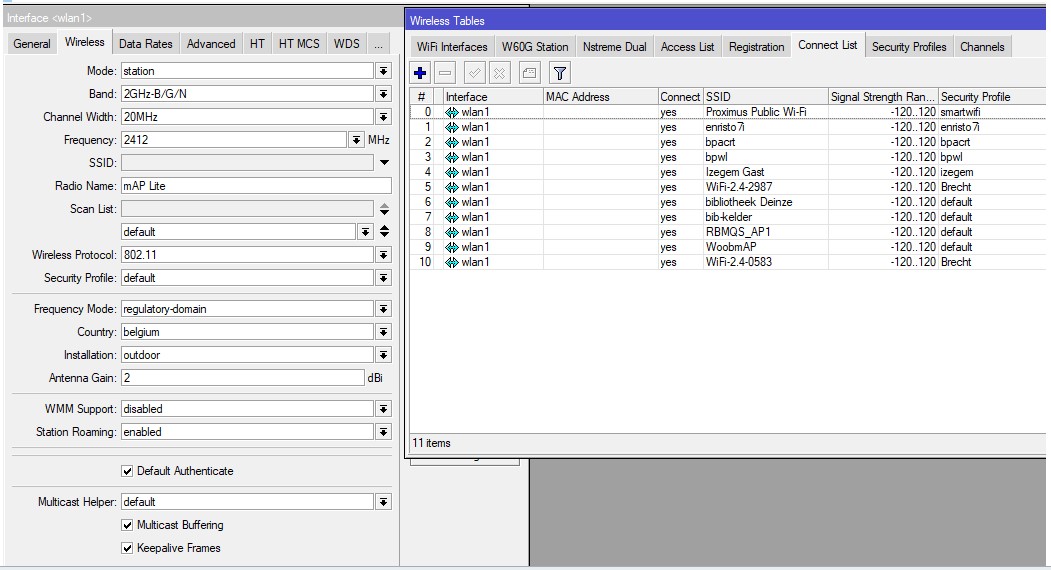
With the “connect list” with all your known SSID’s that you ever use or used its 100% automatic. Just in case of a new situation one of those used SSID’s (BPWL) is my own smartphone hotspot.
No need to carry an ethernet cable or have a client device with an ethernet port. It automatically selects the right SSID, even @home.
It also connects to my Woobm or my RBMQS.
Once connected to any SSID in the list, you can get in via wireless, and edit the connect list if needed.
@w32pamela
after changing the adress to the bridge the dhcp server showed “invalid”
I removed them and added a new one.
Now it is working.
(the part of the static ip was to get access to the router)
@bpwl
The connectionlist is a great part. this means i can add the “most used” networks to the list.
the part with the hotspot is better then nothing. however not perfect.
This means i need to set my phone to an hotspot, get my wifes phone and connect to the “lan” wifi. to change the configuration.
otherwise we need to allow configuration from the wan interface…from an untrusted network. (wich is disabled by default)
for the connection list, is it possible to re-order them?
and when i add a profile without an ssid and security to none. will it connect to any network without encryption?
last question for today,
i was planning to ad the eth1 device to a bridge called wan.
however i think that isn’t the correct methode.
What is the best option to make ETH1 also availible as wan interface (when connected to this interface the wireless interface should not connect to an upstream wifi. but make the “lan” wifi availible.
Again many thanks for all the effort to learn this mikrotik-noob that the product isn’t as bad as it looked the first day
You probably do not want ether1 bridged to the “WAN” WiFi. If both ether1 and the “WAN” WiFi interfaces are added to the WAN interface list the appropriate NAT & firewall rules will be applied.
All you should have to do is change the default-route-distance for the DHCP client on “WAN” WiFi interface from 1 to 2 - if both interfaces are active and have acquired IP addresses using DHCP then external traffic will use ether1. However, if only one interface is active and has acquired IP addresses using DHCP then external traffic will use that interface.
@bpwl
The connectionlist is a great part. this means i can add the “most used” networks to the list.
the part with the hotspot is better then nothing. however not perfect.
This means i need to set my phone to an hotspot, get my wifes phone and connect to the “lan” wifi. to change the configuration.
otherwise we need to allow configuration from the wan interface…from an untrusted network. (wich is disabled by default)
.
Yes, unfortunately so far you need two devices (one as AP, and one as client) to be able to connect and modify.
I have my 7" tablet and my smartphone. The laptop would be no problem as this one has ethernet. But I travel light.
Even opening the WAN WLAN interface will not help. The WLAN stays down until connected, once any AP is connected both are open.
You could swap the functions AP-bridge and station-bridge between the physical and the virtual WLAN interface. But then only AP’s at the same frequency are connectable.
I had no success in trying to use the little push-button to start a special configuration on the press of that button.
That’s why I included my Woobm and my RBMQS as AP’s in the list, two interesting Mikrotik tools, smaller and almost as small as the mAP Lite.
.
for the connection list, is it possible to re-order them?
and when i add a profile without an ssid and security to none. will it connect to any network without encryption?
.
The connection list can be sorted by dragging the items in Winbox. Something similar must be there in Webfig, but I use Winbox or the Mikrotik APP in Android.
Never tried “without SSID” what that one does. In the log with /system/logging set with Topics=wireless it gives the impression it could work. Interesting thought.
last question for today,
i was planning to ad the eth1 device to a bridge called wan.
however i think that isn’t the correct methode.
What is the best option to make ETH1 also availible as wan interface (when connected to this interface the wireless interface should not connect to an upstream wifi. but make the “lan” wifi availible.
I’m afraid this won’t work as intended. It is not having an active ethernet interface ported to the bridge that will activate the WLAN interface. It is the connection to the physical WLAN that activates that master WLAN and all the virtual slave WLAN’s.
Again many thanks for all the effort to learn this mikrotik-noob that the product isn’t as bad as it looked the first day
On my todo list … as I stumbled upon this one in the wiki …(@strods says it’s only for X86 for ethernet ports, but hey this is in the wiki at the wireless page)
disable-running-check (yes | no; Default: no) When set to yes interface will always have running flag. If value is set to no’, the router determines whether the card is up and running - for AP one or more clients have to be registered to it, for station, it should be connected to an AP.
Sorry for the late reply. it isn’t fair to the great help of you all.
at the moment i am on a holiday location (we are still allowed to go on holiday inside the country.)
I was able to get the device online with help of the 2 phones. after connection to the hotspot wifi the dns wasn’t changing. so the device needed a reboot to show the sign in page. i guess that is how it is. i can accept that )
/edit. you can skip al the steps. for today there is no question added it anyway for the people who want to follow.
for the moment i made the following changes.
Go to DHCP client.
edit Wlan1 set to Default Route Distance 2
add ether1 Default Route Distance 1 (DHCP options hostname / clientid)
Go to interface list.
add new entry in the WAN list for ether1
login with putty since i couldn’t find a gui option
/interface wireless set disable-running-check=yes
numbers: 1 (don’t understand the question but guess it is the number of the wlan adapter?)
Go to connection list. add a new entry without an SSID. (for the open networks)
And here i can drag and drop to reorder (sometimes the solution is so simple that you don’t see it)
I can’t test it right now. but will test in the coming week if the device will go online without an upstream wifi.
Next step “Add second wifi”
Goto Wireless
add new virtual interface named wlan-guest
provide an ssid & security profile
Goto bridge
add a guest-bridge (in case we want to switch the lan port)
add wlan-guest to guest-bridge (that is the moment i realize my names are not consistent)
Goto ip adresss
add new entry for guest-bridge (172.18.31.254/24)
add pool guest-pool (172.18.31.100-172.18.31.200)
add dhcp server (dhcp-guest with pool guest-pool) added to guest-bridge
add dhcp network
adress 172.18.31.0/24
gateway 172.18.31.254
netmas 255.255.255.0
dns server 1.1.1.1
next step will be adding the IPSEC
that will be in the coming week.
when there is no known wifi. the wireless interface is not coming online.
login with putty since i couldn’t find a gui option
/interface wireless set disable-running-check=yes
numbers: 1 (don’t understand the question but guess it is the number of the wlan adapter?)
the trick with a mobile hotspot and a second phone is working. but not ideal
it would be nice if i was able to manage the router from the home network.
i can connect to devices on the mikrotik network. however i can’t reach the mikrotik self. (ping / http)
During initial setup there was an option only allow management from lan.
i can’t find this option back in the config. how can i add a second subnet (or the ipsec tunnel interface) to this list?
/interface wireless set disable-running-check=yes
numbers: 1 (don’t understand the question but guess it is the number of the wlan adapter?)
WLAN1 (the first WLAN interface) is number “0”
it would be nice if i was able to manage the router from the home network.
i can connect to devices on the mikrotik network. however i can’t reach the mikrotik self. (ping / http)
During initial setup there was an option only allow management from lan.
i can’t find this option back in the config. how can i add a second subnet (or the ipsec tunnel interface) to this list?
Ping should be possible. Use the WAN side IP address.
For punching a hole in the firewall you can either add this as I do (unsafe, I know, but it is only a travel router)
Or you can add an interface to the LAN list.(Interfaces that are ports of the bridge follow the bridge definitions, so it is over specified here)
This is found under menu “Interfaces” , tab page “Interface lists”.
In the CLI:
/interface list member
add comment=defconf interface=bridge list=LAN
add comment=defconf interface=ether1 list=LAN
add interface=wlan1 list=WAN
add interface=wlan2 list=LAN
Adding to the LAN list also acts on this:
/tool mac-server
set allowed-interface-list=LAN
/tool mac-server mac-winbox
set allowed-interface-list=LAN
the disable-running-check was indead the wrong number. it is working as expected.
for the firewall i added an extra input rule with source ip “home subnet” destenation ip “router lan ip” action accept. and this was exactly what i needed.
it was an adventure to set this up. but thanks to you all the Mikrotik world is less scarry. and i have a great travel router now.
Is it? What version of ROS are you on? It’s not working for me using ROS 6.48. Maybe our expectations are different. When I set disable-running-check=yes on wlan1 (mode=station) it keeps the running flag when disconnecting from AP. But the slave wlan (mode=AP bridge) are still down. In which modes are your interfaces running?
@bpwl
Yes, unfortunately so far you need two devices (one as AP, and one as client) to be able to connect and modify.
I have my 7" tablet and my smartphone. The laptop would be no problem as this one has ethernet. But I travel light.
Even opening the WAN WLAN interface will not help. The WLAN stays down until connected, once any AP is connected both are open.
You could swap the functions AP-bridge and station-bridge between the physical and the virtual WLAN interface. But then only AP's at the same frequency are connectable.
I had no success in trying to use the little push-button to start a special configuration on the press of that button.
That's why I included my Woobm and my RBMQS as AP's in the list, two interesting Mikrotik tools, smaller and almost as small as the mAP Lite.
My update to this mobile AP. For me it's works as expected
in new place (not on connect list), run AP on smarthphone. Everyone have it, isn't it ?
configure firewall. Add input on the top (position 0), allow to any connection from WAN
chain=input action=accept in-interface= log=no log-prefix=""
add in firewall rule, for keep connection
chain=input action=accept connection-state=established,related,untracked in-interface= log=no log-prefix=""
configure "reset button", to open for 10s ANY connection from WAN after button press
/system routerboard reset-button print
enabled: yes
hold-time: 0s..2s
on-event:
/ip dhcp-client release numbers=0
/ip firewall filter enable 0
:delay 10s
/ip firewall filter disable 0
use Winbox mobile to connect to mAP
If we are in new location (not in connect list), share AP on mobile phone.
After mAP connect to phone AP, press button on mAP. mAP is connected to Your own phone, so it's secure to allow connection from Your phone.
Connect by Winbox mobile to map.
After 10s, mAP will disable new connection from WAN. Open connection will keep.
Add new hotel ssid/security profile.
Reset map
Switch off ap on phone
For sure I add
/system scheduler print
Flags: X - disabled
NAME START-DATE START-TIME INTERVAL ON-EVENT RUN-COUNT
Is this limitation (master = ap bridge) not running solved?
I tried to configure a travel router and in default config (no default configuration), the salve connects without the master running:
In this setup I can connect via my phone to the wlan1 (ap bridge) interface and configure the wlan2 (station) interface to connect to the Hotel-WiFi. Even if a captive-portal is in place. Simply connect once via your phone, accept the conditions, connect via wlan1 to your router and change the MAC of wlan2 to the MAC of your phone. This way the captive-portal will “think” your wlan2-interface is your phone.
The only “limitation” is, you have to do once a Background-Scan and set the frequency/width (of the wlan1-interface) to the values of the SSID you want to connect to (via wlan2). Because wlan2 will use the same frequency/width as the master. If you want to connect via wlan2 to the Hotel-WiFi, you have to change the frequency/width in the master (wlan1) interface.
Master is AP or AP-bridge.
Slave is station or station-pseudobridge (there are 2 scenario’s here!) Station, with masquerade or SRC-NAT is expected to be the most stable, and will allow the master interface with AP to have it’s own DHCP server and range. Everything sent to the hotel AP, has the WLAN2 interface as source. So if any device does the captive portal interaction, eg via WLAN1, the captive portal will only see the WLAN2 IP and MAC address, independent how many other devices are connected to WLAN1, all will be seen as just one device.
Only reason to change the MAC address of WLAN2 , that I see, is when the hotel would block MAC-address-recognised routers.
(Like campings that block known repeaters (EnGenius ENH200) because of too many abuses (account sharing and illegal TX power)
Trick is indeed is to set the correct frequency in WLAN1 (master), for WLAN2 to work on the hotel frequency.
PS: My setup with WLAN1 as station, and a long connect list with all my known hotel SSID works automatically. But for a new localion this setup here is indeed easier.
Preferred Setup to be switched with a reset button push? (reset button script is not supported in the version I run now … https://doc.i4e.com.bd/networking/doc/mode-button)
I really like our Mikrotik map lite! It’s really a perfect travel router!
I have a following setup:
eth1 - device management with winbox
wlan1 - wifi access to internet
wlan2 - network for clients with wlan1 as master
l2tp/ipsec - traffic for wlan2 is being routed via vpn
where wlan2 exists only when wlan1 connection has been established and then clients on wlan2 have access to internet via vpn.
I’m trying to understand how to get internet on cable with eth1 instead of wlan1, having both options enabled with the following logic:
use internet from cable when it is connected, OR
use internet from wlan1 when there’s no cable on eth1
 Just let us know on which part you are struggling with and we will help. Write your requirements step by step, so maybe someone could be nice and provide example configuration for you, since what you want seems to be incredibly “beginner basics”.
 )
)