Using RouterOS to QoS your network - 2020 Edition

Hey there…

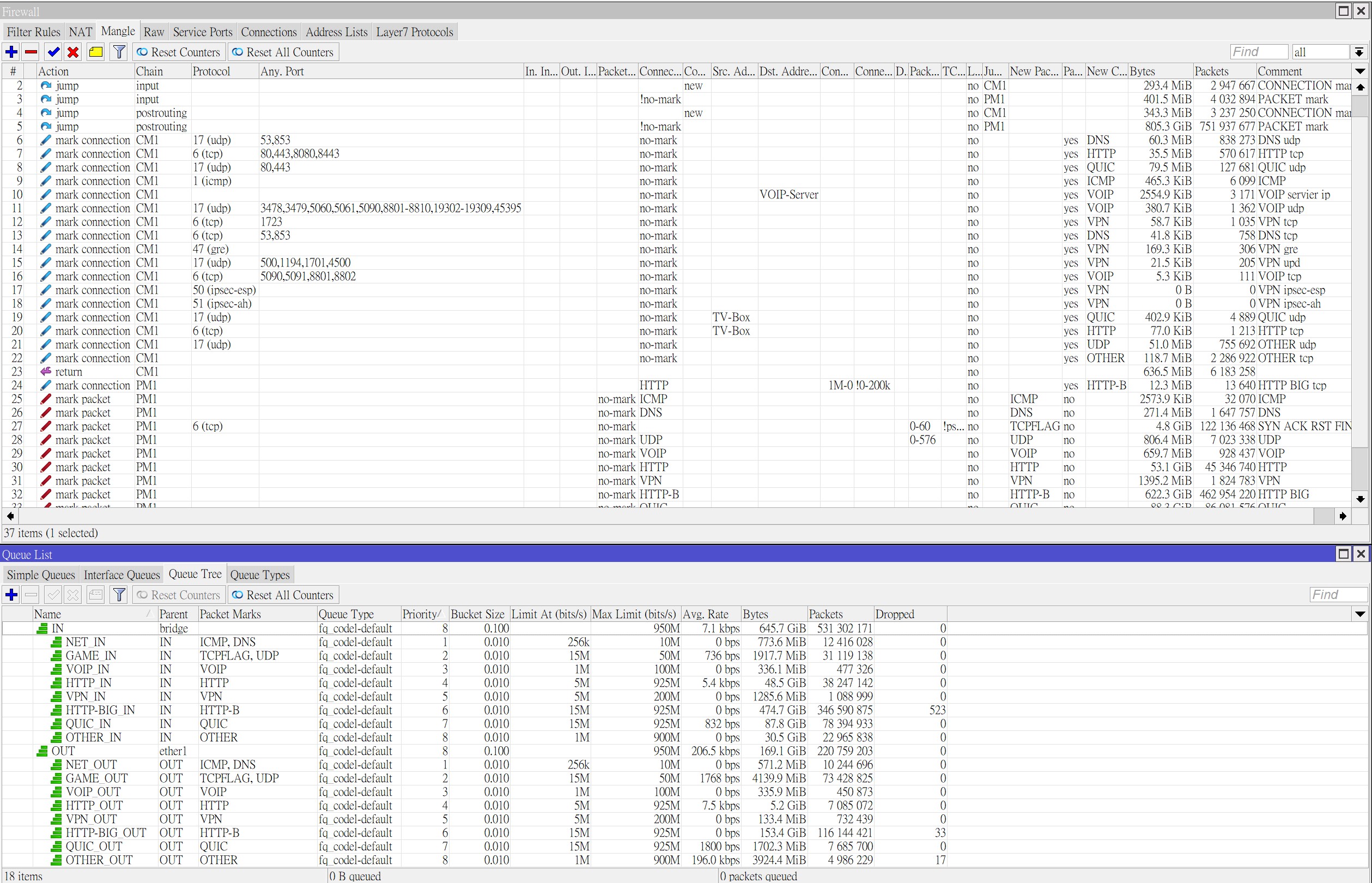
i just replaced my unifi USG with a rb5009 and now closely followed this thread about implementation of a QoS. So far it works really great, all connections and packages are marked by the mangle rules and applied to my queues.
But there is also some strange stuff going on when running nightly backups from a remote system (using Proxmox Backup Server if that matters in any way…).
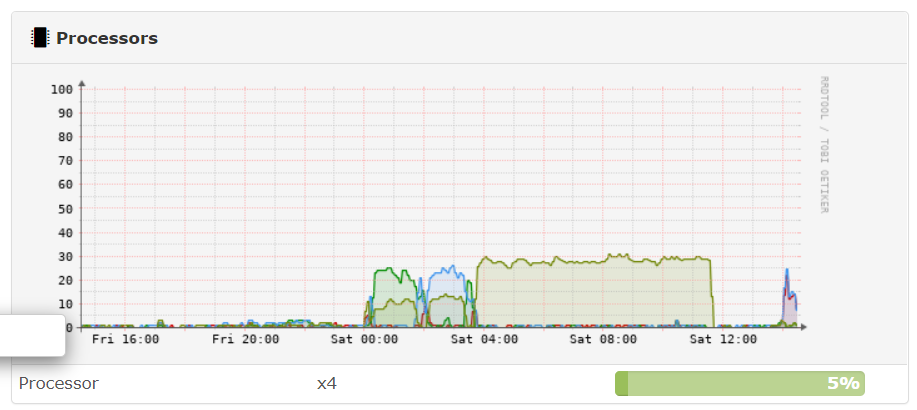
rb5009_mangle.PNG
You can see, that a single of the four cores is completely blocked and weird enought the throughput is limited to ~15mb/s download here (as in Megabyte / s). Given that this is a 1000mbit connections, I’d expect more.
As soon as I activate the fastpath rule in Firewall, QoS does not work anymore (as expected) but the throughput goes up to ~50-80mb/s and the cpu usage is distributed over multiple cores (right part of the diagram).

Interestingly the usual speedtest tools (speedtest.net etc) all show a rather okish performance (~800mbit/s) no matter if fastpath / QoS is active or not.

Honestly I have no clue, what’s going on here and would appreciate ANY help from you, thank you soo much!

/ip firewall filter
add action=accept chain=input comment="defconf: accept established,related,untracked" connection-state=established,related,untracked
add action=drop chain=input comment="defconf: drop invalid" connection-state=invalid
add action=accept chain=input comment="defconf: accept ICMP" protocol=icmp
add action=accept chain=input comment="Allow SNMP" dst-port=161 in-interface=Corporate_VLAN protocol=udp
add action=accept chain=input comment="Allow LAN DNS queries-UDP" dst-port=53 in-interface-list=VLAN protocol=udp
add action=accept chain=input comment="Allow LAN DNS queries-TCP" dst-port=53 in-interface-list=VLAN protocol=tcp
add action=accept chain=input comment="Allow LAN NTP queries" dst-port=123 in-interface-list=VLAN protocol=udp
add action=accept chain=input comment="defconf: allow RB5009 access from Mgmt VLAN" in-interface-list=MGMT
add action=drop chain=input comment="defconf: drop all else" log-prefix=drop

## Forward rules
add action=fasttrack-connection chain=forward connection-state=established,related hw-offload=yes
add action=accept chain=forward comment="Allow Estab & Related" connection-state=established,related

add action=accept chain=forward comment="Corporate => WLAN" in-interface=Corporate_VLAN out-interface=WLAN_VLAN
add action=accept chain=forward comment="WLAN => Corporate" in-interface=WLAN_VLAN out-interface=Corporate_VLAN
add action=accept chain=forward comment="Corporate => IoT" in-interface=Corporate_VLAN out-interface=IoT_VLAN
add action=accept chain=forward comment="WLAN => IoT" in-interface=WLAN_VLAN out-interface=IoT_VLAN
add action=drop chain=forward in-interface=IoT_VLAN out-interface-list=WAN

add action=accept chain=forward comment="Allow Port Forwarding (dst-nat)" connection-nat-state=dstnat in-interface=e8-wan
add action=accept chain=forward comment="VLAN Internet Access" in-interface-list=VLAN out-interface-list=WAN
add action=drop chain=forward comment=Drop log-prefix=drop

/ip firewall mangle
add action=mark-connection chain=prerouting comment=DNS connection-state=new new-connection-mark=DNS passthrough=yes port=53 protocol=\
    udp
add action=mark-packet chain=prerouting connection-mark=DNS new-packet-mark=DNS passthrough=no

add action=mark-connection chain=postrouting connection-state=new new-connection-mark=DNS passthrough=yes port=53 protocol=udp
add action=mark-packet chain=postrouting connection-mark=DNS new-packet-mark=DNS passthrough=no

add action=mark-connection chain=prerouting comment=QUIC connection-state=new new-connection-mark=QUIC passthrough=yes port=80,443 \      
    protocol=udp
add action=mark-packet chain=prerouting connection-mark=QUIC new-packet-mark=QUIC passthrough=no

add action=mark-connection chain=prerouting comment=UDP connection-state=new new-connection-mark=UDP passthrough=yes protocol=udp
add action=mark-packet chain=prerouting connection-mark=UDP new-packet-mark=UDP passthrough=no

add action=mark-connection chain=postrouting connection-state=new new-connection-mark=ICMP passthrough=yes protocol=icmp
add action=mark-packet chain=postrouting connection-mark=ICMP new-packet-mark=ICMP passthrough=no

add action=mark-packet chain=postrouting comment=ACK new-packet-mark=ACK packet-size=0-123 passthrough=no protocol=tcp tcp-flags=ack      
add action=mark-packet chain=prerouting new-packet-mark=ACK packet-size=0-123 passthrough=no protocol=tcp tcp-flags=ack

add action=mark-connection chain=prerouting comment=SSH connection-state=new new-connection-mark=SSH passthrough=yes port=22,8984 \       
    protocol=tcp
add action=mark-packet chain=prerouting connection-mark=SSH new-packet-mark=SSH passthrough=no

add action=mark-connection chain=prerouting comment=OpenVpn connection-state=new new-connection-mark=OPENVPN passthrough=yes port=54 \    
    protocol=tcp
add action=mark-packet chain=prerouting connection-mark=OPENVPN new-packet-mark=OPENVPN passthrough=yes

add action=mark-connection chain=prerouting comment=ICMP connection-state=new new-connection-mark=ICMP passthrough=yes protocol=icmp
add action=mark-packet chain=prerouting connection-mark=ICMP new-packet-mark=ICMP passthrough=no

add action=mark-connection chain=prerouting comment=HTTP connection-mark=no-mark connection-state=new new-connection-mark=HTTP \
    passthrough=yes port=80,443,8080 protocol=tcp
add action=mark-connection chain=prerouting connection-bytes=5000000-0 connection-mark=HTTP connection-rate=2M-1G new-connection-mark=\   
    HTTP_BIG passthrough=yes protocol=tcp
add action=mark-packet chain=prerouting connection-mark=HTTP new-packet-mark=HTTP passthrough=no
add action=mark-packet chain=prerouting connection-mark=HTTP_BIG new-packet-mark=HTTP_BIG passthrough=no

add action=mark-connection chain=prerouting comment=PBS connection-state=new new-connection-mark=PBS passthrough=yes port=8007 \
    protocol=tcp
add action=mark-packet chain=prerouting connection-mark=PBS new-packet-mark=PBS passthrough=no

add action=mark-connection chain=prerouting comment=OTHER connection-mark=no-mark new-connection-mark=OTHER passthrough=yes
add action=mark-packet chain=prerouting connection-mark=OTHER new-packet-mark=OTHER passthrough=no


/queue tree
add bucket-size=0.01 max-limit=1G name=DOWN parent=BR1 queue=default
add bucket-size=0.01 max-limit=50M name=UP parent=e8-wan queue=default

add name="1. DNS" packet-mark=DNS parent=DOWN priority=2 queue=default
add name="2. ACK" packet-mark=ACK parent=DOWN priority=3 queue=default
add name="3. UDP" packet-mark=UDP parent=DOWN priority=3 queue=default
add name="4. ICMP" packet-mark=ICMP parent=DOWN priority=4 queue=default
add name="5. HTTP" packet-mark=HTTP parent=DOWN priority=5 queue=default
add name="5. SSH" packet-mark=SSH parent=DOWN priority=5 queue=default
add name="5. QUIC" packet-mark=QUIC parent=DOWN priority=5 queue=default
add name="6. HTTP_BIG" packet-mark=HTTP_BIG parent=DOWN priority=6 queue=default
add name="7. PBS" packet-mark=PBS parent=DOWN priority=7 queue=default
add name="8. OTHER" packet-mark=OTHER parent=DOWN queue=default

add name="1. DNS_" packet-mark=DNS parent=UP priority=2 queue=default
add name="2. ACK_" packet-mark=ACK parent=UP priority=3 queue=default
add name="3. UDP_" packet-mark=UDP parent=UP priority=3 queue=default
add name="4. ICMP_" packet-mark=ICMP parent=UP priority=4 queue=default
add name="5. HTTP_" packet-mark=HTTP parent=UP priority=5 queue=default
add name="5. SSH_" packet-mark=SSH parent=UP priority=5 queue=default
add name="5. QUIC_" packet-mark=QUIC parent=UP priority=5 queue=default
add name="6. HTTP_BIG_" packet-mark=HTTP_BIG parent=UP priority=6 queue=default
add name="7. PBS_" packet-mark=PBS parent=UP priority=7 queue=default
add name="8. OTHER_" packet-mark=OTHER parent=UP queue=default
disabled this rule
add action=fasttrack-connection chain=forward connection-state=established,related hw-offload=yes

Not sure how this helps…
As I said, disabling fasttrack reduces the performance…

Pfd.jpg
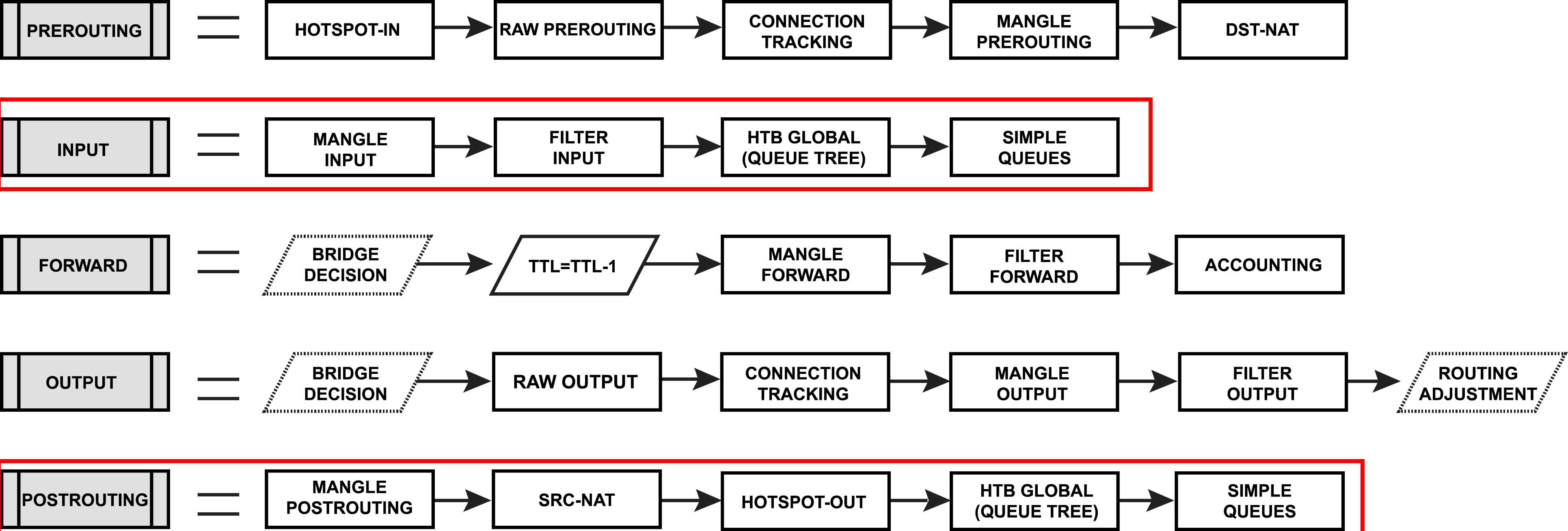
:confused: Starting in ROS V6, Queue on input and postrouting chain :question: why mark prerouting or forward chain

test3.jpg
:smiley: I got good results using mangle chain input and postrouting
test2.jpg

/queue simple
add limit-at=11M/110M max-limit=11M/110M name=pppoe-out1 target=bridge1
add limit-at=2500k/25M max-limit=11M/110M name=QoS_2 \
    packet-marks=QoS_2 parent=pppoe-out1 priority=2/2 queue=\
    default-sfq/default-sfq target=bridge1 total-queue=default-sfq
add limit-at=2500k/25M max-limit=11M/110M name=QoS_3 \
    packet-marks=QoS_3 parent=pppoe-out1 priority=3/3 queue=\
    default-sfq/default-sfq target=bridge1 total-queue=default-sfq

With the above confing all the mangles, priorities etc work correct but i have always C in bufferbloat test.
I disabled all the above rules (and mangles) and i made one simple queue with queue type cake and fq_codel, but i had again C in bufferbloat test.
(RB4011, ROS 7.2)

I think bad bufferbloat could also be due to poor ISP, but I may be wrong.
Maybe reading a bit more about it will help you understand what happens and what you can do about it?

https://en.wikipedia.org/wiki/Bufferbloat

Its very strange.
I change the queue types to fifo small and sfq and i have not any difference in bufferbloat test.
I try to change the queues from simple to tree but i have the same issue.
I change the bucket size from 0.1 to 0.01 in childes but nothing changed.
Always i get C in tests.

Try to change the queue types to fq_codel or cake

Hi Kswong, could you please share the QOS script for reference. many thanks!
my email: felix.dinhhuynh@gmail.com

2 months later, just wanted to get back on how my

 /queue simple
 add limit-at=10M/10M max-limit=100M/100M name=queuebw10 target=192.168.1.0/24

works so far and it does work very well indeed.

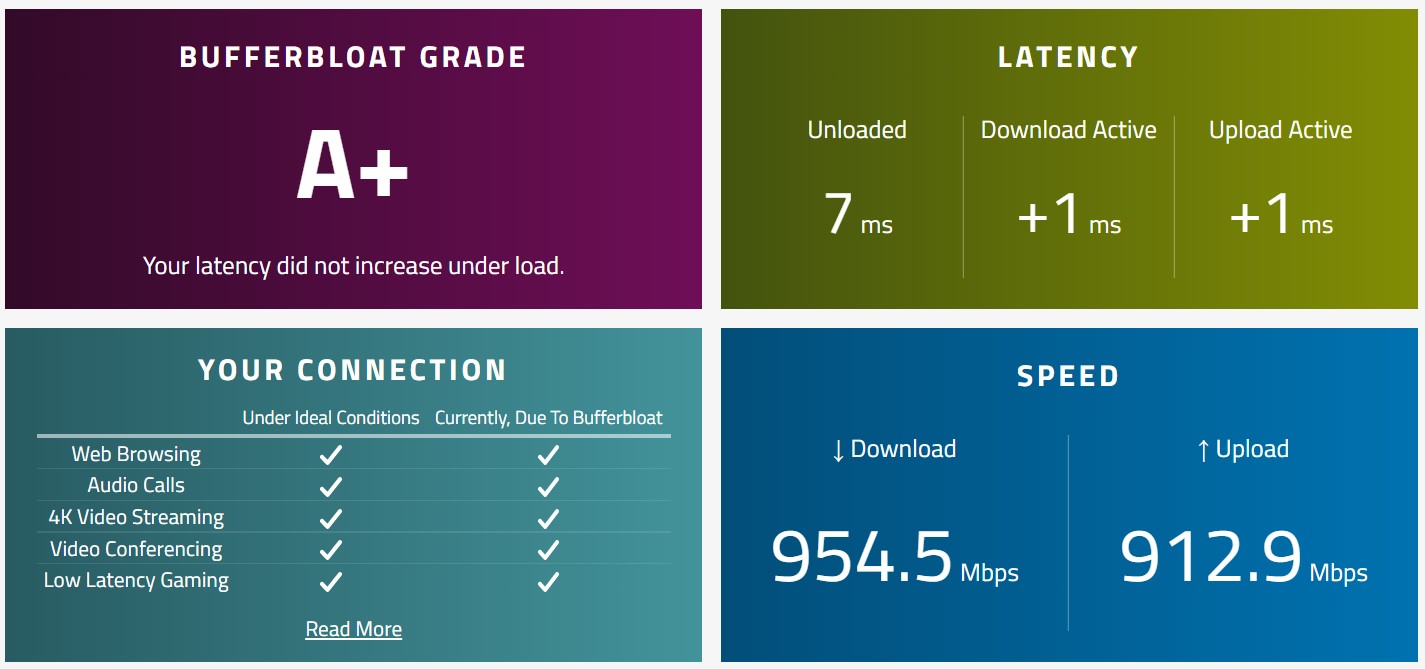
I got a solid A at https://www.waveform.com/tools/bufferbloat

I just recently started to play with QoS on MikroTik. There are a lot of discussions about fq_codel here, but unfortunately, not too many tested configurations from users. There is a thread about CAKE (http://forum.mikrotik.com/t/some-quick-comments-on-configuring-cake/152505/1) that has a lot of good examples. But I wanted to focus on fq_codel, especially given uncertain status of CAKE in RouterOS.

After reading information from various sources and the official documentation at https://www.bufferbloat.net/projects/codel/wiki/Best_practices_for_benchmarking_Codel_and_FQ_Codel/#tuning-codel-for-circumstances-it-wasn-t-designed-for, I tried adjusting some settings and settled for these with one simple queue:

/queue type
add fq-codel-limit=1000 fq-codel-quantum=300 fq-codel-target=12ms kind=fq-codel name=fq-codel
/queue simple
add bucket-size=0.01/0.01 max-limit=118M/11M name=queue1 queue=fq-codel/fq-codel target=ether1 total-queue=fq-codel

My Internet connection is Xfinity cable 100M/10M, in reality it’s 120M/12M. The default fq_codel settings are best suited for 10Gbps as indicated in the referenced article. And based on Waveform tests, those tweaks do make a difference. I get an A, but it’s the objective figures that mean more: +7ms for download, +1ms for upload. Various test runs produced slightly different results, but consistently good. Cutting down the bandwidth even further gave me A+ but at present I don’t see much value in it and would rather get more bandwidth.

I also tried to run more realistic test: downloading Ubuntu via BitTorrent from a PC that is routed to Internet through WireGuard VPN (using source-based routing rule). So it was a heavy download almost saturating the link AND WireGuard running on the router AND running pings and some browsing activity including 4K YouTube video. All via wired connections.

I’m very satisfied with the results, hAP ac2 is a powerful little device. The router CPU hardly went above 50%, although one core was getting over 90% occasionally. FQ_codel did its job really well. Ping times were very good. Only several pings were lost - and I think it coincided with one core getting above 90%. Other activities I tried during the test felt like nothing was going on. SSH session from my work laptop over corporate IPSec VPN was snappy as usual.

I suggest that people share their fq_codel configuration exports and use cases. It would be very helpful for new users who don’t have time or desire to read through dozens of articles or forum posts to figure out how they can fix bufferbloat. If you search online about bufferbloat, OpenWRT and Ubiquiti come up a lot, and I think part of it is how easy it is to configure on those platforms. Well, with simple queue on MikroTik it’s just as easy as long as you know what to do.

I know there is the wiki and the new doc site, but it would be nice to have a simple cookbook for common things. MikroTik’s new videos seem to target new inexperienced users. Maybe MikroTik can make a short video “how to fix bufferbloat”. This is a hot topic, I’m sure many people can benefit from it.

I found an old thread (http://forum.mikrotik.com/t/fasttrack-friendly-qos-script/102401/1) that talks about using QoS with FastTrack enabled. That got me interested. After reading the thread and also reviewing packet flow documentation, I came to realize I can successfully use this approach with fq_codel.

/queue type
add fq-codel-limit=1000 fq-codel-quantum=300 fq-codel-target=12ms kind=fq-codel name=fq-codel
/queue tree
add bucket-size=0.01 max-limit=118M name=download packet-mark=no-mark parent=bridge1 queue=fq-codel
add bucket-size=0.01 max-limit=11M name=upload packet-mark=no-mark parent=ether1 queue=fq-codel

The key are interface queues that work along with FastTrack. Because interface-attached HTB works only for egress, I put my download queue on the bridge interface (BTW, I have two VLANs on top of it), so the queuing happens when Internet traffic leaves the router in LAN direction. The upload queue is on WAN ether1.

I then ran some tests and got the same good bufferbloat results as with a simple queue. Here is one sample: https://www.waveform.com/tools/bufferbloat?test-id=25e27c79-ac1a-42af-a700-4fb4aa8dc505. And CPU usage was much lower. It wasn’t too bad even before for my 120M/12M Internet connection, but now it got me thinking - how well would hAP ac2 handle a much faster WAN connection?

I pulled out a spare router, reset to all defaults, and ran some tests. I used iperf3 with 20 threads and 60 seconds run to simulate LAN to WAN heavy traffic. Client PC is on LAN side of hAP ac2, server PC is on WAN.
Same fq_codel configuration as above, only max-limit set to 1020M for both download and upload. Simulating a gigabit Internet service.
With FastTrack disabled, two CPU cores are maxed out at 100%, iperf reported ~560Mbps.
With FastTrack enabled, only one core reached 90-95%, overall utilization ~50%. Iperf speeds were 915-924Mbps. FastTrack makes a huge difference indeed.
I also ran continuous pings from client to server to see fq_codel working for the lack of a better test. The difference was also huge:
1ms unloaded.
With fq_codel average ping 3ms, 15ms max.
Without fq_codel (queues disabled) average ping 13ms, max 48ms. Fq_codel makes a difference even on such a fast connection.

It’s a big discovery for me. MikroTik’s clever solution - FastTrack - turns out to be even better than HW NAT in my case as every SOHO router with HW NAT I’ve seen can’t do SQM with it enabled. If you search online for best routers with SQM for gigabit Internet service, you will find most recommendations are around x86 or some other beefy solutions. Unless my test was flawed somehow, you can actually get pretty close to a gigabit with fq_codel on an inexpensive hAP ac2. Granted, I don’t have those kind of speeds, but this will certainly be on my list of recommendations for others.

It also means older low-performance MikroTik devices can do pretty well with fq_codel thanks to FastTrack. And even if you have a more powerful device like RB5009, the option to save some processing power is there. With container support coming up soon, there is always going to be a way to put that extra CPU to good use.

I want to point out that I don’t use WiFi on hAP ac2, which would definitely consume a good chunk of CPU.

@pcunite

This is very good tutorial and i using it for sure 2 years and im realy statisfied.

But i have question, how to make using this QoS and implement PCQ queue with equally queuing for all users?

Thank you very much! It worked wonderfully well on my current setup

I followed exactly as stated above, but DL/UL trafic from bufferbloat test on https://www.waveform.com/tools/bufferbloat is bypassed from Queue.

Many thanks anserk, it worked wonderfully well also for me.
Now I have FastTrack active and Bufferbloat test with score A+

I am not a pro user but In my opinion this script doesn’t catch the traffic(inpu-output) generated by router itself. I extended the script by adding input-output connection mark. Because my router checks some ips every 30 seconds by Netwatch. Without input-output connection mark, netwach traffic is unable to prioritized.

I now have a problem that the mangle tag does not work on ROS 7.7. Please help me check

\

Identify HTTP/3 and Google's QUIC

add chain=prerouting action=mark-connection connection-state=new new-connection-mark=QUIC port=80,443 protocol=udp passthrough=yes comment="QUIC"
add chain=prerouting action=mark-packet connection-mark=QUIC new-packet-mark=QUIC passthrough=no

\

Identify HTTP traffic but move it to a Streaming mark if necessary.

add chain=prerouting action=mark-connection connection-mark=no-mark connection-state=new new-connection-mark=HTTP port=80,443 protocol=tcp passthrough=yes comment="HTTP"
add chain=prerouting action=mark-connection connection-bytes=5M-0 connection-mark=HTTP connection-rate=2M-100M new-connection-mark=HTTP_BIG protocol=tcp passthrough=yes
add chain=prerouting action=mark-packet connection-mark=HTTP_BIG new-packet-mark=HTTP_BIG passthrough=no
add chain=prerouting action=mark-packet connection-mark=HTTP new-packet-mark=HTTP passthrough=no

Please make sure fasttrack is disabled

Hello everyone !
I tried to adapt the example described at the start of thi topic to my usage : I want to prioritize gaming paquets in all circumstances. i don’t want to drop a single one and i want the drop rate to be low for that type of packet. The others can be dropped or slow down.
Here is the configuration for QoS.

/ip firewall mangle

Identify DNS on the network or coming from the Router itself

add chain=prerouting action=mark-connection connection-state=new new-connection-mark=DNS port=53 protocol=udp passthrough=yes comment=“DNS”
add chain=prerouting action=mark-packet connection-mark=DNS new-packet-mark=DNS passthrough=no
add chain=postrouting action=mark-connection connection-state=new new-connection-mark=DNS port=53 protocol=udp passthrough=yes
add chain=postrouting action=mark-packet connection-mark=DNS new-packet-mark=DNS passthrough=no

Identify Games packets

add chain=prerouting action=mark-connection new-connection-mark=Games port=3478-3479,5000-5500,5060,5062,6112,3724,1119,7000-7500 protocol=udp passthrough=yes comment=“Games-UDP”
add chain=prerouting action=mark-packet connection-mark=Games new-packet-mark=Games passthrough=no

Identify HTTP/3 and Google’s QUIC

add chain=prerouting action=mark-connection connection-state=new new-connection-mark=QUIC port=80,443 protocol=udp passthrough=yes comment=“QUIC”
add chain=prerouting action=mark-packet connection-mark=QUIC new-packet-mark=QUIC passthrough=no

Identify UPD. Useful for further analysis. Should it be considered high priority or put in the catchall? You decide.

add chain=prerouting action=mark-connection connection-state=new new-connection-mark=UDP protocol=udp passthrough=yes comment=“UDP”
add chain=prerouting action=mark-packet connection-mark=UDP new-packet-mark=UDP passthrough=no

Identify PING on the network or coming from the Router itself

add chain=prerouting action=mark-connection connection-state=new new-connection-mark=ICMP protocol=icmp passthrough=yes comment=“ICMP”
add chain=prerouting action=mark-packet connection-mark=ICMP new-packet-mark=ICMP passthrough=no
add chain=postrouting action=mark-connection connection-state=new new-connection-mark=ICMP protocol=icmp passthrough=yes
add chain=postrouting action=mark-packet connection-mark=ICMP new-packet-mark=ICMP passthrough=no

Identify Acknowledgment packets

add chain=postrouting action=mark-packet new-packet-mark=ACK packet-size=0-123 protocol=tcp tcp-flags=ack passthrough=no comment=“ACK”
add chain=prerouting action=mark-packet new-packet-mark=ACK packet-size=0-123 protocol=tcp tcp-flags=ack passthrough=no

Identify HTTP traffic but move it to a Streaming mark if necessary.

add chain=prerouting action=mark-connection connection-mark=no-mark connection-state=new new-connection-mark=HTTP port=80,443 protocol=tcp passthrough=yes comment=“HTTP”
add chain=prerouting action=mark-connection connection-bytes=5M-0 connection-mark=HTTP connection-rate=2M-100M new-connection-mark=HTTP_BIG protocol=tcp passthrough=yes
add chain=prerouting action=mark-packet connection-mark=HTTP_BIG new-packet-mark=HTTP_BIG passthrough=no
add chain=prerouting action=mark-packet connection-mark=HTTP new-packet-mark=HTTP passthrough=no

Email goes to the catchall

add chain=prerouting action=mark-connection connection-state=new new-connection-mark=POP3 port=995,465,587 protocol=tcp passthrough=yes comment=“OTHER”
add chain=prerouting action=mark-packet connection-mark=POP3 new-packet-mark=OTHER passthrough=no

Unknown goes to the catchall

add chain=prerouting action=mark-connection connection-mark=no-mark new-connection-mark=OTHER passthrough=yes
add chain=prerouting action=mark-packet connection-mark=OTHER new-packet-mark=OTHER passthrough=no

/queue tree

DOWN

add name=DOWN max-limit=190M parent=LAN bucket-size=0.01 queue=default

add name=“1. GAMES” packet-mark=Games parent=DOWN priority=1 queue=default
add name=“2. DNS” packet-mark=DNS parent=DOWN priority=2 queue=default
add name=“3. ACK” packet-mark=ACK parent=DOWN priority=3 queue=default
add name=“4. UDP” packet-mark=UDP parent=DOWN priority=3 queue=default
add name=“5. ICMP” packet-mark=ICMP parent=DOWN priority=4 queue=default
add name=“6. HTTP” packet-mark=HTTP parent=DOWN priority=5 queue=default
add name=“7. HTTP_BIG” packet-mark=HTTP_BIG parent=DOWN priority=6 queue=default
add name=“8. QUIC” packet-mark=QUIC parent=DOWN priority=7 queue=default
add name=“9. OTHER” packet-mark=OTHER parent=DOWN priority=8 queue=default

\

UP

add name=UP max-limit=190M parent=ether1-WAN bucket-size=0.01 queue=default

add name=“1. GAMES_” packet-mark=GAMES parent=UP priority=1 queue=default
add name=“2. DNS_” packet-mark=DNS parent=UP priority=2 queue=default
add name=“3. ACK_” packet-mark=ACK parent=UP priority=3 queue=default
add name=“4. UDP_” packet-mark=UDP parent=UP priority=3 queue=default
add name=“5. ICMP_” packet-mark=ICMP parent=UP priority=4 queue=default
add name=“6. HTTP_” packet-mark=HTTP parent=UP priority=5 queue=default
add name=“7. HTTP_BIG_” packet-mark=HTTP_BIG parent=UP priority=6 queue=default
add name=“8. QUIC_” packet-mark=QUIC parent=UP priority=7 queue=default
add name=“9. OTHER_” packet-mark=OTHER parent=UP priority=8 queue=default

However, when testing packet loss on Valorant, I saw that having this config on or off isn’t modifying anything and I’ve got the same results with or without QoS when playing with a download behind.
Is it possible to slow down the download ? What did I do wrong here ?
Thank you for all your examples and explanations, that helped me a lot when configuring my Mikrotik stuff.