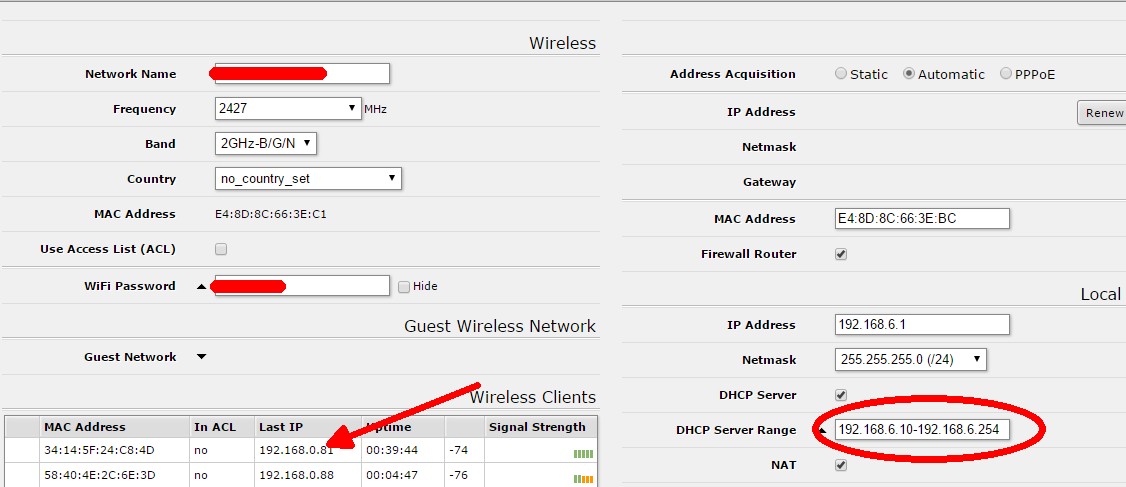
Confusing to me, but perhaps there’s an easy solution. Take a look at the screenshot. There is no DHCP configuration that would allocate the IP addresses shown in the circle for the wireless connection, and you can see the IP scheme to the right. The same faulty 0.XX scheme also pops up sometimes with wired connections, not just wireless. I need to get this resolved as quickly as possible. What details do I need to give to be able to figure this out?
they are getting these ip’s from your provider modem-router that is connected to your mikrotik wan port maybe???
is your dsl modem router 192.168.0.x range?
This is the configuration on the WAN side. Ignore the fact that it shows Linksys - this was a screenshot taken before swapping the Linksys to a Mikrotik.
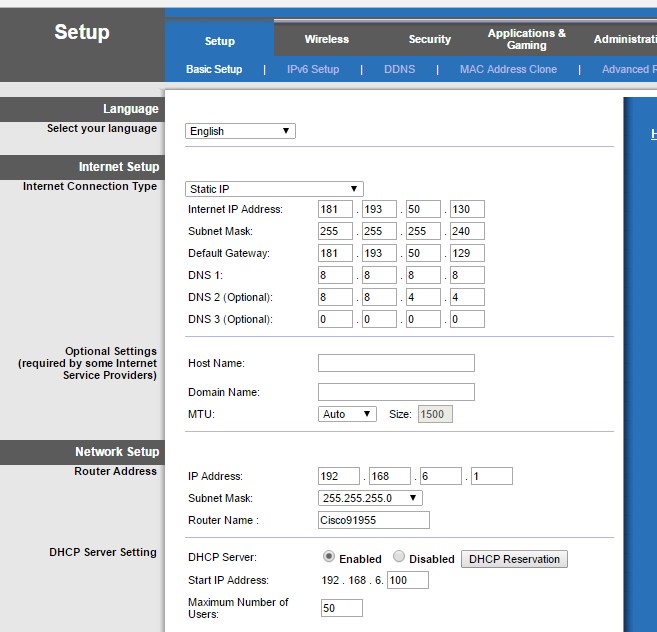
you have static ip. ignore my first post then.
check your mikrotik ip-pool settings. is there any 192.168.0.x pool?
if you export your config maybe there is something there that it can be spotted!
Last IP in registration table doesn’t mean that there are actual problem on the router. Last ip is ip address found in the last IP packet received from the registered client.
How can I export the configuration? These are the only pools:

I’m too slow this morning. I telnetted in and am at /system backup. I saved a file called backup, but I can’t figure out how to export it to then include it here.
at terminal type…
/export file=test
The only edit I made was to the name of the WIFI network
test.rsc (5.45 KB)
Does anyone have any insight?
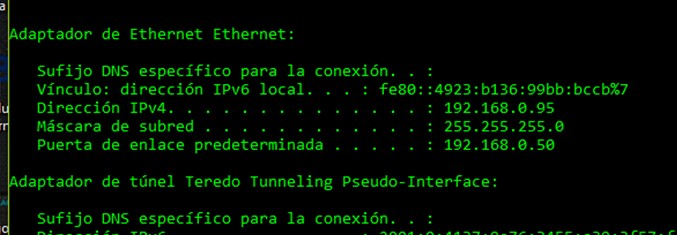
This morning I’ve had several computers (5 out of 24, to be exact) - both connected to the router directly or through WIFI, that are being issued IPs of X.X.0.XXX, not X.X.6.XXX. I’ve had to configure them with static IPs, because a release/renew isn’t working, flushing DNS on the devices isn’t working, stopping and starting DHCP on the devices isn’t working. Please help me get to the bottom of this.
Release/renew probably does work, as your pc gets an IP-address.
Execute ipconfig /all to see which DHCP server assigned the IP.
Ping the DHCP server and execute arp -a to view its MAC address.
Block the MAC address on in bridge filter (drop).
Review the bridge or switch host table to find the port which it is connected to.
Remove the obsolete bridge srcnet accept rule.
Remove the rsc file, make export with hide-sensitive option.
Change your VPN credentials.
Add a DHCP Server Alert rule on your internal network and check which “Unknown Servers” appear on the detail page.
Can you step through configuring for the block on the bridge? What parts of the configuration are required settings?
Here is the shot from ipconfig/all. The DHCP server is listed as a device on the 6.XXX network, but how could it assign IP addresses, and why would it assign 0.XXX addresses?
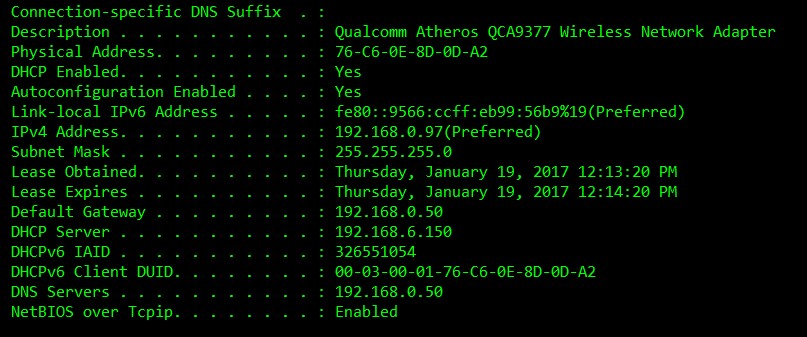
The authoritative DHCP server is 192.168.6.150 which is not your router. As a general rule: ANY device can hand out IP addresses.
First thing is finding out what device it is. Use mac address and/or port address database as mentioned before to locate the device.
If you know which device then you can unlink all ports from the master, add them to the bridge separately and use mac filtering to limit traffic.
Just google mikrotik bridge filter and you’re in the wiki.
After (software) block, the dhcp problems are limited to this specific port.
Also there is a tiny error in your config.
/ip address
add address=192.168.6.1/24 comment="default configuration" interface=\
    ether2-master-local network=192.168.6.0
should be:
/ip address
add address=192.168.6.1/24 comment="default configuration" interface=\
    bridge-local network=192.168.6.0
As ether2-master is part of bridge, you should set ip address on bridge instead of individual port(s).
Why would the authoritative DHCP server be .150? The network had been working fine until recently (about 2 weeks ago) when this problem started, and no one has access to the MikroTik except for me. Unfortunately, an identifying list of devices on the network has yet to be created, so it makes it a little more complicated to determine which device has the .150 address.
I really could use step by step instructions to handle your second paragraph. I read the wiki you linked to, but I am not even close to being an expert on setting up the MikroTik and need something easy to follow to sort this out.
The configuration error you mentioned must have been set when I first installed the MikroTik. What impact does the current setting have on the network, and how will the change impact the network?
The MikroTik is attached to an HP 24-port switch, so when you start talking about disconnecting all of the ports, I’m concerned that deleting a port from the configuration in the MikroTik might affect other computers that are working fine.
You’re experiencing something that every network admin has been through: a user placed a router in your network and is handing out IP addresses.
It’s your job to locate this user and you can use the tools as mentioned before (twice) and I will explain again:
- Get the MAC address of the DHCP server by pinging it and checking your ARP tables ( arp -a in windows or IP > arp table in MT )
- Locate the MAC address in your switch host table or bridge host table
As for step 2, the HP switch does also keep track of MAC addresses. Telnet/SSH to the switch (or maybe it has a web management interface), go to the address database and find the (in step 1) acquired MAC address.
Now, blocking in MT bridge is no use as most of your client devices and the DHCP server will be connected to the switch and not to the MT directly.
Either disconnect the port which is associated with the MAC address, find the owner or use the switches management functions ( lockout-mac, port-security ) to lock out the device.
Could be, it is hard to tell what the impact will be. By adding your interface ports to the bridge, the bridge becomes the logical interface and you should use the bridge in all further configuration (eg dhcp-server). In my opinion it shouldn’t work right now, but it does. By correcting it you could prevent unexpected failure in upcoming upgrades or configuration changes.
I’ve already done 1 and 2; I was stuck on what to do with the info once I acquired it. I’ll see if I can figure out who it is. Thanks for your assistance.
I’ll have to wait until off-hours to change the configuration of the MT based on your suggestion, so I don’t screw anything up while people are on the network.
Where in the MT configuration would I make the change you recommended?
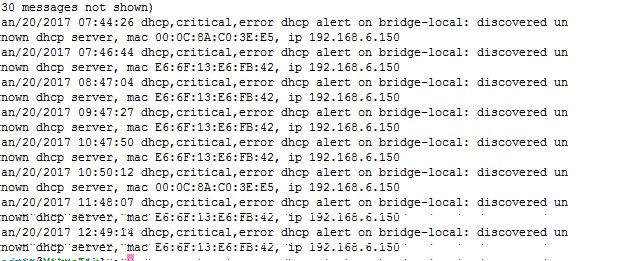
This isn’t exactly anything we didn’t already know, but I find it interesting that there are 2 devices that are registering as DHCP servers. Since the MT recognizes them as DHCP servers, is there no way to configure the MT to always act as the priority DHCP server, even if other servers are found? Is there any importance to the fact that the IP being assigned is always X.150, regardless of the MAC ID?