Such beahaviour is not only Mikroitk problem. I have Ruckus WiFi networks and after upgrade of no-problems-for-many-years setups and WPA2+WPA3 authentication activation things went WRONG for many devices. WPA2 only cured situation
How do you force the device to join only 5G band?
How do you force the device to join only 5G band?
There are two ways:
- Separate network names for 2.4 Ghz and 5 Ghz networks .
- When the same name, use “Access List” tab of Wireless, add necessary MAC addresses, select 2.4 Ghz interface and uncheck “Authentication” and “Forwarding” checkboxes. — that will disallow to connect to 2.4 Ghz network so selected devices will connect to 5 Ghz only.
I’m having the same problem. For details, see this thread:
http://forum.mikrotik.com/t/roaming-issue-on-capsman/168766/1
I found 2 things to fix.
Change Preamble mode from both to Long
switch channel to 20 mHz since some I things don’t support it.
Hi there… how to set it up via Winbox please? Thanks a lot!
Apple devices will always choose 5GHz bands, unless the signal gets unusably bad.
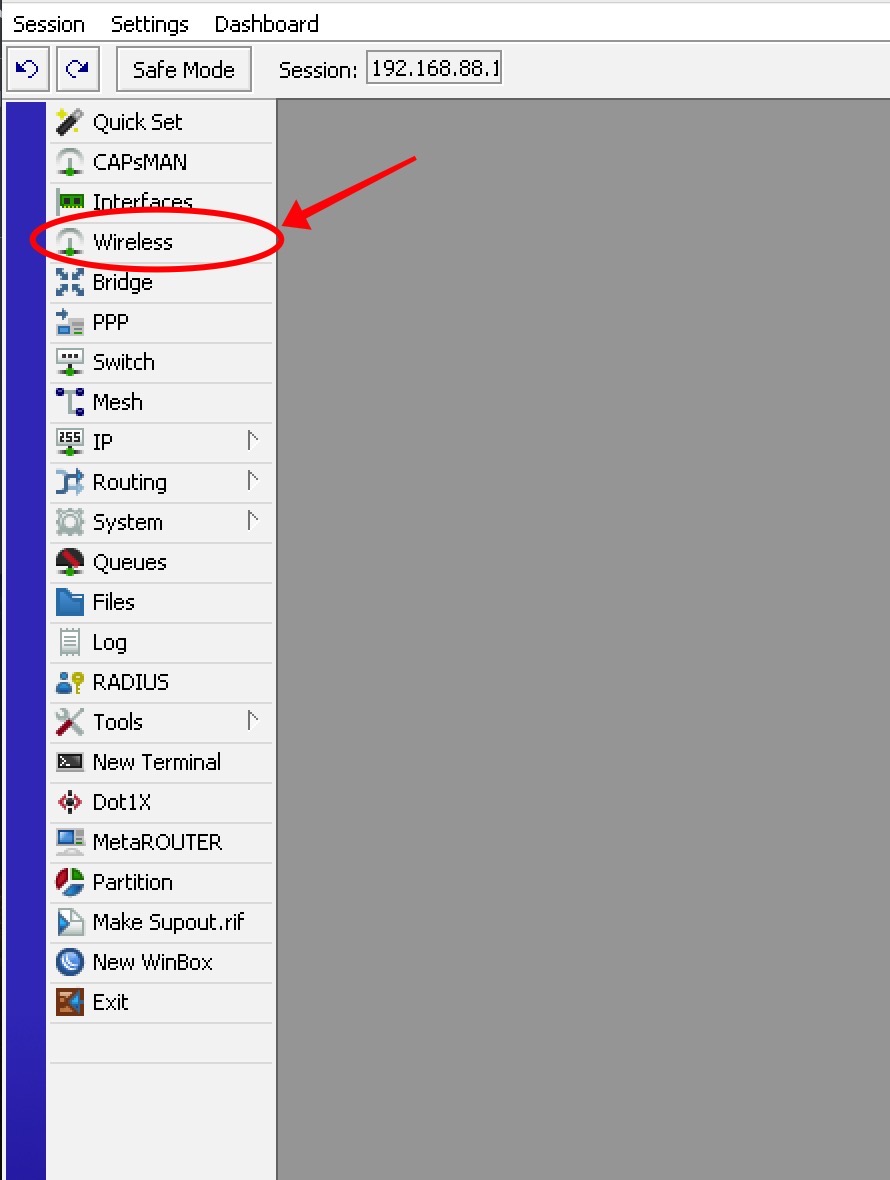
Launch Winbox.
Click “Wireless” in menu…
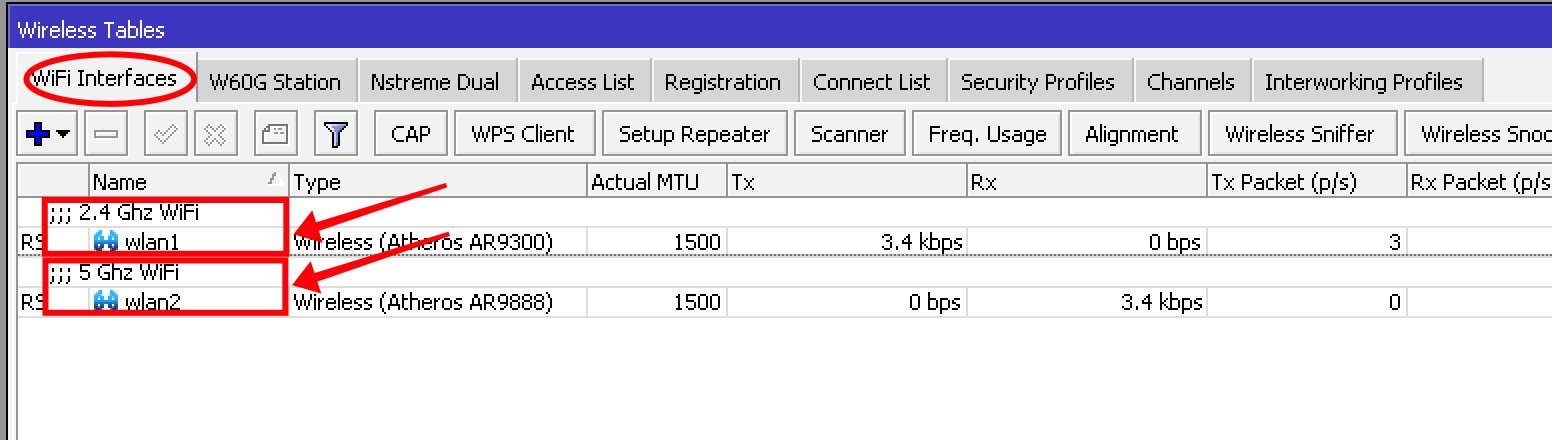
In the Wireless window that opens, click the “WiFi Interfaces” tab then click on each band (one at a time) to open its Interface screen…
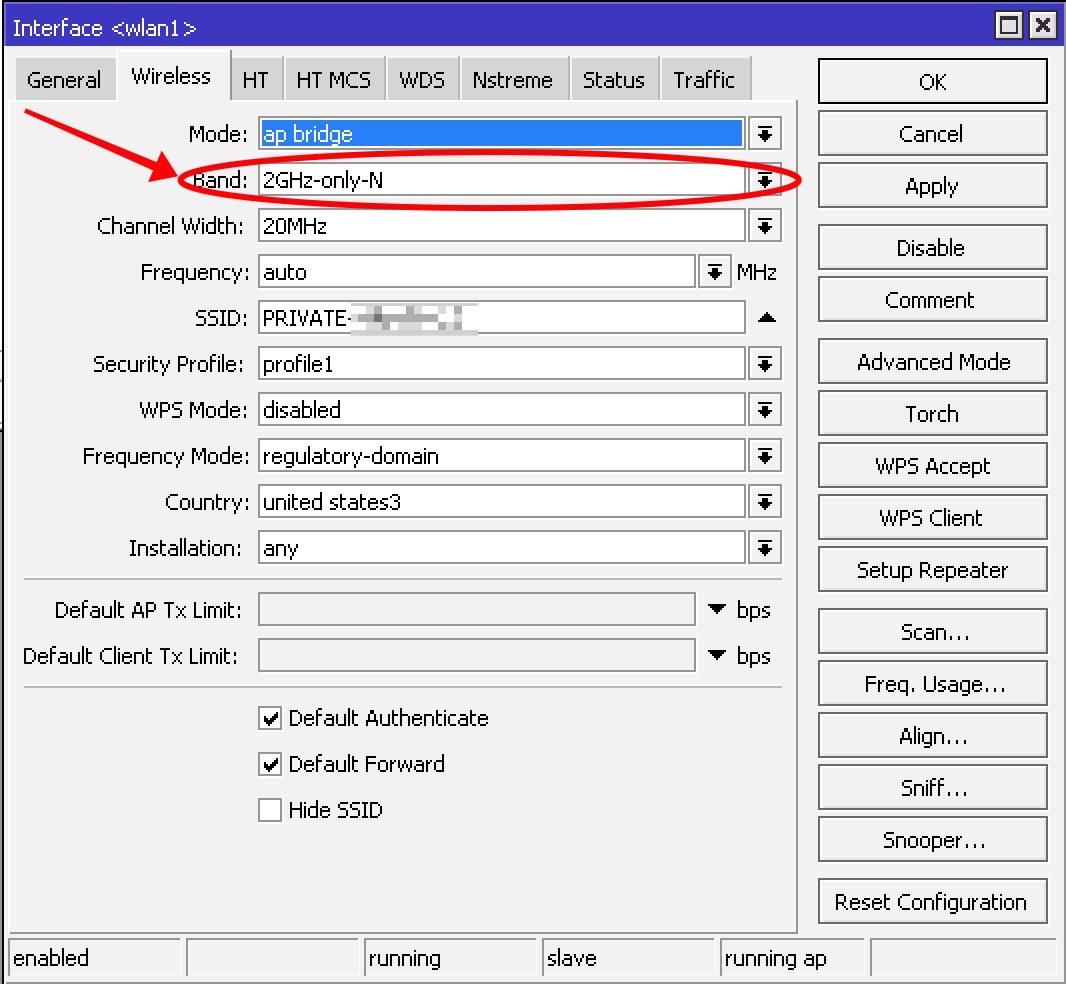
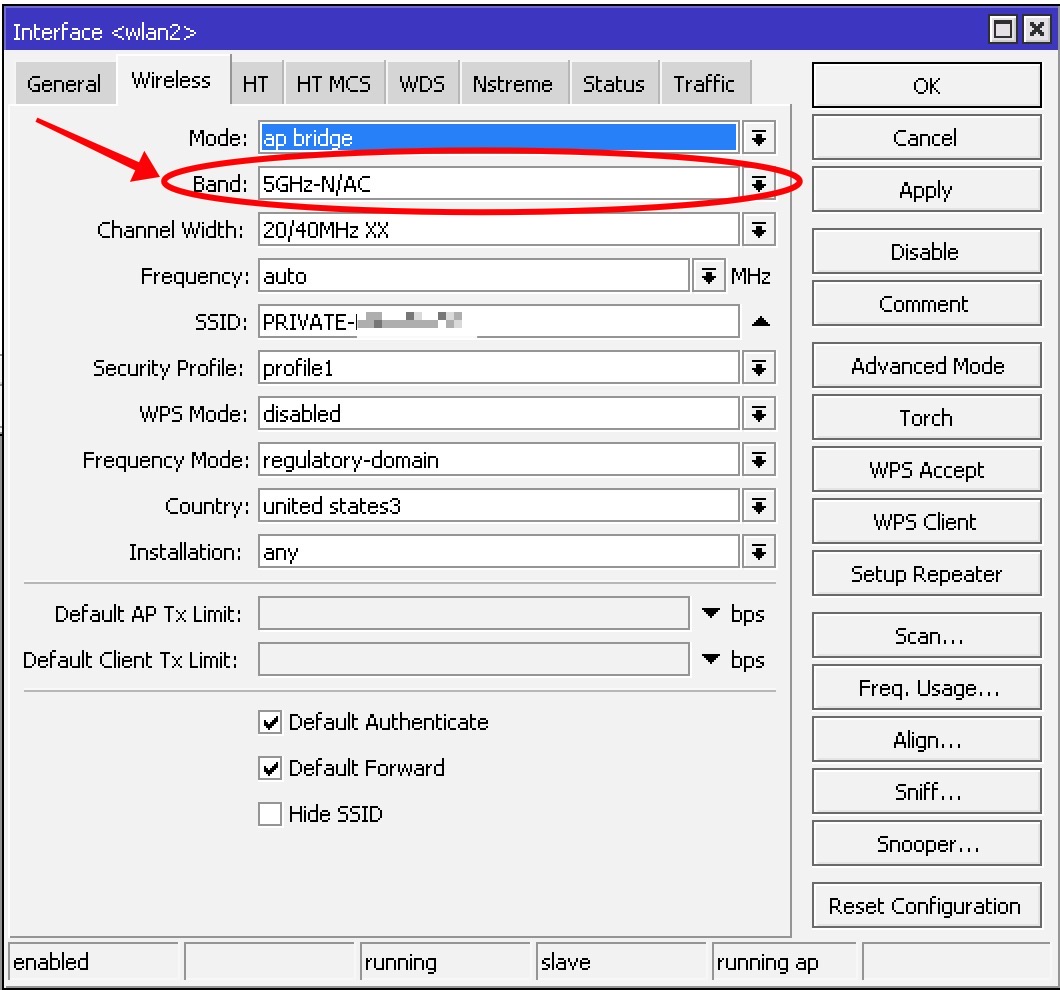
On the “Wireless” tab of the Interface screen, use the pulldown menu to choose the band and protocol…
Regards,
John L.
I just added an ax3 and upgraded my cAP-ACs to the qcom-ac driver and 13rc2. I have an old iPad Mini2 on my desk with security cameras displayed on it, and wifi was working just fine on it after I got done with the upgrades, and everything else was working too. Some time later in the day I noticed it had kicked off the wifi and when I went to reconnect, it was saying incorrect password. I made a special ssid for it on a 2g radio of a nearby AP, and found I needed to disable wpa3 (not unexpectedly) keeping just wpa2, and also disable management protection in order for the iPad Mini2 to be able to connect.
Thanks a lot JhonL. for those posts… but it didn’t work for me… my MacBook 12 disconnects after a minute or so… and after that, I have to switch wifi on it off and on to be able to get it working on the laptop (after dropping the connection with mikrotik, my macbook won’t see any wifi network).
Interesting finding that might be of use to someone. This might belong under the 7.13rc2 thread as a bug, or it may be a feature of the new wifi stuff. Bear with me, its a bit long-winded to explain.
A new MacBook Air M2 was unable to pull a dhcp lease all day. It was connecting to wifi and roaming just fine, both ac and ax APs, 2g and 5g, just no L2 connectivity to the gateway router that hosts dhcp, so it reports “no internet connectivity” with the ! wifi symbol. All other devices are fine, many other Apple products of multiple generations, a lot of TVs and IoT stuff, no issues. My wifi is currently a hybrid of AX (qcom) and AC (qcom-ac) with capsman2 and a single vlan. I “static hardwired” the vlan on the bridges of the AC devices, and removed the datapath from the capsman config for them. The capsman config for the ax device has the bridge and vlan set in the datapath and it is successful in creating the vlan in the bridge on the ax. This all works.
In order to populate the comment field in the wifi registration table, I use a script to copy the dhcp hostname to the wifi access-list comment field for each device connected. So the access-list has all the device’s mac addresses with a comment as the hostname, no other fields set, with action=accept. As I said, all other devices, this works great. Just this MacBook Air M2 was unable to pull a dhcp address all day, and I started noticing the interfaces in the wifi wifi tab, the ac radios showed a message in red “client was disconnected because could not assign vlan”. Odd, I thought, because the ac configuration has no datapath set which would be trying to set the vlan. The ax radios did not have this message.
So it turns out, if you have an access-list with nothing set other than a mac, comment and action=accept, seems it is still trying to “set the vlan” on the AP it connects to. Even with the vlan field left blank. The AC APs, as we know, are unable to set a vlan dynamically. Even with vlan field blank, it’s trying to set the vlan on the AP to …“something”. But apparently only for the wifi client in the M2 Air (running the latest Sonoma).
So the work-around for this for now is to not have any entry in the access-list for this particular MBP Air M2 machine’s mac. So I get a device with no hostname-populated comment in the wifi registration table.
My best guess is the wifi client in the M2 radio is somehow triggering the AP to assign a vlan from the acl entry, where other wifi clients do not. This must be specific to the MBP M2 chipset (and likely other recent Mac models), as I have other Sonoma M1s and latest Apple silicon iPads that have no such issue. Weird but true.
When a device says incorrect password, it may be that you changed your encryption settings. Did you enable or disable WPA2 or WPA3? Then forget this device from your iPad and connect to it anew.
@Normis, could you pleas ahve a look to this SUP-113114, it’s totally related to this issue (ipad Air 2 unable to connect once FT is activated, with just bad password), and I have no news from support since July 11th 
Thank you
Do you have FT enabled? There is a pretty recent setting to keep the assigned vlan id when roaming via FT and it defaults to yes. I can imagine this breaks your setup when a device attempts to carry over its vlan tag to an AC device.
Tl;dr: Try to disable FT. If it works with FT disabled, check behavior with ft-preserve-vlanid=no or use the same (untagged) datapath everywhere, including AX devices
I have the same issue with ipad air 2, Just make a seperate SSID for devices that don’t know what FT is, use wpa2,ccmp,FT disabled 7.13RC2.
@ToTheFull yes this is what I did, but as far as I can see the Ipad Air 2 should be able to “understand FT” look here:https://support.apple.com/en-us/103274
Since Ipad AIr 802.11 K and r are supported 
Either way, it doesn’t work with FT Enabled!
Edit: And my Wife refuses to upgrade while security updates are available.
I doubt that FT itself is the problem. It could be that your wifi1 and wifi2 have different security settings, so when iPad goes from one to the other, settings don’t match and it fails.
You can check to see if you see anything, I’ve just spent a good while editing out MACS, this will be my last word on this.
/interface/wifi/actual-configuration/print
0 name=“cap-wifi1” mac-address=48:A9 arp-timeout=auto radio-mac=48:A9
configuration.mode=ap .ssid=“01” .country=United Kingdom
security.authentication-types=wpa2-psk,wpa3-psk .encryption=ccmp .passphrase=“1234”
.management-protection=allowed .wps=disable .ft=yes .ft-over-ds=yes
channel.frequency=5500 .band=5ghz-ax .width=20/40/80mhz .skip-dfs-channels=10min-cac
1 name=“cap-wifi2” mac-address=48:A9 arp-timeout=auto radio-mac=48:A9
configuration.mode=ap .ssid=“01” .country=United Kingdom
security.authentication-types=wpa2-psk,wpa3-psk .encryption=ccmp .passphrase=“1234”
.management-protection=allowed .wps=disable .ft=yes .ft-over-ds=yes
channel.frequency=2412 .band=2ghz-ax .width=20mhz .skip-dfs-channels=10min-cac
2 name=“wifi1” l2mtu=1560 mac-address=18:FD arp-timeout=auto radio-mac=18:FD
configuration.mode=ap .ssid=“02” .country=United Kingdom
security.authentication-types=wpa2-psk,wpa3-psk .encryption=ccmp .passphrase=“4321”
.management-protection=allowed .wps=disable
channel.frequency=5180 .band=5ghz-ax .width=20/40/80mhz .skip-dfs-channels=10min-cac
3 name=“wifi2” l2mtu=1560 mac-address=18:FD arp-timeout=auto radio-mac=18:FD
configuration.mode=ap .ssid=“01” .country=United Kingdom
security.authentication-types=wpa2-psk,wpa3-psk .encryption=ccmp .passphrase=“1234”
.management-protection=allowed .wps=disable .ft=yes .ft-over-ds=yes
channel.frequency=2462 .band=2ghz-ax .width=20mhz .skip-dfs-channels=10min-cac
Disconnecting from wifi1 then trying to connect to the other 3 radios with FT enabled
11:19:27 wireless,info 7E:40@wifi1 disconnected, connection lost, signal strength -57
11:19:27 wireless,info debug: 7E:40@wifi1 disconnected, connection lost, signal strength -57
11:19:27 wireless,debug debug: 7E:40@wifi1 disassociated, connection lost, signal strength -57
11:19:27 wireless,debug debug: 82:28@cap-wifi2 associated, signal strength -76
11:19:27 wireless,debug debug: 82:28@cap-wifi2 disassociated, connection lost, signal strength -71
11:20:55 wireless,debug debug: 82:28@cap-wifi1 associated, signal strength -76
11:21:01 wireless,debug debug: 82:28@cap-wifi1 disassociated, key handshake timeout, signal strength -80
11:21:17 wireless,debug debug: 82:28@cap-wifi1 associated, signal strength -76
11:21:23 wireless,debug debug: 82:28@cap-wifi1 disassociated, connection lost, signal strength -79
11:21:23 wireless,debug debug: 82:28@cap-wifi1 associated, signal strength -80
11:21:29 wireless,debug debug: 82:28@cap-wifi1 disassociated, key handshake timeout, signal strength -82
11:21:40 wireless,debug debug: 82:28@wifi2 associated, signal strength -64
11:21:40 wireless,debug debug: 82:28@wifi2 disassociated, connection lost, signal strength -64
11:22:11 wireless,debug debug: 7E:40@wifi1 associated, signal strength -64
11:22:11 wireless,info 7E:40@wifi1 connected, signal strength -64
11:22:11 wireless,info debug: 7E:40@wifi1 connected, signal strength -64
This is me rebooting the router After disabling FT via sec1 for the other3 radios no other changes,
you can now see the device connects!
11:35:56 system,critical,info cloud change time Dec/05/2023 11:35:33 => Dec/05/2023 11:35:56
11:36:21 wireless,debug debug: 7E:40@wifi1 associated, signal strength -51
11:36:21 wireless,info 7E:40@wifi1 connected, signal strength -51
11:36:21 wireless,info debug: 7E:40@wifi1 connected, signal strength -51
11:36:40 wireless,info 7E:40@wifi1 disconnected, connection lost, signal strength -54
11:36:40 wireless,info debug: 7E:40@wifi1 disconnected, connection lost, signal strength -54
11:36:40 wireless,debug debug: 7E:40@wifi1 disassociated, connection lost, signal strength -54
11:36:40 wireless,debug debug: 82:28@wifi2 associated, signal strength -61
11:36:40 wireless,info 82:28@wifi2 connected, signal strength -61
11:36:40 wireless,info debug: 82:28@wifi2 connected, signal strength -61
11:36:42 dhcp,info defconf assigned 192.168.0.101 for 82:28
Apple products will say incorrect password when they fail to get a DHCP address.
It’s not useful diagnostically to look at the device error.