There are many instructions on how to move automatic backups of the router via FTP to an external storage.
I would now like backups created by the router to be stored on an external storage device via SMB.
So far I have only found instructions on how to create an SMB share on the Mikrotik router, but I would like to copy/move local files from a Mikrotik router to an SMB share (Windows), is that possible?
If i am not mistake, RouterOS doesn`t support SMB export out-of-the-box
Nevertheless, if you have a device with a arm, arm64, x86 or tile architecture,
you can install the ROSE-Package (https://help.mikrotik.com/docs/spaces/ROS/pages/259031065/ROSE-storage)
that support SMB-Share.
Currently, there are no any commands to do that. But as far as I know, they are working on improving file management and hope this functionality will appear in the final 7.18 release or some beta.
Yes, there is no copy/move file commands for CLI, only move over GUI can be done. For now only solution (without fetch command copy hack) is that backup script creates files directly on mounted disk path without need for copy/move.
To copy file locally over SSH using fetch command:
If you have password allowed SSH login password=<ROS_USER_PASSWORD> can be added to fetch command argument, but is not recommended, better to use key auth.
SSH local access setup
For key auth to work, private/public key pair needs to be exported into files:
/ip/ssh/export-host-key key-file-prefix=ssh_key
and imported for SSH ROS user which will be used in fetch command:
Also additional note: if there is IP restriction in /ip/service for ssh, then bridge address can be used instead 127.0.0.1 in sftp fetch url because localhost address cannot be added there.
In this case if file moving is needed, then file can be just deleted by /file/remove <copy_from_file_path> after is successfully uploaded by fetch command.
My goal has been the same, automated backups on the device being copied elsewhere, but I’ve been treating the MikroTik as an SMB host with a Windows box as the client that executes the copy. I was struggling with this in 7.17, finding that while I could access the share the contents couldn’t be copied out, and after upgrading to 7.18.2 today, this seems to have been solved. Not 100% sure it will apply the same for this scenario, where the MikroTik executes the copy to a remote host.
I would also note that from a security standpoint, I believe it’s better to have your backups retrieved from a device, rather than pushed from the device. That way the backup system doesn’t need to grant any ingress access to remote devices.
So, based on the SMB function and what I’ve been taught is best practice, my method is:
Configure SMB on the Mikrotik, with appropriate directory share & permissions
Mount that share in a Win11 box
Use Task Scheduler to execute a batch that mirrors the contents of the mount to another location (I use FreeFileSync)
Relevant bits from the release notes:
7.18
*) smb - fixed connection issues with clients using older SMB versions (introduced in v7.17);
*) smb - fixes for SMB server;
*) smb - improved system stability;
There is a file move command: /file set name=
I don’t know since which RoS version, in Ros 7.16.2 is there, in 6.32.3 is not.
It can also move files to/from/between smb shares added with /disk add type=smb …
I don’t know if this was intended this way, I mean to include move in a rename operation. In the background I guess is a copy + delete.
I couldn’t find any file copy solution other than fetch.
I’m looking forward to the improved file management.
For automated backup files suggest to use SCP and pull new created backup files from any host as you need.
Solution without user/password typing, need to add user’s keys first.
Check firewall rules allowing ssh connections and voile.
Sounds like a good solution - but I'm too stupid to make it run... probably just a small hint is missing:
SMB-Share: OK
/System/disks -> SMB-Client points to a share on my NAS: smb1 | smb-address: 192.168.10.24 | smb-share: "Data_Server/Mikrotik" | user + PW: ok
Status: working, as my nighly backup is created directly on the share successfully
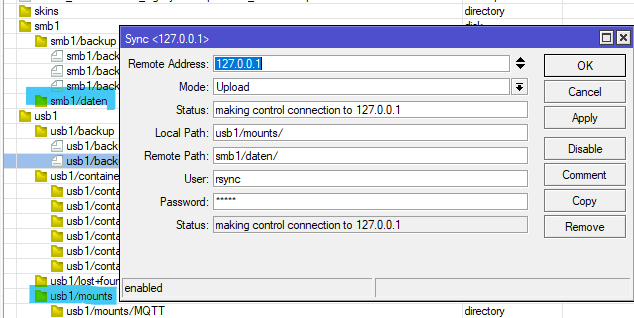
rsync: >>> NOK - doesn't work. <<<
mode: Upload | local path: "usb1/mounts/" | Remote path: "Data_Server/Mikrotik/daten/" (tried "smb1/daten" as well) | user + PW: should be ok (same as SMB-Client above, right?)
I tried: remote-address: 192.168.10.24 -> error "cannot create remote connection"
I tried: remote-address: smb://192.168.10.24 -> never ending "resolving dns names"
Why is the pure IP address failing? And why the smb:// is never ending?
Remote path wrong?
Is there any Firewall rule needed (TCP/8291? UDP/500?)?
Maybe the MT docs would deserve some more examples incl. one for SMB...
not sure that I understand your question or suggestions, sorry. Still not deep enough in MT business. I tried to follow your suggestion in your older message:
mount smb share locally on mikrotik
add rsync job to copy files from your source to mounted share
My thought: Have an SMB access to a share on my NAS (which works fine as "smb1") -> your "1.)" has been fullfilled
-> I can use this for rsync as well as remote address.
Maybe I have a wrong understanding and this is not the right approach. I'm open for any other config to my target: rsync a path of my USB-drive (with the mounts of /container = data of my services) to the share on my NAS.
in Short: Rsync from Mikrotik usb1/mounts/ to Share on NAS smb1/daten
Do you have an idea with which parameters of rsync that should work?