How to go about logging all connections except the actual DNS request to the Mikrotik…is that possible?
My Mikrotik is the RB450x4 and I added a 32GB SD card.
Well, I was reading here https://wiki.mikrotik.com/wiki/Manual:System/Log and https://wiki.mikrotik.com/wiki/Manual:IP/Firewall/Connection_tracking
It seems that logging state to disk should achieve what I want, record of all source and destination without all the DNS chatter.
Wondered whether prefix would be detail mode? Any feedback appreciated!
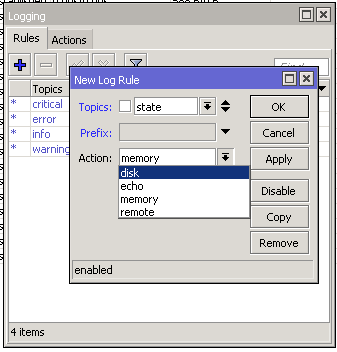
Well I tested by creating a log rule of State and write to memory…nothing happened!
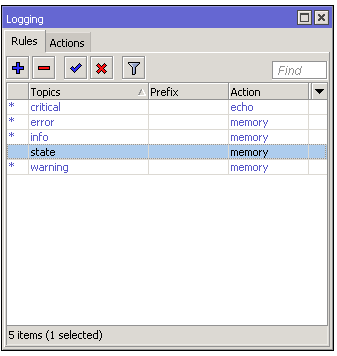
According to manual page you linked, “state” means “DHCP Client and routing state messages”.
Yes that’s what I saw and interpreted that to mean client IP:port and destination:port as displayed in IP>Firewall>Connections…am I correct?
Would it be better to set up a firewall rule of connections and log?
Or print to disk1 IP/Firewall/Connections in Terminal and what would the command be?
Also, How could make one write to disk every twelve hours?
Hmm… no. Quick test says that it’s about state of DHCP client (when it starts, stops, requests address, gets it, …) and similar changes in state of routing protocols like BGP.
If you want to log when connections are established, you can add logging for “firewall” topic, choose some prefix and then use firewall rules with connection-state=new action=log log-prefix=.
But I don’t think it was made exactly for this, so you may want to look at either NetFlow or Calea. I don’t have much experience with former and none with latter, so I won’t tell you much, but those should be more professional tools for the job.
I think you should first of all describe the task more precisely. “logging all connections” may mean to just log each connection initiation attempt which is relatively easy, or to log each connection’s resulting data volume as it ends, which is much more complex, or to record all connection data which is also relatively simple but requires tons of external storage.
Thank you Sindy for responding. That’s what I am discovering…my “logging all connections” were really about logging all activities as displayed in IP>Firewall>connections
but without the DNS chatter. Then issues such as taxing the router or writing files constantly to the SD card became relevant making things very complex. All this came about when
I bought a Hikvision wireless camera since I had already had Hikvision wired network camera but discovered the wireless camera started connecting to outside (what appears
to be cloud services). So, the idea of logging as it appears in IP>Firewall>Connections came about. In fact, that’s how I discovered the connections.
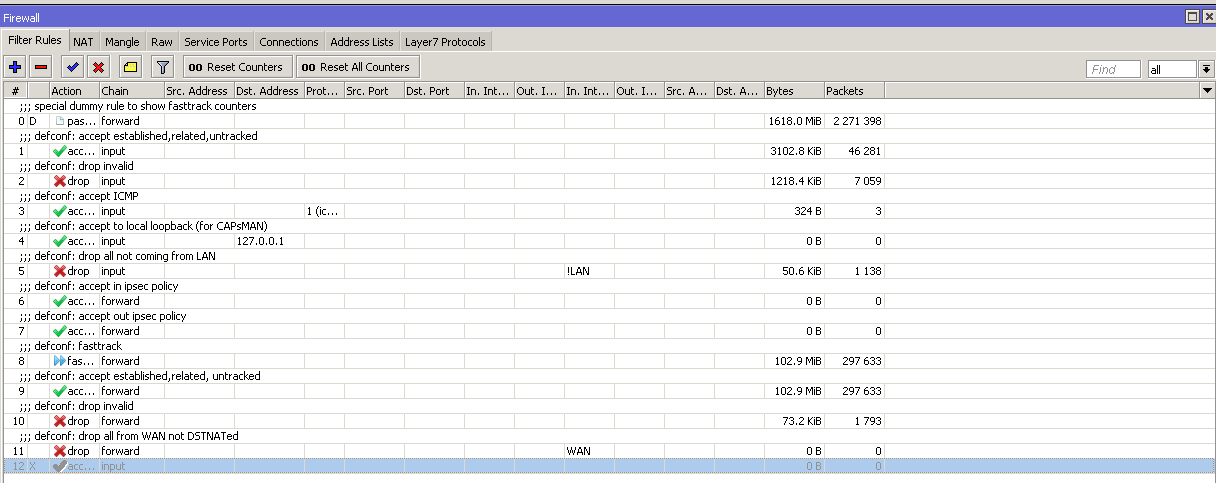
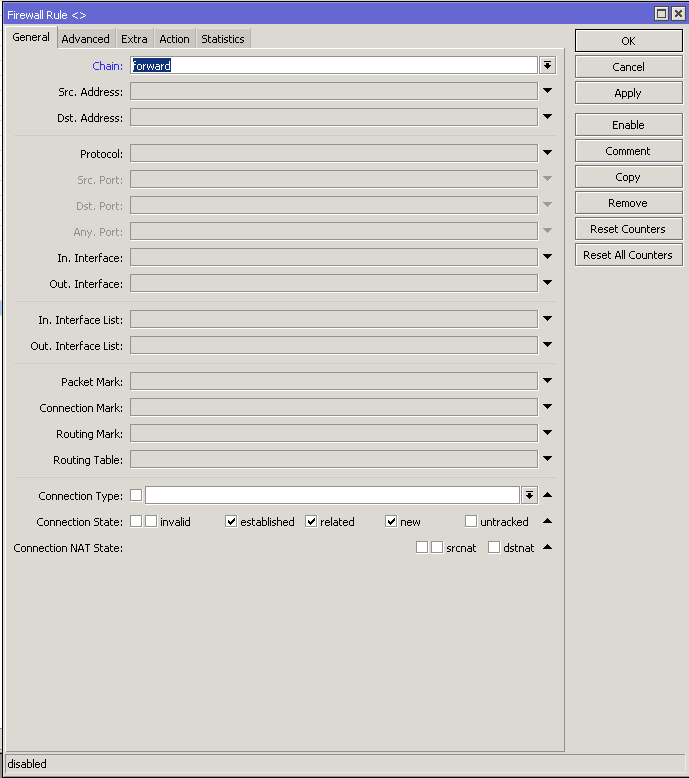
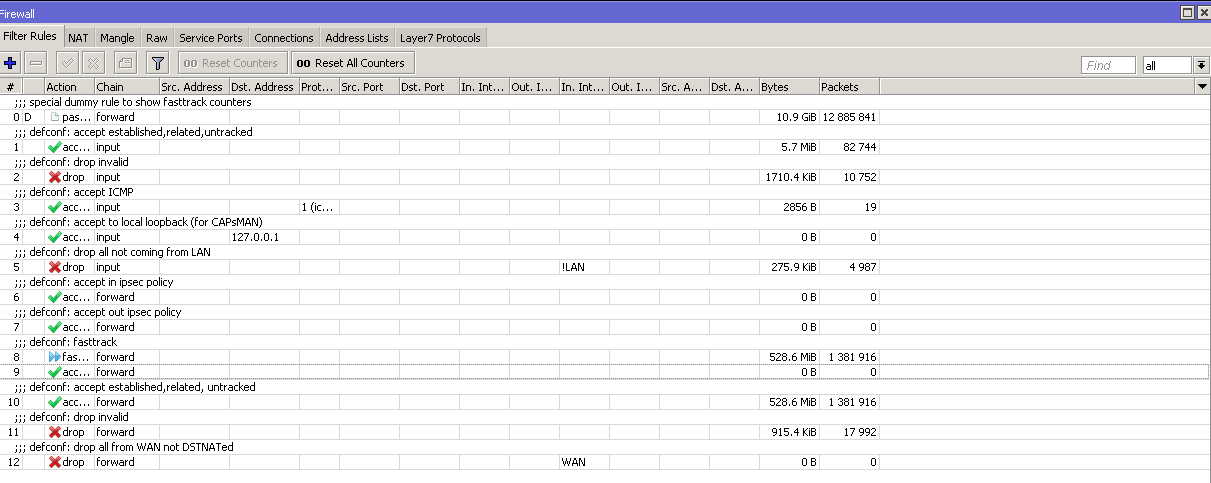
So, I created this firewall rule and placed at the bottom of al rules and log to memory to test; however, nothing was happening or recorded to log despite starting a new connection. So I disable for clarity and guidance from the forum. If I could log whenever any LAN IP connects to external IP and the ports used. Here is a screen shot of firewall rules with the last rule that’s disabled. Even I tried to drag to the top, the router complained.
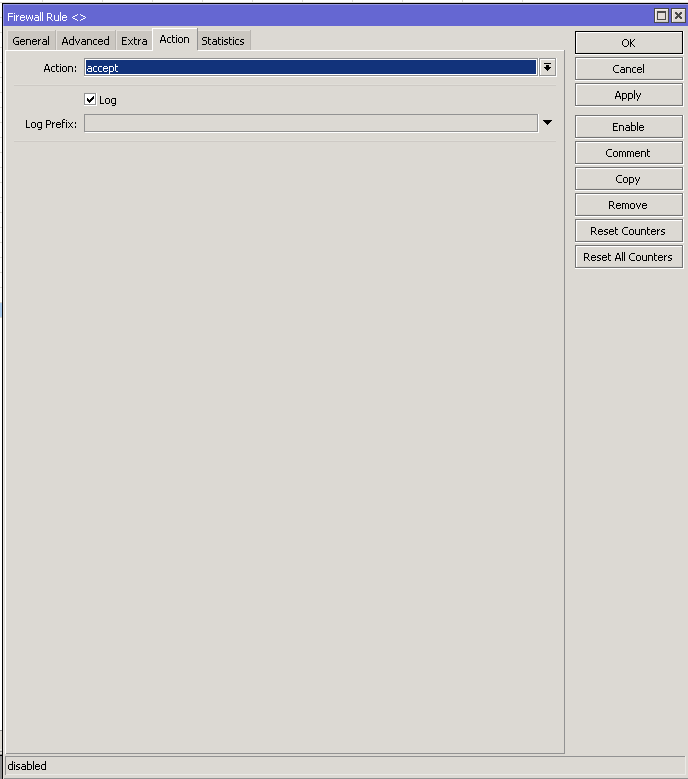
Yes, I am realizing that it wasn’t made exactly for this. I really believe having a log feature on IP>Firewall>Connections as displayed on that tab would be great…would be greater if caching could make it possible for one or two write to a SD card per day…a 32GB card could support more than a year’s worth of info easily, especially for a small home office. Wouldn’t need a third party software for this. Wondered how to go about such feature request!
The first step is to understand how the firewall rule chains and connection-state attributes work. This post might be helpful. Knowing this, you cannot be surprised that your rule shows only the first packet of each new connection.
You can use attributes like connection-bytes to log first few packets of each connection rather than just the first one, to see whether it has succeeded ot not, but a rule doing that would have to be placed beforee the “accept established,related” one. If you wanted to log the total amounts of data transported by each connection, you would have to maintain your own table of connections, and update the byte counts in it periodically; once the connection would disappear from the firewall’s connection table, you’d log the final count and remove it from your table as well.
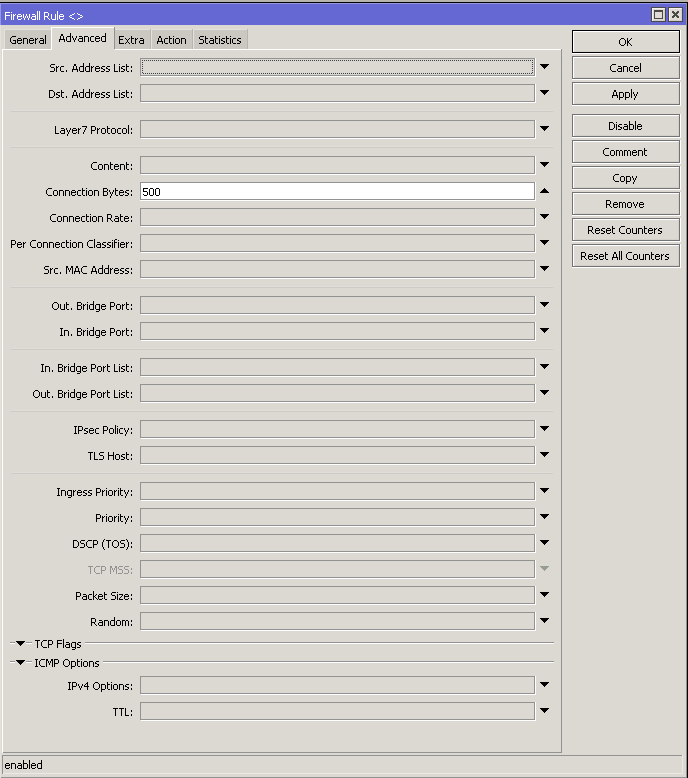
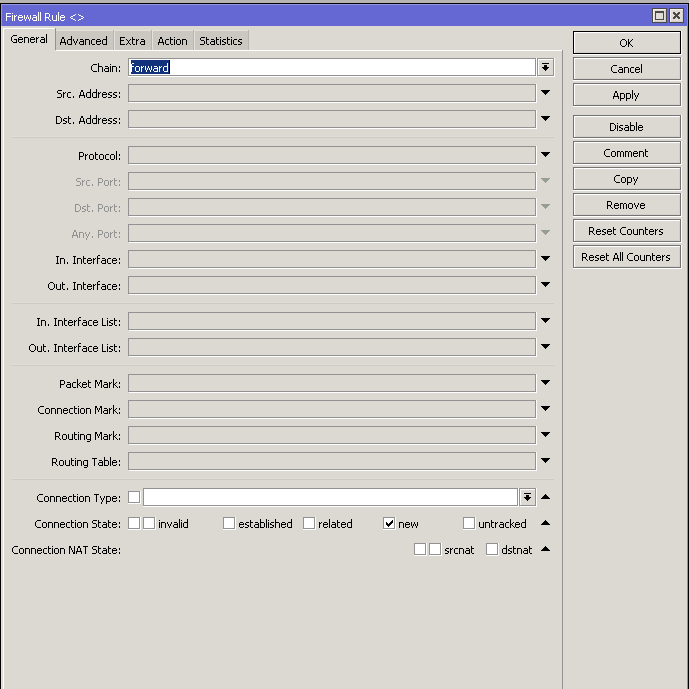

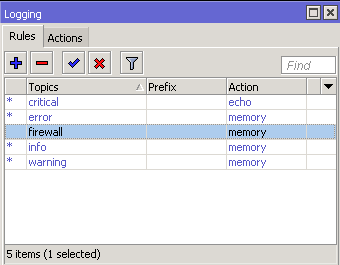
That link doesn’t deal with the fasttracking rule which changes a lot, basically it prevents most packets belonging to established connections from being seen by the firewall at all. So disable that rule in forward chain and test again.
Also, please stop posting screenshots from webfig, there is too little information in too much space occupied. Follow the hint in my automatic signature right below instead.
I am not following what you said…the fasttrack rule is number 8…rule number 9 is what I added and placed above established connections as you suggested. The screen shots are from Winbox for Mac that doesn’t allow the copy and paste shortcut…so; it’s the only way to display that I followed your directive. Also, my firewall rules are the default ones that I would rather leave that way instead of disabling any…I’ll do for testing only…just tested and the same result as before, nothing logged to memory.
The action=fasttrack-connection rule makes the connections which match it (which usually means all connections) to be handled the fasttrack way, which effectively means that it prevents most packets from ever reaching any further rules in its chain (forward). Including your rule 9. More than that, it prevents most packets from reaching any other rule at all, because the essence of fasttrack handling is skipping the firewall processing. But not all packets eligible for fasttracking are actually fasttracked, so some can hit your rule, so if its match condition for data volume is wide enough, something should be logged, so there is probably something more that prevents the packets from being logged.
As for the text export of configration, you can export it to a file (by adding file=xxx to the /export command) and then download the file (xxx.rsc).
Sindy, I tried moving that rule 9 above the fasttracking rule 8 then disabled rule 8 and still nothing logged to memory after opening new connection…so; I shall give up. I don’t want to remove the default configuration and start from scratch. My network has both pfSense and Mikrotik; so that why I rather leave the Mikrotik with the default configuration. I am looking into Netflow as Sob suggested. I had also tried NtopNG on the pfSense; however, it covers only WAN and LAN (Mikrotik’s WAN) of the pfSense so one doesn’t get the clients on the Mikrotik. If only we could log IP>Firewall>Connections as displayed, it would have been perfect…at least, we can view it live though!
You can do:
/ip firewall connection print file=connections.txt
And if you wrap it in a script run from scheduler that would generate unique file names like connections-2019-12-11-18-23-00.txt, you could use it to keep history. But working with all those files will be probably nightmare.
Okay Sob, this seems promising despite the potential file nightmare…it might be several days before I can attempt…thank you!
Okay Sob your suggestion worked…see images…and I were able to print to disk. So now the task is to improve the script to get it to do what I wanted. I read up on scripting and it appears to me who have never scripted on Mikrotik that it can get very complex easily.
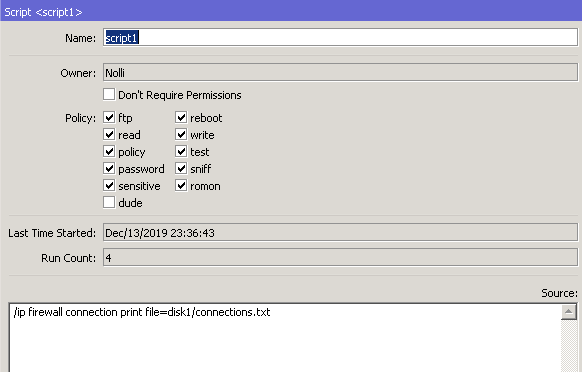
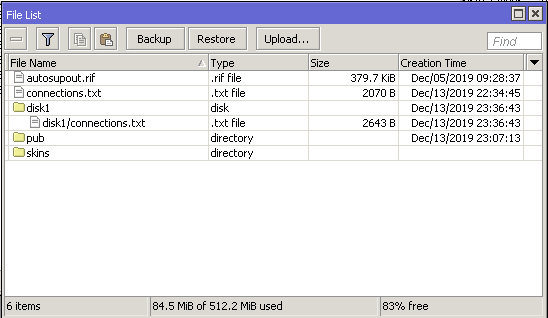
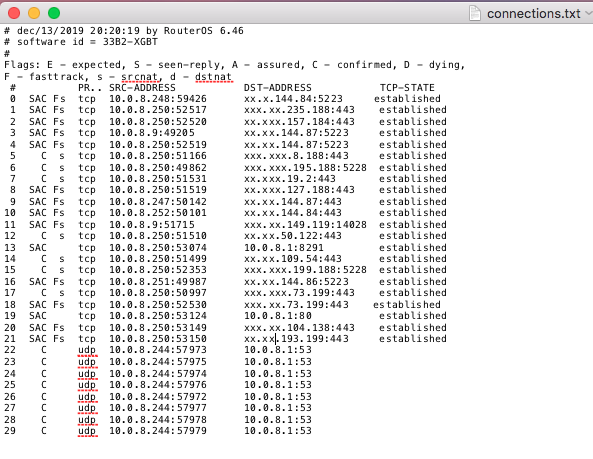
I never found RouterOS scripting intuitive, so personally I wouldn’t go there. The only scripting I’d do would be making unique file names, so that multiple files could be saved. Then I’d download them and do needed processing elsewhere using other means.
That’s if I’d choose this way with snapshots of connections table. But truth is, it feels too much as reinventing the wheel, additionally with a prospect that result could be sort of ok, but not great. If you want better long term solution, look for something that already exists and is made for this.
Snapshots…that’s what I have been thinking now…something like random snapshots since it’s for a home office. You’re correct on the feeling that its sort of reinventing the wheel.