I run two access points at home, one hAP-ax2 and one hAP-ax3. Wired uplinks. Great devices, no complaints whatsoever. They provide strictly layer 2 connectivity, SSIDs mapped to VLANs, APs connected to a CRS-326-24G-2S+IN switch, also running RouterOS and limited to layer 2 services.
Everything layer 3 is provided by an OPNsense firewall connected to the switch via 2x 10G LACP with VLANs on top.
My home lab is a bit of test bed for my company network. At work we run switches and APs from that other almost ubiqitous (haha!) vendor with the central management console. Not entirely satisfied with their general quality - no matter how convenient the management - and their price/perfomance ratio I was wondering what CAPsMAN would buy me in a multi AP setup and if I should try that at home.
So I read that it was integrated in RouterOS 7. Only nowhere to be found on my ax3. Only the “client” - remote CAPs - part. Then I found that it was part of the “wireless” package which I do not have installed. Only “routeros” and “wifi-qcom”.
When I installed “wireless” my WiFi stopped working. So that’s where I am now.
Am I correct that I need to install “wireless” to run CAPsMAN?
Is it expected that WiFi does not work with it installed on an ax3?
Should I install it in a VM with the free RouterOS for Intel/AMD instead? - I would prefer that in production at the office, anyway, instead of running it on any particular device. Even in my home lab I have virtualisation capacity galore - no problem.
So that’s getting it up and running. I then could not quite grasp how the WiFi settings are actually provisioned. Basic settings like managed through “Configuration”, “Channel” and “Security” on RouterOS - easy peasy, I can picture how that works.
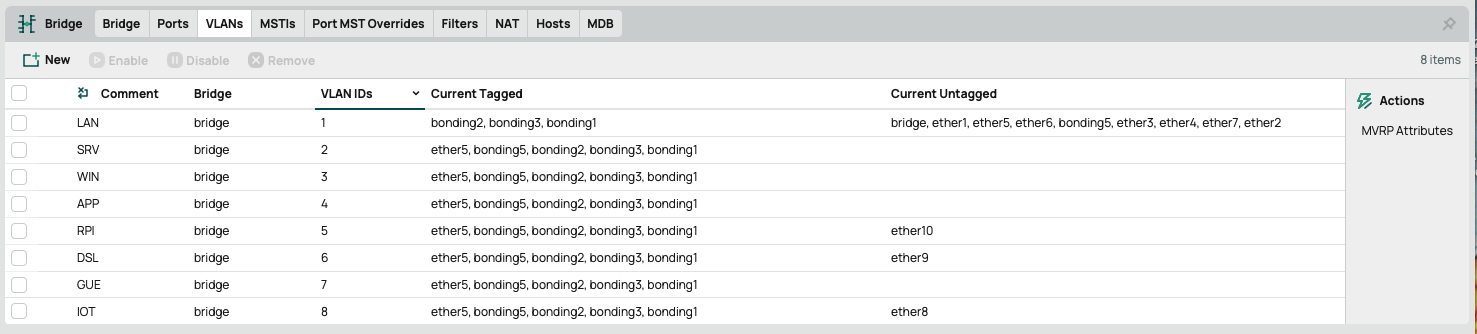
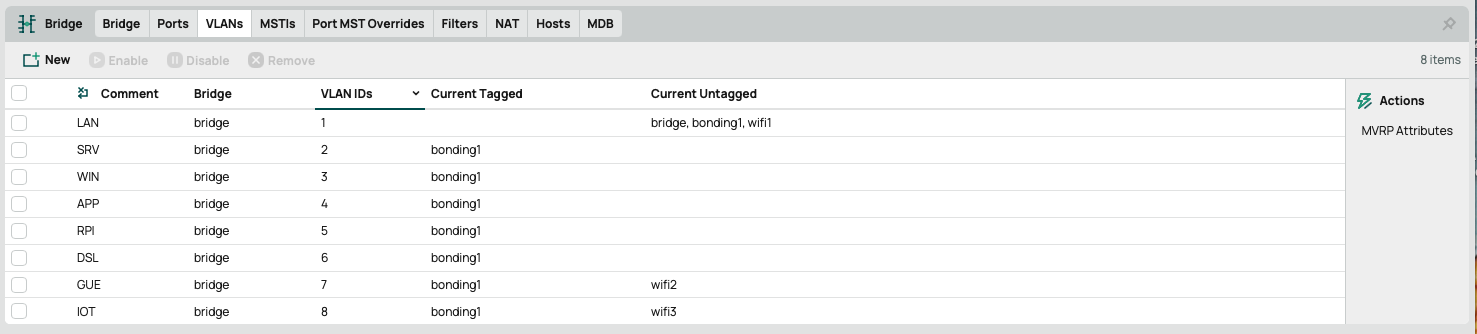
But how do I map a particular interface/SSID to a particular VLAN? At the moment on my switch I have this in the Bridge/VLANs menu:
So all VLANs are present on the trunk (in Cisco speak) from the AP to the switch and and VLAN “LAN” is untagged in wifi1, “GUE” is on wifi2, “IOT” is on wifi3.
All of this is what I designed from the docs and experimenting with the system plus almost 4 decades of experience in the field
How would placing e.g. wifi3 into IOT untagged and prohibiting any tagged frames work in CAPsMAN?
To simplify life to their users the good Mikrotik guys have made TWO CAPSMAN, completely different but with the same name.
One (the old one) is under the "wireless" menu (and in the "wireless" package) the second (the new one) is under "wifi"menu (and either in the main Ros or in "wifi-qcom" or "wifi-qcom-ac", etc. package).
On Ax devices "wireless" won't simply work, because it includes the drivers for the "old" hardware.
You need to be very careful when following instructions/examples for WHICH CAPSMAN they are
You are right, I see it now. 7.22.1 - I don’t know at which version I checked and I swear I could not find it in the “WiFi” menu. But then maybe I just wasn’t wearing my glasses.
But assumed I still want a central instance for all APs even with only two of them (see above about the “testbed”) - what would I install in a VM in addition to the Cloud Hosted Router?
Just use one of the AX's, CAPsMAN is basically a provisioner (unless all traffic is handled by CAPsMAN). All smart things are handled by the CAP itself. As it doesn´t use any resources, feel free to choose either AX..
But in production with a dozen APs over two offices …?
I want to be able to replace devices at will just reprovisioning them. And have the central configuration tool somewhere with its VM image on ZFS with hourly snapshots and off site backups like I have for all other essential infrastructure.
So please - can I not run it in a VM with CHR? No?
And then: how does that SSID to VLAN mapping work? I could not get an idea from reading the docs.
You can run CAPsMAN in a CHR, sure. If it’s remote from any APs just be aware that the AP radios stop when the CAPsMAN is inaccessible. So if the remote link goes down, so does wifi.
In the CAPsMAN example there are two wifi datapaths, each with a vlan-id assigned. The wifi configuration entries each have one of those datapath specified. When a configuration is provisioned to a CAP radio it uses the specified vlan-id. You will be able to see it on the datapath tab when viewing the provisioned interface in the wifi list via Winbox connected to the CAPsMAN.
The CAP example shows basically everything you need to set on the CAP device (unless you want it to be assigned an IP to manage it directly, or set the vlan for the CAPsMAN traffic, or configure vlan-ids on the ether ports, etc). In the example there is just a single wifi datapath entry which is assigned in /interface/wifi to each radio. When it’s provisioned the vlan-id is assigned. It won’t show in the wifi properties when viewing them on the CAP via Winbox, but you will see it on the CAPsMAN.
Ah. That’s different from Unifi where the controller does not have to be online for the APs to work. So for the at work case, should we ever move from Unifi, Ill keep in mind to deploy a CAPsMAN in every location.
About your hints for the VLAN configuration: for that I need to remove it from my manual (see above) bridge/VLANs settings? Or change them to … what?
Usually It Is easier to comment/give suggestions on text configuration (as opposed to screenshots) as some related settings may be in other sections (not seen in screenshots).
Post your configuration, Instructions here: Forum rules - #5 by gigabyte091
This is how I currently map SSIDs to VLANs. For the “Lan 5 GHz” the PVID is set to 1, which seems to be the default so it’s omitted from the text config.
Kind regards,
Patrick
P.S. Thanks for being so considerate - I really do not need instructions for retrieving text config. I have SSH enabled on my Mikrotik devices, integration with Observium (SNMP) and RANCID, etc. I come from decades of Cisco IOS. I frequently use the RouterOS CLI, too.
/interface bridge
add admin-mac=D4:01:C3:C5:4E:23 auto-mac=no comment=Switch mvrp=yes name=bridge vlan-filtering=yes
/interface wifi
set [ find default-name=wifi1 ] channel.band=5ghz-ax .width=20/40mhz comment="LAN 5 GHz" configuration.country=Germany .mode=ap .ssid=Khazad-dum disable-running-check=yes disabled=no \
    security.authentication-types=wpa3-psk .ft=no .ft-over-ds=no
set [ find default-name=wifi2 ] channel.band=2ghz-ax .width=20mhz comment="GUE 2.4 GHz" configuration.country=Germany .mode=ap .ssid=Imladris disable-running-check=yes disabled=no \
    security.authentication-types=wpa2-psk,wpa3-psk .ft=no .ft-over-ds=no
add comment="IOT 2.4 GHz" configuration.mode=ap .ssid=Isengard disable-running-check=yes disabled=no mac-address=D6:01:C3:C5:4E:28 master-interface=wifi2 name=wifi3 security.authentication-types=\
    wpa2-psk
/interface ethernet
set [ find default-name=ether1 ] disabled=yes
set [ find default-name=ether2 ] comment=Uplink
set [ find default-name=ether3 ] comment=Uplink
set [ find default-name=ether4 ] disabled=yes
set [ find default-name=ether5 ] disabled=yes
/interface bonding
add comment=Uplink lacp-rate=1sec min-links=1 mode=802.3ad name=bonding1 slaves=ether2,ether3 transmit-hash-policy=layer-2-and-3
/interface ethernet switch
set 0 cpu-flow-control=yes
/interface list
add comment="ports with LLDP" name=lldp
/snmp community
set [ find default=yes ] addresses=0.0.0.0/0
/disk settings
set auto-media-interface=bridge
/ip smb
set enabled=no
/interface bridge port
add bridge=bridge comment="LAN 5 GHz" frame-types=admit-only-untagged-and-priority-tagged interface=wifi1
add bridge=bridge comment="GUE 2.4 GHz" frame-types=admit-only-untagged-and-priority-tagged interface=wifi2 pvid=7
add bridge=bridge comment=Uplink interface=bonding1
add bridge=bridge comment="IOT 2.4 GHz" frame-types=admit-only-untagged-and-priority-tagged interface=wifi3 pvid=8
/ip neighbor discovery-settings
set discover-interface-list=lldp lldp-mac-phy-config=yes lldp-max-frame-size=yes lldp-vlan-info=yes protocol=lldp
/ip settings
set accept-redirects=yes ip-forward=no send-redirects=no
/ipv6 settings
set forward=no
/interface bridge vlan
add bridge=bridge comment=LAN untagged=bridge,bonding1,wifi1 vlan-ids=1
add bridge=bridge comment=GUE tagged=bonding1 untagged=wifi2 vlan-ids=7
add bridge=bridge comment=SRV tagged=bonding1 vlan-ids=2
add bridge=bridge comment=WIN tagged=bonding1 vlan-ids=3
add bridge=bridge comment=APP tagged=bonding1 vlan-ids=4
add bridge=bridge comment=RPI tagged=bonding1 vlan-ids=5
add bridge=bridge comment=DSL tagged=bonding1 vlan-ids=6
add bridge=bridge comment=IOT tagged=bonding1 untagged=wifi3 vlan-ids=8
/interface list member
add comment=Uplink interface=ether2 list=lldp
add comment=Uplink interface=ether3 list=lldp
/interface wifi capsman
set ca-certificate=none certificate=*.************* enabled=yes interfaces=all package-path=/capsman require-peer-certificate=no upgrade-policy=none
/ip dhcp-client
add comment=Management interface=bridge name=ether1
/ip service
set ftp disabled=yes
set telnet disabled=yes
set www disabled=yes
set www-ssl certificate=*.ettlingen.hausen.com disabled=no
set api disabled=yes
set api-ssl certificate=*.ettlingen.hausen.com
/ip ssh
set strong-crypto=yes
/ipv6 nd
set [ find default=yes ] advertise-dns=yes disabled=yes
/snmp
set contact=*************** enabled=yes location=***********
/system clock
set time-zone-autodetect=no time-zone-name=Europe/Berlin
/system identity
set name=*********************
/system note
set show-at-login=no
/system ntp client
set enabled=yes
/system routerboard mode-button
set enabled=yes on-event=dark-mode
/system routerboard settings
set auto-upgrade=yes
/system routerboard wps-button
set enabled=yes on-event=wps-accept
/tool graphing interface
add store-on-disk=no
/tool graphing resource
add store-on-disk=no
/tool mac-server
set allowed-interface-list=lldp
/tool mac-server mac-winbox
set allowed-interface-list=lldp
I removed the header because I am unsure how relevant the serial number or device ID might be. I’m running 7.22.1. I also removed all references to my email address (SNMP contact), location, etc.
Not because they are super security relevant but I don’t want these strings on a public web forum forever giving scrapers ideas.
Nobody followed up on my complete config, but I did a bit of research, documentation and forum reading etc. over the last few weeks so now I finally understand that the capsman is the control plane of the wireless network.
And if you don't enable local forwarding, it's even the forwarding plane. I was more looking into a central management solution, but ok. So it makes no sense to place it on a virtualised CHR.
On the other hand I now have three hap-ax2 and FT and friends do look intriguing.
So:
If I place the capsman on one of the APs, will I connect this AP as a cap to the capsman running on the same device, too? Looks like the logical thing to me, but I'm not sure.
I'm already planning for the future and we will probably move apartments - so when looking for a small device to PoE power up to 3 hap-ax2, a Hex PoE Lite certainly fits the bill from reading the specs. Could I put a capsman on that router, too?
My central network device is a CRS326-24g-2s+, but with 16 M of flash I probably cannot load the wifi package, right?
No.
You have (or will have) a set of rather powerful devices (hap-ax2) connected to a small device that has only 100 Mbit ports.
Using the standard injectors (RBGPOE): https://mikrotik.com/product/RBGPOE
and the power supplies coming with the hap ax2's will be easier/better (or you will need a "proper" switch with passive Mode B 24V out).
Holy sh..! Admittedly I did not check for that. It simply did not occur to me there could be network gear with copper ports but not Gigabit in 2026. Thanks!
OK, so I run the CapsMan on one of the hap-ax2. Could you get back to my first question, please? Do I connect that device as a CAP to itself?
I shortly thought about replacing my CRS326 with a CCR2004 but that one has this obscure dual switch chip configuration and that looks not optimal when I'm mainly after layer 2 functions.
They really seem to have no small affordable switch or router with 2x SFP+ and enough memory and CPU for CapsMan.
I think - but do not believe me blindly - that there is no difference with CAPsMAN on new devices (like the Ax2 with the new drivers) i.e it will work, but cannot say if there are some difference in "self" configuration.
The CSS are switches.
The CRS are switches with marginal routing capabilities.
The CCR are routers.
Local interfaces can be part of CAPsMAN by setting the config to the interface. No provisioning needed. CAPsMAN won't see the difference from the CAPS's interfaces.
Pretty sure that you can also use the provisioning rules (etc.) on the local stuff as well. About the only difference I see here in CapsMan is under "Radios", one has the "Local" flag, and the others "Not Local". That way, if you have both, you can be consistent, and if you ever move the CapsMan instance, the config will be more portable.
Local stuff can, AFAIK, be manually provisioned by selecting the radios and press the provision button in Winbox. I prefer the setting on the interface approach.
When we move the forthcoming Hex Pro PoE with 3 G RAM will certainly fit the bill. Until then I'm trying to get it up and running on the central one of my 3 APs.
Currently cleaning up the VLAN configuration on my switch, assigning better descriptive Interface names etc.