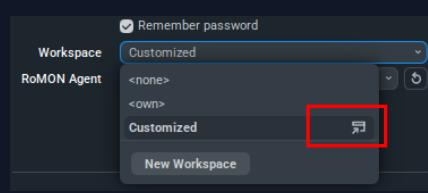
This small icon is only visible when hovering and looks like an “open in a new window” icon. Why would I ever click on it? I always assumed it meant “open this workspace in a separate window,” which is not something I personally need. So there was never a reason for me to click it.
So again, my feedback Mikrotik: please use icons that are either self-evident or at least somewhat self-explanatory. Worst case, a user should be able to look at an icon for two or three seconds and have a reasonable chance of understanding its meaning. For example, everyone recognizes that a gear icon represents “settings.” Using a gear icon, either alone or combined with another symbol, works well.
However, icons such as “a cube with a plus sign” to mean “spawn another WinBox window” are not intuitive. The connection only makes sense once you already know what the button does (WinBox → box → cube), which defeats the purpose of the icon.
Similarly, the icon that looks like a paperclip with wings and is meant to indicate “disconnect” is confusing. It may be intended to represent a broken chain link, but that is not obvious. Many users have already asked where the disconnect icon is, and it has been explained multiple times. This strongly suggests that the issue is not with the users, but with the icon itself.
Ok so what does it do? It has a on-hover text saying “edit” but when I click on it, it shows a dialog with only disabled fields. Nothing I can edit.
In my case the special icon appears on the none line when in the initial dialog, and in the own line when selecting the workspace dropdown in an open window, but in both cases it cannot be edited. Also there never is a “Customized” line! Does it mean my settings.cfg.viw2 file (global settings) is somehow corrupted?
Well yes, but that happened in Winbox3 as well! Sometimes your workspace (or session as it was called back then) would get corrupted and things started to behave badly, and the only way out of that was to delete the file and start from scratch.
I have suggested many many times that these files should be written in a user-editable format like JSON or XML or INI or whatever, so when that happens you can open the file in a text editor and see what went bad, or remove some paragraph from it, instead of having to delete the entire file.
In Winbox3 I have tried to write a program to decode the file onto readable text lines, but it quickly became apparent that the file does not hold enough information to describe its own data layout. I.e. it is not some “name+TLV data” binary format that would store individual named or numbered data items like a JSON or similar file would. Individual items are interpreted in the way the program knows.
<none> and <own> have the "dynamic" flag and are read-only, that's why you are not able to edit them. In my screenshot, Customized is just the name I chose for the workspace, you can name them anything you want:
There will then be two Customized.cfg.viw2 and Forum.cfg.viw2 files under ~/.local/share/MikroTik/WinBox/workspaces or %APPDATA%\MikroTik\WinBox\workspaces.
If for some reason you don't have the "New Workspace" button, try to go to those folders and copy one of the existing .viw2 files associated with one of the IP addresses to a custom name one, and it should appear as a new item in the workspace selection dropdown.
It opens a little dialog window and you can edit and save. As @CGGXANNX already explained, this only works for custom workspaces. none and own are settings of dynamic workspaces and can't be edited apparently.
Ok (only) now I am starting to understand how it is working… but still it doesn’t do what I like.
I can create a new workspace but it is completely empty. So in an open session I clicked on the “edit” icon of the active workspace (own), and I selected “copy”, then entered a name and saved it.
Now I have a new workspace in the dropdown but when I select that it is still empty, it is NOT a “copy” of the ‘own’ workspace as I wanted. It seems that it “copies” only the dialog, not the workspace. Useless.
Yes, it seems to work… I made a new workspace, then copied the workspace file manually, and used it with two different routers that need to share the same config.
Still the UI is not very intuitive and it worked better in winbox3 where I could just pick the session of a similar device from the list of files, and use that permanently for that device. Without copying files.
Thanks, that worked for me. So pretty much the same as I’ve been used to with Winbox 3. I’ve always found manually copying the session files easier/faster than messing with the un-intuitive UI.
It’s a gift. It’s something you can now look forward to spotting in the WinBox changelogs. Maybe the feature will appear one day - anticipation is the most beautiful joy.
You can probably just copy the .viw2 files. When you start WinBox, on the login screen, it shows the path to the Addresses.cdb file on the bottom right of the window. Go to that folder (without Addresses.cdb) and look for the .viw2 files.
settings.cfg.viw2 should contain the app settings, while the workspaces sub folder has the workspace settings.