I am a privacy and security enthusiast. I tinker when I have time, which is almost never, but I try to have sanitary online privacy and security habits. After some research before attempting to build my first home lab, I landed on Mikrotik. I knew the learning curve would be steep based on research.
Goal(s)
Have a home lab for all of my gear and internet
Have a family network for everyone else
Use pi-hole DNS for both family and home lab
Use wireguard VPN for home lab
Keep my Synology, WiFi APs, Security cameras separated
I don’t know if I actually REQUIRE VLANs or not, but I have been 100% unsuccessful at every attempt so far.
I am trying my best to NOT ask someone to do it for me, but I really need your help with pointing me into the beginners direction. I am not employed in the tech/network field, so my knowledge of concepts is beginner level. I am familiar with accessing Winbox and now using Netinstaller, LOL.
I would appreciate your help as much as possible. Although I would like to learn as much as I can, I also want/need to get my network up ASAP, so, I can’t take the time to learn everything before I start to get my network up and running.
Feel free to ask any question to help you help me.
Thanks for reading!
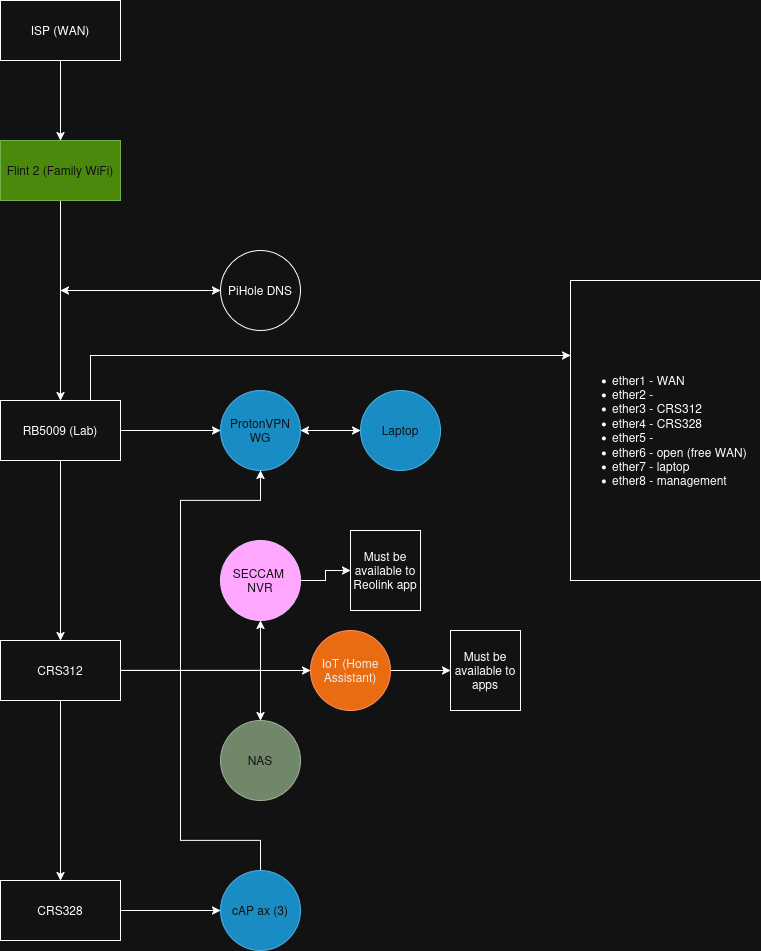
Edit: To help, I’ve posted a picture of my ideal topology below. I hope it’s sensible. I’m not sure if I’m articulating right. I want both family and lab networks to use pihole for DNS, but I don’t want to block things for family and use blocklists for the labs, etc.
First of all, yes you need VLANs. You should first create a rough network plan with Draw.io, this would be the easiest way for understanding, and a list of networks with the corresponding VLAN IDs.
Examples for VLAN IDs:
200 = MGMT (For managing the network components)
300 = FAMILY
400 = SERVER (For managing your servers)
450 = Server_Client (Where your services run that are accessed by your family)
500 = Printers
600 = SECCAM
Since you are still a beginner, I recommend not using a Mikrotik as a firewall, but rather OPNSense.
Create a plan/matrix of which network is allowed to do what and where.
If you use OPNsense, use the DHCP there and Unbound DNS (DNS as a backup)
Use AdGuard Home as the primary DNS, it has more functions than Pi-hole
Create an isolated test network where you can try new things without being disturbed
Learn Proxmox
Document everything
For WiFi, if you mainly use Mikrotik, take a look at the CAPSMAN WiFi controller. Avoid provisioning and managing your CAPs (WiFi APs) via MAC address.
For your WireGuard VPN you need a DynDNS and of course a domain. If you have a dynamic IP address.
Agree on the "VLAN bible" being a good read. I'll note that some things have become simpler WRT to VLANs.
Overall VLAN are the well-trotted path to isolating devices in a home networks. For the real pandantic, you can also layer on /interface/bridge/filters, which operate at the ethernet level, if you want to "whitelist" devices...but I'd start with VLANs.
The only downside to VLANs, is things like device discovery becomes harder. Some network "things" expect to be on same LAN for their app to work. Often add DNS and/or firewall rules can help to allow needed communication. But something to be aware of when "VLAN-ing".
If you just want to see something work, and will to "start from scratch"... Assuming this one of the "home routers", the TL;DR be:
Using some CLI syntax, but it generally matches WinBox menus
Upgrade your device to 7.20.6 (stable) in /system/package/update/install ("Check for Updates" in UI). If you haven't already, setup a new user for yourself in full group, using a secure password, and disable admin account.
Also upgrade to matching "fireware" (BIOS), using /system/routerboard/update. It will reboot again. And, recent default is to upgrade firmware automatically, but it only does that after a 2nd reboot, since the BIOS comes from the RouterOS package, so chicken-and-egg problem
Get the current default configuration for your device using /system/reset-configuration keep-users=yes. The will remove all configuration (but keep your current user/password) and apply the 7.20.6 version of the default configuration. This is needed since the default on the device may be from the factory version but the defaults do change over time, so these apply the "latest defaults"...
After this [third] reboot (e.g. the upgrade to stable, upgrade RouterBOOT firmware, reset configuration), you can start configuration VLANs...
Enable VLAN bridge on the default bridge using /interface/bridge/set [find] vlan=filtering=yes (Bridge > Bridge tab > double-clock on bridge1 (or bridge) > select VLAN tab in dialog > check "VLAN Filtering" box. WinBox may disconnect but should reconnect, and your bridge is ready for VLANs.
To create VLAN, the "bible" linked above has all the details... but you can add one like this for a "VLAN 2":
and be same steps in WInBox, names should match, although "network" is a tab in IP > DHCP Server.
To use the VLAN on an ethernet port of router.... The default should have some ports listed in Bridge > Ports tab, if you pick the port you want to test on VLAN 2 created above... you double-click that bridge port (say ether3), go to VLAN tab, and set pvid=2 and frame-types=admit-only-untagged-and-priority-tagged in the dialog. If you Apply/OK, any device on that port will get a 192.168.2.0/24 address. It won't have internet access (even if you configured it already) since the default firewall will block it. But by default it will be able to ping the router at 192.168.88.1.
Now restricting access... that where the @pcunite VLAN bible has more information. The key thing to know is ~7.18 and above, you don't have to worry about /interface/bridge/vlan anymore — which VLAN guide is very careful about explain, since it used to be a PITA... But in latest RouterOS, the right things happens in bridge vlan setting, when you add a /interface/vlan or change /interface/bridge/port's pvid=/frame-types.
And if you post a diagram that really help with more questions. But always think seeing "something" working often help motivate to figure out the rest... There is a lot to learn to be good a RouterOS, but you have to start somewhere.
I'm not sure introducing more devices helps in learning RouterOS. Certainly OPNSense is more powerful and simpler... But there is nothing wrong in RouterOS's firewall. And if you start with the default firewall, you have all the options ready to use like port forwarding (via NAT dst-nat's) and with a few additional /ip/firewall/filter rules you can restrict cross-VLAN access as desired.
If you have multiple MikroTik, or plan to, it's worthwhile. But for a single router with Wi-Fi, there is no need for CAPsMAN... And in general the less you change the better, since the defaults are not bad.
In my theme of "lets get something working first"... MikroTik's BackToHome VPN is pretty easy, if available (on all ARM-based routers). It uses plain WireGuard and otherwise "compatible" with standard WG clients. But it's handy since bundles VPN and DDNS into one & there is a simple mobile MikroTik app to use/manage it... verse manually configuring the native WireGuard client. And another big plus is BackToHome will work even if you don't have a public IP, which is another benefit.
Nothing wrong in using other VPN too. For example, there is a certain arguments for IPSec, since desktop OS already have built-in clients and in older routers IPSec is often offloaded.
Like most things, as @SpeedHeed points out, clarifying requirements help find right solution.
Ed Harmoush also has a Networking Fundamentals youtube playlist that is a good refresher for what switches and routers do.
Just remember, anything you can do with vlans can be done without them, it would just require more ethernet ports, switches, and wires. All that vlans do is allow you to share physical resources while emulating what could be done with additional hardware. Very similar in concept to what virtual machines do on a server, except for networks. Each vlan acts just like a LAN, everything on the same vlan has "direct access" to every other host on the LAN. A host can only be a member of more than one vlan if it has multiple virtual ethernet adapters (vlan interfaces).
As far as replacing ROS firewall, I agree with @Amm0; if your goal is to learn MikroTik, don't introduce something else. You already have the firewall in the Flint 2 (GL-MT6000) protecting the RB5009's "WAN" connection. The RB5009 should be getting its "WAN" ip address from the Flint 2's LAN dhcp server, which will be protecting the RB5000 from internet attacks.
BackToHome is under IP > Cloud, in "BTH VPN" tab... you change it to "enable" at top, hit OK. It will show the WG configuration in the "BTH WireGuard" tab from IP > Cloud - which you can import in standard WG app, or use QR code from standard WireGuard apps.
You'd need to configure your WAN first (which I skipped in my VLAN overview), but you'll see an enable option under "Back To Home"
Now...The BTH smartphone app (BackToHome in app stores), will actually do the all setup of it, if you use it while on MikroTik LAN and provide it your RouterOS login. Which may be hard on smartphone... if you have no Wi-Fi (yet?) on RB5009.
Thank you. For some reason, neither WireGuard app or Back to Home app are scanning the QR code for the peer in back to home.
Also, I have wifi from the Flint right now. I am on the network, Flint is giving RB5009 WAN right now, but neither the Mikrotik app or Back to Home app will connect
Yes I can access the internet from the RB5009. I can connect to the internet from my pc that’s connected to the RB5009. I think I figured it out last night. I can now access my rb5009 using the back to home.