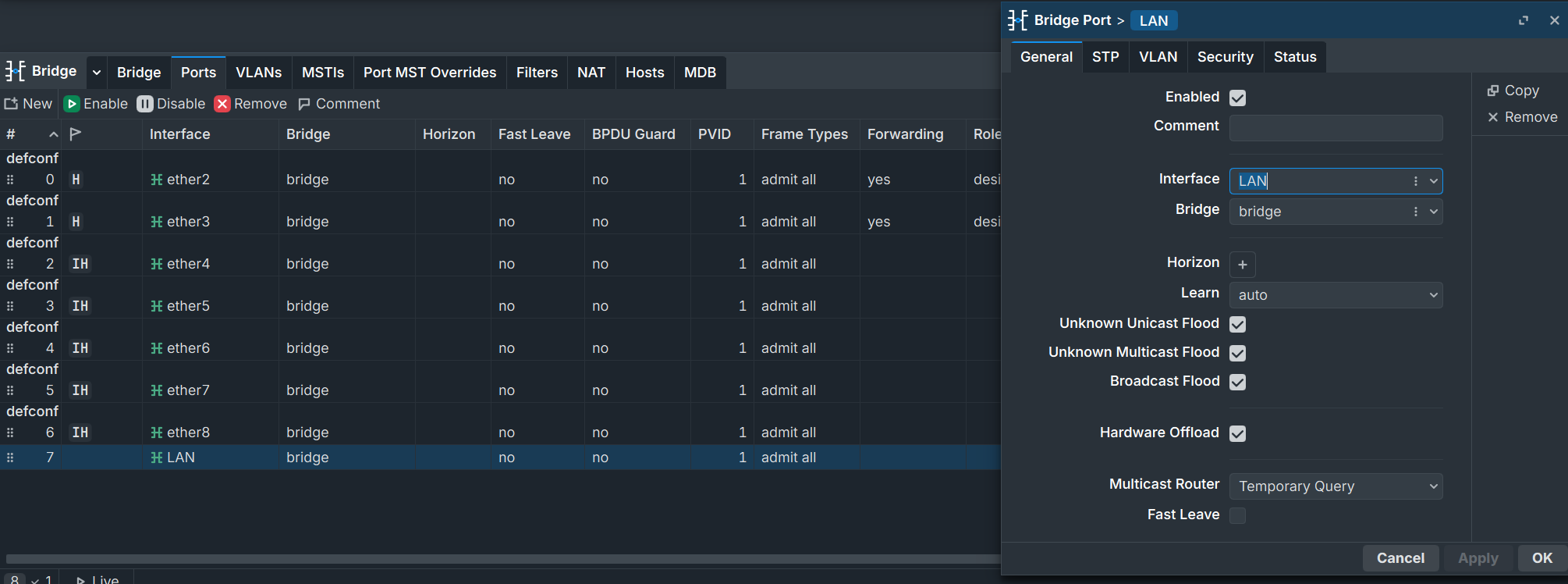
Added LAN interface to bridge?

Hello all!

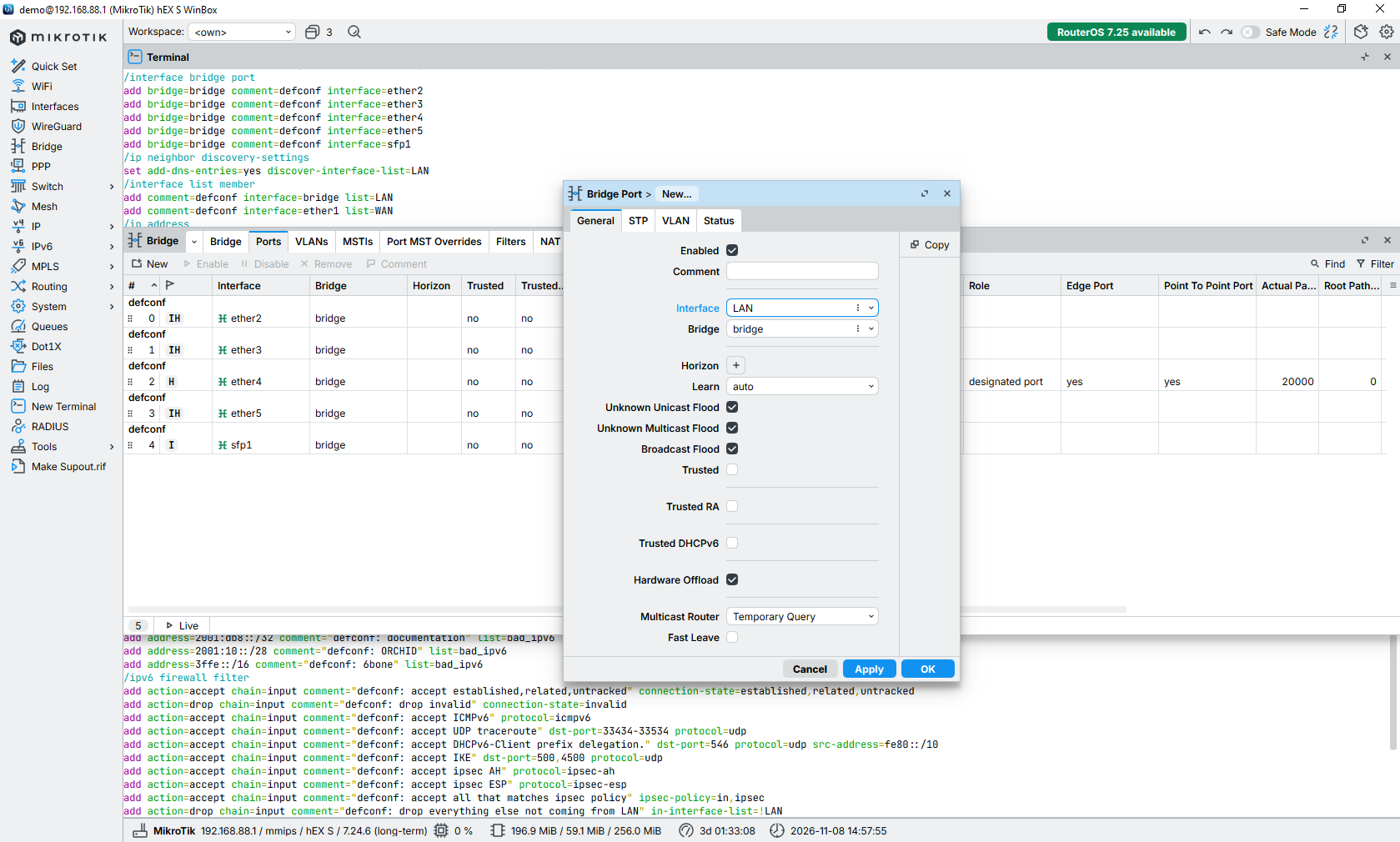
I was recently configuring a new RB5009. My main issue had been moving the WAN to the SFP port which was directly receiving fiber. I got that to work, but along the way I tried to add the ether1 port (which is obviously the normal WAN port) to the bridge so it could be used as a normal LAN port. I failed and instead I added LAN to the default bridge.

Now when I try to edit the bridge port and swap LAN in the dropdown (I'm using winbox) to ether1, I lose connection to the router entirely, forcing me to power cycle it. After it reboots from the power cycle, it leaves me right on the edit page for the bridge port setting, unedited, right where I left off.

At this point I'm afraid to remove, disable, or generally touch it, but I also don't know what it's doing or if its harmful to security or performance or otherwise. I currently have internet, everything else is working, but that little setting still sits there giving me anxiety about the one mistake I just had to make.

Everything is default. I have pretty much only used default settings to avoid messing anything up until I can further configure/add rules to harden security. Attatched is a picture of the problem child. I can also export a scrubbed file for viewing if anyone wants to give it a closer look.

I appreciate the help, and thanks in advance!

Sharing a sanitized /system/export will help us give you better advice.
Rule of thumb:

  1. Add all interfaces except WAN to your LAN Interface List.

  2. Do NOT add the LAN interface list itself to the bridge.

    If you want an out-of-band management port, remove that specific etherX from the bridge and connect your PC directly to it.

In general, you should get something like this:

/interface list
add name=WAN
add name=LAN

/interface bridge  
add name=bridge comment="LAN Bridge"

/interface list member
add interface=sfp-sfpplus1 list=WAN
add interface=bridge list=LAN

/interface bridge port
add bridge=bridge interface=ether1
add bridge=bridge interface=ether2
add bridge=bridge interface=ether3
add bridge=bridge interface=ether4
add bridge=bridge interface=ether5
add bridge=bridge interface=ether6
add bridge=bridge interface=ether7
add bridge=bridge interface=ether8

...

In case:
Once and for all COMPLETE Offbridge Port setup

Because everything is default, if I were you, I would just start over from scratch.

If you are not aware of the Free RouterOS configuration generator (browser-based, no account) it is worth at least looking at. It makes configuration easy, and also can generate a useful "handover sheet" with information about the configuration it creates. For an example of the files it can create, see this post.

There are many things that ROS still allows you to do that arguably it should not. Offering to let you add LAN as a bridge port (when the bridge is a member of the LAN interface list) is something that I can't think of a legitimate use for, so I don't think it should offer it as an option. But to not allow it would require more checking in WinBox for self references.

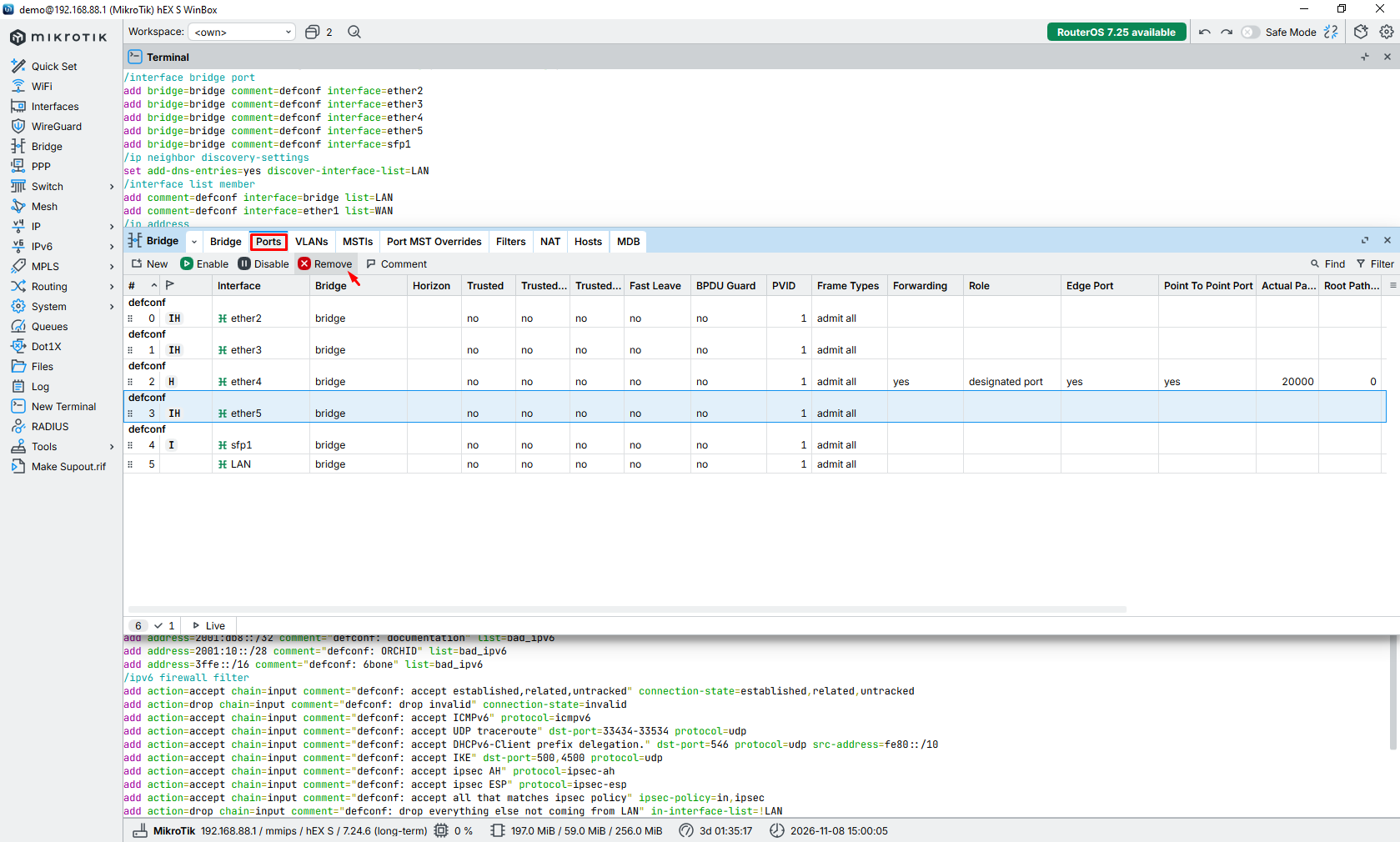
Here's what I am referring too. This is a straight defconf on an RB760iGS. And when you add a new port to the bridge, WinBox does offer LAN as an option.

I went ahead and added LAN to the bridge (this is in a lab) Just to see if it is possible to recover.

I then removed ether5 from the bridge and added ether5 to the LAN list, moved the connection from ether4 to ether5, connected with mac address, removed "LAN" from bridge. Then moved connnection from ether5 to ether4, connected to ip address of bridge, removed ether5 from LAN list, added ether5 back as a bridge port of bridge. (to get back to the standard order, I also removed SFP from bridge and re-added (this is cosmetic only so the SFP interface is last member of bridge).

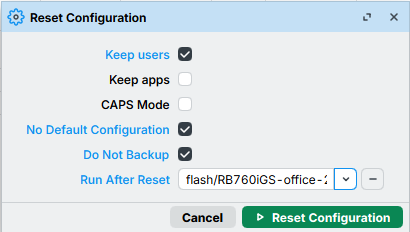
So it is "possible" to recover (if you are physically present and can move cables), but practically since you don't have a lot of other config, just starting from scratch is "faster" and you will know what you have is "standard". And with the config tool, which is much more powerful than QuickSet, you can generate a config (tell it to you want to keep users), then download the .rsc to a PC, copy the .rsc file (upload) it to the flash on the router, then select system -> reset configuration and click keep-users, no default configuartion, no backup, and run after reset (click + to see the files, and select the flash folder and it should then allow you to select your uploaded .rsc file)

And the other benefit is that it generates a nice pdf document with the ip addresses, vlans, port configurations, etc.

Thanks for the in depth response!

I did what you said and ended up just resetting the entire thing back to defaults. After that it went much smoother when I just used the quickset to set the sfp as my wan port instead of ether1. Another look at the documentation also reassured me on how to put ether1 on the bridge. The command lines made it easy.

I'm still new to mikrotik with what's probably an amateur level of knowledge about networking in general compared to the rest of you guys, so everything has been a pretty intense learning experience, though that's the main reason I decided to jump off the deep end into mikrotik in the first place. To be honest, I'm not even sure how I managed to screw that up other than me clicking something without knowing what it would do in my experimentations. I should've remembered to at least click safe mode. Won't be making that mistake again.

Everything is working great now with defaults, though I'm doing some more research on the firewall to see if I can harden things up with more than just what's stock. To that end, I'll be taking a look at the config generator. Many thanks for that, since I hope I can find something to keep things generally secure while I learn enough to do it myself or at least know what to look for. I'm also gonna keep things pretty zero trust until I'm confident enough to open myself up for other things that might expose ports or whatnot, like torrenting or whatever might require port forwarding.

Either way, thanks so much for the help. It was my stupid mistake but I'm glad to know I can find help here on these forums.

MikroTik ROS is flexible, but it has few bladeguards build in.

If you want to learn, you need to do so in an environment that has a low cost for mistakes, so you can try things out (without having to worry that you will no longer have internet access).

If you are familiar with virtual machines, you may want to download a CHR virtual router to play with, or get a small router that you can play with behind your main router. Even a hap ax lite will let let you try things out and it can an emergency backup (unless you require SFP).

This post has some links to useful information for new MikroTik users. There is also @jaclaz's The twelve Rules of Mikrotik Club that are worth reading.

Here's a web archive of another set of advice from @anav who seems to have gone AWOL last visit in Sept, hopefully he's ok.

New User Pathway To Config Success
The DEFACTO DEFAULT FIREWALL Setup

As long as you don't modify it, and you have only a single LAN interface (by default the bridge), the defconf firewall is reasonably secure. One thing it does allow (that some users don't like) is that it will respond to pings from the internet side. If you use the config generator, if you switch to advanced mode, and look at the Firewall section their is a way to block ping requests from the internet, while still leaving the necessary icmp parts intact. It drops icmp-options=8:0 on in-interface-list=WAN before accepting icmp. Note: this is just the first four rules, it is not a complete copy of the firewall rules.

/ip firewall filter
add action=accept chain=input comment="genconf: accept established,related,untracked" connection-state=established,related,untracked
add action=drop chain=input comment="genconf: drop invalid" connection-state=invalid
add action=drop chain=input comment="drop ping from WAN" icmp-options=8:0 in-interface-list=WAN protocol=icmp
add action=accept chain=input comment="genconf: accept ICMP" protocol=icmp

The config generator also makes it easy to block traffic between multiple LAN interfaces (in case you are using vlans).

It also by default blocks traffic from "invalid global ip blocks". If you are setting up a lab router behind your main router, you will probably want to disable this, because your main router will be providing a private ip address to your lab router's WAN interface.

... which not so casually include Rule #8:

8. You use the default Mikrotik firewall for Soho devices, unless you really know better.

Corollary:

[8] The firewall is your only defense against the bad guys out there, think twice before changing anything in the default one, which is good enough in most cases. Only some Mikrotik devices come with a default configuration including the firewall, and even on those in some cases of reset or netinstall it is possible that these firewall rules are deleted, so better check and double check their existence before connecting to the internet. Even if not strictly speaking part of the firewall, the default settings make use of the categorization of interfaces (WAN and LAN in /interface list and actually used interfaces in /interface list member) and these should be checked to be correct and reflecting the actual WAN and LAN status of the interfaces, failing to do so may result in exposing the network to the outside and/or preventing access to the device. For those devices shipped with no default configuration, the first step should be to copy to them the default configuration taken from one of the Soho devices and published on the forum: Buying - RB1100AHx4 Dude Edition - Questions about Firewall - #4 by rextended , such configuration will need of course to be adapted to the device number of interfaces and settings of the bridge(s) if any.

BEFORE starting to fiddle with firewall (or VLANs, or both) do make yourself a favour and configure a port Offbridge for emergency access:

No worries, Buckeye, never far but being retired for real means I don't need MT Forums to distract me from boring work. :wink:

To demonstrate its really me, I would point out to the poster I disagree with Buckeye, with farting around with 'cute' ICMP rules, just except them and move on. Its important for some functionality and also testing.
I disagree with Jaclaz, in that I would not allow internal access to my config via tool mac-server only.
Remember talking beginner advice, so keep it simple. Once the admin gets more experience, they can then branch out on their own naturally.

For example:
As for the 12 rules and OffBridge access, I went to the link, and found it overwhelming for the new user.

Its simply taking one port off the bridge (removal), assigning it a single IP address 192.168.79.1/31
This means there is only one IP that can connect to the router on this port 192.168.79.2
After configuring as per below, manually put this IP on your laptop/pc in IPV4 settings, open winbox, select router and with username and password you are in.

Ensure that the interface chosen (portX) is added to whatever you use for the Management of The Router aka the applicable interface list entry . It could be the LAN, it could be a separate one called MGMT etc. The point is, you trust this off bridge interface and thus it can be added to the trusted Interface List.
If the trusted interface list, is separate from the LAN interface list, then also add the offbridge port, to the LAN interface list, as the default rules permit access by the LAN interface list to DNS and to the internet, which are often needed by the admin working from this port.

The trusted interface list is often used for several purposes:
a. access to the input chain - allow admin to configure the router
b. forward chain - allow admin access to all possible LAN networks
b. neighbour discovery - so all MT devices are easily discovered on your network (winbox)
c. tool mac-server mac-winbox ( this is an MT approved internal secure approach to access the config)

Done!

If you ever want a live, hands on session through anydesk etc.. I am always available to a beginnner that has gotten beyond frustrated and wants some assistance. :slight_smile: To be clear, we expect hardwork, determination aka honest effort, and we dont like spoonfeeding - a horrible way to learn. We also dont like trying to undo AIs errors or to try to explain an AI config. So do the work yourself first. AI is a tool once you understand the basics, and even then should be taken with a grain of salt.

I appreciate the break down. I did look at the 12 rules and read up on the process. Was confusing at first but I got the gist in that there needed to be a port separate from the rest of the LAN that could be used as a dedicated access, whether for security or to make sure one didn't lock themselves out of the router. I'll probably tamper with that after reading up on things more. I'm still figuring out how the firewall works, because while it's definitely straightforward, I still have to continue jamming that information into my mind until the process clicks. That'll just be a matter of time.

I also opted not to use the config generator in the meantime, not until I feel safe enough to reset the config without defaults, which the generator requires for its own fresh configs. I'm more than happy to stick with the default firewall until I'm confident. Last thing I want is to break things or worse, expose my entire network to the internet.

To give more context, I recently did a WAS-110 bypass which was the whole reason I needed the sfp port for WAN. One of the issues with that was configuring the stick, which meant I needed to be able to access it and that demanded that I do some configs in the router according to the PON wiki. I followed the guides though and got it set up, so even if I reset the router and lose access to the stick's IP, I don't have to worry about configuring it and can simply leave myself without access until such time that I need it again.

My whole goal in all of this was to cut out middlemen that restricted my ability to customize and secure my network. ATT's gateway, the heaping pile of crap that it is, didn't even let me set a DNS for something like a pihole. Now I can do just that. Though, I found the adlist for mikrotik so I've been playing with that before deciding to slide my extra laptop back into my server cabinet for the pihole. One takes significantly less power than the other, after all.

Now I just need to figure out what my best practice is going to be for filtering outgoing telemetry without getting a mountain of complaints from the family after things stop working. God forbid they go without their Nest app for the thermostat and have to use it manually :persevering_face:

I have a BGW320, so I understand what you mean. But I have it in psuedo "passthrough mode" which is not a true bridge mode. It still does nat to a private address block, but then does source nat to make you router think it is coming from from the ATT global address. So while you don't have double NAT, it still has other problems (connection limits, etc.) However, I don't understand why it would prevent the use of pihole (although I am not using pihole).

I have the ATT fiber 300Mb plan and switched from Spectrum cable about 9 months ago. I do find ATT fiber more reliable than Spectrum cable, but when there are power outages, I often need to power cycle again with the BGW320. But going with a the WAS-110 is still a middleman with a single point of failure. And if you ever have issues, you will be require to reconnect through the BGW320. The point being that for me, it seemed the potential benefits of "bypassing ATT" didn't outweigh the potential downsides and extra cost. So I never persued a bypass, although I did some preliminary investigation. It's true the SFP devices use less power, but the power they do use is much more "dense" and I wonder how hot the modules get.

Do investigate putting you "untrusted" devices (iot, tvs, etc) in their own vlan. The RB5009 has a lot of capabilities and you can configure the switch in the RB5009 so it is vlan-aware (so you can have individual ports as members of separate vlans), and then if you ever get an exteral vlan-aware switch it can extend the vlans with a trunk link.

Even if you don't use the config generator to actually load configs on your RB5009, it is a great learning tool because it will show you the preliminary "generated config" as you change things, so you can see what changing an item does in the cli configuration.

Confirmed :grinning_face:

Too funny bread, I did the same trick here for a bell ISP router. Since I use VOIP phone and their crappy TV can be accessed by an app on appletv, it was the 1.5Gig internet I wanted under my control. I bought a 2004 MT for this express purpose and to be able to also feed switches via SFP+ port.

The specialty sfp attachment allows one to keep the main box ISP connected but allows termination of the internet signal to happen at the router. No good passthrough mode on our version Buckeye as that was my first thought as well.

As far as outbound is concerned, one cannot really patrol people to the degree needed without a. pissing them off and b. creating a large amount of work for yourself.
What I prefer is to simply have a few firewall rules that dont allow private IPs to come into play that dont belong, and segmenting my vlans. So media vlans dont mix with work vlans, and dont mix with family vlans and so forth. Vlans are cheap and provide separation of networks such that an issue with one network is isolated. It goes without saying that only the admin has access to the config of the routers so my LAN interface list which includes all the vlan networks, is NOT my management interface list aka not trusted.

I ended up doing the bypass with the knowledge that should I have failed in my attempts, that I'd have to resort to simply doing the ip passthrough. I bought an extra sfp cable to that end. I'm on the BGW620 so it has an sfp+ port which could go into the 5009. Neat stuff and I didn't end up having to use it since I succeeded with only a couple hours of downtime (mainly waiting for lease expiration since I didn't manage to clone the gateway's MAC to the 5009 properly. Twice.)

It technically didn't prevent me from using pihole assuming I put the router behind the gateway and routed DNS through that. I ended up doing that for quite some time and it worked great, so it's absolutely an option I could've stuck with. I was just angry at the fact that ATT doesn't give you a native option in their gateway's settings to designate a DNS like most other 3rd party routers, requiring that you have hardware behind it that could do what it wouldn't let you.

As for power, the stick uses less power overall but it does in fact get hot. I was thankful because instead of buying a WAS-110 from fibermall I ended up using EXEN who has his own WAS-110 device. He also 3d prints and pre-makes fan mounts that put airflow directly over the heatsink, so I bought the two as a bundle. It's fast but quiet enough not to disturb anyone and it keeps temps reasonably low, which is to say the stick isn't sitting at 90C all the time, only hovering around 55-65C. Maybe 70C under load, which greatly extends lifespan. However, that's also with little ventilation. I'm in the process of organizing and hopefully getting my equipment situated in a manner where they get better airflow and cooler air, because the little cupboard they're in now doesn't help at all. I imagine I could lower the average temp down at least 10C and keep it from ever rising above 65C.

I guess it's all to say that I wasn't too concerned about cost. This stuff has become one of my hobbies. I want to learn more about networking and security both in principle and because I find it fascinating. I don't mind spending a bit of money to make those things happen, though as I've moved through different pieces of equipment I've found myself stockpiling devices that I no longer need. I still have a surfboard modem and ASUS router from when I was on spectrum just collecting dust :sweat_smile:

I'm planning on doing just that as well, although I have my own tv box that I run tv services off of. My smart tvs have been completely unplugged from the internet for a long time now. I don't believe I actually have enough expertise or even the ability to follow the steps closely enough to completely sterilize its outbound traffic, so I just opted to block them entirely. I'm actually close to unmounting them, cracking them open, and yanking the wifi chip just to make sure they won't ever send anything, but that's a bit overkill for me atm. Everything else I plan on putting on a VLAN though, even if it only protects a few more devices. It's not as perfect as getting rid of anything untrusted entirely, but it'll have to do until I can urge the fam to gradually make changes.

I appreciate your input again, sir. I'll be looking at the things youve pointed me at.

Yeah that's pretty much my issue lol. I often fantasize about going more analog but I think I'd get a knife in my gut before I could actually carry any of that out. Not to mention costs and how many hours I'd sink into getting it to work and solving any problems for those less tech savvy. I remember building a NAS, and ended up going with UGreen simply because of their app. I wanted to build a ubiquiti NAS, but I don't know enough to get that working while also having access to apps that can go on both IOS and Android and are intuitive enough for even a grandmother to use. That was a headache either way.

This is my plan. Right now I still only have the defaults and since I don't know enough to make my own rules I've been poking around at anything that might both help me learn and give me examples of effective rules. As far as I know the defaults are reasonably secure as they are. My issue is just making sure I don't make anything worse or poke holes where I don't need to.

My goals now are pretty much entirely centered around VLANS. In other systems like with Unifi its obviously much easier and handheld, but as with my goal in all this, I'm trying to learn the more proper way of doing it manually. Convenience comes with both good and bad, and I prefer less convenience for more control, even if it comes with the cost of learning hours.

@Buckeye
I am not too sure.
Maybe he has mellowed with age, until a few months ago the real anav would have managed to disagree with no less than three people in a single post. :wink:

:rofl:

That's why I suggested using MikroTik Configurator – eXtreme Hosting, what it configures "by default" is reasonably good. And you can can click on things in the "Advanced" part and immediately see what it does by looking at the "live preview" configuration.

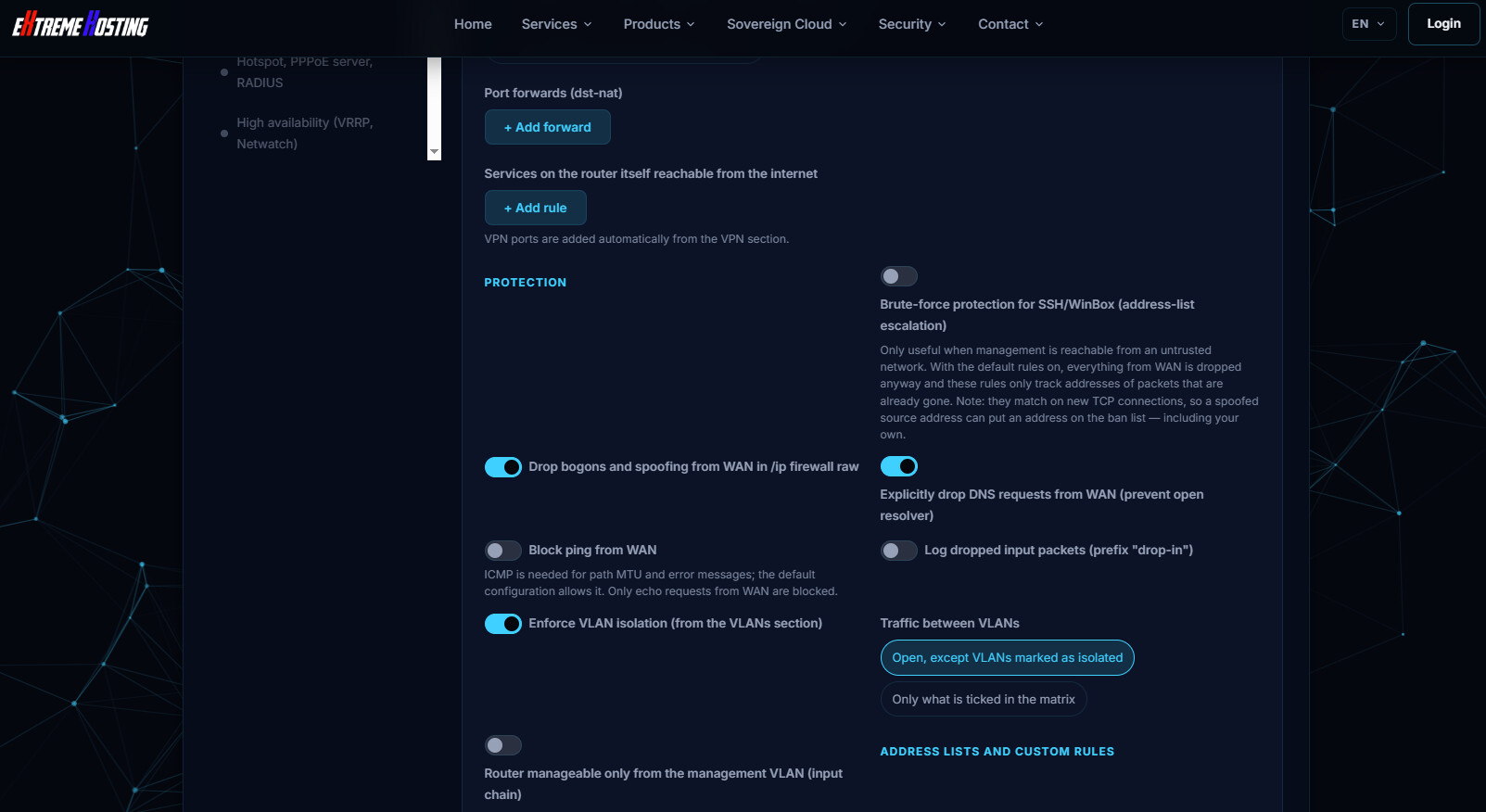
Here's an example from when chosing "single device", RB5009, starting in Wizard and selecting Office with vlans, then switching to "Advance mode" and selecting the Firewall section.

Note that by default it allows pings from the internet (to please @anav ), but it is easy to toggle it on and off. In my opinion, responding to pings on the WAN side is like turning on your porch light on Halloween, there are advantages and disadvantages, depending on whether you want to have more people pressing your doorbell.

The configuration tool also by default will block invalid global addresses from ingressing on your WAN interface (Drop bogons and spoofing from WAN in /ip firewall raw). I disable this when I am using a lab router behing my primary internet router, otherwise it won't work, (I have only a single global ip address, so my lab router gets a private ip address on its WAN side).

If you like video tutorials, MikroTik has a youtube channel and Normis recorded a video
MikroTips: How to firewall that is worth watching, as it discusses the basics and goes over the defconf firewall. But it is not an indepth explanation, it is more a quick overview of what is in the firewall you get with the defconf on a SOHO router (like the RB5009).

After you have watched the previous video, if you want a more indepth tutorial, Wilmer Almazan / Arawi Network Consulting has a MikroTik Firewall playlist on his TheNetworkTrip youtube channel, and the first 2 are a good intro that goes into enough depth that it is useful. NOTE WELL: In these videos Wilmer is not using the "defconf" firewall, he is starting from a

/system/reset-configuration no-defaults=yes keep-users=yes skip-backup=yes

state. I do not recommend starting from scratch unless you are working in a lab environment, especially if you are learning. However, if you want to understand what the MikroTik ROS firewall can do and what it cannot do, this is a good starting point.

If that's the case, I would consider getting a small mikrotik router you can play with behind your main rounter. If you want something that could be used as a backup for your RB5009 (with SFP) there is the hEX S 2025 (E60iUGS) and the L009 (if you want a better switch and a built in serial console port). The U60iUGS has some quirks with the ether1 interface, but has much more flash and RAM than the hEX S RB760iGS. If an SFP isn't a requirement (I don't see an SFP+ on the BGW620), then an hap ax 2 may be a better router for a bit more money, or the hap ax lite if you want a smaller device. Any would be a good lab router.
I would add that once you have managed to install and have running (not as easy peasy as it may seem) GNS3, it is a very good tool to explore both simple and "crazy" setups (though limited to cabled, no wi-fi ones), without risks and with very limited risks to be kicked out of the access to the CHR's and need to use netinstall.
Of course - unlike lab machines - it is no good for measuring or comparing speedm but otherwise its simulations/emulations are very useful.
Being contained into a virtual environment, you can install it on a laptop and have fun with it everywhere.

Bread were you on the 8311 discord channel? Would like to know more about the made for cooling fan......

I have been wanting to do this, but there are always other things to distract me. Which set of instructions did you find most helpful, and what type of hardware are you running it on? Is it dedicated just to GNS3?