I use DNS Static for FWD to create an addresslist.
Then why do you have so many names that you cannot manage it anymore?
Version 4.0rc1 has been released:
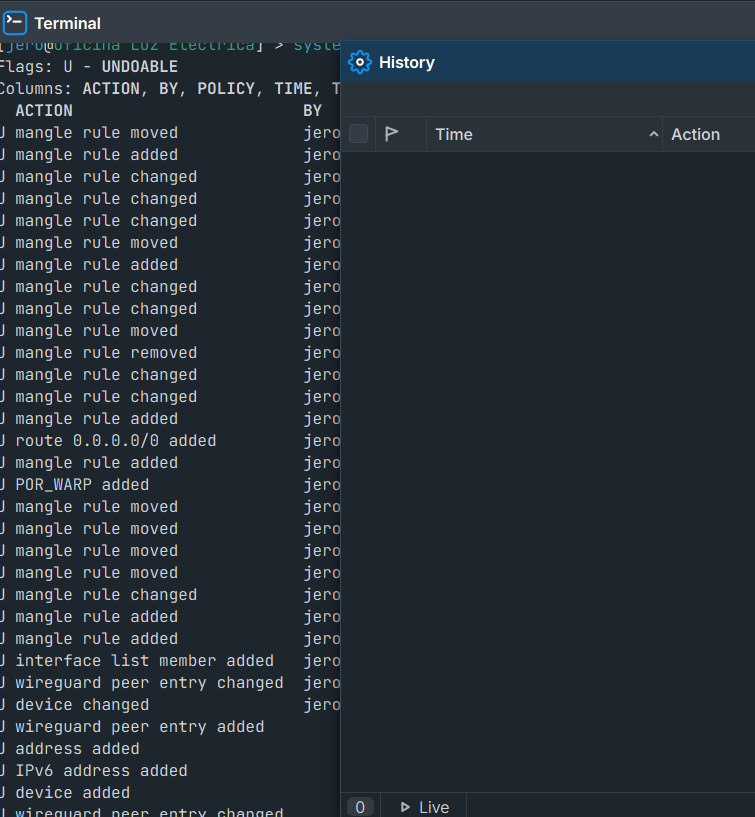
Now the file dialog uses the system native window! Worked very well (both upload and download) with Mint Cinammon.
There is only one little detail: we can’t change the file name on the dialog window - this have to be done on the router, before the download, or on the OS, before the upload.
But worked very well here.
Can also confirm it's working well from Arch Linux with Gnome
I know this is a user forum, but since some MikroTik developers also read along, I’m posting this here:
Feature request for WinBox 4.x
Please consider adding an “ARP Ping” option to the context menu (right-click) of an entry in IP → ARP List in one of the upcoming WinBox 4.x versions.
When selecting this option, WinBox should automatically open the Ping dialog with the following fields pre-filled:
-
IP address
-
Interface
-
“arp ping” checkbox enabled
This would make it quick and convenient to test reachability of an IP address via ARP ping directly from the ARP list.
Thank you for considering this improvement.
Any news on this, anyone?
No, this is not customizable.
This is also one example why I have already mentioned several times that the dark theme needs improvement. A lot of improvement, to be clear. The light theme is acceptable and one can work with it, but the dark theme is very difficult to use.
I have already pointed out that the WebFig light theme has better colors. I do not understand why WebFig and WinBox use different color schemes. That seems inconsistent.
Once again, the dark theme is very hard to look at. I normally use dark themes across many applications, and my entire system and CLI are dark. However, there is something about the WinBox 4 dark theme that makes my eyes hurt.
I can confirm this issue still persists in the stable WinBox 4.0.1 release. Like the previous posters, I get stuck at "Reading the index file", while WinBox 3.43 connects flawlessly but fails about half a minute and then reconnect again.
Unlike the ROS 6.x reports above, this is happening on ROS 7.20.8 (hAP ax3).
My connection scenario:
- VPN: Remote access via WireGuard (Back-to-Home) tunnel via direct IPv6 connection
Weirdly, I have another router with very similar settings where this connection works. Also the relayed connection (not strictly direct IPv6) works.
“the index file” apparently is quite a big file. I noticed that it takes considerable time to read it from an unlicensed CHR (used as test environment) because that is capped at 1Mbit/s.
Maybe in your environment the connection cannot sustain that load?
I don’t think my connection is the problem, as the same connection can load the index file from the other router. When I don’t use the direct IPv6 connection but instead use the default configuration, which usually routes the connection via a relay, the connection works well and is stable.
So, it's not a site-to-site WG configuration, but you run the WireGuard client on your computer running WinBox 4? Does the internet connection on one of the ends (or on both) have MTU smaller than 1500 (for example 1492 with PPPoE without RFC 4638)? If yes, then the default WireGuard MTU of 1420 will be too large if the transport uses IPv6. You don't notice the problem with IPv4 because the IPv4 header is 20 bytes smaller and the WG MTU can be as large as 1440 if the underlaying network can have MTU 1500. So you don't see any problem with MTU 1492 and WG MTU 1420 for example.
But if IPv6 is used to transport the WG packets then an MTU of 1492 can only work without fragmentation if you set the WG MTU to 1412 (outer MTU minus 80 bytes).
Thank you for pointing me into the right direction. My router is on PPPoE (MTU 1492), and the problem only appeared when WireGuard was transported over IPv6. WinBox 4.0.1 got stuck on “reading index file”, while WinBox 3.43 connected briefly and then dropped.
In my case, 1412 alone was not enough. What finally fixed it was:
-
setting the MikroTik WG interface MTU to
1280 -
adding hardcoded MSS clamping on the MikroTik (not just
clamp-to-pmtu), withnew-mss=1240 -
applying the MSS rules both for
forwardtraffic and foroutputtraffic
So the final fix was basically: yes, it was an IPv6/MTU issue, but I had to go lower than 1412 and force MSS manually to make it stable on all networks, especially mobile IPv6.
Great to see WinBox 4 moving forward, but can we please get Native Wayland support?
Currently, the Linux binary is a static build that only supports xcb, forcing us to use XWayland. For a tool where we type sensitive passwords, relying on the legacy X11 protocol is suboptimal. Modern distros are phasing out X11, and native Wayland support would fix the blurry HiDPI scaling and improve input security.
Please consider enabling the Qt Wayland plugin in future builds!
Made URI Helper. Try:
WINBOX OPENGL INSTALLATION
- Open Terminal.
- Drag the file
install-winbox-opengl.shinto the Terminal window. - Press Enter.
The installer will create:
~/Applications/WinBox OpenGL.app
The application will internally launch:
QSG_RHI_BACKEND=opengl /Applications/WinBox.app/Contents/MacOS/WinBox
After installation, you can drag the "WinBox OpenGL" application to the Dock.
If macOS blocks the application the first time you open it:
- Right-click the application.
- Select "Open".
- Click "Open" again to confirm.
To remove the application:
rm -rf "$HOME/Applications/WinBox OpenGL.app"
-------------install-winbox-opengl.sh----------
#!/bin/zsh
set -e
APP_NAME="WinBox OpenGL.app"
TARGET_DIR="$HOME/Applications"
TARGET_APP="$TARGET_DIR/$APP_NAME"
SOURCE_APP="/Applications/WinBox.app"
if [ ! -d "$SOURCE_APP" ]; then
echo "ERRO: O WinBox não foi encontrado em:"
echo " $SOURCE_APP"
echo
echo "Instale ou mova o WinBox para /Applications/WinBox.app e execute novamente."
exit 1
fi
mkdir -p "$TARGET_APP/Contents/MacOS"
mkdir -p "$TARGET_APP/Contents/Resources"
cat > "$TARGET_APP/Contents/MacOS/WinBoxOpenGL" <<'EOF'
#!/bin/zsh
export QSG_RHI_BACKEND=opengl
exec "/Applications/WinBox.app/Contents/MacOS/WinBox" "$@"
EOF
chmod +x "$TARGET_APP/Contents/MacOS/WinBoxOpenGL"
cat > "$TARGET_APP/Contents/Info.plist" <<'EOF'
<?xml version="1.0" encoding="UTF-8"?> CFBundleDisplayName WinBox OpenGL<key>CFBundleExecutable</key>
<string>WinBoxOpenGL</string>
<key>CFBundleIdentifier</key>
<string>br.com.direction.winbox-opengl</string>
<key>CFBundleName</key>
<string>WinBox OpenGL</string>
<key>CFBundlePackageType</key>
<string>APPL</string>
<key>CFBundleShortVersionString</key>
<string>1.0</string>
<key>CFBundleVersion</key>
<string>1</string>
<key>LSMinimumSystemVersion</key>
<string>10.13</string>
<key>NSHighResolutionCapable</key>
<true/>
<key>CFBundleIconFile</key>
<string>WinBox.icns</string>
ICON_SOURCE=""
if [ -f "$SOURCE_APP/Contents/Resources/WinBox.icns" ]; then
ICON_SOURCE="$SOURCE_APP/Contents/Resources/WinBox.icns"
else
ICON_SOURCE=$(find "$SOURCE_APP/Contents/Resources" -maxdepth 1 -iname "*.icns" -print -quit 2>/dev/null || true)
fi
if [ -n "$ICON_SOURCE" ] && [ -f "$ICON_SOURCE" ]; then
cp "$ICON_SOURCE" "$TARGET_APP/Contents/Resources/WinBox.icns"
else
/usr/libexec/PlistBuddy -c "Delete :CFBundleIconFile" "$TARGET_APP/Contents/Info.plist" 2>/dev/null || true
fi
touch "$TARGET_APP"
echo
echo "Aplicativo criado com sucesso:"
echo " $TARGET_APP"
echo
echo "Abrindo o Finder..."
open "$TARGET_DIR"
Personally opengl should be default, or at least an option, for Qt rendering. Otherwise, WinBox4 does seem to use Metal 3D stuff which for a network admin tool is unnecessary and spins up the GPU for unknown reasons, at high battery/power costs/heat. I filed a bug about this already, so MikroTik is aware of the request.
Since I already use ENVs to force opengl, I think your approach is way over-complex. Mac ships with Automator.app to create a native .app that runs a shell script to start the "real" WinBox. No plist or gatekeeper worries. So you can do the same as @Jairo by using Automator.app:
- Open Automator.app
- Select "New"
- Select "Application"
- Then, select "Run Shell Script" in list of "Actions" on left
- Paste in the following below:
# Force the rendering backend to OpenGL (less likely to trigger dGPU than Metal)
export QSG_RHI_BACKEND=opengl

# Explicitly request the low-power GPU for the RHI
export QSG_RHI_PREFER_LOW_POWER_GPU=1

# macOS-specific Qt flag for the platform plugin
export QT_MAC_WANTS_LOW_POWER_GPU=1

# Use the basic render loop to prevent 'spinning' on the render thread
export QSG_RENDER_LOOP=basic

# Launch the binary directly to ensure environment inheritance
/Applications/Winbox.app/Contents/MacOS/Winbox &
- Select File > Save, and pick a name like "WinBox (OpenGL)" which will be default to
/Applications - Use the new "WinBox (OpenGL)" instead of the "real" WinBox.app