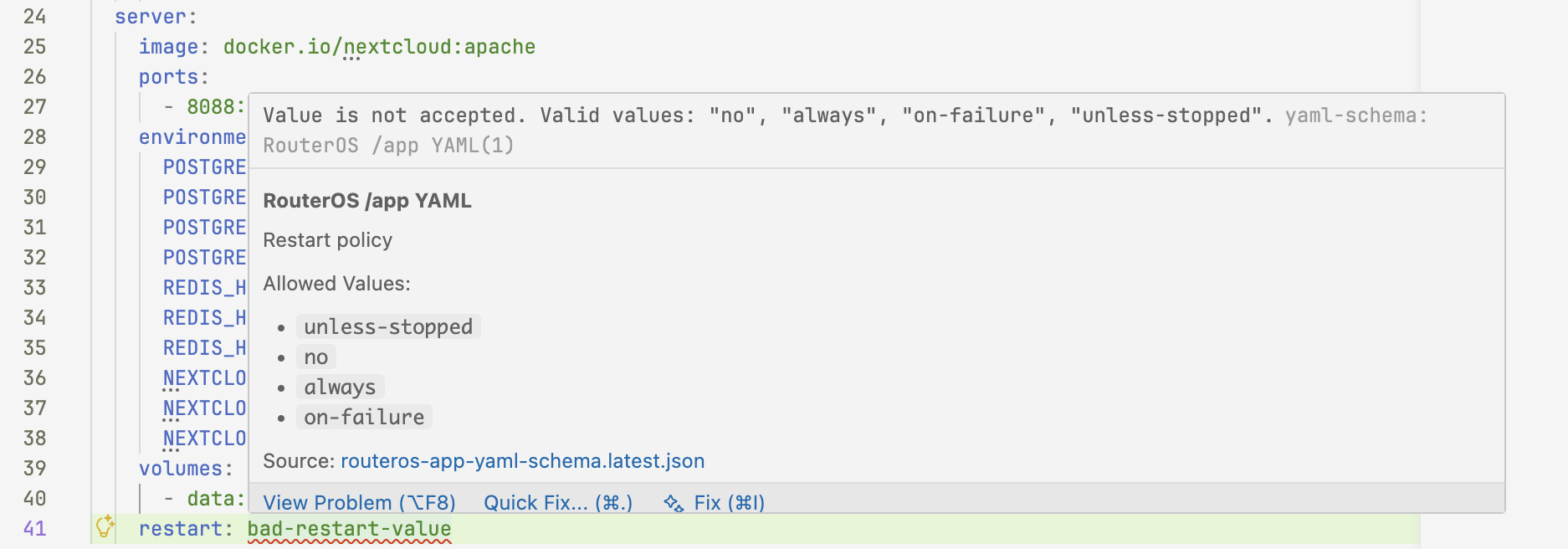
Since there is no documentation on "custom"
/appintroduced in 7.22beta3, I let AI initially create one, since it offered. Basically gave Claude all YAML examples from builtin/appto store out what might be possible for a "custom"/app.I have "manually" edited it a bunch since original. Still not 100% (but neither is feature), but should capture all the known YAML attributes, and analyze how
/appYAML differs fromdocker-composesince I wanted that info. Along with some "tips" on to create a "Custom/app".Content is broken up into three posts since it exceeds 32K limited of a forum post
Temporary Manual for RouterOS "Custom /app" Containers
Custom /app Prerequisites
The new /app feature is partially documented in MikroTik's help.mikrotik.com docs. This document assumes some familiarity with RouterOS containers, and /app has been fully configured.
To use /app, you must:
- Have MikroTik with ARM64 or X86 CPU (or CHR), with some disk storage.
Neither Flash/NAND nor RouterOS system disk can be used as
disk, but even cheap USB flash drive can work for/app- but critically some disk is needed. container.npkhas been installed (or/system/package enable containerperformed)- Device allows containers features via
/system/device-mode update container=yesand power-cycled /app/setuphas been run, include setting adisk,router-ip(used in NAT rules), andbridgeset to the default (or desired) LAN.
For more help on RouterOS /container generally, see:
- MikroTik's
/containerdoc which is what/appcontrols when enabling it containers. - @tangent has a series of articles on "container internals" that's worth a read to understand more advanced topics in
/container:- Bridged Container VETH
- Container Limitations
- Containers are not VMs
- Pets vs Circus Animals
- Musings on Docker
And, in part,
/appsolves some of the issues noted in above series.
Deployment via /app/add
The MikroTik RouterOS YAML format is specifically designed to work with the /app/add command via the yaml= attribute. This imports the YAML definition and creates the necessary RouterOS configuration for a container, or group of containers (a la docker-compose).
RouterOS's /app YAML format "borrows" from
docker-composesyntax — but RouterOS YAML is not full compatible. Differences between compose and RouterOS app YAML are discussed in a later section.
Adding an Application
RouterOS "custom" /app containers can loaded inline using YAML. Basic example of adding a app from RouterOS CLI:
/app add disabled=no yaml="
name: cligames
descr: Amm0's BSD games for RouterOS
page: https://github.com/tikoci/cligames
category: games
icon: https://wiki.pine64.org/images/b/bc/BSD_Unix_icon.png
default-credentials: joshua:(none)
services:
  cligames:
    image: ghcr.io/tikoci/cligames:latest
    environment:
      TERM: screen
    ports:
      - 2323:23/tcp:telnet
    restart: unless-stopped
"
/app/add Parameters
While most app definition happens in YAML. Some options can be provided via the RouterOS CLI in the /app/add. But some app configuration is only available via YAML.
Exception: currently
pvidcan only be set via attributes, not YAML. Although the YAML syntax may just unknown, not missing.
auto-update      -- Enable/disable automatic container updates
disabled         -- Disable the application without removing it
environment      -- Override environment variables from YAML
extra-mounts     -- Add additional volume mounts beyond YAML definition
firewall-redirects -- Override port mappings from YAML
hw-device-access -- Grant access to hardware devices
network          -- Override network configuration
pvid             -- VLAN ID for the network
required-mounts  -- Override required volume mounts
use-https        -- Enable HTTPS reverse proxy (see below)
yaml             -- The YAML configuration content
Any /app/add attributes will override or extend YAML settings. i.e. If conflict between YAML definition and /app attributes, RouterOS attributes win.
The operation of
network,use-https, andauto-updateare discussed below in context of YAML, but works same if provided via CLI attributes.
Most of the custom app action happens in the YAML definition (using yaml= provided to /app/add), discussed in later in the document. But first some basics on how /app works.
/app/add Operations
When you run /app/add command, RouterOS will:
-
Creates a new entry in
/app, that be enabled or disabled at any time. Custom app are marked with thecflag in/app/printor UI. -
/app/addattributes and YAML file are parsed and various readonly/appattributes are initialized.The readonly
cmds=is also calculated based on app config.cmdsis what's used for any "dynamic configuration" of RouterOS needed for containers operations. Thecmdsare run both when an app is enabled, and at each boot ifauto-update=yes_ Side note: Somehow,cmdsare removed when an app is disabled, even without any corresponding "cleanup" commands & odd sincecmdsuse RouterOSaddcommands. -
File paths are calculated, based the
/app/settings disk=value, and top-level appname(based on YAML'sname:, not the/app/get ... name), along with service container(s) or mount(s)name. In YAML, you never specify thedisk, instead YAML always assumes a relative path.-
root-diris calculated using:<disk>/app/<app-name>/<service-name>_root -
Any
/app-defined Mounts are calculated and created in:<disk>/app/<app-name>/<mount-name> -
RouterOS may use additional directories like
.backupinternally, but also under the<disk>/app/<app-name>file path.
-
-
Networking is automatically setup. This is most variable and complex part of
/appto understand. Each/appgets a single VETH namedveth-app-<app-name>. And all services share one VETH. i.e. For a multi-container app, a single VETH is shared by all containers created in the/appdefinition. Some considerations:-
Custom apps that use the
internal(e.g. nonetwork:specified in YAML), are added to/app-created bridge namedinternal, and anyports:defined becomedst-natrules and mapped automatically to the/app/settings router-ip(orassumed-router-ipifrouter-ipis not set) -
Also, with the
internal(ordefault) bridge is automatically created as part of/app/setup, and added to theLANinterface list. And asrc-natwithmasqueradeis used on theinternalbridge, so all container IPs are NATed to rest of network. e.g. thus it is a requirement that/ip/firewall/filterallows the interface listLANaccess, in order for containers to work using the defaultinternalbridge. -
If a bridged mode is specified in YAML via:
networks:
  default:
    name: lan
    external: true
or
/app/add network=lan, the VETH is added to thelan-bridgeset in/app/settings. Additionally, and importantly, the VETH is set withdhcp=yes, so container IP address is obtained dynamically by a VETH-added dynamic/ip/dhcp-client. Currently, there is no option to use a static IP with "external"/lan-bridgebridge.VETH interface only recently added support for "DHCP" as option, which
/appuses automatically for external bridging. Previously VETH was always configured using static IPs, so this may be confusing to some. But does require the external container bridge to use a DHCP server. -
Each
/appmay be configured withpvid, and used if bridge is set withvlan-filtering=yes. This is not used wheninternalbridge is configured, since it not VLAN-aware. Thepvidoption does not appear in YAML, so must be use directly set on the/app. -
In all cases, variables like
[containerIP](and others) are populated based on selected networking mode. These variables may be used anyenvironment=or YAMLenvironment:and will be automatically replaced when used with the calculated value (as shown in/app/print detail where name=<app-name>).
-
-
When an app is enabled - either later (via
/app/enable myapp), or when adding custom app definition via/app/add disabled=no ...- any containers defined will be created in/container, with any mounts and environment variables defined in/appcopied directly to/container/addwith any[variables]and file paths resolved.Previous
/containerrequired the use of/container/envand/container/mount, however newer RouterOS versions allow these to be defined in a/container/add, which/apptakes advantage. -
RouterOS will start the process to obtain the image (and it's layers), and start the
/container. RouterOS GUI's will show the progress of enabling a/appcontainer in red above the App. Any errors (like DNS failures) will be shown, and RouterOS will continue to try to download and start any configuration containers. The same information can be view using/app print follow-only where !disabled -
If
auto-update=yes, then the/container,/interface/veth, and other dynamically created configuration is periodically checked and updated to match what is defined in/app. Also, a/container/repullmay happen after any boot.Some dynamic configuration performed by
/appmay be actually be editable, but critically these edit may be overridden whenauto-updateruns. e.g. you can disable DHCP on a bridged VETH, but it will be reverted when/appchecks configuration. -
To remove a custom app, it must first be disabled and cleaned up:
/app/disable myapp
/app/cleanup myapp
and then remove the custom app definition from the catalog:
/app/remove myappThere may be a bug in 7.22beta where the cleanup and/or removal may take a reboot to take effect.
Further Configuration using /app/set
While /app/add allow a new custom app to be added to the /app catalog. Further customization is available via /app/set after a new app is added.
Some items that may require customization outside of the /app/add
pvidandnetwork- Likely most common "customization", withnetworkoverriding any YAML definition. Currently,pvidis not even settable via YAML, so must be done via/app/set. For example, if a "management network" uses a seperate VLAN from main LAN, thenpvid=option may be used to force an/appto use the management VLAN (instead of an untagged bridged).hw-device-access- Some container apps may use hardware. But the specific hardware may be specific to the router. For example, some IoT containers may use Bluetooth, but the specific radio may internal on some router, but an external USB Bluetooth dongles.auto-update- The default is currently=no, but enabling this option should be considered so future security-related fixes are automatically applied.
Designing a Custom /app
Overview of Networking Options
Network Schemes
There are two main network schemes known, network=default and network=lan.
It may also be possible to define new custom
/app/networkusing YAML but this has not been tested yet, so not described.
1. default - uses /app-created internal bridge and NAT
In most cases, this is what you want for a custom /app. So, if no root networks: section is specified in YAML, or /app's network=default, then RouterOS will automatically:
- Create (if needed) an isolated bridge named
internalwith subnet172.18.0.0/24 - Create VETH interface for the app, shared by all services, and assigned the next available IP in 172.18.0.0/24 (start at .2 and going up)
- Uses the
internalbridge's IP address (172.18.0.1) as gateway - Sets up NAT rules in
/ip/firewall/natfor port forwarding based onports:mappings frominternalbridge to therouter-ip(orassumed-router-ipif none) in/app/settings. - The
internalbridge is automatically a member of theLANgroup in/interface/list, and theinternalbridge issrc-natviamasquerade.
2. lan - ethernet bridging using lan-bridge in /app/settings
When network: in provides in YAML, or network=lan is used in /app/add then:
- Containers attach directly to existing RouterOS bridge (often
bridge) - Containers get IP via DHCP from the bridge's network, using VETH's
dhcp=yesoption - No NAT port forwarding - direct network access
- Default bridge is configured in
/app/settings set lan-bridge=
Note: There is seemingly no option to not use DHCP on VETH when
/appusing a LAN bridge.
Communication between "services" i.e. multiple containers within a single /app
Like docker-compose, it possible define multiple containers with a custom /app. Often these related containers need to communicate among themselves. e.g. a webserver container may need a database container.
It is important to understand that all services share a single VETH, so inter-service network communication can use localhost (127.0.0.1). This is the normal mechanism builtin /app use. So in any YAML environment variables (like DB connection strings) or file-based configs: can use localhost and port, to refer to another container exposed network service.
It also possible to use
[placeholder] variables, like[ContainerIP]instead oflocalhost. But this may cause the traffic to flow via the firewall, and be subject to those rules. Depending on/appneeds, this may be desirable in some cases to better control access.
Using VLAN with /app
Each app has an attribute pvid=, the can be set when using an "external" bridge to control the VLAN ID used on the associated bridge when vlan-filtering=yes is used on linked bridge. More testing is needed to understand fully usage.
Currently
pviddoes not appear to be controllable in the YAML.
Updating container files using YAML configs
This is a useful feature for Custom /app's since you can overwrite/create files in the containers root image's file system or potentially mounts. File contents are defined.
Any file on the file system can be written, so it does not necessarily have to be a "config" file.
The link between a file's contents and it's placement is down in two parts. In YAML, there is both a service configs and root configs key used. For example,
name: myapp
services:
  mycontainer:
    image: somerepo.io/myappimage:latest
    configs:
      - source: 'app_config'
        target: '/etc/app/config'
        mode: 0644
configs:
  'app_config':
      content: |
        path /html
        port 80
Understanding File Path Mapping
Another concept specific to RouterOS's /app support is how file paths are created. Importantly, all file paths are based on disk in /app/settings.. So in YAML or /app set never use a full RouterOS path - relative paths should also be used, nor use a starting / in a RouterOS file destination/source. Basically do not think about the disk when designing a Custom /app, as RouterOS will prefix the needed path.
RouterOS has conventions on paths are created:
- Container
root-diris build using<disk>/apps/<app-name>/<service-name>_root. For multi-service/app, there will be multiple directory, one for each service listed in YAML'sservices:dictionary. - Mounts (in YAML,
volumes:) are created using similar scheme under<disk>/apps/<app-name>, specifically:data:/data:rwwill use<disk>/apps/<app-name>/dataon RouterOS file system- any paths used in a mount are flattened using a hyphen
-, so a mount likeetc/config:/config:rwwill be at<disk>/apps/<app-name>/etc-config. e.g. usingmymount/dir/subdiron left-side of mount will result inmymount-dir-subdirunder the<disk>/apps/<app-name>. - RouterOS may use additional directories like
.backupinternally, but also under the<disk>/app/<app-name>file path
About /app's "Variables to Use In Environment"
RouterOS automatically replaces the following [placeholder] variables at deployment time in /container's environment variables. The following known [placeholder] variables are available to custom container apps, and shown in the /app configuration.
Discussed later, but these are similar to
docker-compose's${VAR}variables.
Known [placeholder] Variables
-
[accessIP]- The IP address where the application is accessible (typically the router's IP or container IP depending on network mode)- Used in:
APP_URL,PUBLIC_URL,NEXTCLOUD_TRUSTED_DOMAINS,ORIGIN,CSRF_TRUSTED_ORIGINS
- Used in:
-
[accessPort]- The host port mapped for the primary web interface (first port inports:list)- Used in:
APP_URL,CMD_DOMAIN,FRONTEND_URL,MASTER_URL
- Used in:
-
[accessProto]- Protocol (http or https) based on theuse-httpssetting- Used in:
APP_URL,SYMFONY__ENV__DOMAIN_NAME,SEARXNG_BASE_URL
- Used in:
-
[containerIP]- The assigned IP address of the container- Available for use but not commonly seen in examples
-
[containerInterface]- The generated VETH interface name (e.g.,veth-app-myapp)- Available for use but not commonly seen in examples
-
[routerIP]- The RouterOS device IP address- Available for use but not commonly seen in examples
Example [placeholder] Variable Usage in YAML
...
services:
  mycontainer:
    ...
    environment:
      APP_URL: "[accessProto]://[accessIP]:[accessPort]"
      NEXTCLOUD_TRUSTED_DOMAINS: "[accessIP]"
      PUBLIC_URL: "http://[accessIP]:8016"
      CSRF_TRUSTED_ORIGINS: "http://[accessIP]:8016,http://[accessIP]:8015"
      ORIGIN: "http://[accessIP]:8015"
      SYMFONY__ENV__DOMAIN_NAME: "[accessProto]://[accessIP]:[accessPort]"
      CMD_DOMAIN: "[accessIP]:[accessPort]"
      SEARXNG_BASE_URL: "[accessProto]://[accessIP]:[accessPort]/"
      MASTER_URL: "[accessProto]://[accessIP]:[accessPort]/smokeping/"
      JELLYFIN_PublishedServerUrl: "[accessProto]://[accessIP]"
About "UI URL" (admin-url) in App catalog
Some containers may have some web-based admin UI, and RouterOS /app will use it:
- In WinBox and WebFig,
/appwill show a clickable link to open a container's admin UI in the default web browser. - If
/app/settingshasshow-in-webfig=yes, then any admin UI will appear on WebFig's Login screen, along with anyicon:configured in a custom app's YAML.
When deployed with use-https=no and the application gets IP 192.168.74.139 with port 8088, the admin-url is calculated internally using the [placeholder] variables, so
[accessProto] → http
[accessIP] → 192.168.88.139
[accessPort] → 8088
becomes "UI URL" shown in WinBox/WebFig, like http://192.168.88.139:8088
When defining an app, the
portsfields with the label ofwebis used to determine theaccessPortused in the UI URL (admin-url) show. Without a port having labelweb, no UI URL will be shown.
Additionally, ifuse-https=yes, but does not work due to error (like failure to get certificates or CHR without/ip/cloud), no UI URL will be shown.
Enabling secure HTTPS using reverse-proxy
Automatically via use-https=yes and /ip/cloud's DDNS
When use-https=yes is set on a /app, RouterOS will automatically:
- Creates a hidden reverse proxy rule in
/ip/reverse-proxy - Redirects HTTP requests to HTTPS based on SNI, in form
<app-name>.<device-hash>.routingtheworld.com - Automatically uses a Let's Encrypt certificates from
/ip/cloud - Applies to the
url-pathshown in an enabled/app
The behavior should be automatic based on the default ddns-enabled=auto in /ip/cloud, and MikroTik's default firewall. If you have issues, use /certificate/enable-ssl-certificate which needs to succeed for the /app's automatic SSL certificate support to work.
Custom DNS domains using dns-names and /certificate/enable-ssl-certificate
More placeholder since any steps needs to be tested & support for "custom DNS domain" is not currently a feature of /app so it's manual process after adding a custom /app.
The default for use-https=yes is to use the routingtheworld.com domain. However, you may want to use your own DNS domain, and add DNS CNAME record to your DNS zone pointing to the /ip/cloud DDNS name.
This is not really possible automatically via /app/add today. But you can use /certificate/enable-ssl-certificate with a dns-names= with a list of all possible /app DNS names you want. And the certificate used in /ip/reverse-proxy SNI entry can point to the generated Let's Encrypt certificate, and set to the /app container's IP address and port. Wildcards are not supported in enable-ssl-certificate
Manually use custom certificates
It also possible to use custom certificates, however you must set use-https=no, and then manually add any SNI in /ip/reverse-proxy to the /app container's IP address and http port. This is more complex topic, outside of building a custom /app. See  Example: Creating self-signed certificates.
Important The
[ContainerIP]is not a variable available to thereverse-proxy, so script is likely needed today to keep/ip/reverse-proxyin sync with current container IP use in/app. This is important since the container IP can change if/app enable/disableare used since/appaggressively keeps IP addresses sequentially.
Best Practices
AI thought "we" needed this section...but consider the "Best Practices" as TBD. i.e. "Best Practices" can only come with time.
- Credentials: Always change default passwords in production
- Port Labels: Use descriptive labels for clarity (
web,api,database) - Restart Policy: Use
unless-stoppedfor most services - Environment Variables: Group related variables logically
- Security: Avoid exposing unnecessary ports externally
/app Command Summary
After adding an application, you can manage it through /app:
# List all applications
/app/print

# "Tail" applications during operations
/app/print follow-only where !disabled

# Show specific application
/app/print detail where name=myapp

# If enabled, container will have additional details:
/container/print detail where name=app-myapp

# Enable/disable an application
/app/enable myapp
/app/disable myapp

# Start/stop an application once "enabled"
/container/start app-myapp
/container/stop app-myapp

# Remove an custom application
/app/cleanup myapp
/app/remove myapp
Note that
app-myappis used in/containercommands, whilemyappis used in/app, since theapp-prefix is added to any created/appcontainers.
 " based on human review, since LLM may be bit too strong to say "unsupported" when different but supported