More broadly, I'm not sure why "Alt" has to be ⌥/option key on Mac. IMO it should be ⌘/command, since on MacOS, unlike Windows, hitting the command/"windows" key does not bring up anything. While, ⌥/option does has different mapping depending on language, so it may not be just Polish that has overlaps. Additionally, as Mac user, using ⌥/option/"alt" is not very natural since no apps use it (for the previous reason, locale may effect them).
Now a big +1 on the <key>+G from terminal to WinBox suggested by @cggxannx above - great idea!
No - because Command matches Ctrl on Windows/Linux environment. Alt matches Option. Both match even by their names. Only difference is in their placement on keyboard (Mac vs others).
It is impossible to make both Alt and Ctrl to “match” Command…
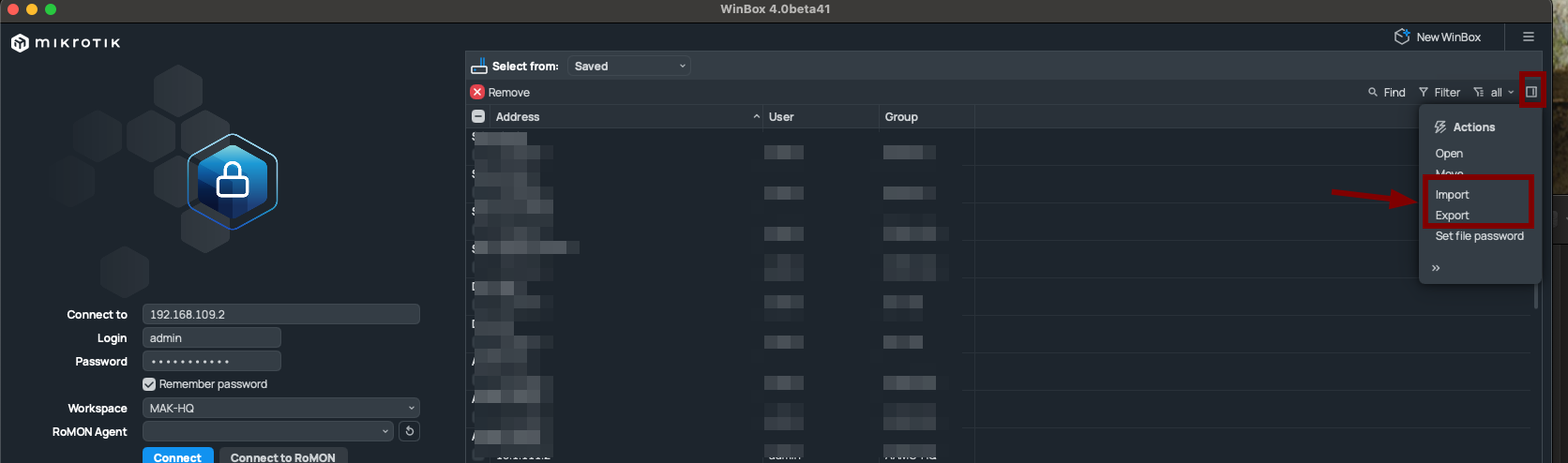
Wow we are in Beta 41 and still missing a key feature that version 3.xx had for years. Which is: Be able to export and import the list of configured routers!!! Common Mikrotik, this is the major hold back unless I missed where in the GUI I can find it and do it.
Please bring back the Winbox3 function F6 to cycle the open windows to the top without other screens in between.
Even better: add some capability for “always below other windows” and “always on top” for individual windows, as commonly found in desktop environments (at least for Linux).
Reason for these: I always open a “Log” window and set it to full size, and then do all other work on top of that. When inadvertently clicking outside a window, the other open windows are concealed below the log window and painfully have to be brought forward one by one. In Winbox3 that was “easy” by doing repeated F6 presses but in Winbox4 it is much more difficult.
With the “always below other windows” attribute active, it would be possible to e.g. use the scrollbar of the log window without auto-raising it. Another option would be to require double-click to raise a window.
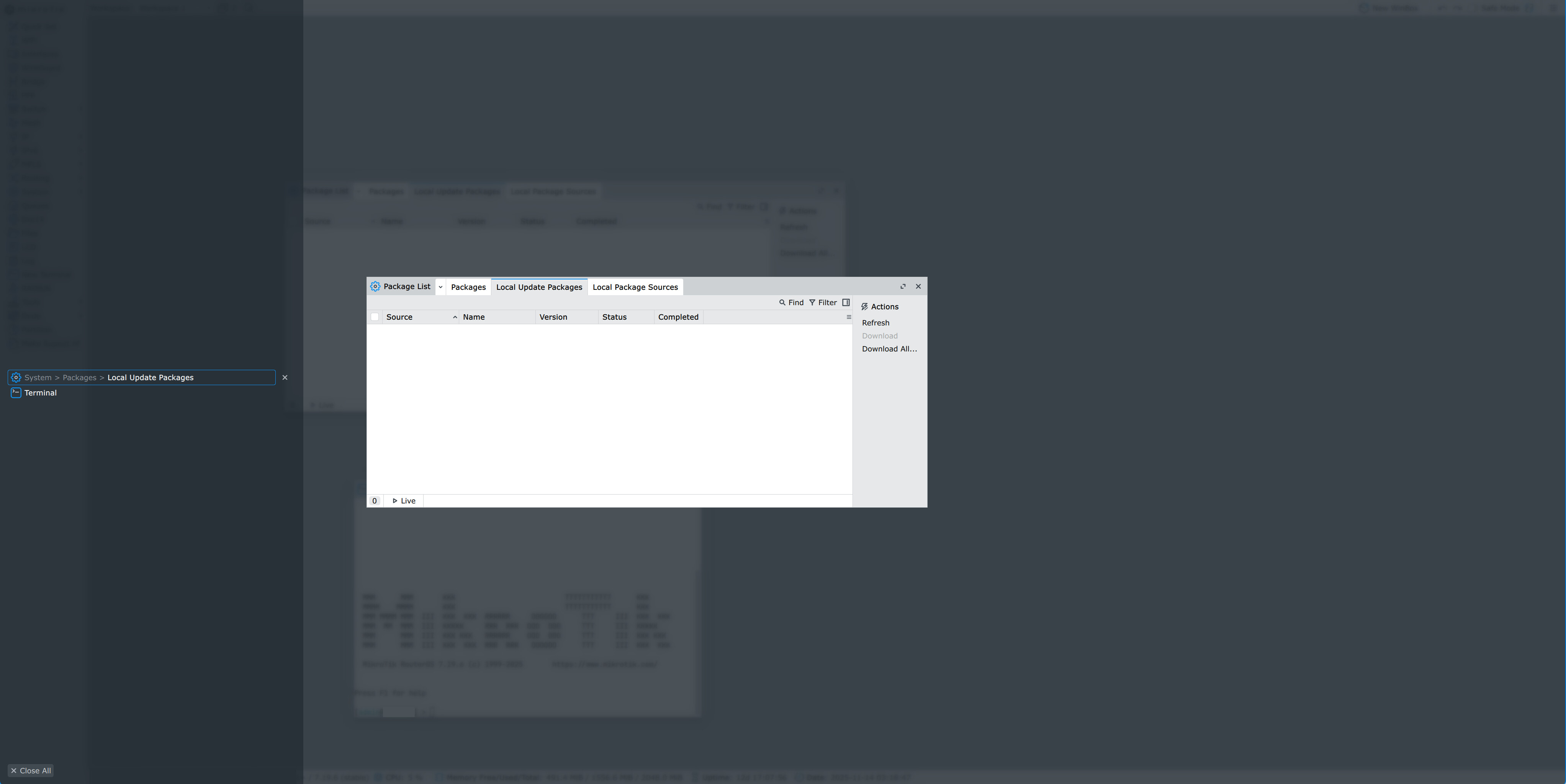
And what a crap have you done with window list? Enormous area that uses 1/4 of a screen with a little amount of items in the middle, 'close all' button at the very bottom, and everything blurred and darkened? Seriously? Moreover, it's glitchy and shifts active window.
Usability = 0. Return everything back and fire your designer finally!
Currently it shows state, so icons are correct. Reversing will also require renaming to [ Pause] / [ Resume] to represent action. Though, personally I'm ok with current state.
This new “fancy” window switcher does not work as an idea. Before you just could select needed window from the dropdown. Now when you click on that same icon you have to move away from there because window list is farther away and your actual workspace is obstructed by overlay with a preview of a single window. Yes contents of these overlay “previews” does update live, but it just confuses and obstructs. It would be better to revert to previous dropdown menu.
Thanks for reminding about "flickering", I was preparing a post about it.
I've mentioned this problem earlier, but it shows up almost everywhere, so I wanted to emphasize it separately.
The problem is that painting mechanism works very bad and not optimized. When windows or their content are updated, the app performs many unneeded repaints, which not only uselessly consume computing resources and affect performance, but also cause artifacts.
Please note, that some of these issues are not always noticable to the eye, because these consequent repaints may happen quickly, the delay between them is quite random. You may need to open many different internal windows and in one (or all) of them issues will become visible.
Issues:
Text in table headers is blinking sometimes while resizing the window. It means, that on each size change the new text is drawn right on the previous image buffer, that was not erased, and then everything is repainted again.
Headers blinking example
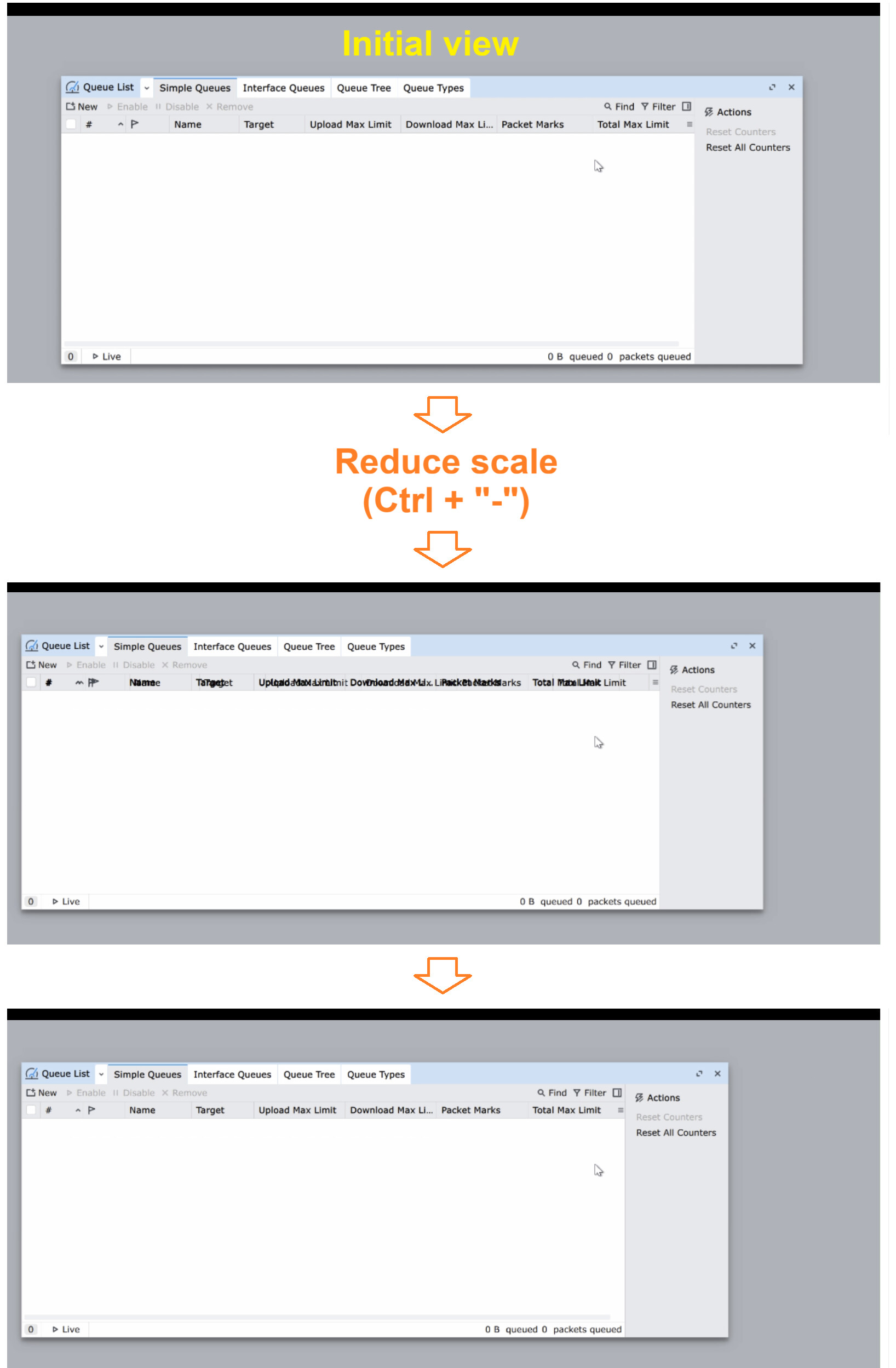
The window is repainted multiple times while changing the global scale. There are also artifacts and strange window width reduction:
Scaling artifacts example
Below is the same example by frames. You can see, that after reducing the global scale, the window is reduced according to the new scale and there is a text mess in table headers. After that, for unknown reason, window width is reduced. Looks like on the first repaint it's not yet calculated correctly, but on second repaint it's recalculated and repainted once again.(seems, that the issue with window width was fixed in beta41)
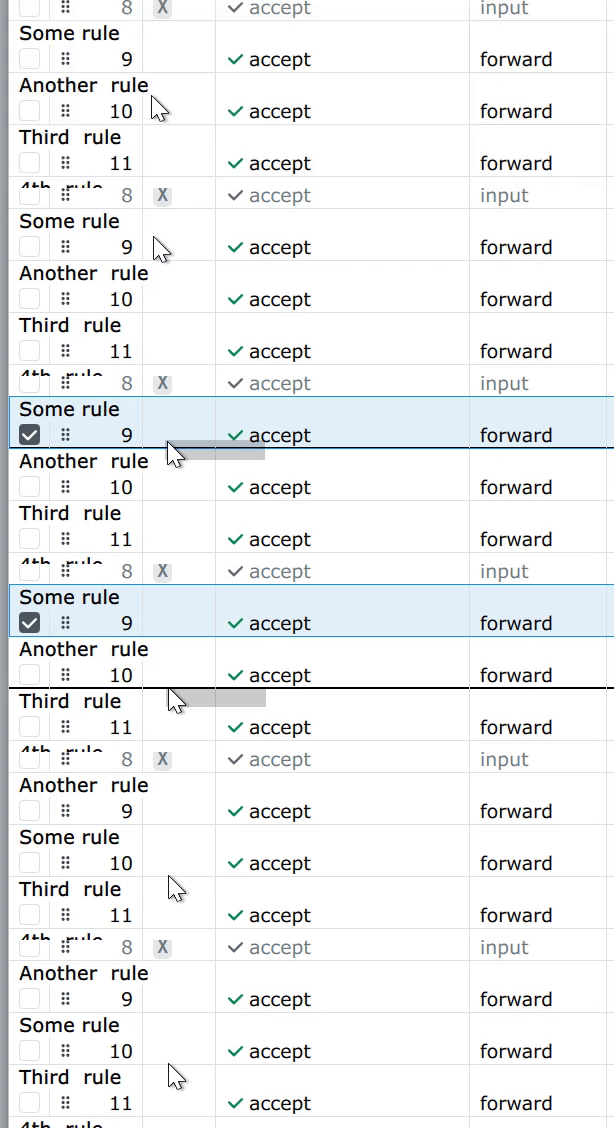
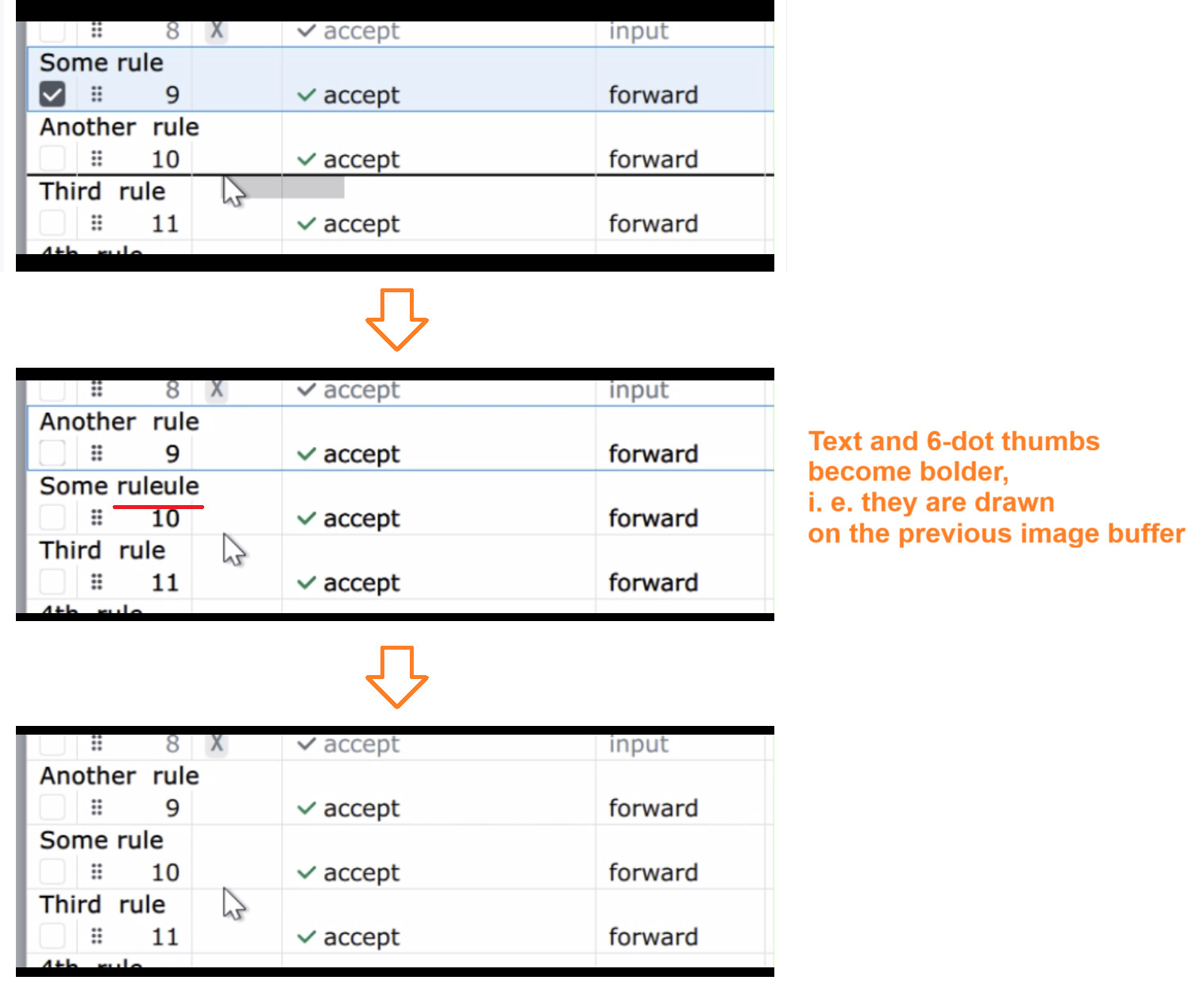
[Fixed in beta42] This example was mentioned earlier, just repeating it to have everying in one place. When you drag some item in the ordered table, artifacts appear and elements (like text and 6-dot thumbs) are drawn right on the previous image buffer. Then one more repaint happens and artifacts disappear.
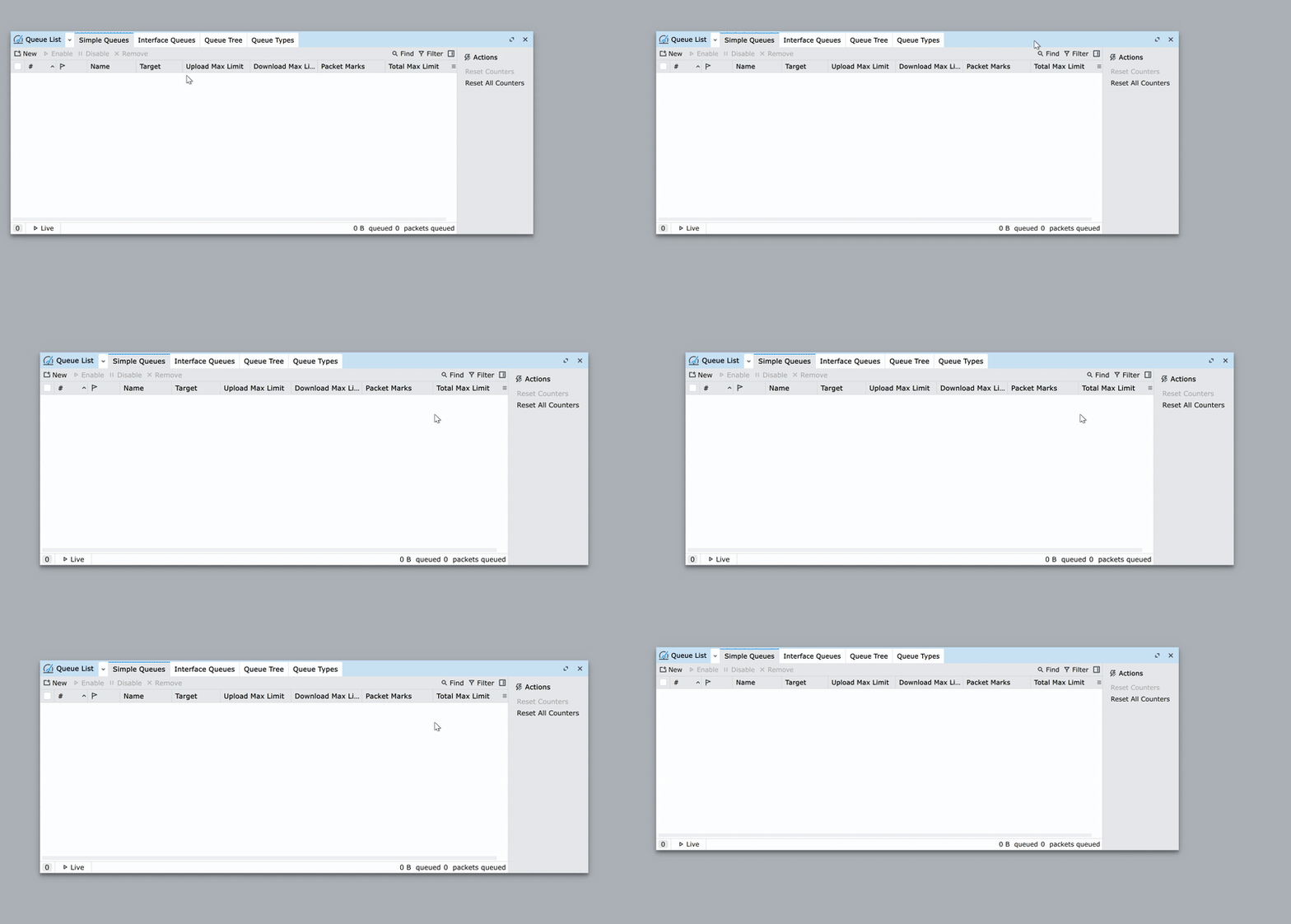
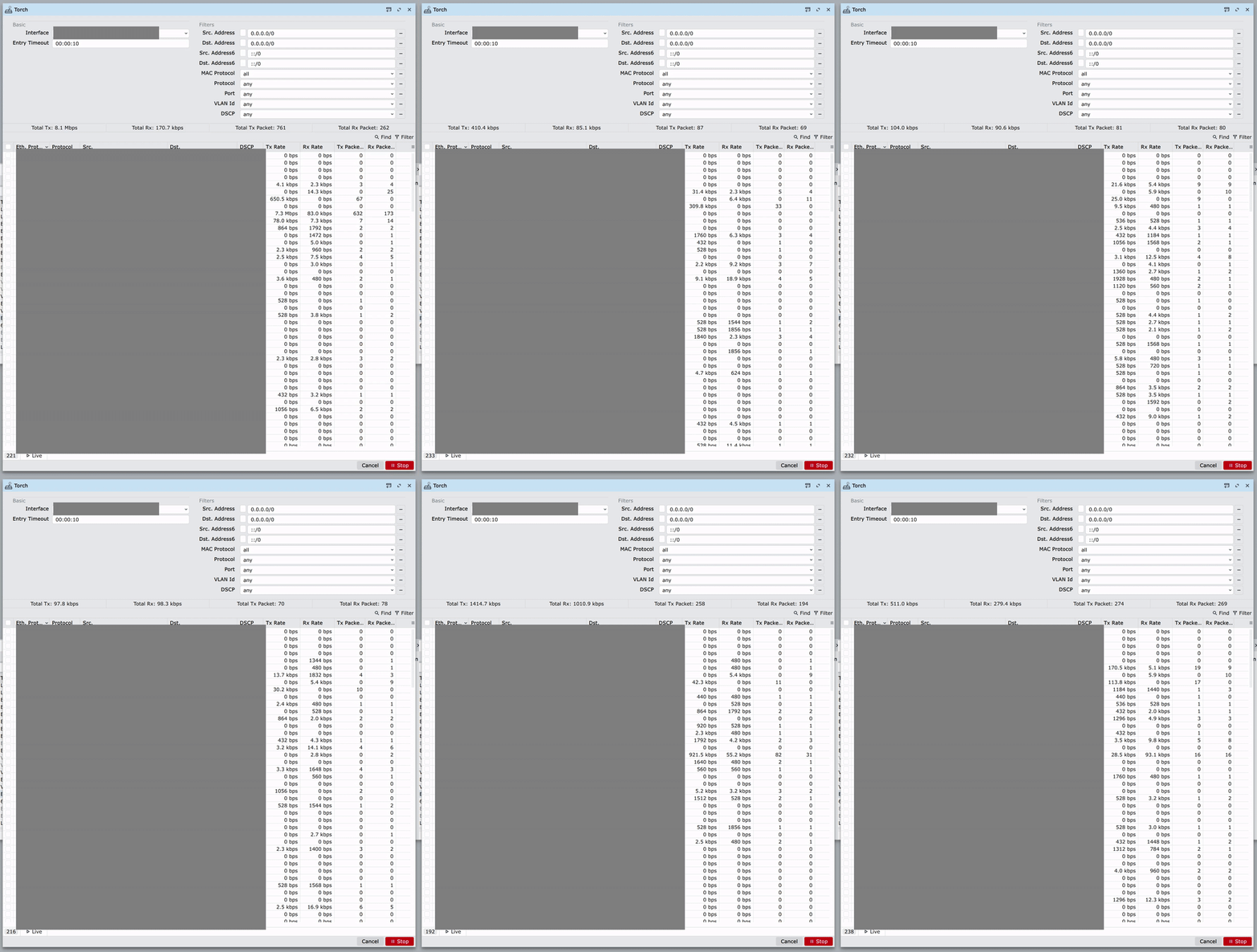
Torch tool. It's supposed to update once per second. But in fact it updates randomly. Moreover, lines are absolutely not synchronized and update on their own. It causes a lot of repainting and significantly reduces overall performance. When you resize this window while the tool is running, there are stucks/freezes, it doesn't resize smoothly.
Torch tool updates example
Simple rule: if something needs to be updated, first recalculate everything (values, positions, sizes), draw them into a memory buffer and only after that copy this buffer to screen only once.
Some "offtopic" about Torch tool layout (and not only):
Just want to remind about stupid WB 4 UI again. In the Torch tool all fields are located on top, while 'Start' and 'Cancel' buttons are located on the opposite edge. When you need to stop the tool, change some filters and start again (and do it many times), you need to perform a "mouse dance", moving the cursor up and down through the whole screen height. And it brings even more "pleasure" when using touchpad.
The same can be said about newly introduced "genius" design of window list. Everything is scattered around and not usable at all.
WinBox 4 designers, have you ever tried to do anything serious using your product? Or go outside with small laptop when it's sunny, windy and frosty and do some diagnostics using your product? 100% sure, no. May be it's time to try? ...
Just follow WinBox 3 layout and don't reinvent a wheel! You are doing only worse and ruin everything that worked for years!
For your specific use case wouldn't a feature "move window to back" be more useful that iterating through all windows? For example some Ctrl+mouse-click on header? That would move Log back to background in 1 step.
First of all remember that WinBox is a unique app, there aren't many that use such windowing system and include forms/tables/terminals.
Secondly global shortcuts cannot duplicate/interfere with window content shorcuts.
If we only are looking at MacOS system, then these shortcuts are 100% taken (by input fields or MacOS commands)
and can't be used by WinBox global shortcuts:
CMD+Q
CMD+A
CMD+Z
CMD+X
CMD+C
CMD+V
CMD+H
CMD+M
Shortcuts that also are "taken" by guidelines:
CMD+F (find)
CMD+G (find next)
CMD+T (open a new tab)
What combinations are we left with to be used "easily":
CMD+W/S/D/E/R
Global actions that we need in WinBox "ordered by priority":
close window
switch next window
switch previous window
global search
open new terminal
Potential future global actions:
expand/collapse window
open previously closed window
disconnect
some windows layout commands
open/switch workspaces
Even if we put 5 most important actions under CMD+W/S/D/E/R it doesn't feel right that these shortcuts affect global actions and other affect window content.
Vision is that
CMD+key affects only active window content (except of course MacOS global commands)
OPT+key affect global actions (including window management)
A list of all the existing keys in WinBox 3 should be made FIRST,
and that should be used as the default, so as not to "annoy" anyone who has been using WinBox for decadees (example, from 2007)...
Inevitably, everyone has their own preferences,
but the shortcuts inside the terminal certainly can't be the same outside...
On Windows, outside the terminal, I expect Ctrl+X, Ctrl+C, and Ctrl+V [⌘+X / ⌘+C / ⌘+V] to work like cut/copy/paste,
but I expect Ctrl+C [⌘+C] to not "copy" inside the terminal but break...
but Ctrl+V [⌘+V] on terminal must still paste the contents of the clipboard into the terminal.
Then to close the internal window, I expect Ctrl+F4 [⌘+F4], not a 5-finger combination...
Current WinBox 3 shortcuts
Windows/Linux
MacOS
Window
Terminal
Note
<INS>
<?>
Insert a new item in table or in multiple field
[NOT implemented overwrite mode]
<DEL>
<?>
Delete selected items in table or in multiple field
Yes that would also be a great option. But that has never been present in winbox, while F6 was present and a useful alternative. I think F6 was much better than any Alt+letter combination because it is much easier to enter it, without causing finger cramp. Please use function keys (or have them as aliases) instead of Alt-key combinations whenever possible.
Plain function keys can not really be used by global shortcuts. They need to be sent via terminal. There are command like tools that use these keys and so do not work on WB3 (remember than you can ssh in any system). Also RouterOS console maybe will use other functional keys in future. So only CTRL+functionkey is safe to use.
How is Alt+S hard to press?
If by unique you mean it follows standard Windows "MDI" (multiple document interface) app from the 1990s.
Now since MDI was always an anti-pattern in Mac UI guidelines, that does means there are no standard shortcuts on Mac for in-app "sub-windows" — so I get this a tricky problem.
While I guess it wouldn't effect me since I use the English locale on Mac, a standalone ⌥/option is generally used as a "unicode accessor", so I worry that some non-english locale might conflict (even if English does not) so it too is limited in possibilities.
The typical Mac solution is to use chords like shift/ctrl/option along with the ⌘ command. While I don't find ⌥ S "hard", I worry the scheme breaks down as more are added and it pretty non-standard to use option/⌥ alone as a shortcut.
I'm still of the opinion y'all are trying too hard for commonality between platforms. While good generally, I'm not sure that work with the keyboard shortcuts. For example,
@pe1chl is totally right for Windows using function keys make sense - but on Mac "functions keys" are all assigned, so F[1-12] is far from ideal and requires the fn key. While Option+Command are next to each other on the typical Mac keyboard and common to use together for shortcuts, but that is not true on Windows.
But I think my main suggestion be: In any case, there should be some dialog/window that shows the current shortcuts in the WinBox UI
... since no one is "guessing" these & finding them in this 3K post thread I assure you is not easy (nor does someone want to search Confluence to find them eventually)



 Pause] / [
 Resume] to represent action. Though, personally I'm ok with current state.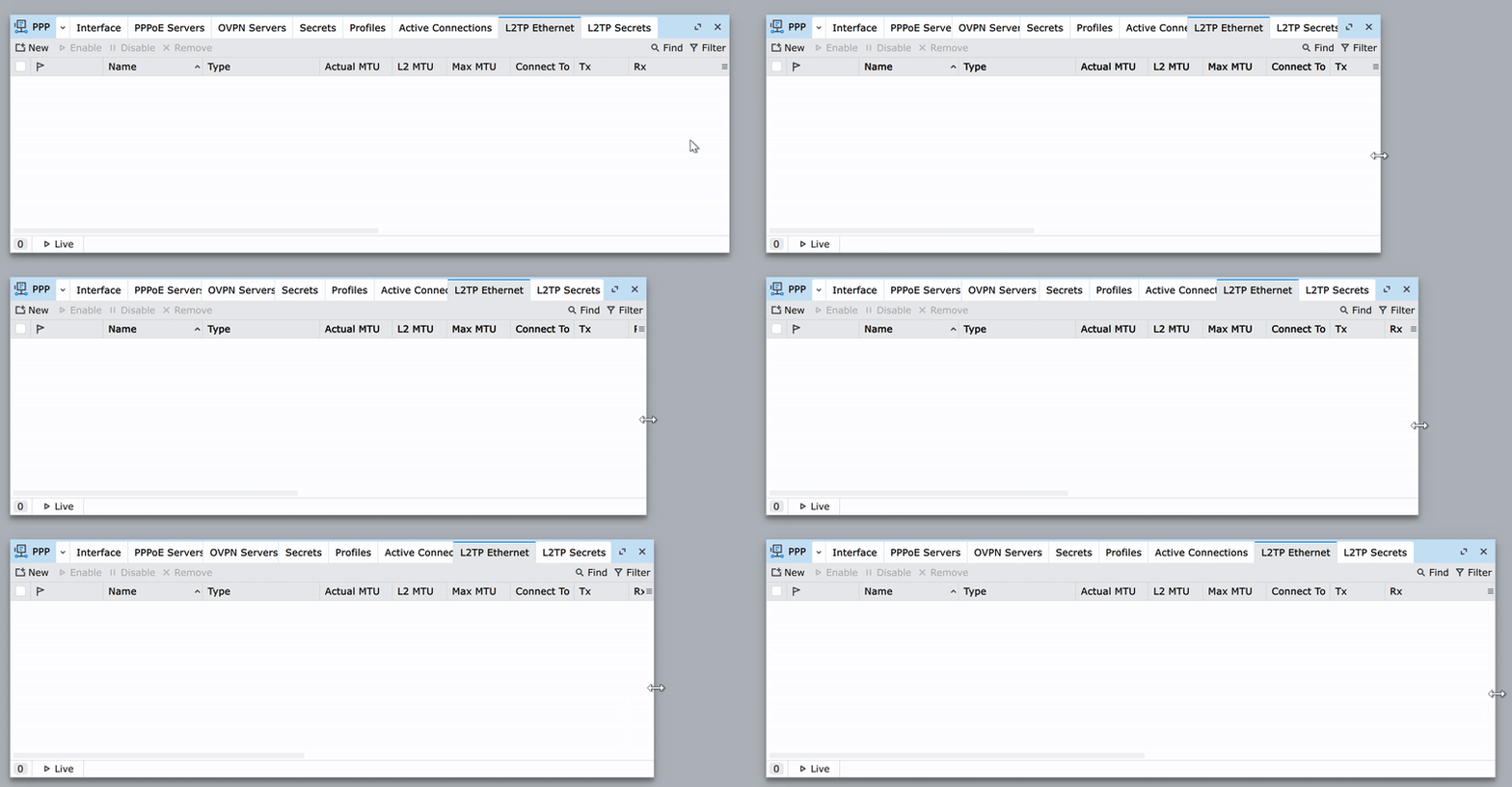
 Just follow WinBox 3 layout and don't reinvent a wheel! You are doing only worse and ruin everything that worked for years!